

Reachability mode for easy one-handed screen operation.
Do you often have to use your iPhone with one hand but need to touch a specific point on the top half of the screen? Probably enough times to find it annoying. At this point, you're forced to use both hands, or perform somersaults, to reach the distant area near the notch. Reachability is the solution that the iPhone offers to address this problem.
When you need to touch the top of the screen but only use one hand, you can enable Reachability in Settings > Accessibility > Touch > Reachability. On iPhone X and later, swipe down on the navigation bar; on devices with a Home button, tap the Home button twice. The screen will slide down to make it easier for your thumb to operate.
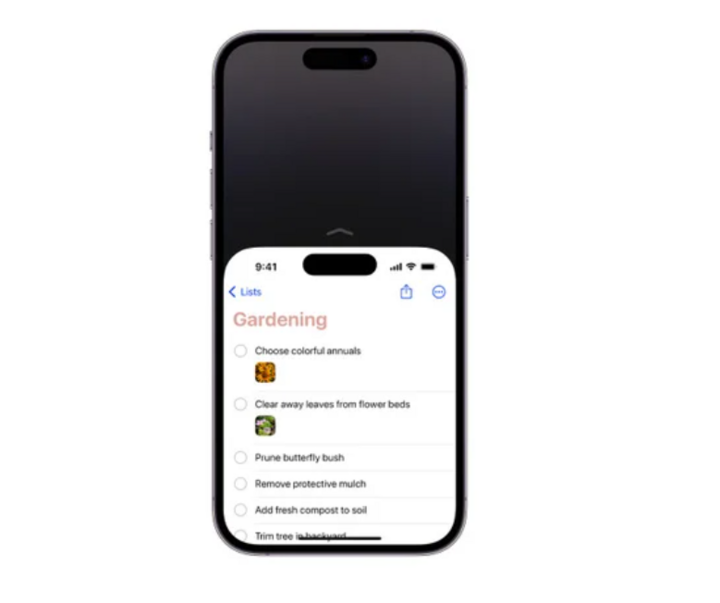
When Reachable is enabled, the top of the screen slides lower, making it easier to touch buttons or icons in the upper half of the screen without having to reach or use both hands.
Sharing passwords is more secure.
Netflix may have blocked password sharing outside of your home router, but there are times when you want to grant someone access to Amazon Prime or a VPN. The problem is, most of us share login credentials in the most dangerous way: via text message. While iMessage is now encrypted strongly enough to withstand even quantum computers—meaning even supercomputers can't decrypt it—there are safer ways to share. Apple lets you securely share login credentials without revealing your password, as long as the recipient is also using an iPhone updated to iOS 17 or later.
You can share your password or passkey with friends via Settings > Passwords > Create a new sharing group, add contacts, and select the password to share. The recipient will be able to use it directly in iCloud Keychain without knowing the password. You can also unshare or remove members at any time.
Turn your keyboard into a trackpad.
Press and hold the spacebar until the keyboard is blank; you can then move the cursor precisely, just like using a trackpad. You can also quickly select text by moving the cursor to the beginning of the paragraph, then using your other hand to press to begin the selection.
Apple's Text Selector magnifying glass provides a simple, intuitive way to navigate within the text input field, allowing you to place the cursor precisely where you want it. However, a minor inconvenience is that you have to take your hands off the keyboard. There's a faster way, directly on the keyboard, though it takes some getting used to: Simply press and hold the spacebar, wait for a slight vibration, and the keys on the keyboard will disappear.
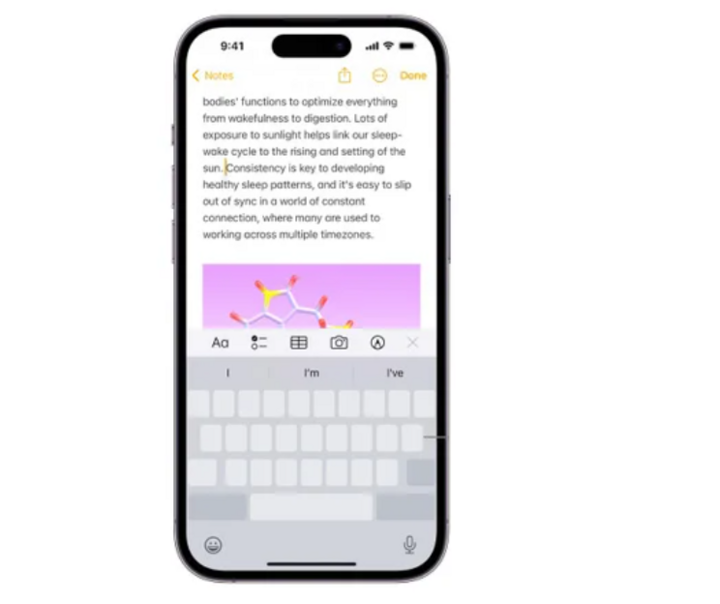
The trackpad on the iPhone allows you to move and place the cursor more precisely, just like using a trackpad on a laptop.
Take a screenshot of the entire website.
The iPhone's built-in screenshot tool is considered one of its simplest yet most powerful features. To take a screenshot, simply press the power button and the volume up button simultaneously. This will display a preview pane in the bottom left corner of the screen, which you can swipe away or tap to customize further. Pressing and holding the preview pane will open the share sheet, where you can crop the image, add annotations, highlight text, zoom in on a portion of the content, or add a signature.
But there's a useful trick that few people know: Take a screenshot of the entire webpage. Note: this feature only works on Safari.
When taking a screenshot in Safari, select the preview image, then tap Full Page to save the entire page as a PDF or share it directly. This is a convenient way to quickly save documents or information pages.
Edit image metadata before sharing.
By default, AirDrop on iPhone doesn't send photo metadata. However, if you want to, tap "Options" in the Share menu before sending photos. There you'll find two toggles: "Location" and "All Photos Data".
Enabling Location will allow recipients to see GPS information embedded in photos, so they don't have to add location data themselves later—useful when sharing travel photos with friends. Enabling All Photos Data will allow you to send photos and videos in their original quality, along with editing history and metadata such as location and captions. In other words, recipients will receive the exact version of the photos on your device. They can even save photos in RAW format to their iCloud, or undo any edits you've made.
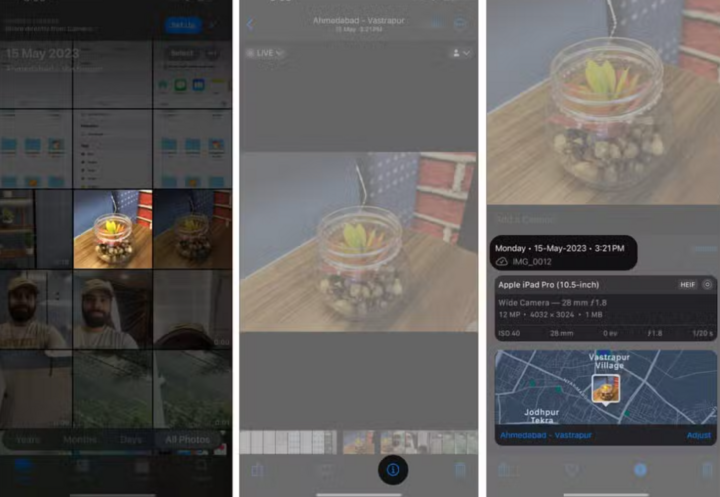
When sharing photos, you can select Options and enable Location or All Photos Data to include the original data, edits, and location information if needed.
Back Tap
We've mentioned Reachability as a way to use the iPhone with one hand, but Back Tap offers even more control.
Go to Settings > Accessibility > Touch > Back Tap, and you'll find the Double Tap and Triple Tap options. This feature allows your iPhone to perform a specified action when you quickly tap the back of your phone two or three times with your index finger. The list of actions is quite diverse: Open the camera, mute, open the Notification Center, take a screenshot, etc. This feature is quite similar to Quick Tap on Google Pixel.
Despite its simplicity, Back Tap can be very useful depending on how you configure it. For example, you can use it to open the Notification Center or Control Center—features that often require Reachability to access with one hand. You can also set it to shake to undo accidental taps, or to lock the screen to reduce wear and tear on the power button.
In practice, Back Tap works quite responsively, although sometimes a little slow, and accidental actions like turning on the flashlight by chance rarely occur. The only drawback is that Apple "hides" this convenient feature deep within the Accessibility settings, instead of promoting it as aggressively as Google.
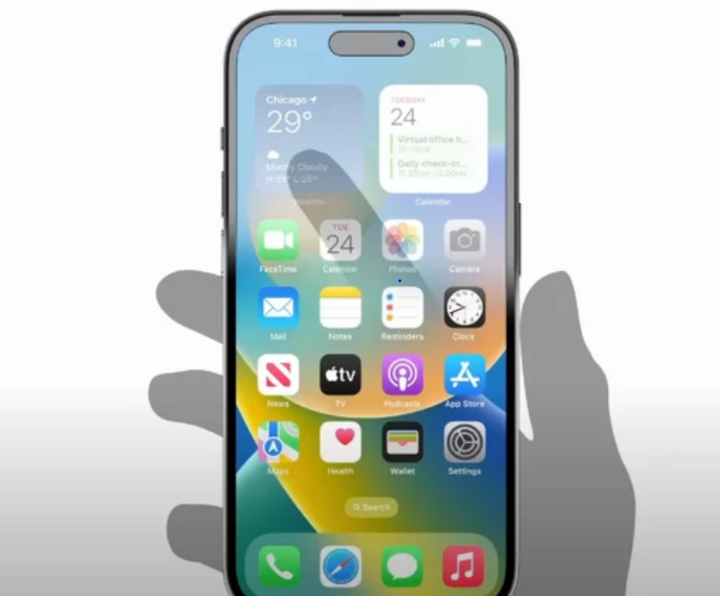
With the "Tap Back" feature, you can assign actions when you tap the back of your iPhone two or three times, such as opening the camera, taking a screenshot, locking the device, opening the Notification Center, etc.
Smart image search
The Photos app has a powerful search function: Type in the name of a place, an object (flower, beach, document), or the name of a person/pet that has been tagged. Identification takes place on the device, helping to secure data.
Text Replacement
The iPhone keyboard is often criticized for its poor auto-correction and seemingly inability to remember users' unique handwriting. However, it does have some features that help speed up typing, the most useful of which is Text Replacement. Go to Settings > General > Keyboard > Text Replacement, tap the "+" sign, and then enter a phrase (a word or sentence you want the keyboard to display) along with a text shortcut (a short string of characters to activate the replacement). For example, enter the phrase "on my way" and assign the shortcut "omw".
It sounds simple, but if you know how to use it effectively, Text Replacement can save you a lot of time. You can create shortcuts to quickly send emails, phone numbers, type long or less common names, or use it to "fix" a word that the keyboard often corrects incorrectly.
Press and hold the app for quick access.
Press and hold the app icon to open the context menu. For example, in Apple Maps, you can quickly mark your current location; in Safari, open the link in a new tab; or in other apps to directly access a sub-feature.
Advanced QR code scanning
The camera supports QR code scanning by default, but you can add the QR Code Scanner feature to the Control Center for quick access. Alternatively, you can press and hold a QR image in your gallery to scan it later, or open the QR code using a different app like Chrome instead of Safari.
Source: https://vtcnews.vn/nhung-thu-thuat-don-gian-voi-iphone-nhieu-nguoi-nen-biet-ar968199.html





![[Image] Nearly 125,000 Hanoi students completed the Literature exam for the 10th grade entrance exam.](https://vphoto.vietnam.vn/thumb/1200x675/vietnam/resource/IMAGE/2026/05/30/1780117233041_ndo_br_thiet-ke-chua-co-ten-2-png.webp)


![[INFOGRAPHIC] Canon EOS R6: A new breakthrough in 7K Open Gate video recording.](https://vphoto.vietnam.vn/thumb/402x226/vietnam/resource/IMAGE/2026/05/30/1780114528841_info-mayanh-a-thumb-jpg.webp)















![[Photo] Admire the coral "masterpiece" amidst the million-year-old heritage of Dak Lak province.](https://vphoto.vietnam.vn/thumb/1200x675/vietnam/resource/IMAGE/2026/05/30/1780107638639_y25-jpg.webp)









































































Comment (0)