

 |
Below is a detailed guide on how to create a CV on Canva using pre-designed templates and a super simple manual method.
How to create a CV on Canva using a pre-made template.
With its vast library, Canva boasts hundreds of diverse CV templates for users to choose from. Below are the steps to create a CV on Canva using the pre-designed templates.
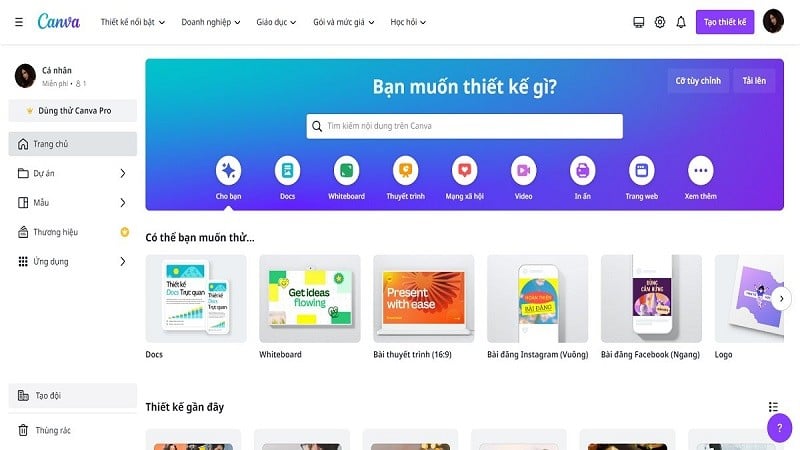
Step 1: First, open the Canva app and log in.
 |
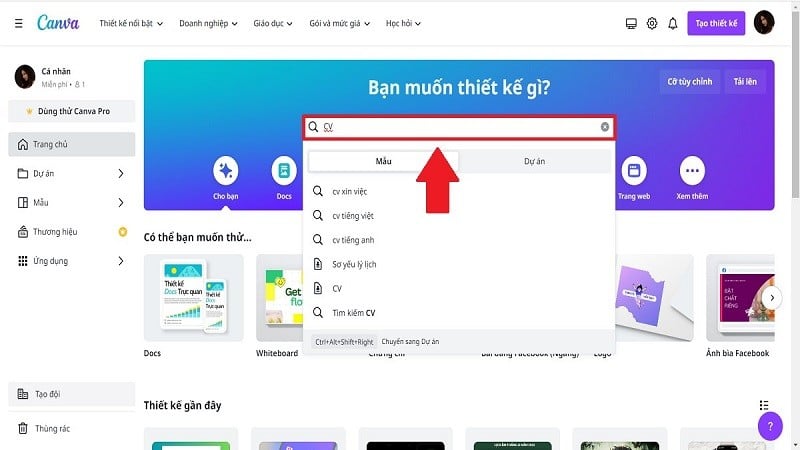
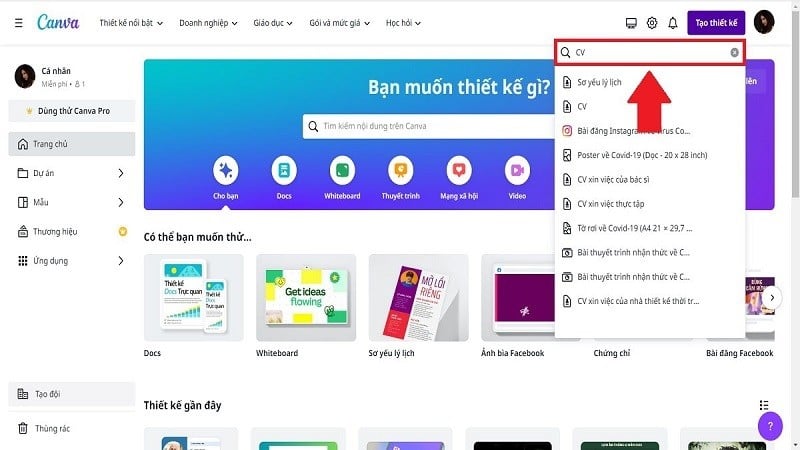
Step 2: Search for "CV" in the search bar to begin creating a CV on Canva using pre-designed templates.
 |
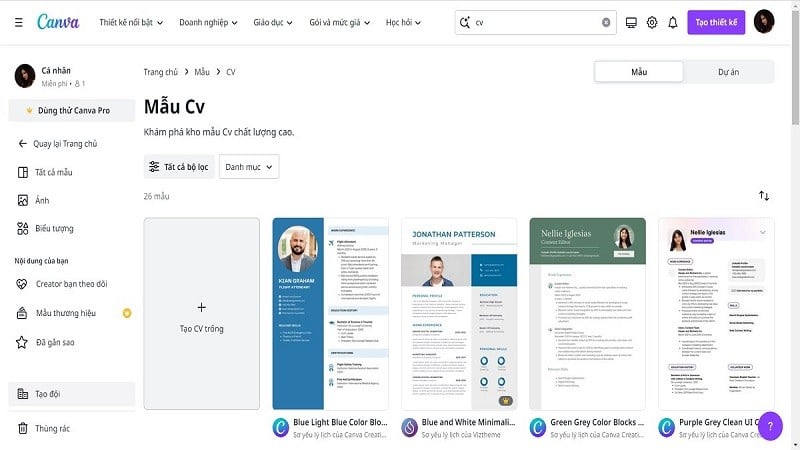
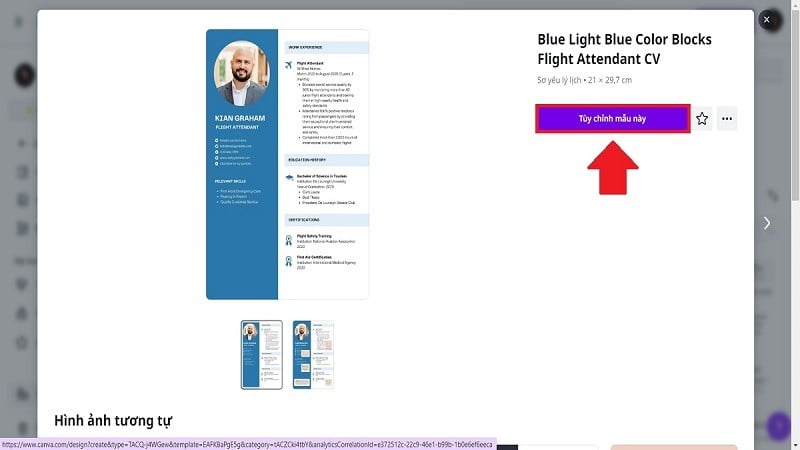
Step 3: Here, Canva will display a series of CV templates for you to refer to. Choose a CV template that suits your preferences and the job you are applying for. Start creating your CV on Canva by clicking on that template.
 |
Step 4: Click on Customize this template to create your resume on Canva. Now, you can create your Canva resume by editing the necessary information and images.
 |
Step 5: After completing your CV, click "Share" and then select "Download" to save it. With just a few simple steps, you can have a beautiful and professional CV to apply for a new job.
 |
Detailed instructions on how to manually design a CV in Canva.
If you don't like creating a CV on Canva using pre-made templates, you can create one manually. This will help you create a unique and personalized CV. Below are detailed instructions on how to create a manual CV on Canva.
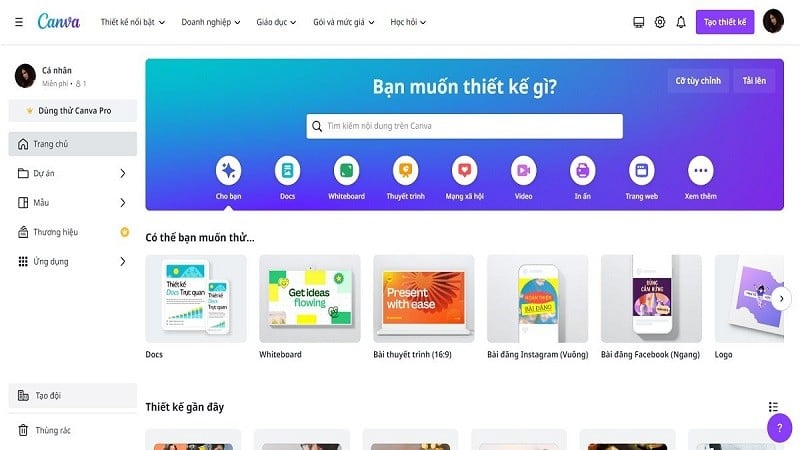
Step 1: Access the Canva application and log in.
 |
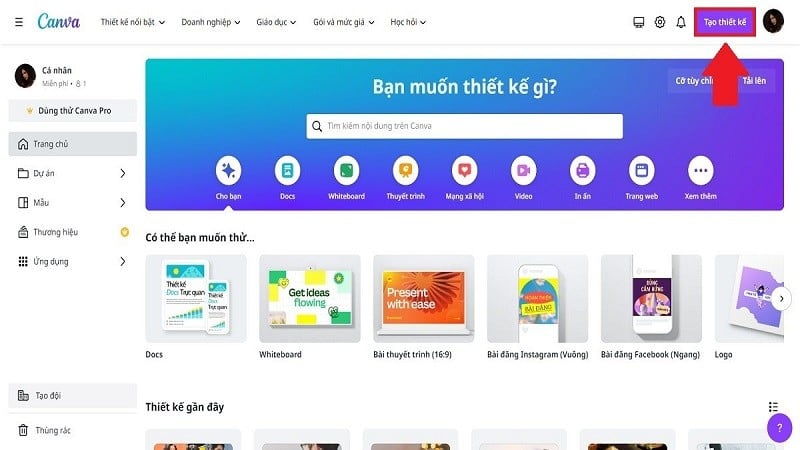
Step 2: Click on Create Design to start creating your CV in Canva manually.
 |
Step 3: Import your CV to ensure it's the standard size when creating a CV in Canva. Then, select "CV".
 |
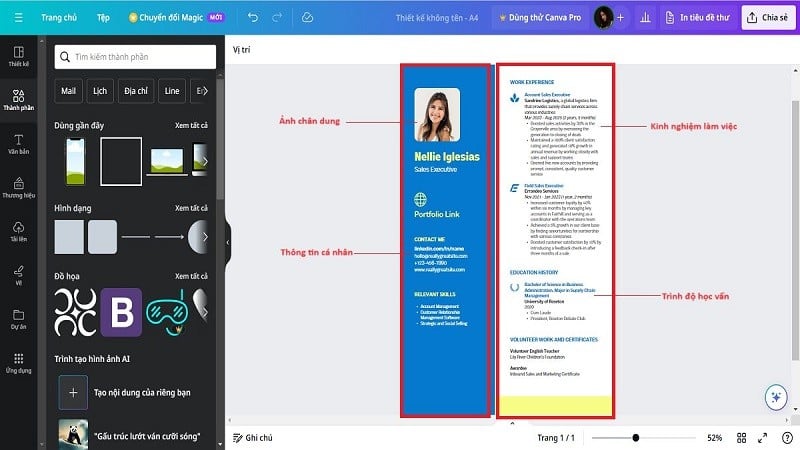
Step 4: When creating a CV on Canva manually, divide it into two parts. Then, present the content of the CV as follows:
- The left-hand side will contain basic personal information. This includes a photo, full name, hobbies, etc.
- The right-hand side includes information about educational qualifications, work experience, skills, languages, etc.
 |
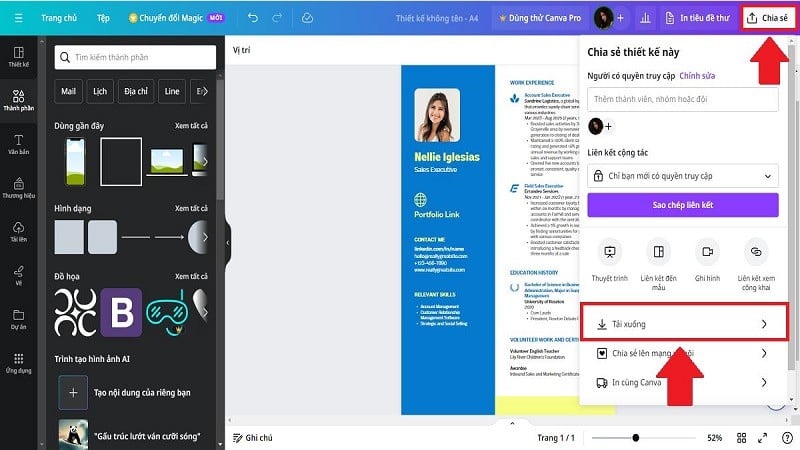
Step 5: After completing your CV, click on Share. Finally, click Download to save your CV.
 |
The above was a guide on how to create a CV on Canva using pre-made templates and the simplest and quickest way to do it yourself. Hopefully, it will help you create an impressive CV and successfully apply for jobs.
Source
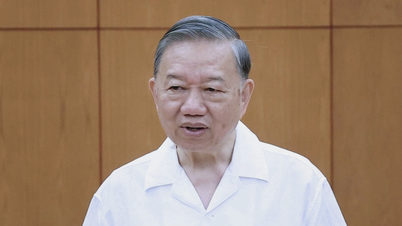
![[Photo] General Secretary and President To Lam presides over a meeting with the Central Organizing Committee.](https://vphoto.vietnam.vn/thumb/1200x675/vietnam/resource/IMAGE/2026/06/03/1780482764658_a1-bnd-4741-3342-jpg.webp)
![[Photo] First session of the 14th Congress of the Vietnam Trade Union](https://vphoto.vietnam.vn/thumb/1200x675/vietnam/resource/IMAGE/2026/06/03/1780465947883_ndo_br_img-3852-jpg.webp)
![[Photo] Secretary of the National Assembly Party Committee, Chairman of the National Assembly presides over the meeting of the Standing Committee and Executive Committee of the National Assembly Party Committee.](https://vphoto.vietnam.vn/thumb/1200x675/vietnam/resource/IMAGE/2026/06/03/1780480353201_ndo_br_bnd-2585-jpg.webp)



























![[Video] Sunset at Lap An Lagoon – Where the sun sets over the fishing nets](https://vphoto.vietnam.vn/thumb/1200x675/vietnam/resource/IMAGE/2026/05/31/1780192137701_beach-landscape-sea-water-nature-grass-745871-pxhere-com.jpeg)






















Comment (0)