

According to iMore , iPhone users can now experience one of Android's most highly-rated features: 'Circle to Search'. Even better, this feature works seamlessly with the Action button on the iPhone 15 Pro and older iPhone models.
As the name suggests, 'Circle to Search' allows users to circle or highlight a portion of content (text or image) on the screen and immediately perform a Google search for related information.
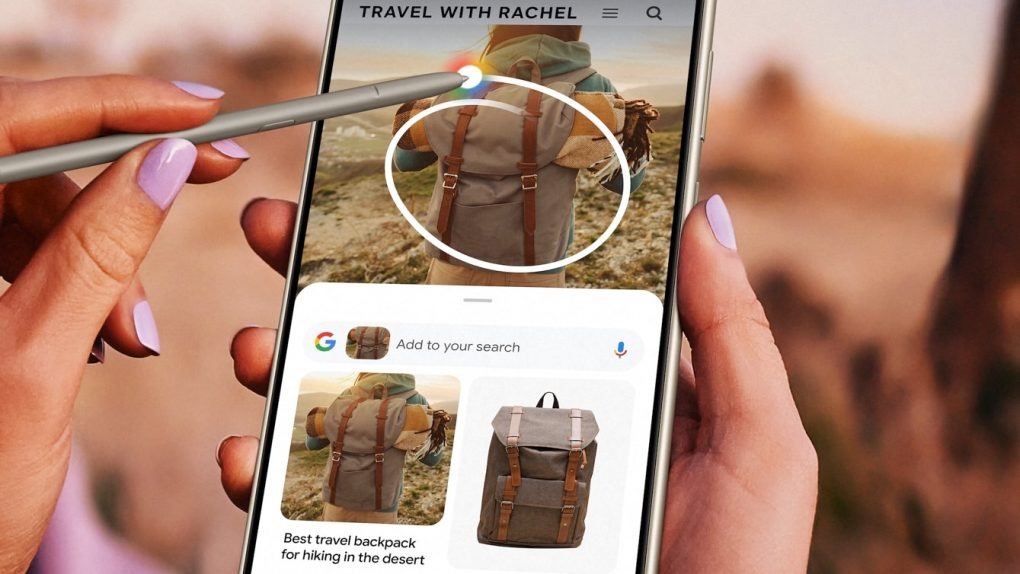
The 'Circle to Search' feature on Android phones.
This feature is convenient for quickly translating text, looking up information about products displayed on the screen, or searching for images using Google. According to 9to5Google , iPhone users can now use this feature through smart shortcuts that work with the Google Lens tool.
On iPhone 15 Pro
First, add the 'Search your screenshot' shortcut to your Shortcuts library. To do this, access the link https://shorturl.at/bruX6 using your iPhone and follow the website's instructions.
Next, go to Settings > find the Action Button section. Scroll to Shortcut, tap 'Choose a shortcut' and browse to find the 'Search your screenshot' shortcut you just set up.
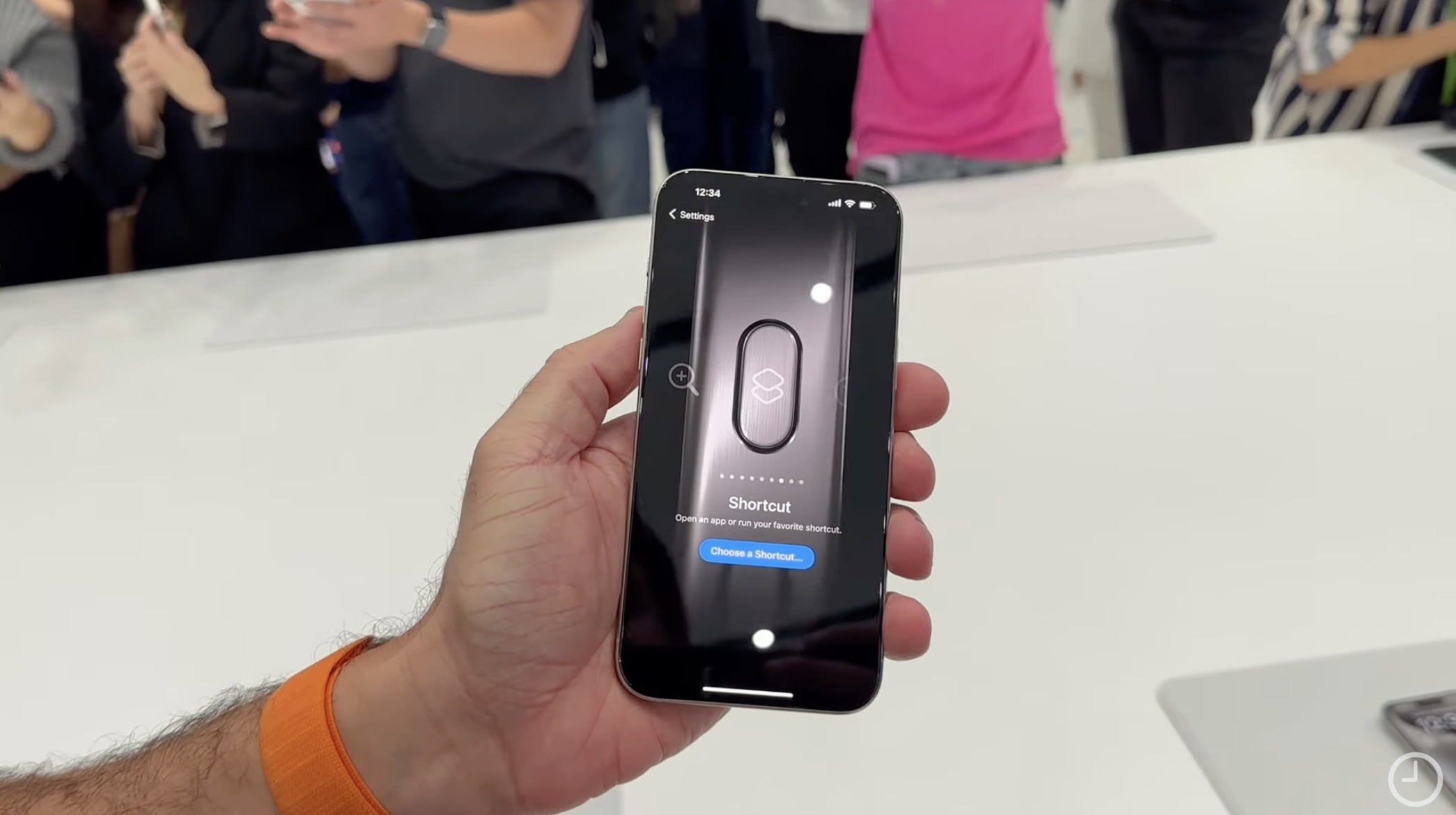
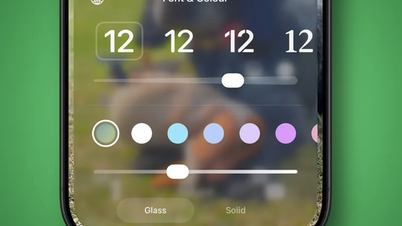
Customize Action buttons with the Shortcuts app.
SCREENSHOT 9TO5MAC
After setting up a shortcut for the Action button, when you hold it down, your iPhone will automatically take a screenshot and send it to Google Lens. You can then customize and edit the captured image as you wish.
On older iPhones
Although older iPhones lack an Action button, they still offer quick access to Shortcuts with a simple tap on the back (the Back Tap feature). Here's how to quickly use Google Lens via Back Tap.
First, add the 'Search your screenshot' shortcut to the Shortcuts app's library as before. Then, go to Settings > Accessibility > Touch > Back Tap.
In the Back Tap section, you'll have two options: 'Double Tap' or 'Triple Tap'. Select the desired action and scroll down to select 'Search your screenshot' to assign a shortcut to the back tap action.
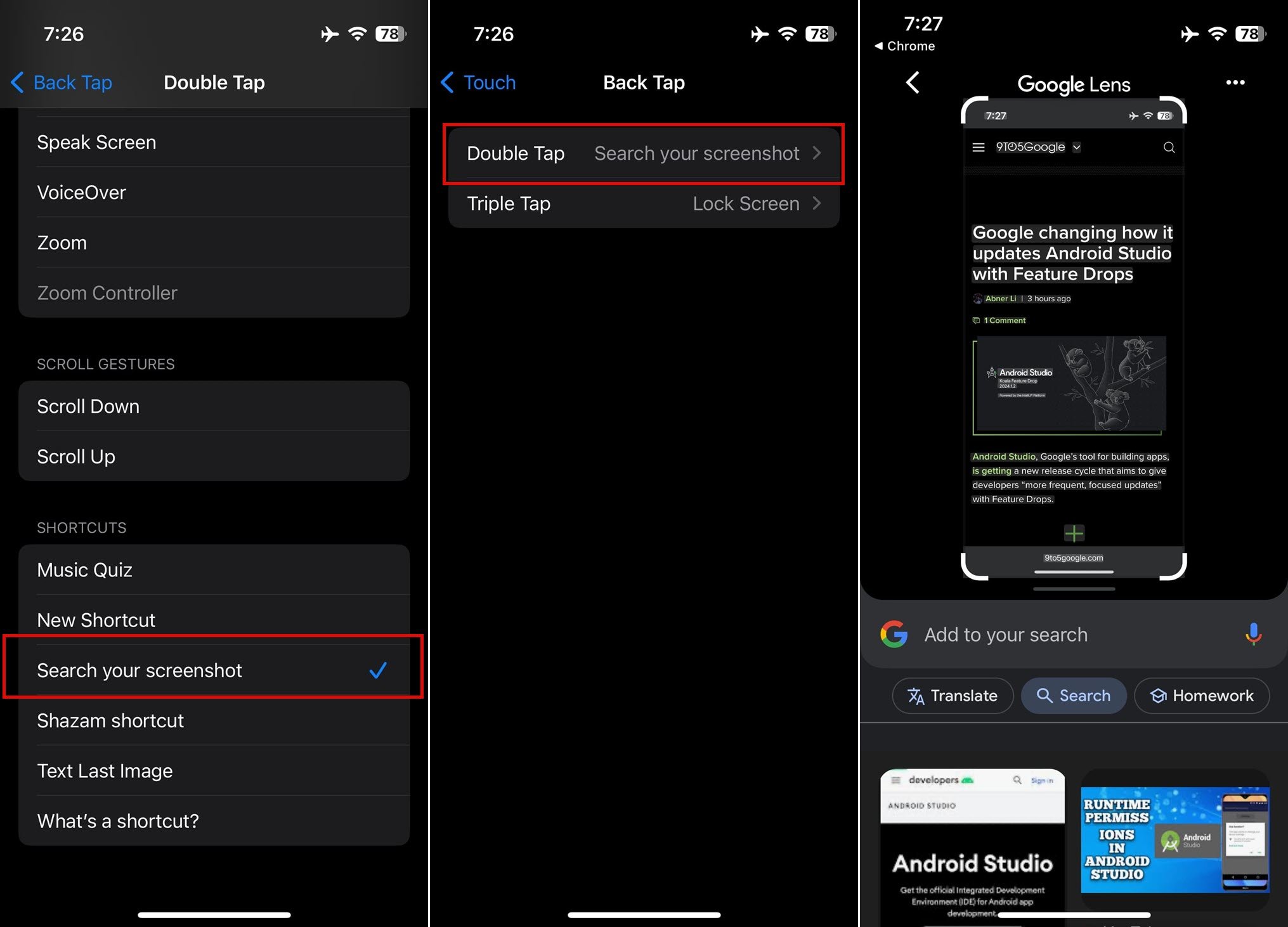
Steps to assign a search shortcut to the back tap gesture on your iPhone.
SCREENSHOT 9TO5GOOGLE
Now, searching for information on the web using screenshots is easier than ever. If you encounter products of unknown origin or text in an unfamiliar language, use the 'Search your screenshot' feature to quickly find relevant information. Simply select the content you want to search for in the screenshot and let Google Lens handle the rest.
Source: https://thanhnien.vn/meo-su-dung-tinh-nang-circle-to-search-cua-android-tren-iphone-185240510103436684.htm


![[Photo] Prime Minister Pham Minh Chinh attends the Conference on the Implementation of Tasks for 2026 of the Industry and Trade Sector](/_next/image?url=https%3A%2F%2Fvphoto.vietnam.vn%2Fthumb%2F1200x675%2Fvietnam%2Fresource%2FIMAGE%2F2025%2F12%2F19%2F1766159500458_ndo_br_shared31-jpg.webp&w=3840&q=75)

































































































Comment (0)