

Do you know how to use Lightroom on a MacBook to edit photos? It's a great software for designers. This article will guide you through the basics of using Lightroom!
 |
Using basic Lightroom on a MacBook quickly
Below is a detailed guide on how to use Lightroom on a MacBook. Check it out!
How to find Lightroom on a MacBook
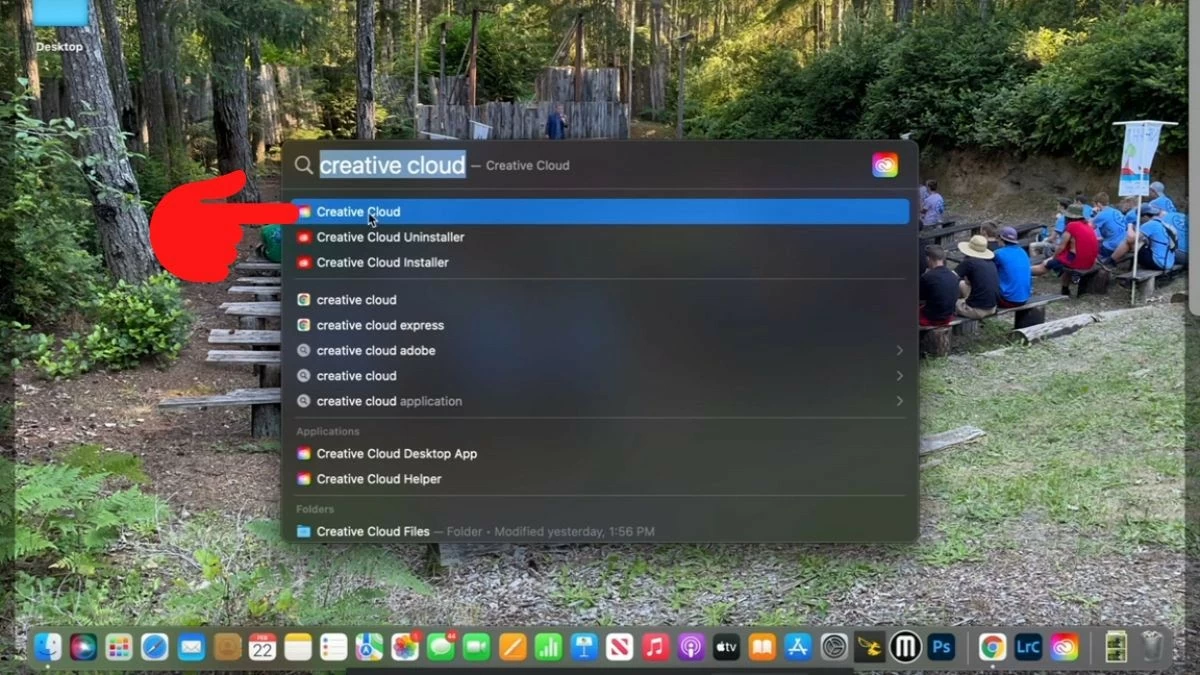
Step 1: Open the Creative Cloud application by searching for it on your computer.
 |
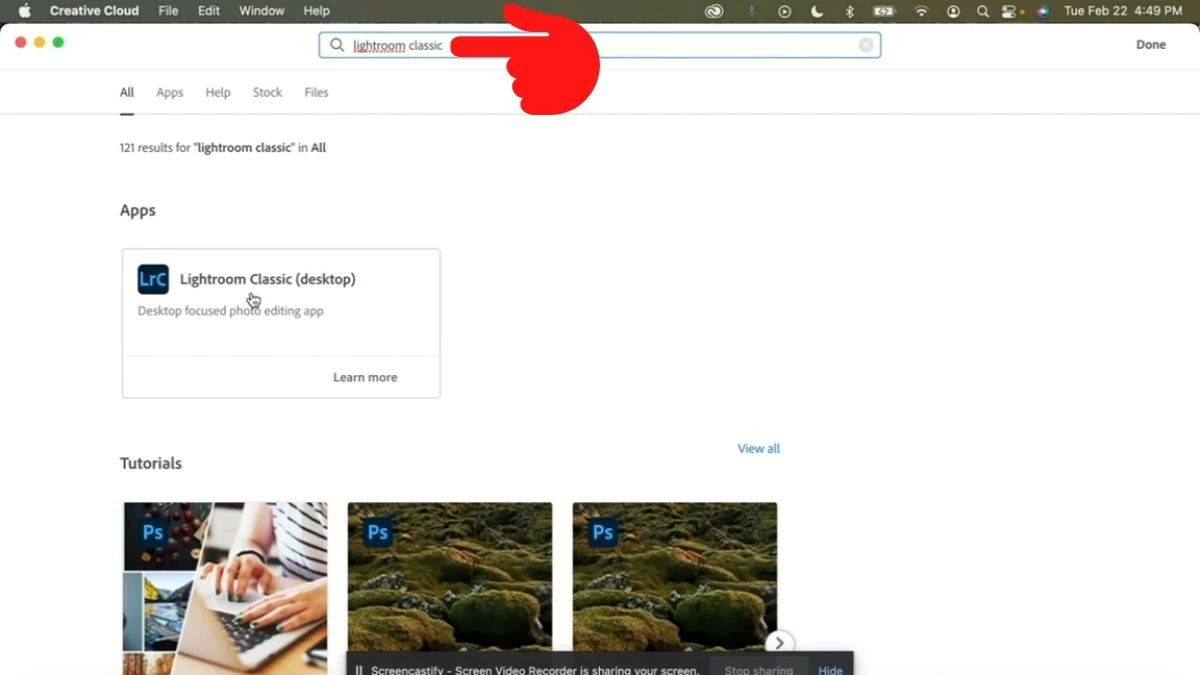
Step 2: Type "Lightroom Classic" into the search bar, and the application will appear with its full name, Lightroom Classic (desktop).
 |
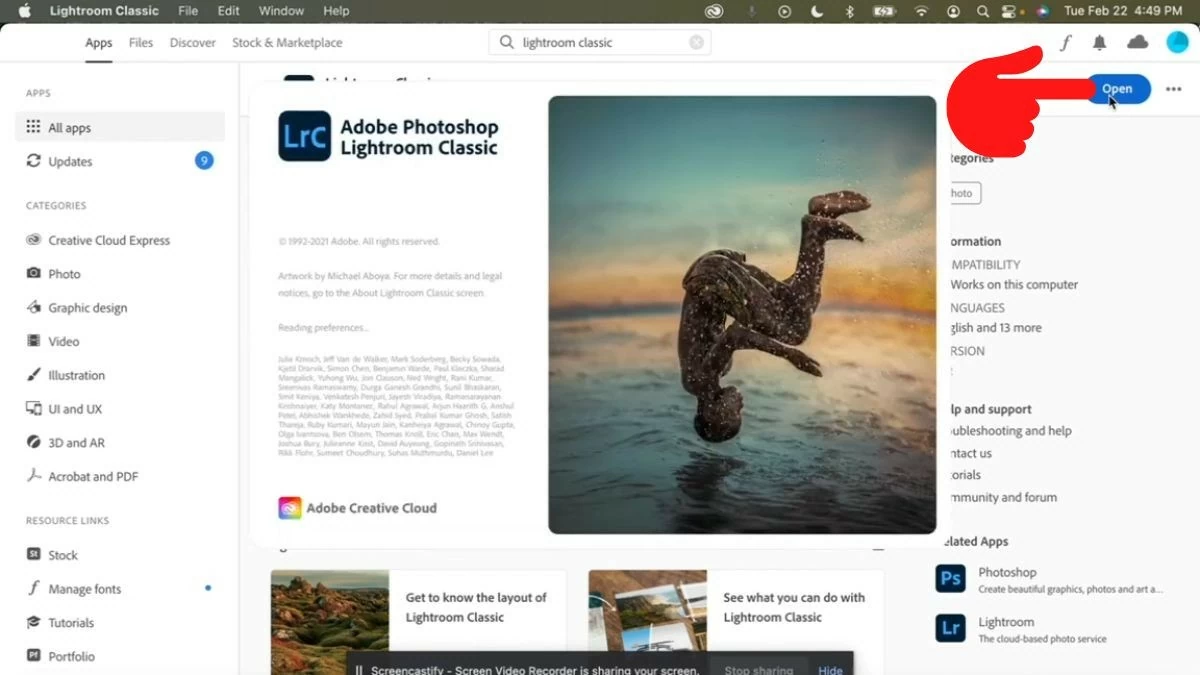
Step 3: Tap on the application, then an "Open" button will appear on the right. Click on it to download and install the tool.
 |
Guide to editing images in Lightroom
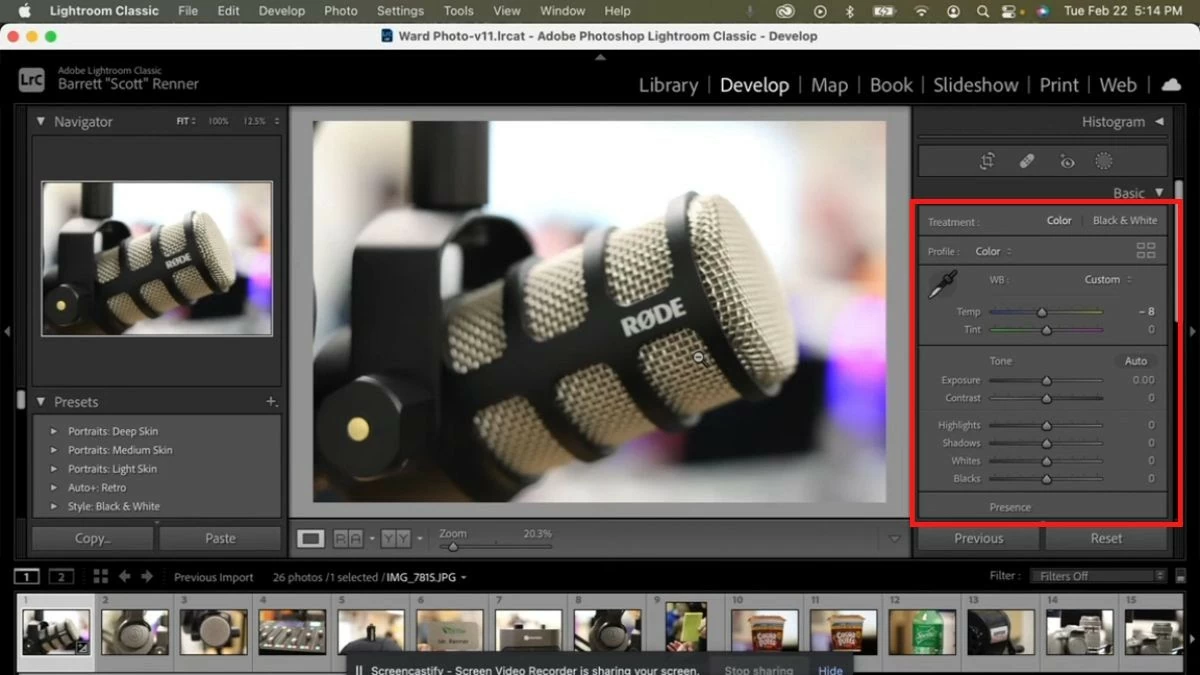
To edit images in Lightroom, you can adjust the parameters in the panel by dragging them left or right until you achieve the desired color.
 |
Guide to creating watermarks on images with Lightroom on MacBook
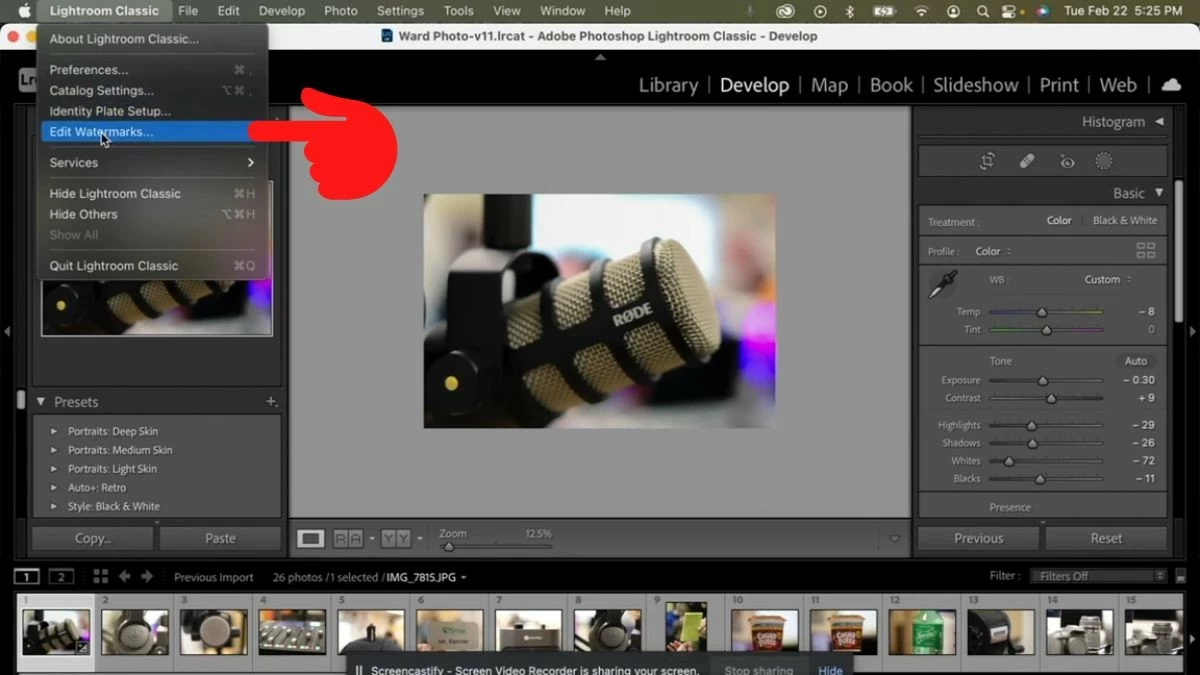
Step 1: Click the Lightroom Classic icon in the upper left corner, next to the Apple logo. Then, select “Edit Watermarks”.
 |
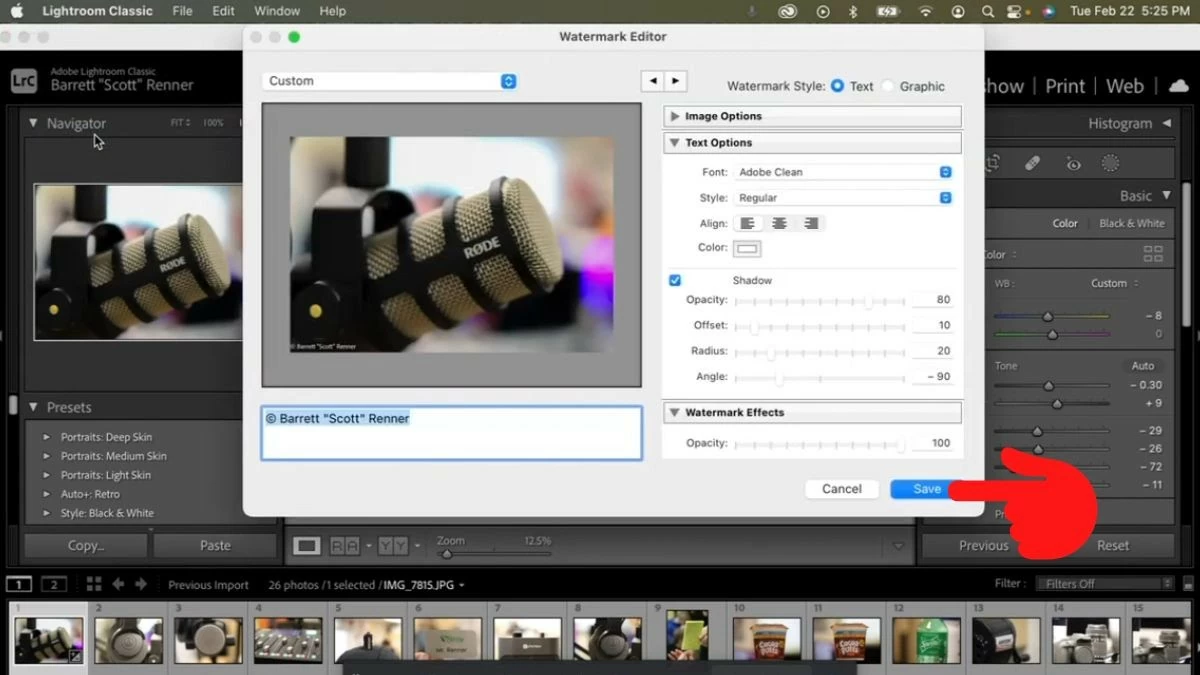
Step 2: The Watermark customization window will appear. Here, you can enter the watermark content and adjust the font, size, color, angle, etc. Finally, click the "Save" button to save.
 |
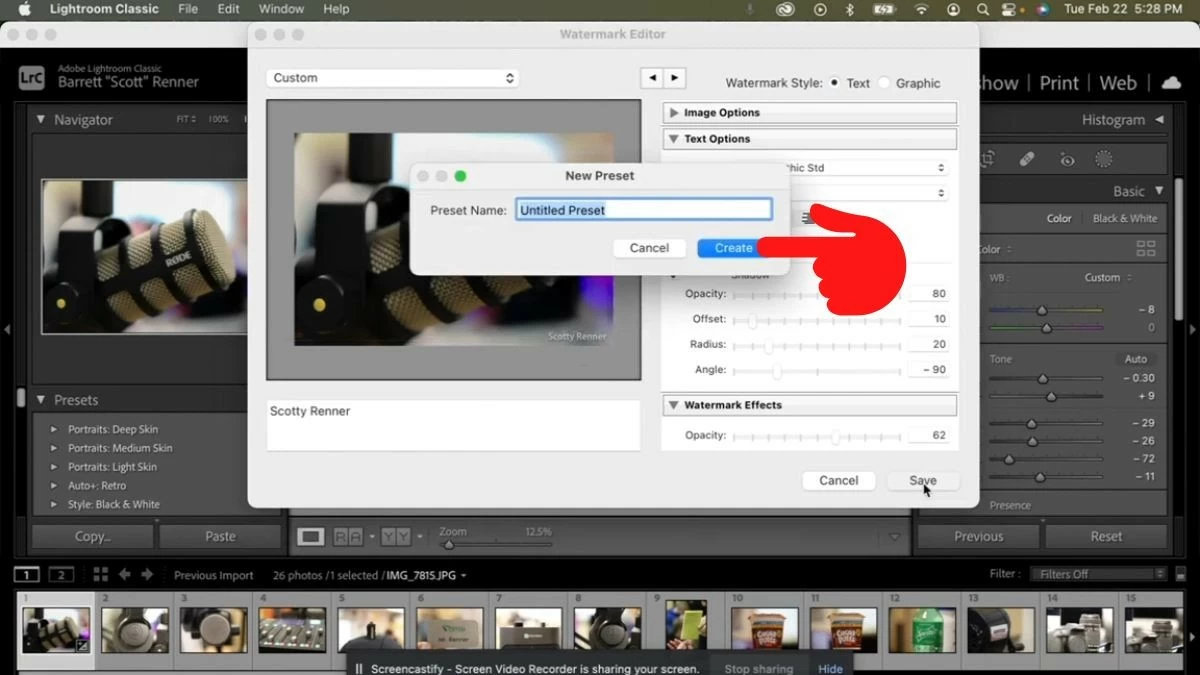
Step 3: Enter a name for your watermark and click “Create” to generate it.
 |
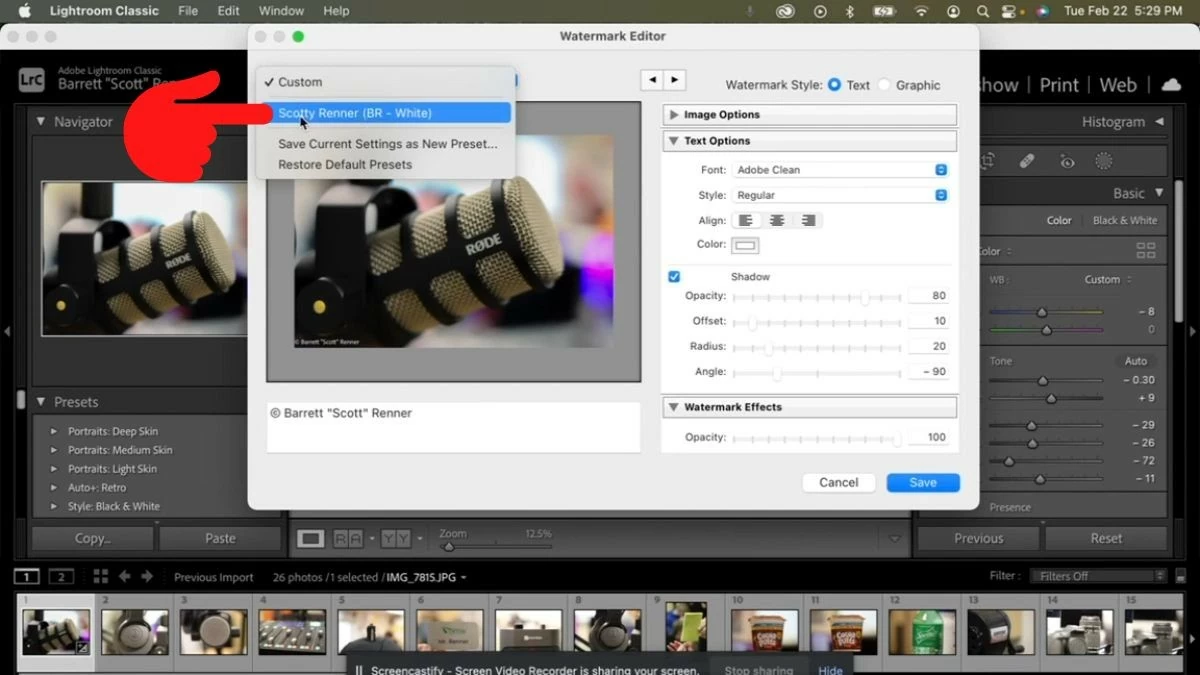
Step 4: You have finished creating the watermark. Return to the Watermark Editor window as in Step 1, then click on the "Custom" box to view the created watermark. Here, you can rename or delete it if you wish.
 |
However, your photo still doesn't have a watermark. To add one, please continue to the next section of this article.
Guide to exporting images with watermarks in Lightroom
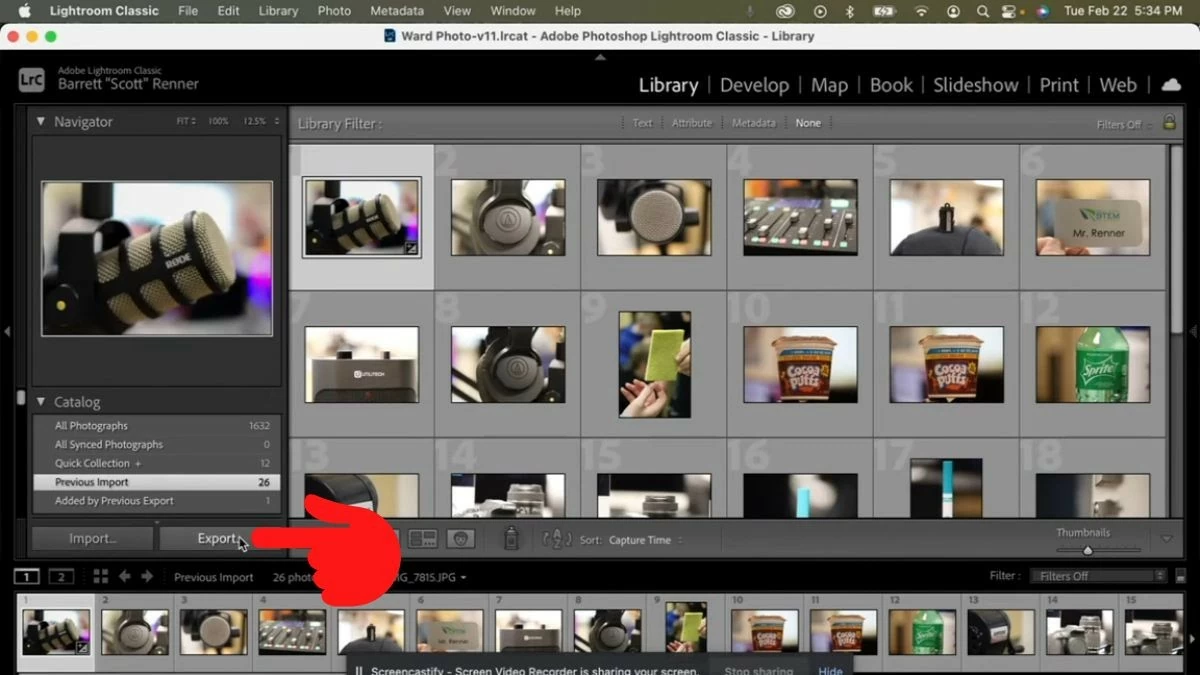
Step 1: Click on the “Library” icon and select the “Export” button.
 |
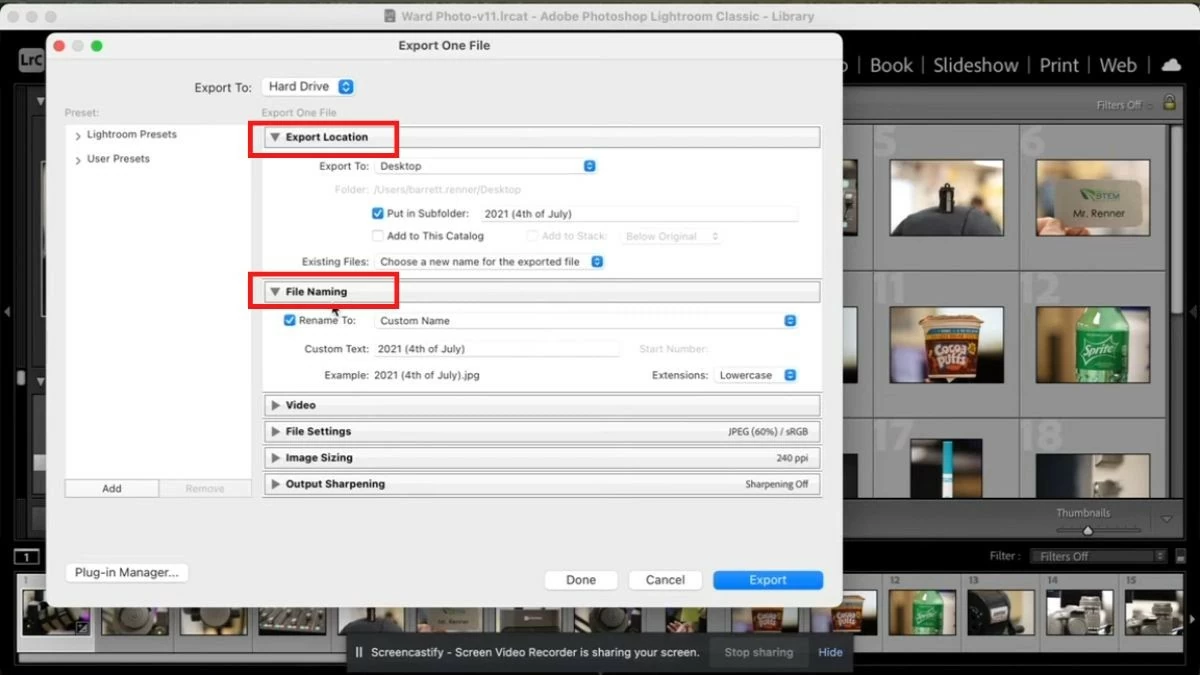
Step 2: A customization window will appear. In the Export Location tab, you can choose where to save the file, and in the File Naming tab, you can name the file.
 |
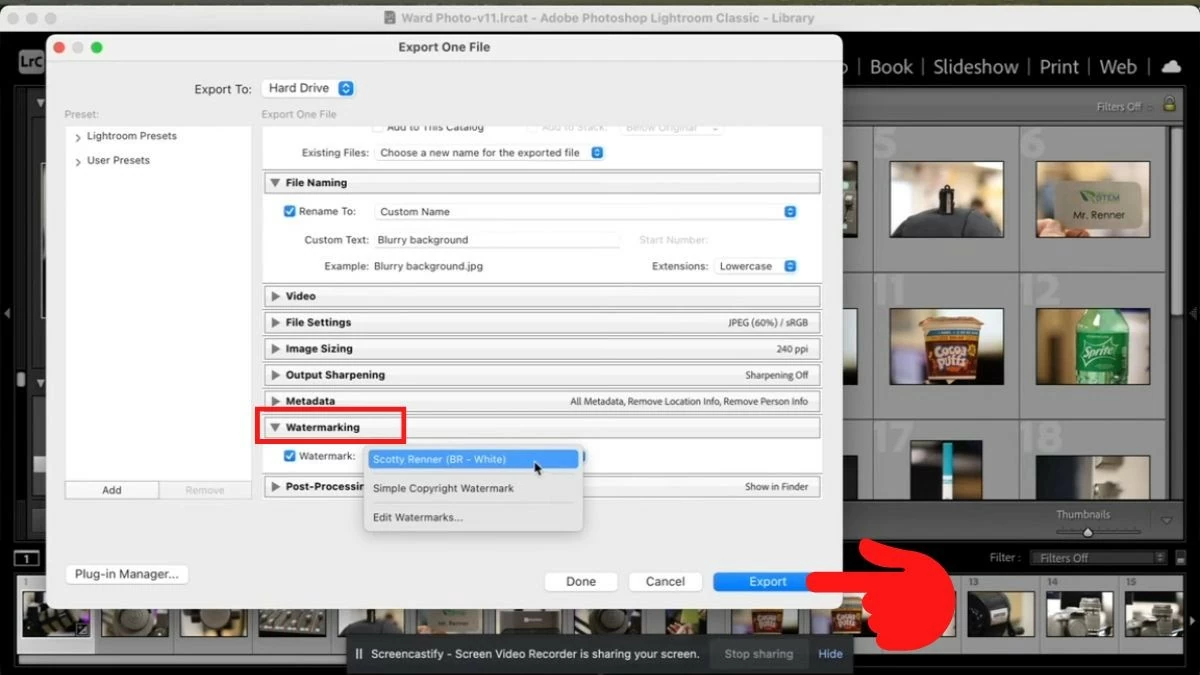
Step 3: Scroll down, in the Watermarking tab, check the "Watermark" box and select the watermark you created in the previous step. Finally, click the "Export" button to export the image.
 |
This article has provided you with useful information about Lightroom and how to use it on a MacBook easily. Hopefully, this information will help you create many unique images!
Source: https://baoquocte.vn/su-dung-lightroom-tren-macbook-cuc-don-gian-va-de-ap-dung-287156.html
![[Photo] Enchanting ancient rose garden on the mountainside in Nghe An](/_next/image?url=https%3A%2F%2Fvphoto.vietnam.vn%2Fthumb%2F1200x675%2Fvietnam%2Fresource%2FIMAGE%2F2025%2F12%2F19%2F1766109900916_vuon-hong-chin-do-thu-hut-du-khach-toi-check-in-o-ha-noi-3-20162778-1671624890024-1671624890104198100259.jpeg&w=3840&q=75)


![[Photo] General Secretary To Lam visits the exhibition space showcasing books, photo exhibitions, and achievements of digital transformation in journalism.](/_next/image?url=https%3A%2F%2Fvphoto.vietnam.vn%2Fthumb%2F1200x675%2Fvietnam%2Fresource%2FIMAGE%2F2025%2F12%2F19%2F1766110879215_1766110240024-jpg.webp&w=3840&q=75)


















































![[INFOGRAPHIC] Overview of the Hoa Phat Dung Quat Rail and Special Steel Production Plant Project](https://vphoto.vietnam.vn/thumb/402x226/vietnam/resource/IMAGE/2025/12/19/1766111183203_z7339170069817-126a3e5a095f62e606a0be41015c1b80.jpeg)


















































Comment (0)