

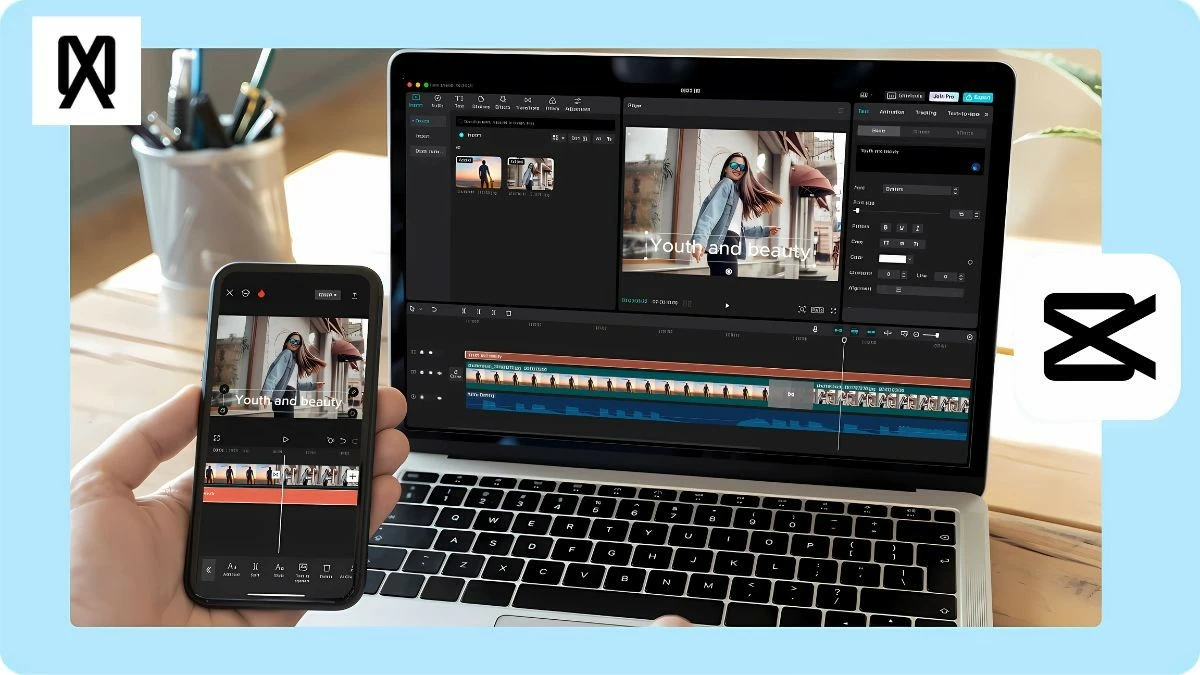
CapCut is a video editing tool that lets you blur parts of videos, text, faces, or objects as desired. Discover how to do it on your phone and PC in this article!
 |
Instructions on how to quickly blur videos in CapCut on PC.
CapCut is a useful video editing tool for PC, ideal for creating professional content. You can easily blur a portion or the entire video with the simple steps below.
How to easily blur a portion of a video on CapCut PC.
If your video is long and you only need to blur a portion of it, follow the steps below:
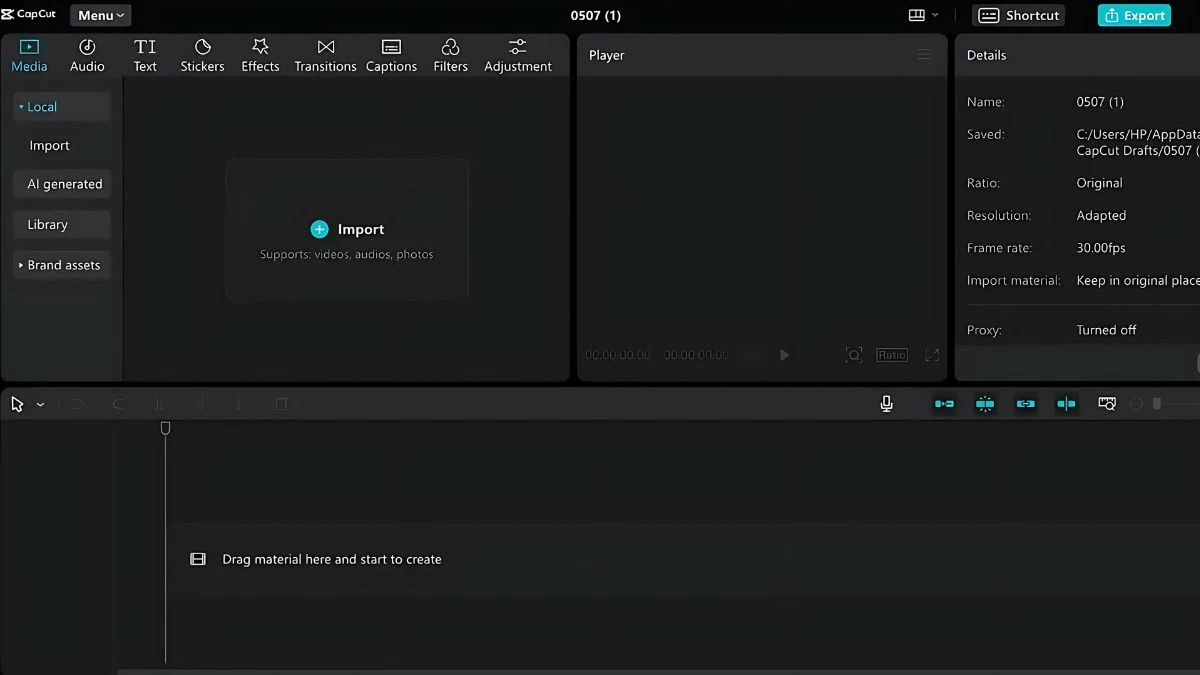
Step 1: First, log in to CapCut and select "New Project". Then, drag the video to the timeline or upload a video from your "Library" or "Space". You can also click "Import" to add videos while editing.
 |
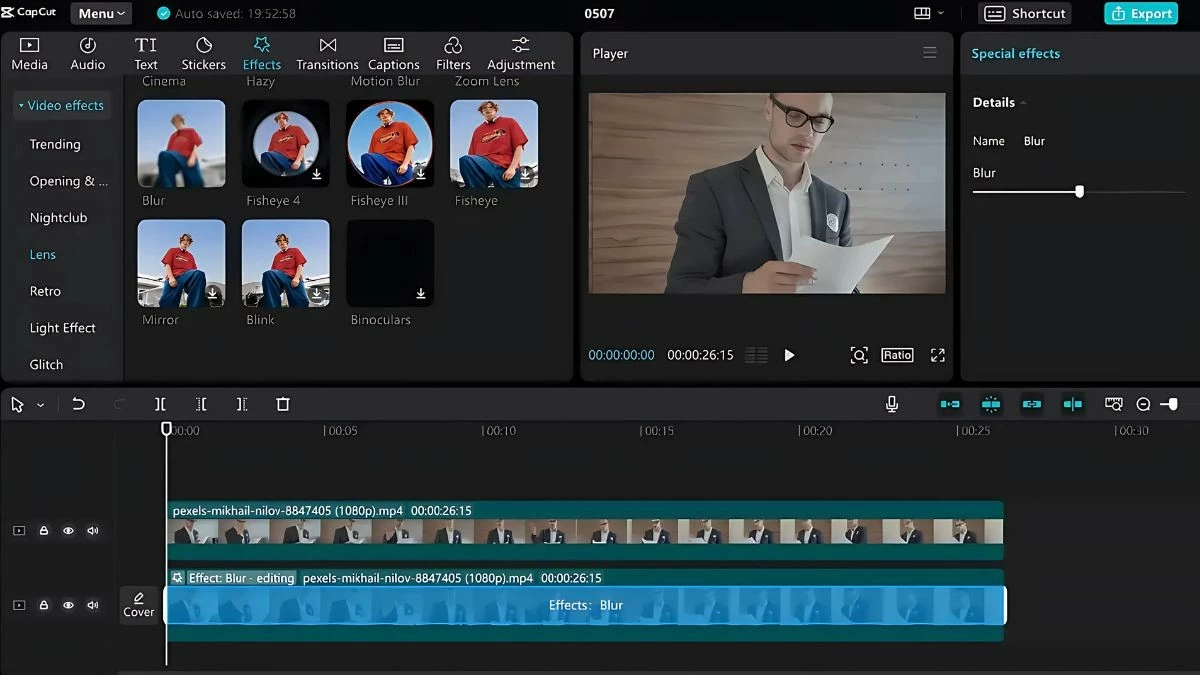
Step 2: On the timeline, right-click and select "Copy" to create a copy of the video and paste it into the second timeline. Next, go to the "Effects" tab, select "Lens," then find the "Blur" effect and drag and drop it onto the original video.
 |
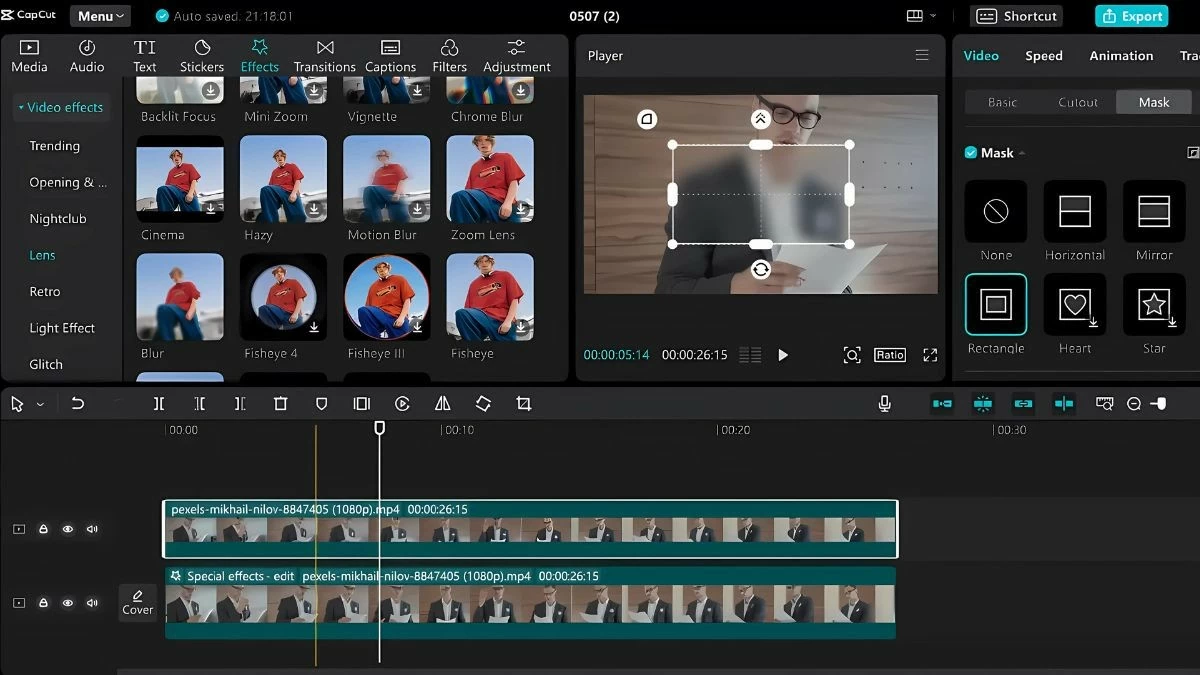
Step 3: In the "Video" tab, select "Mask," then play the copied video on the timeline. Move the edges of the "Player" window to select the portion of the video you want to blur. Finally, press "Reverse" in the upper right corner to complete.
 |
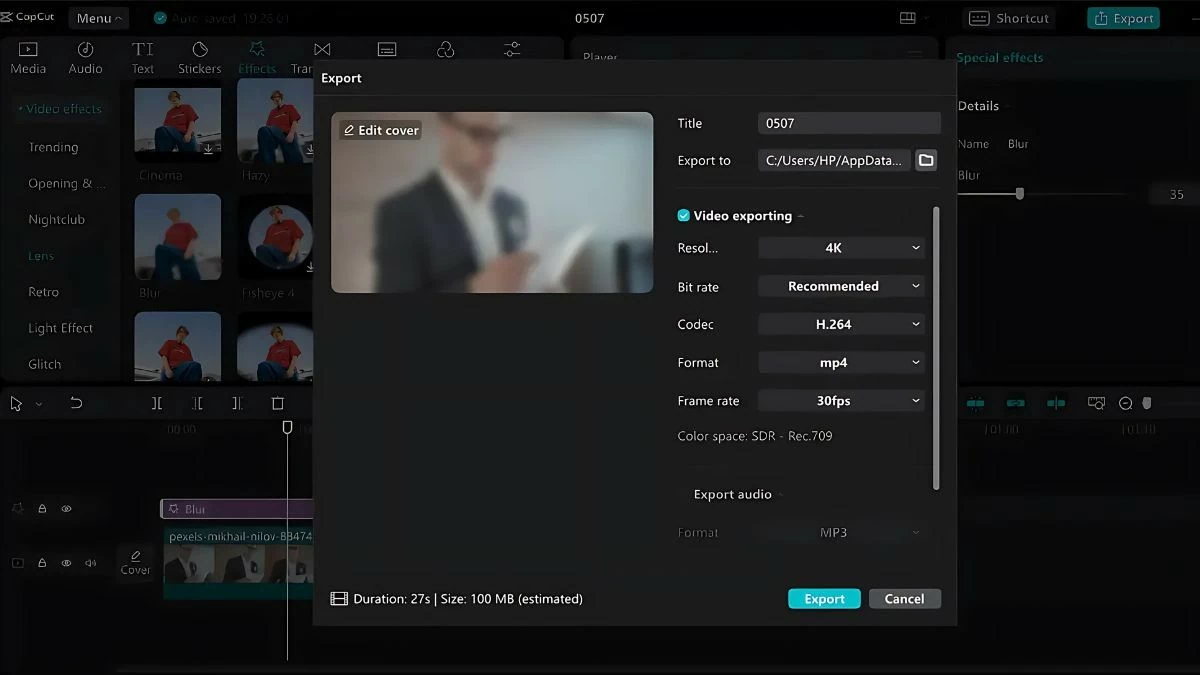
Step 4: To save the edited video, click "Export" in the upper right corner. You can change the title, adjust the resolution, format, and frame rate. After making adjustments, select "Export" to create the video and share it on YouTube, TikTok, or other platforms.
 |
Instructions on how to blur the entire video on CapCut PC
If you want to blur the entire video on CapCut PC, follow the steps below:
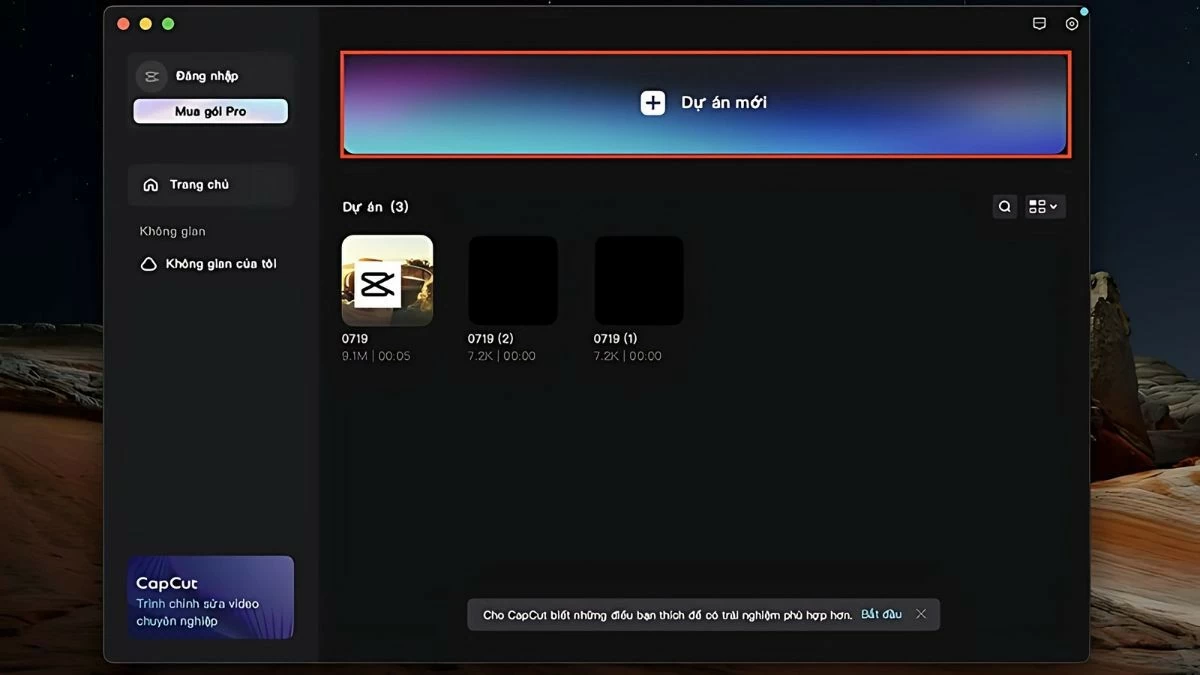
Step 1: First, open the CapCut application on your PC and log in. Select "New Project" to begin editing the video and add the video file you want to blur.
 |
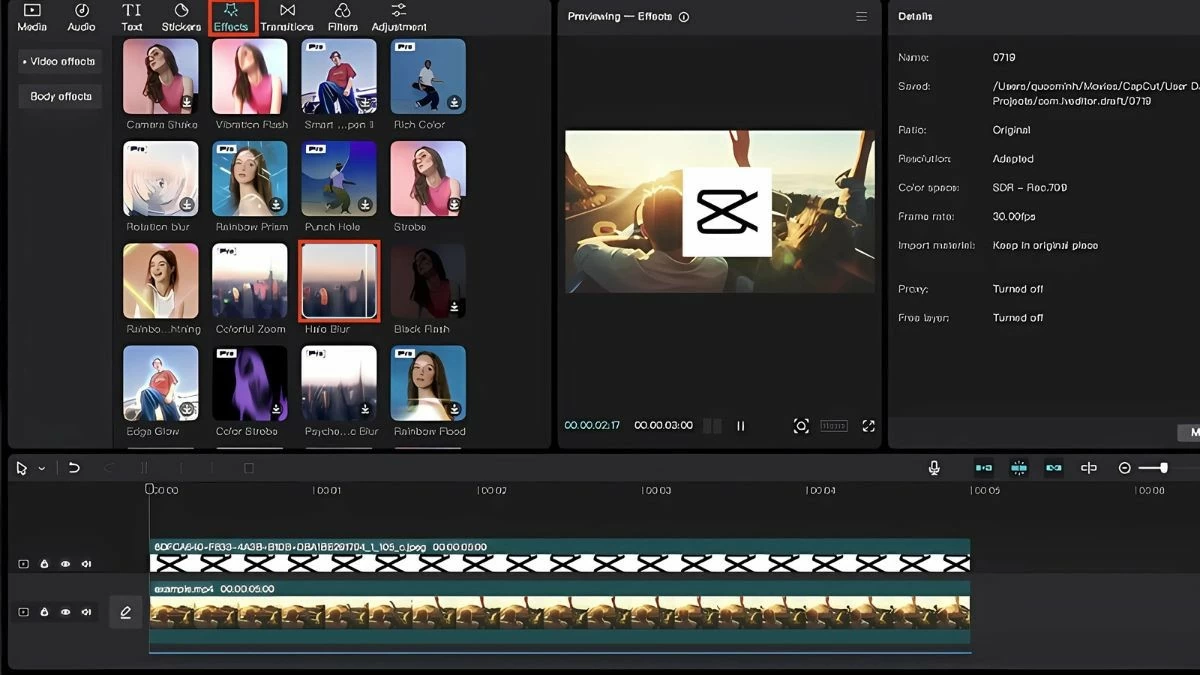
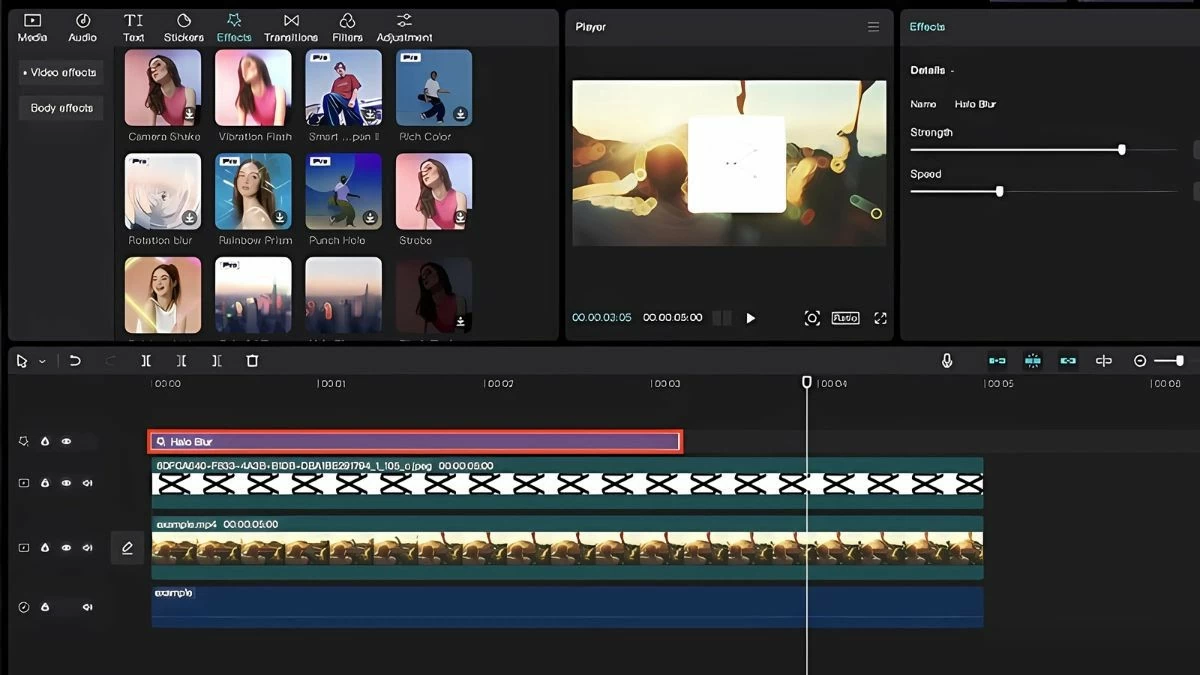
Step 2: Select "Effects" on the toolbar above CapCut and find the video blur effect. You can try different modes and preview the video with your preferred level of blur.
 |
Step 3: Select a suitable blur effect, then drag it down to the toolbar below the pencil icon to apply it to the video.
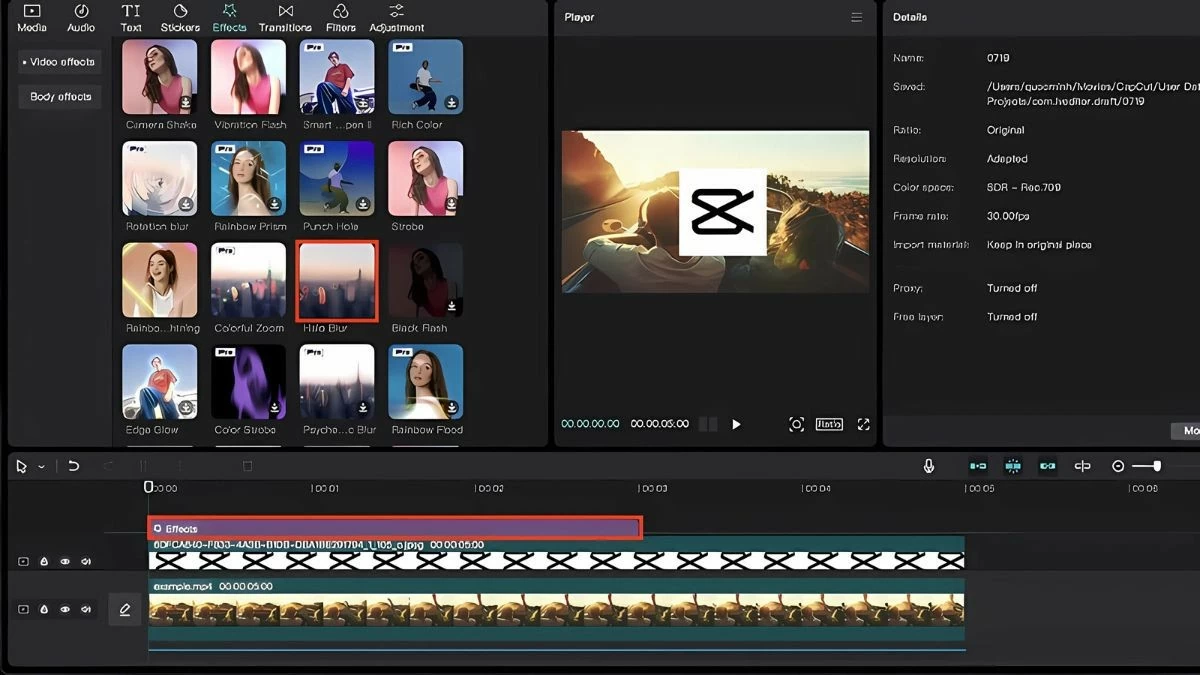 |
Step 4: In the top right corner, you can adjust the speed of the effect in the Effects panel. After making the adjustments, save the changes and export the video.
 |
The most effective way to blur CapCut videos on your phone.
Blurring videos on CapCut on your phone is simple and easy. Below are the steps to easily blur text, faces/objects, and backgrounds:
How to quickly blur text in CapCut videos
To blur text in a video on your phone using CapCut, you can follow these steps:
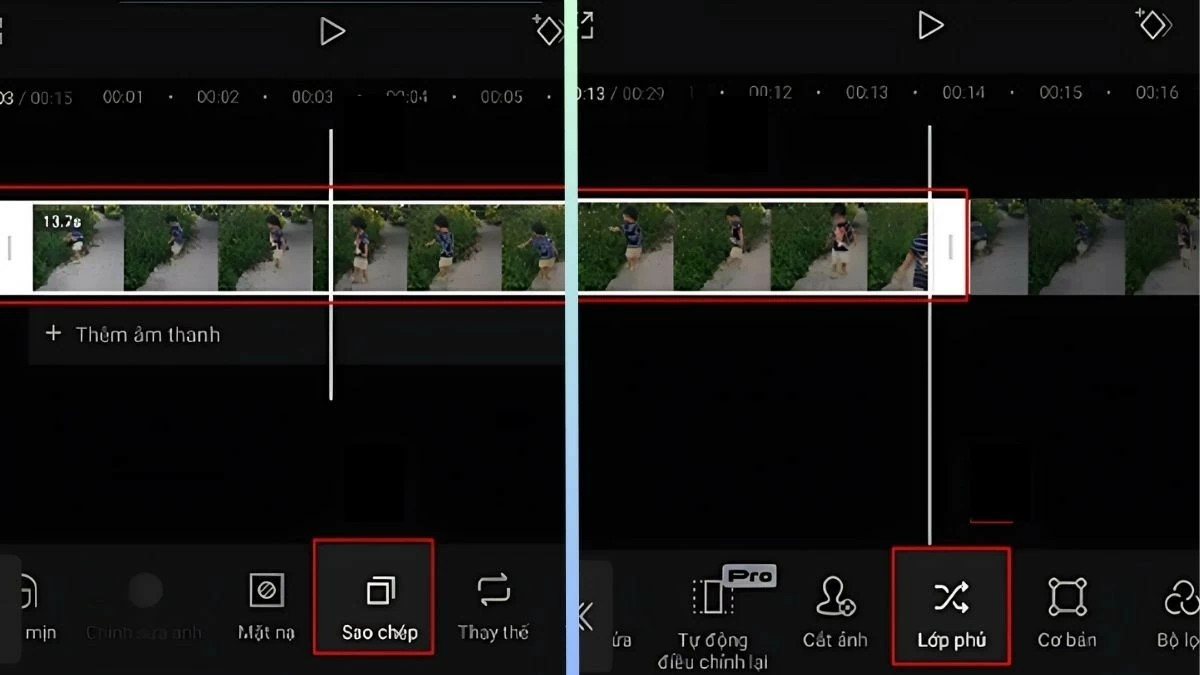
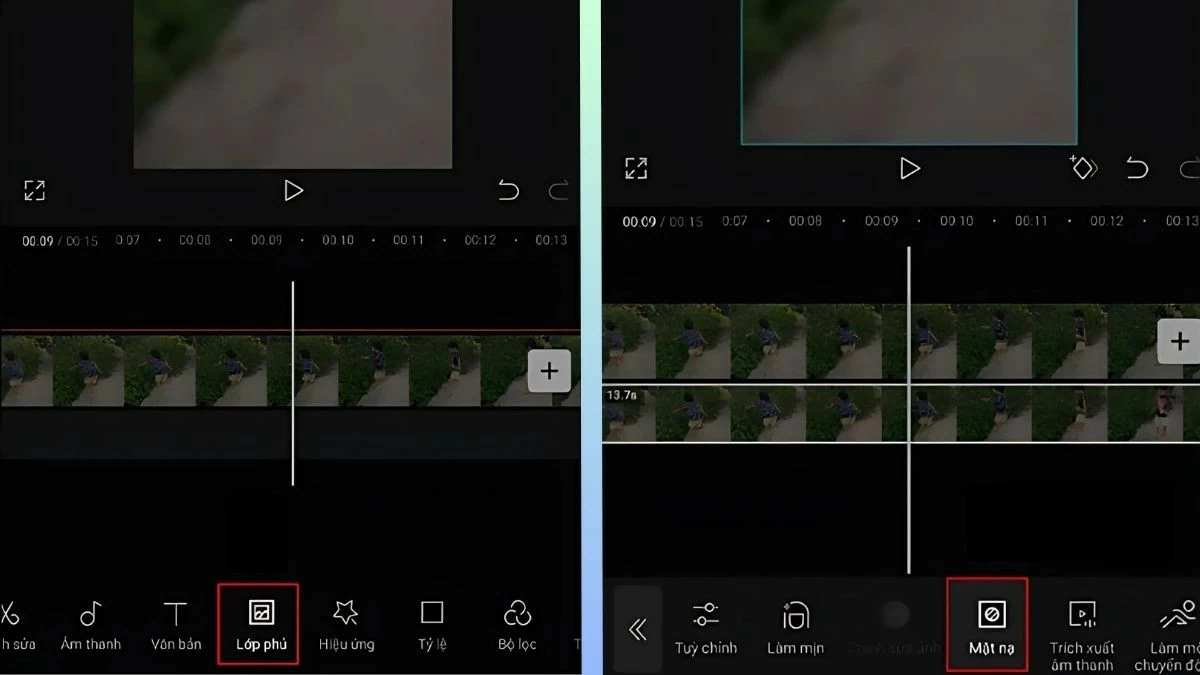
Step 1: Open the CapCut app, select “New Project,” and upload your video. Next, select “Copy” to create a copy of the video. After muting the copied video, select “Overlay” to continue editing.
 |
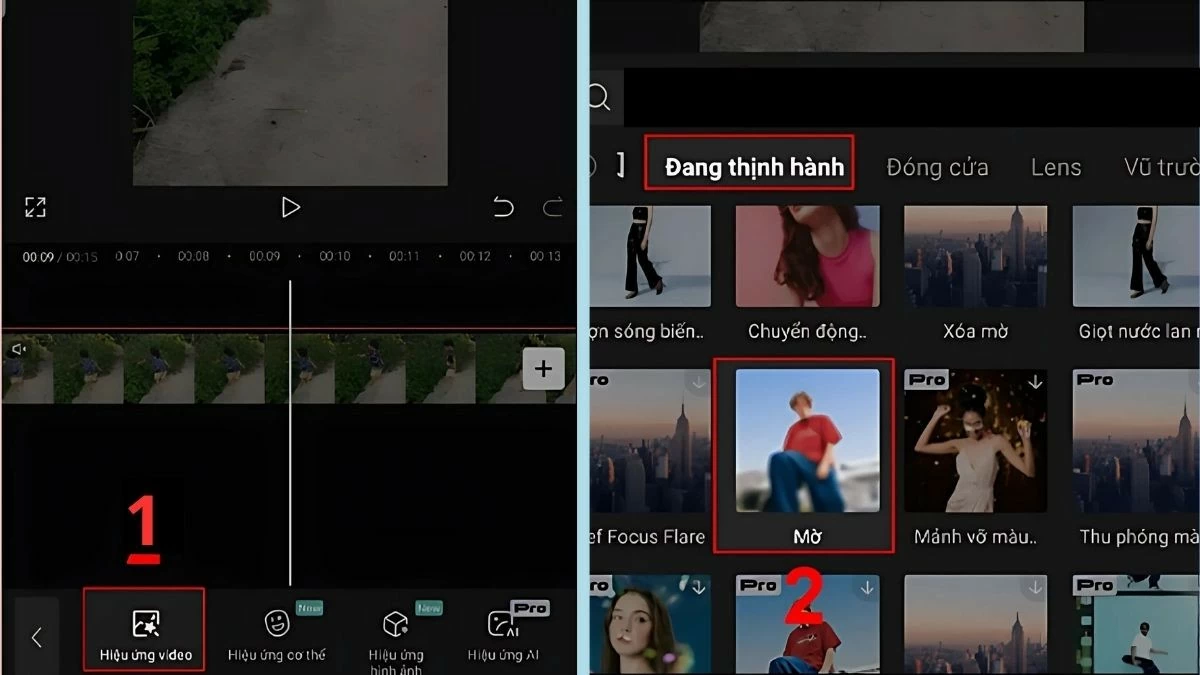
Step 2: With the copied video, select "Video Effects" and choose the "Blur" effect to blur the desired area.
 |
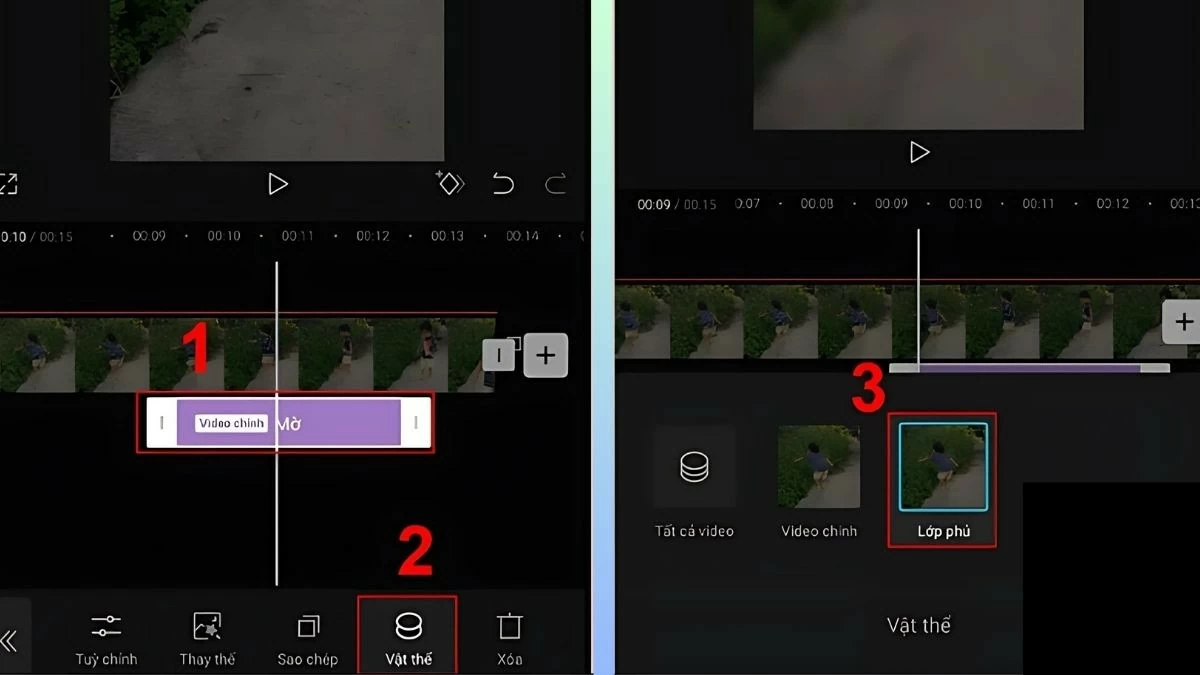
Step 3: After selecting the appropriate blur effect, click on "Object" and then select "Overlay" to apply it.
 |
Step 4: Select the original video, tap "Overlay," and then select "Mask."
 |
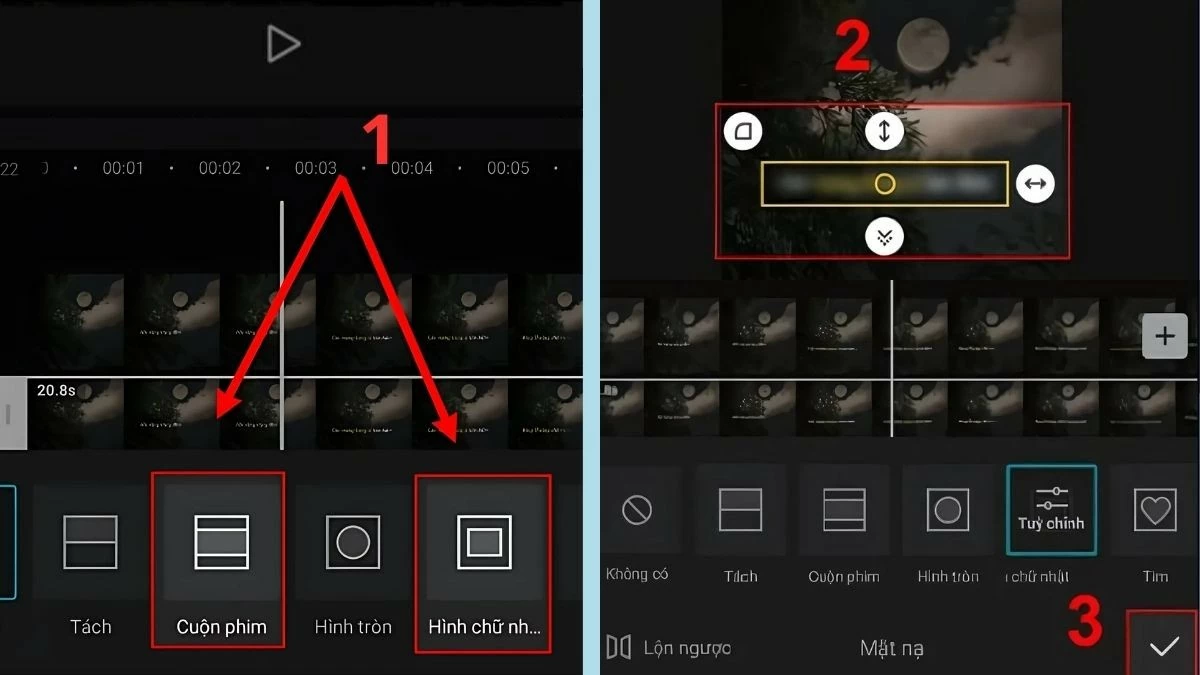
Step 5: Move the video to the section where you want to blur the text, then select the roll-top or rectangular frame. Adjust the frame to cover the object you want to blur and press save.
 |
How to blur faces and objects in CapCut is interesting.
To blur faces or objects in a video using CapCut, you follow the same steps as blurring text. Here are the detailed steps:
Step 1: Follow steps 1 through 4 as instructed above.
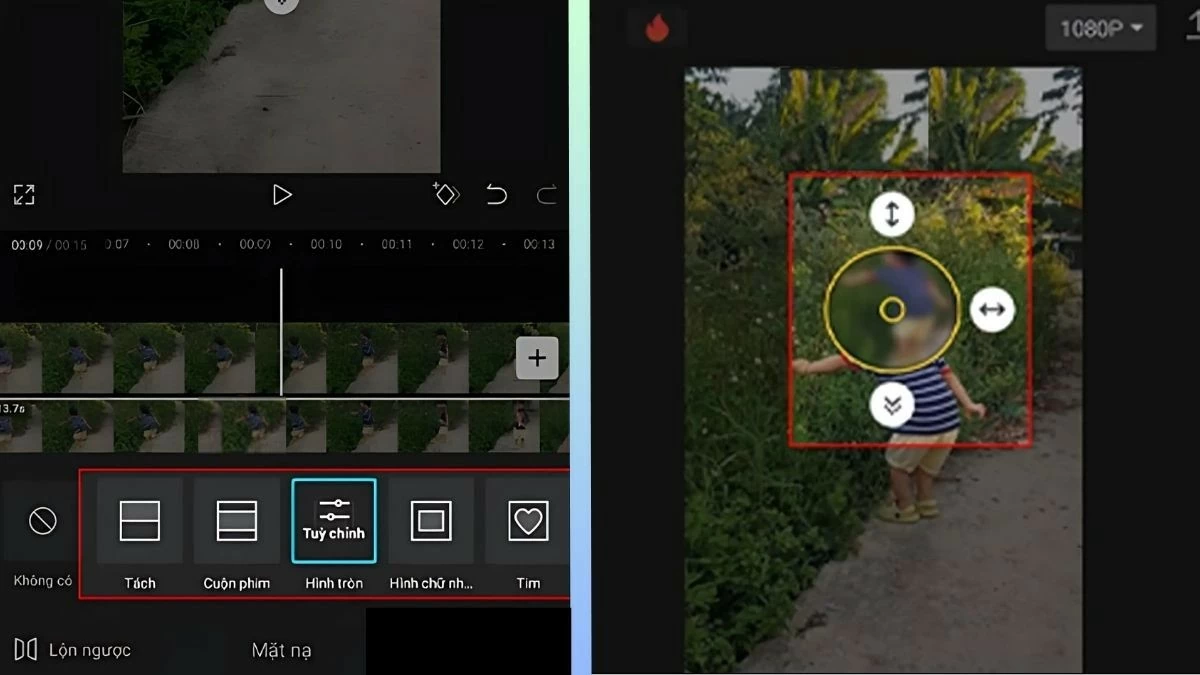
Step 2: When you reach Step 5 , select the circular mask frame and move it to the position of the object or face you want to blur.
Step 3: After making the adjustments, press "Save". The selected area will then automatically become blurred.
Step 4: If the blurring effect isn't sufficient, you can repeat the steps to further blur until you achieve the desired result.
 |
Instructions on how to blur the background of a video in CapCut.
To blur the background of a video on your phone using CapCut, simply follow these 5 easy steps:
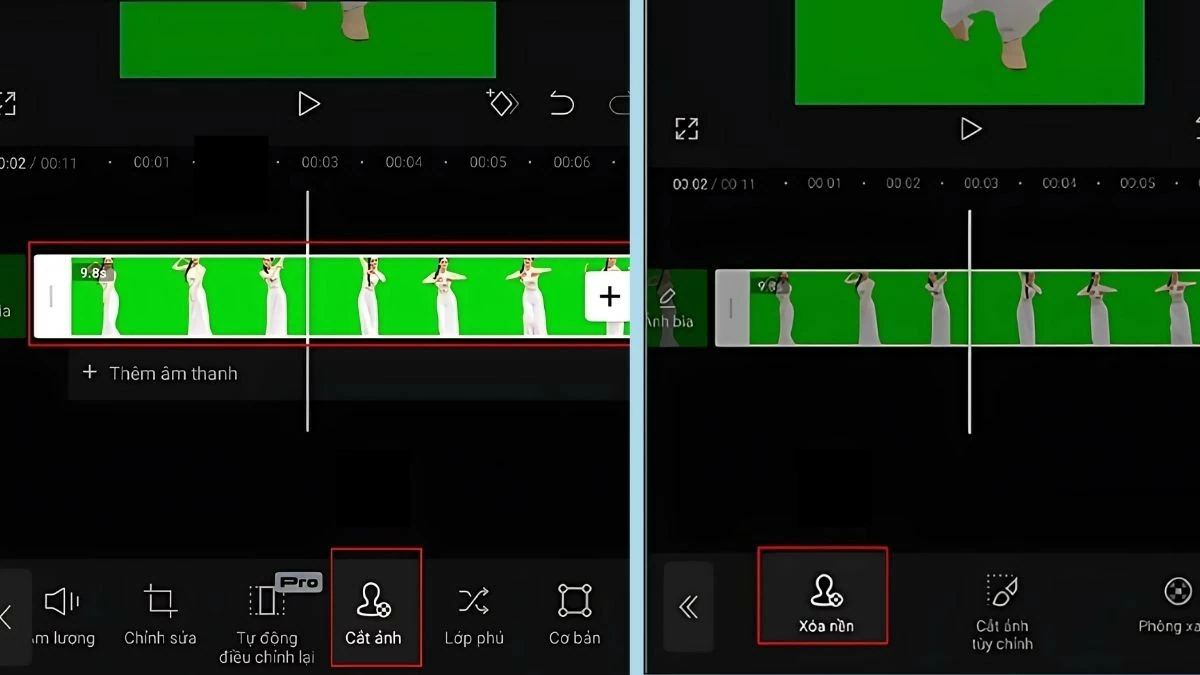
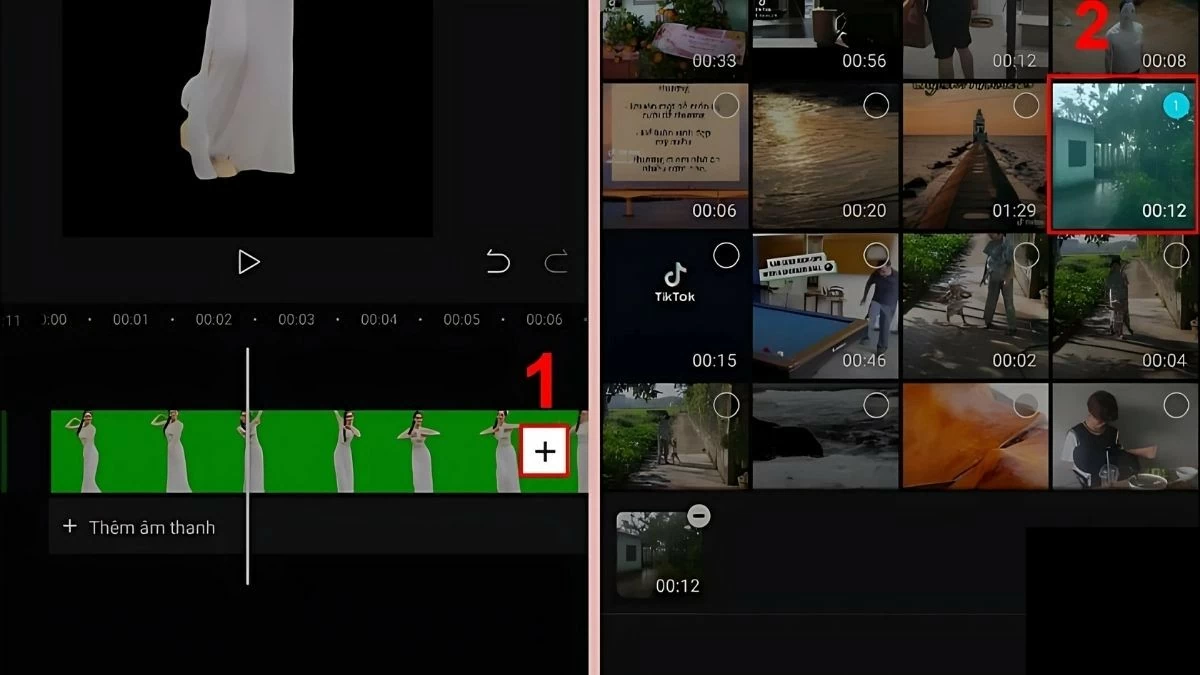
Step 1: Open the CapCut app and select "New Project" to upload your video. Next, select "Crop Photo" and press "Remove Background".
 |
Step 2: Click the "+" icon and upload the background video you want to blur.
 |
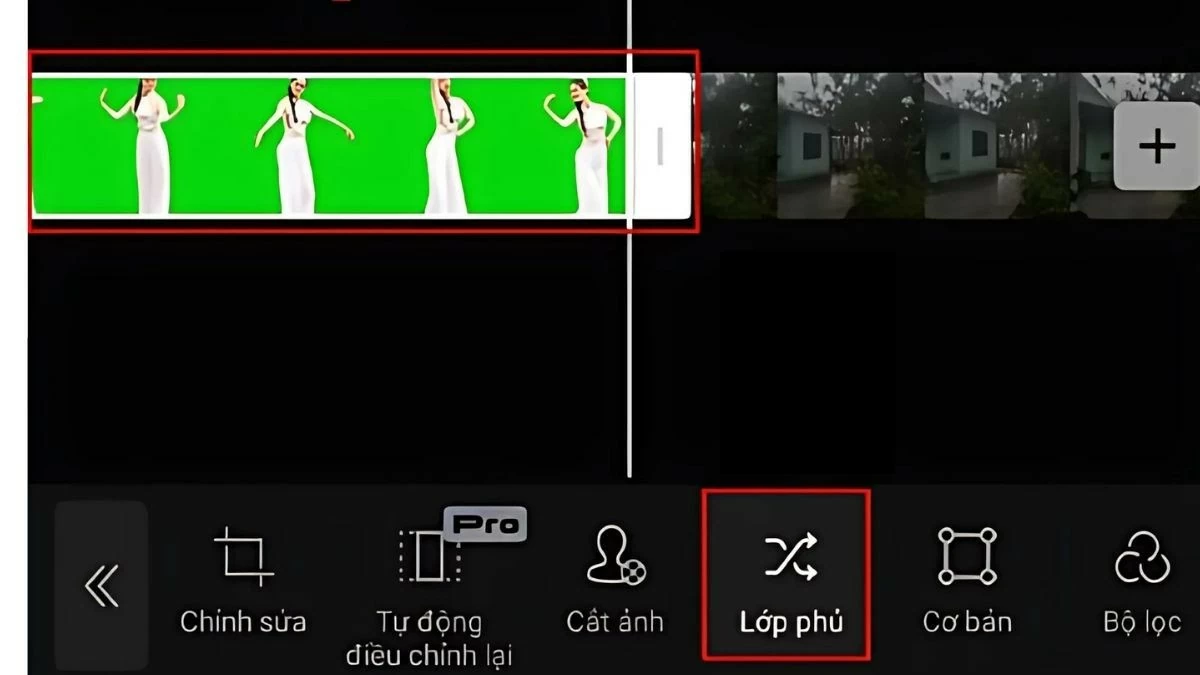
Step 3: Select the original video with the background removed, then press "Overlay" to add the background video. A new background will now appear, and you need to continue blurring this background.
 |
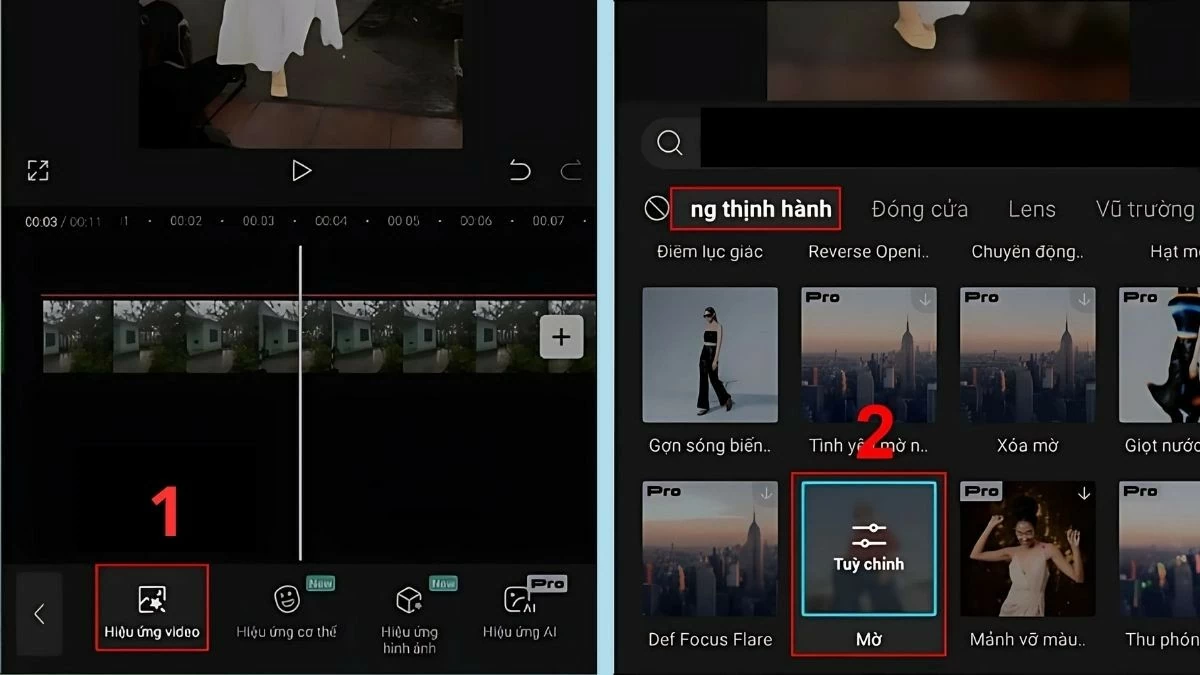
Step 4: With the merged video, select "Video Effects" and choose a blur effect to apply to the background.
 |
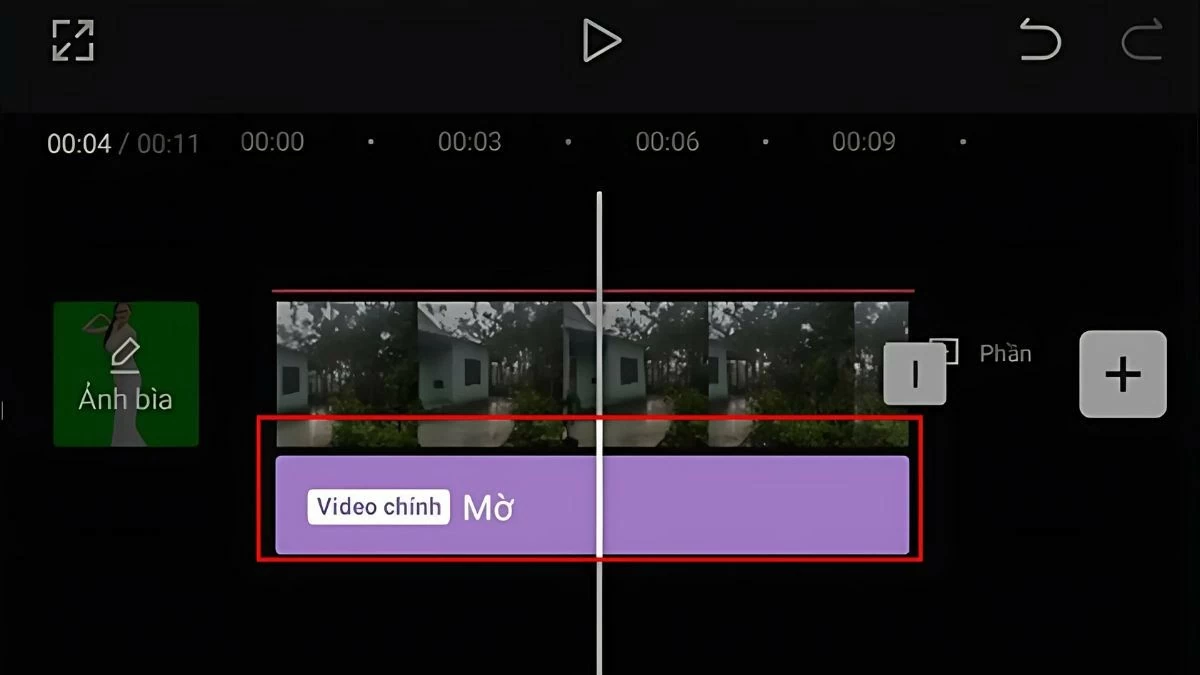
Step 5: Next, adjust to apply the blur effect to the entire video. Once finished, save the video and share it if desired.
 |
This article has introduced you to quick and easy methods for blurring videos in CapCut. From blurring a portion of a video on CapCut PC to blurring faces on CapCut mobile phones, everything is simple to do. Identify the content you want to blur and follow the instructions to edit your video. We hope you create your desired video in the shortest time possible!
Source
![[Photo] First session of the 14th Congress of the Vietnam Trade Union](https://vphoto.vietnam.vn/thumb/1200x675/vietnam/resource/IMAGE/2026/06/03/1780465947883_ndo_br_img-3852-jpg.webp)

![[Photo] Secretary of the National Assembly Party Committee, Chairman of the National Assembly presides over the meeting of the Standing Committee and Executive Committee of the National Assembly Party Committee.](https://vphoto.vietnam.vn/thumb/1200x675/vietnam/resource/IMAGE/2026/06/03/1780480353201_ndo_br_bnd-2585-jpg.webp)
![[Photo] General Secretary and President To Lam presides over a meeting with the Central Organizing Committee.](https://vphoto.vietnam.vn/thumb/1200x675/vietnam/resource/IMAGE/2026/06/03/1780482764658_a1-bnd-4741-3342-jpg.webp)






















































![[Video] Sunset at Lap An Lagoon – Where the sun sets over the fishing nets](https://vphoto.vietnam.vn/thumb/1200x675/vietnam/resource/IMAGE/2026/05/31/1780192137701_beach-landscape-sea-water-nature-grass-745871-pxhere-com.jpeg)





































Comment (0)