

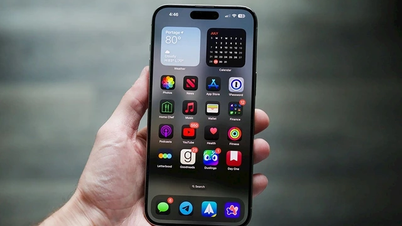
Currently, 4G networks are widely used by many people due to their convenience. To effectively save 4G data on your iPhone, users can refer to the 5 methods below.
Turn off mobile data usage for iCloud Drive.
iCloud Drive is a tool that helps users store, synchronize, and update data between Apple devices and even Windows devices.
However, if you accidentally edit files in apps that use iCloud Drive, they may be uploaded and consume your 4G data. To prevent this, simply turn off iCloud Drive's 4G usage.
To disable the use of cellular data for iCloud Drive, go to Settings > iCloud > iCloud Drive, scroll down, and turn off the Use Cellular Data option.
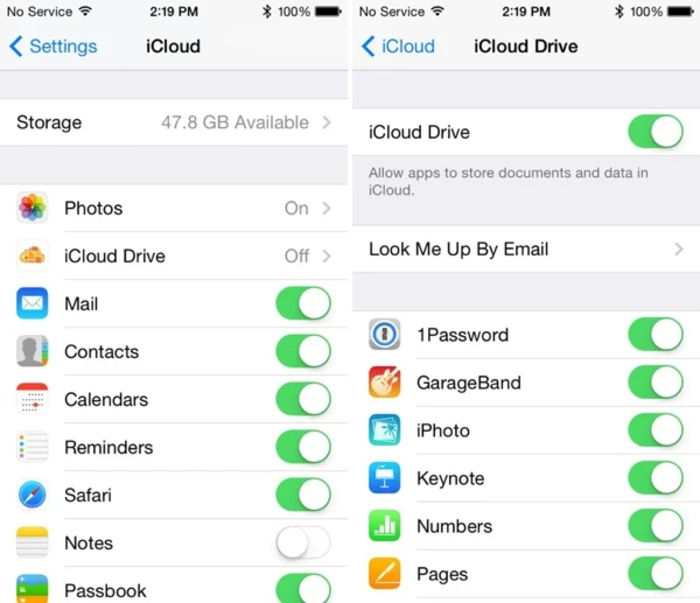
Settings > iCloud > iCloud Drive > turn off the Use Cellular Data option.
Turn off Wi-Fi Assist.
Wi-Fi Assist is an iOS feature that automatically switches to a 4G network when the Wi-Fi signal is too weak. This can help you browse the internet more smoothly, but it also causes your 4G data to run out faster.
Therefore, if you want to save 4G data, go to Settings > Cellular Data > scroll to the bottom > uncheck Wi-Fi Assist. Here you can see the total amount of data that Wi-Fi Assist has used.
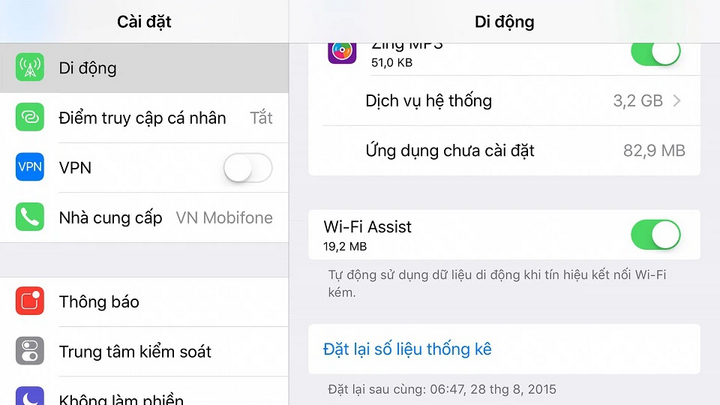
Settings > Cellular > turn off the Wi-Fi Assist option.
Turn off 3G for the automatic app download function.
iOS has a rather interesting feature: when you download an app on your iPad, your iPhone will automatically sync and download it as well. This is similar for music, movies, and other iTunes content.
However, this synchronization should only happen when the device is connected to Wi-Fi and 4G usage should be limited, if you don't want to waste a large amount of money on something unnecessary.
Go to Settings > iTunes & App Store > uncheck the "Use cellular data" option at the bottom. You can keep the other options selected if you want to sync apps and have them update automatically when connected to Wi-Fi.
Limit the number of apps that use 4G data.
Some apps continue to use mobile data even when they aren't frequently enabled, leading to increased 4G usage.
To identify which apps are using too much mobile data, go to Settings > Cellular, and scroll down to see a list of apps that are allowed to use 4G data.
Here, if you find an app that's no longer needed but is still consuming 4G data, you can disable its mobile data usage or even completely remove it from your phone.
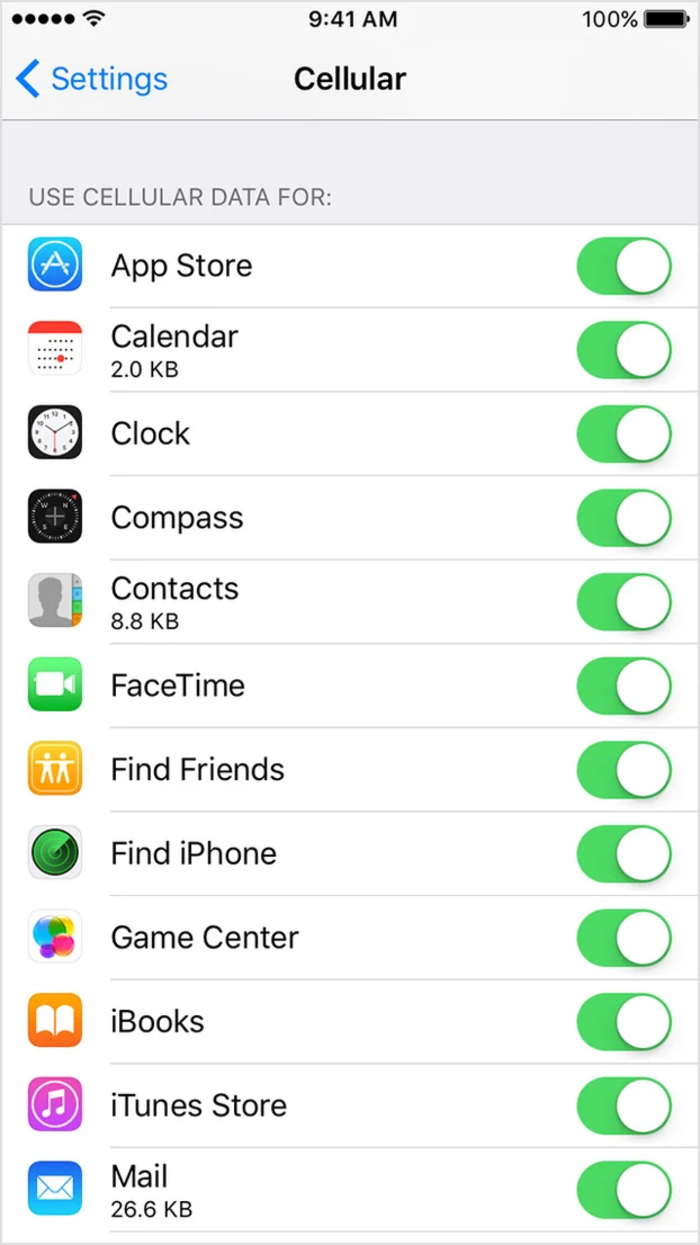
Settings > Mobile > Turn off apps that use a lot of data.
Turn on low data mode.
Enabling Low Data Mode disables background communication and Background App Refresh for applications. It also requires applications to temporarily suspend all syncing tasks until an unlimited data network connection is available.
Additionally, this mode also disables background syncing. Therefore, when you enable this mode, the Photos app will not back up your images.
To enable Low Data Mode for 4G on your iPhone, go to Settings > Cellular > Cellular Data Options > Low Data Mode.
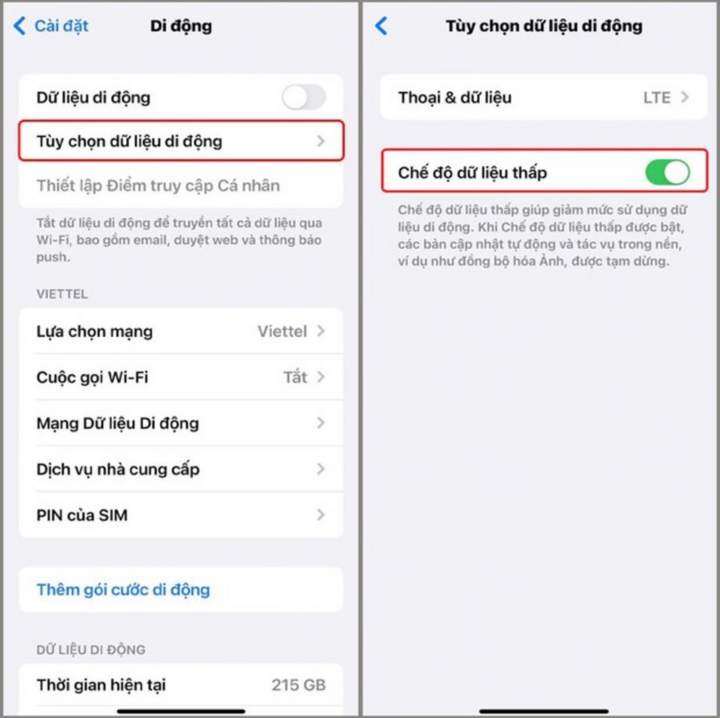
Settings > Cellular > Cellular Data Options > Low Data Mode.
An Nhi (Compiled)
Source
![[Photo] First session of the 14th Congress of the Vietnam Trade Union](https://vphoto.vietnam.vn/thumb/1200x675/vietnam/resource/IMAGE/2026/06/03/1780465947883_ndo_br_img-3852-jpg.webp)
![[Photo] Secretary of the National Assembly Party Committee, Chairman of the National Assembly presides over the meeting of the Standing Committee and Executive Committee of the National Assembly Party Committee.](https://vphoto.vietnam.vn/thumb/1200x675/vietnam/resource/IMAGE/2026/06/03/1780480353201_ndo_br_bnd-2585-jpg.webp)
![[Photo] General Secretary and President To Lam presides over a meeting with the Central Organizing Committee.](https://vphoto.vietnam.vn/thumb/1200x675/vietnam/resource/IMAGE/2026/06/03/1780482764658_a1-bnd-4741-3342-jpg.webp)


























































![[Video] Sunset at Lap An Lagoon – Where the sun sets over the fishing nets](https://vphoto.vietnam.vn/thumb/1200x675/vietnam/resource/IMAGE/2026/05/31/1780192137701_beach-landscape-sea-water-nature-grass-745871-pxhere-com.jpeg)






































Comment (0)