

Do you know how to easily install Windows 10 audio drivers? This article will reveal 4 ways to install Windows 10 audio drivers!
 |
Instructions on how to install audio drivers in Windows 10 using Device Manager.
The most common way to install audio drivers on Windows 10 is through Device Manager. Follow the steps below to quickly download audio drivers for Windows 10!
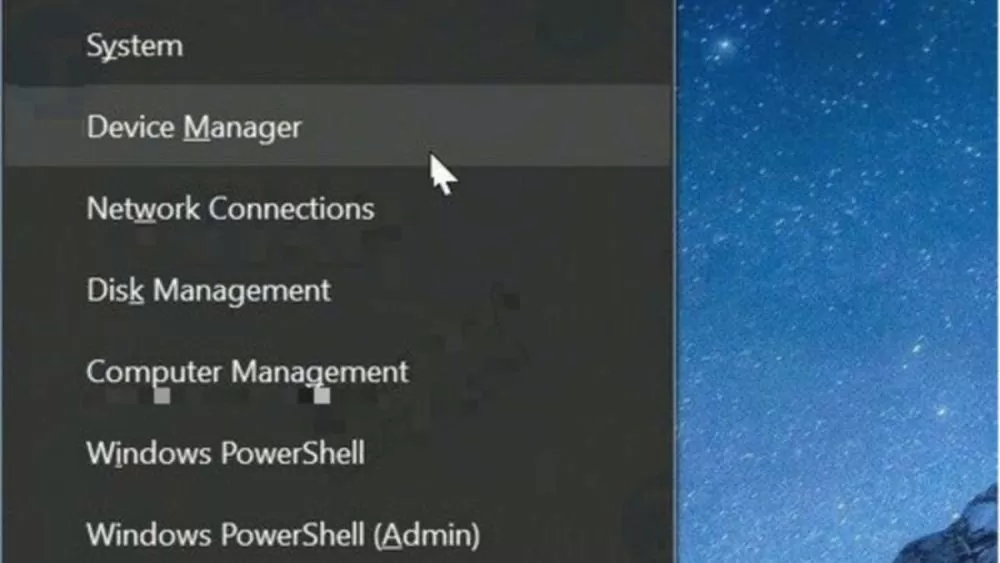
Step 1: To install the audio driver on Windows 10, first right-click the Start button on the Taskbar and select Device Manager.
 |
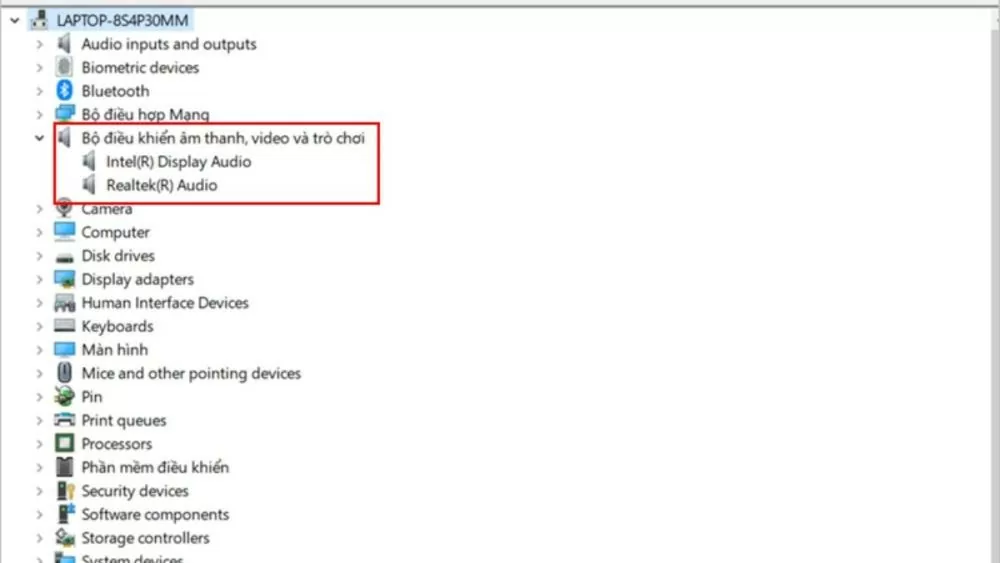
Step 2: In Device Manager, click to open "Sound, video , and game controllers" as shown in the image.
 |
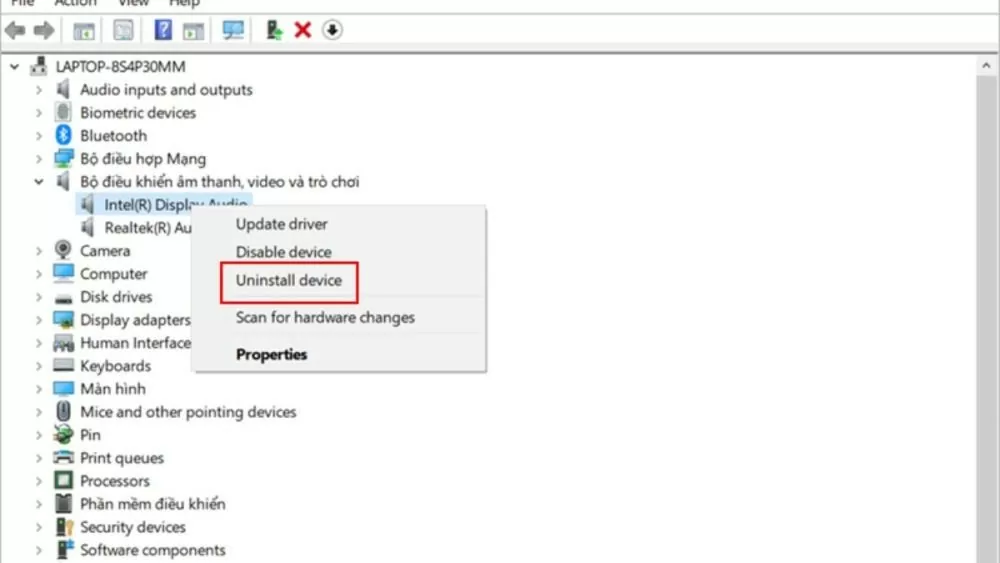
Step 3 : The name of the audio driver for Windows 10 will appear on the screen, usually "Realtek High Definition Audio". Right-click on this name and select "Uninstall device" to continue the audio driver installation process for Windows 10.
 |
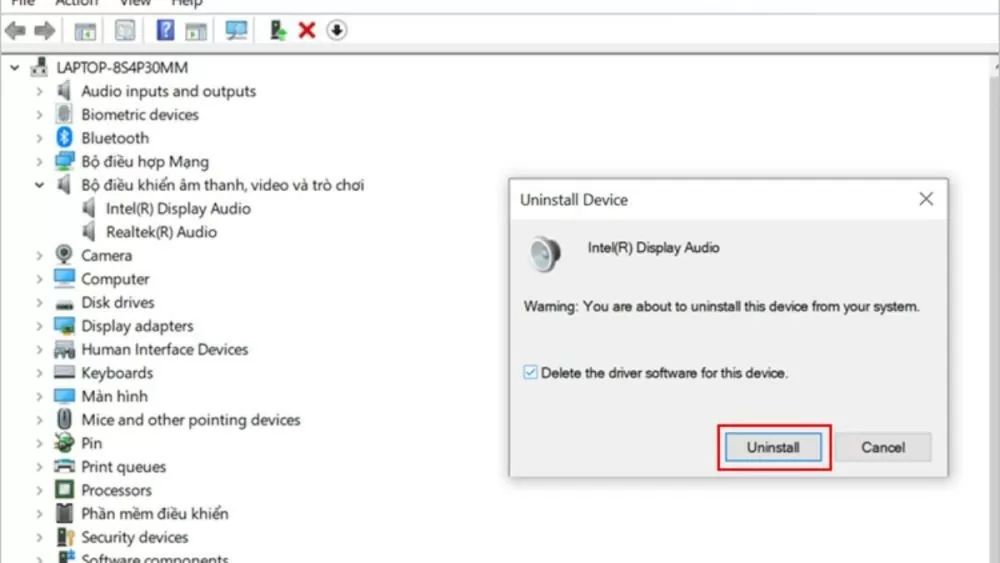
Step 4: After right-clicking and selecting "Uninstall device," you will see a confirmation screen. Check the box "Delete the driver software for this device" and then click "Uninstall." Once complete, restart your device and visit the manufacturer's official website to download and install the latest audio driver for Windows 10 on your computer.
 |
Instructions on how to install audio drivers in Windows 10 using the Control Panel.
Besides using Device Manager, you can also install audio drivers for Windows 10 through the Control Panel. The detailed steps are as follows:
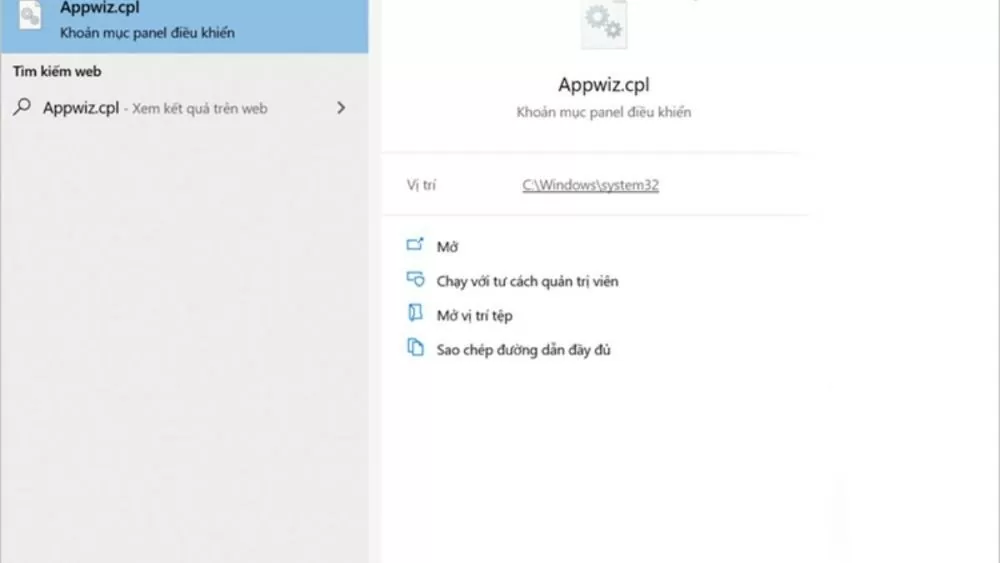
Step 1: First, type Appwiz.cpl into the Search tool and press Enter.
 |
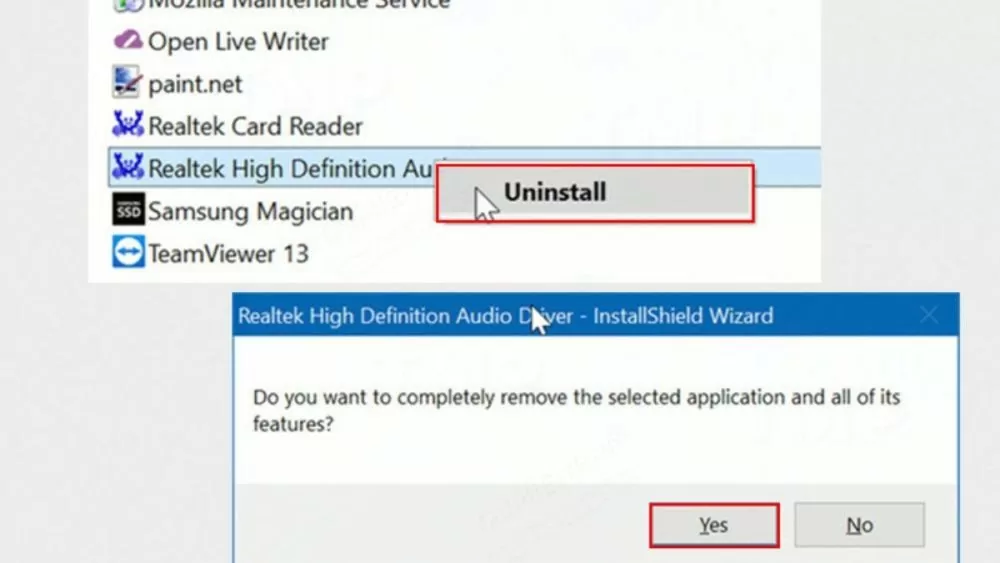
Step 2: Find and right-click on "Realtek High Definition Audio" as shown in the image. Then, click Uninstall and confirm with Yes to complete the process.
Similar to installing the audio driver for Windows 10 64-bit using Device Manager as described above, after the process is complete, restart your device. Next, visit the manufacturer's website and download the latest Windows 10 audio driver to install on your computer.
 |
Instructions on how to install headphone drivers for Windows 10
Installing headphone drivers on Windows 10 is quite simple and anyone can do it as follows:
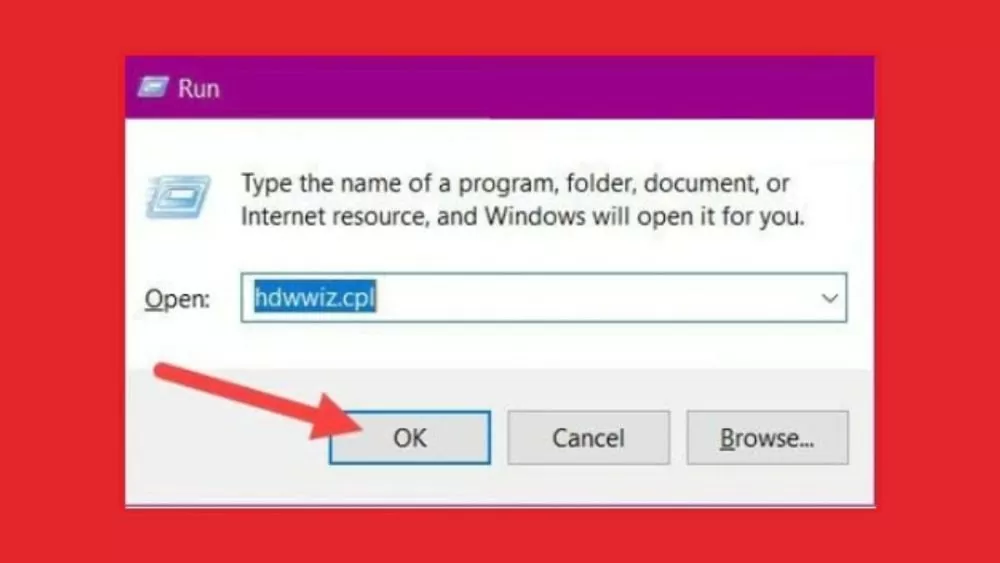
Step 1: To install the audio driver for Windows 10, you first need to check the driver. Press the Windows + R key combination, then type hdwwiz.cpl and press OK.
 |
Step 2 : In Device Manager, find the Sound driver. Then, right-click and select Disable device. Confirm by clicking Yes, then restart your computer and continue installing the Audio driver for Windows 10.
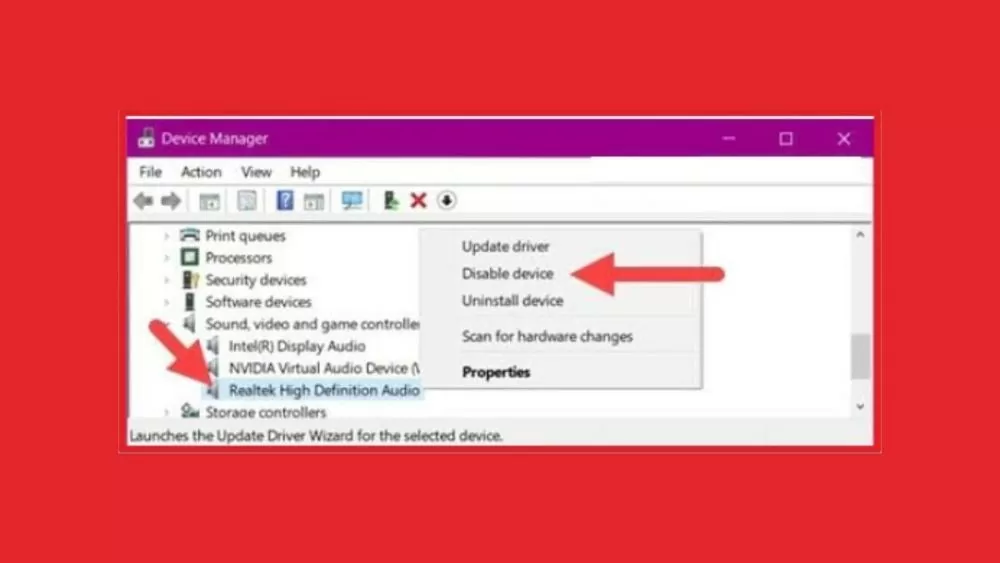 |
Step 3: After your computer has successfully started, access Device Manager. On the menu bar, click on Action and then select "Scan for hardware changes" to complete the process.
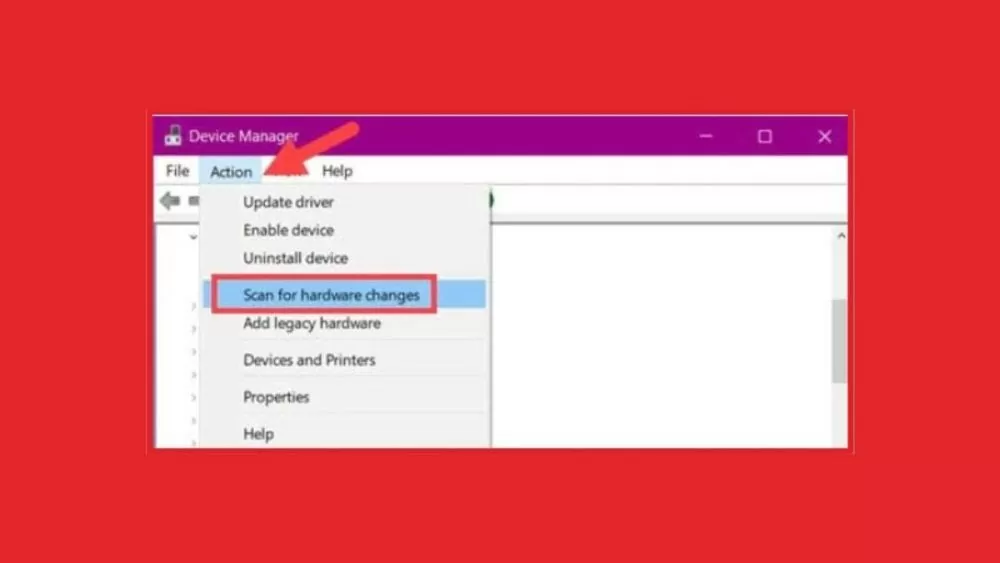 |
How to install Bluetooth drivers on Windows 10
Sforum also provides instructions on how to install Bluetooth drivers for Windows 10 as follows:
Step 1: Right-click the Start button (or press the Windows + X key combination), then select Device Manager.
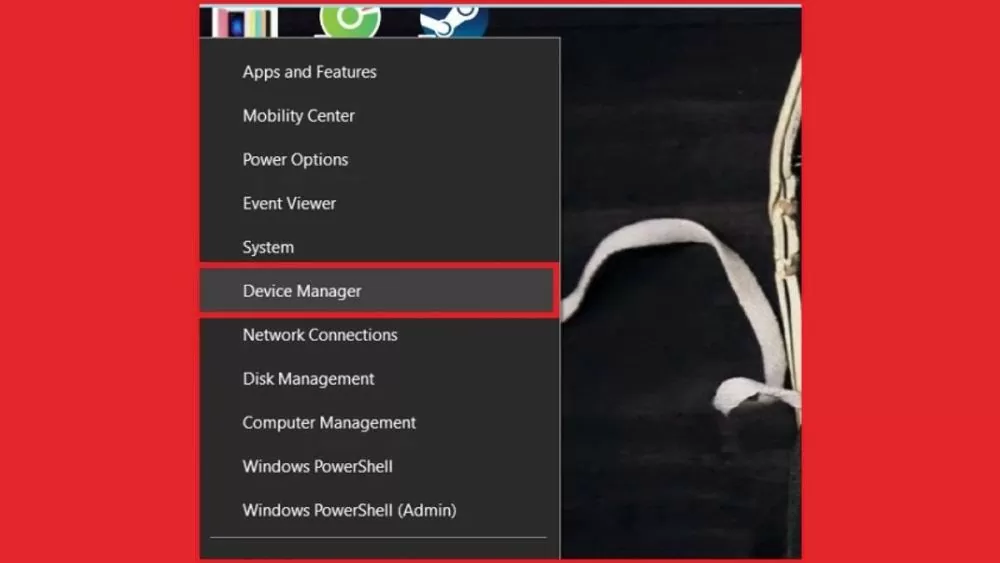 |
Step 2: In the Device Manager interface, find and expand the Bluetooth section by clicking the arrow next to it. Right-click on the Bluetooth you are using, select Update Driver, and then click Yes if prompted.
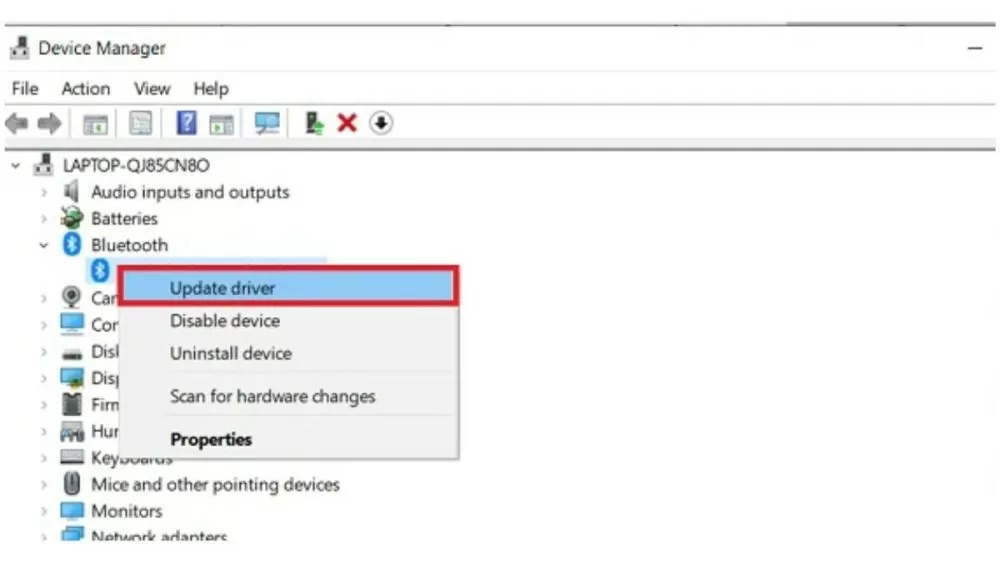 |
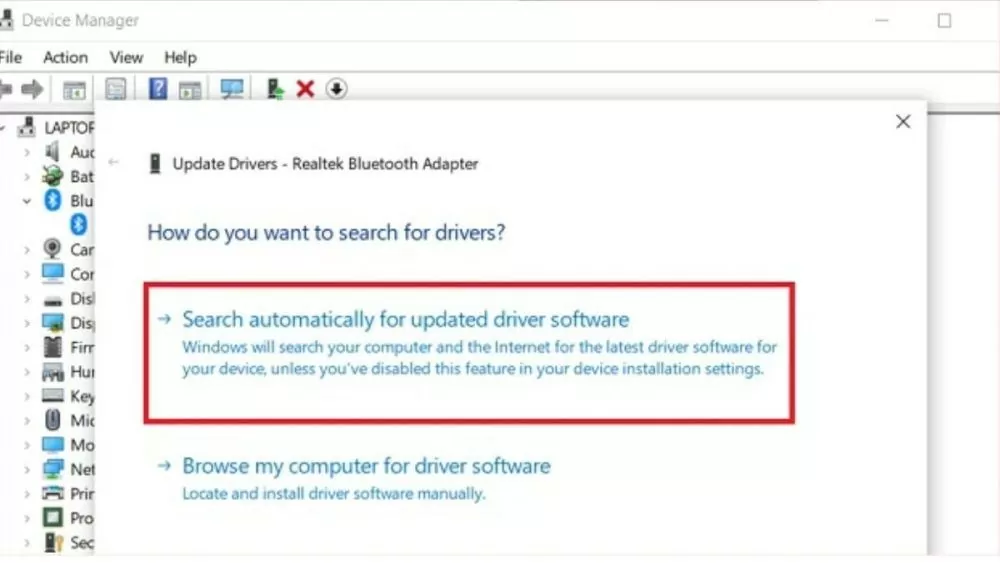
Step 3: If the driver is available, you can select update to install the Windows 10 audio driver. If it is not available, let the system search for the driver by clicking the first option as shown below.
 |
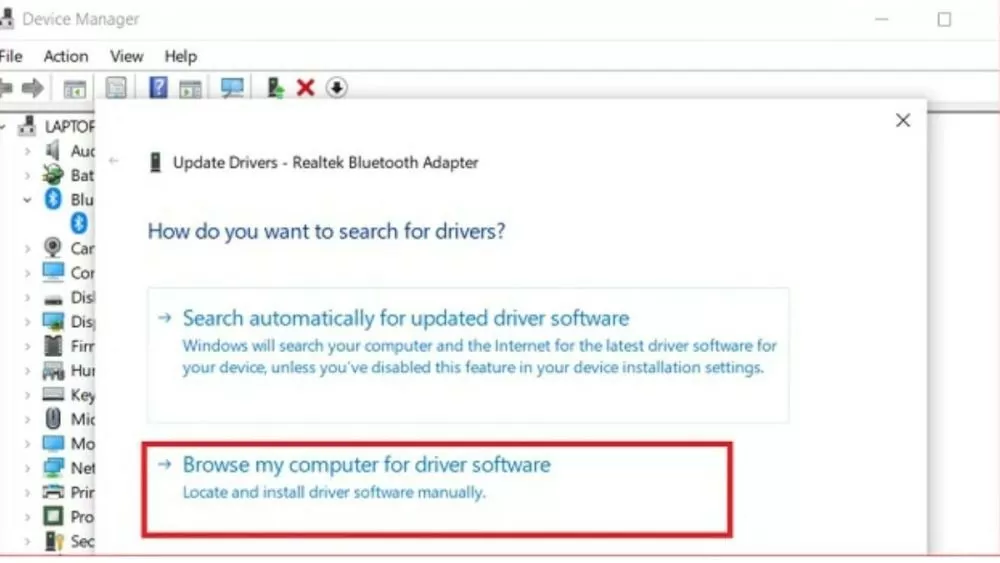
Step 4 : Close the Device Manager interface. Then, restart your device. If it still doesn't work, click on "Browse my computer..." as shown in the image below.
 |
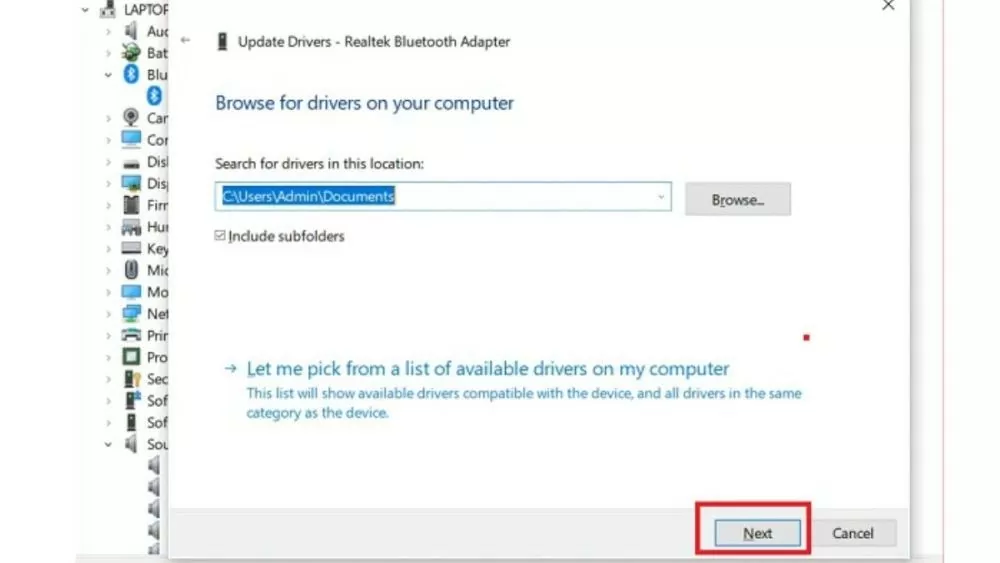
Step 5 : Continue by selecting "Let me pick from..." and choose the appropriate driver from the list. Click "Next". After successful installation, close Device Manager and restart your computer. Click "Next" to complete the installation process. After successful installation, close Device Manager and restart your computer.
 |
The article above has guided you on how to install Windows 10 audio drivers quickly and efficiently. We wish you success in downloading and installing audio drivers for Windows 10 64-bit as instructed.
Source: https://baoquocte.vn/bat-mi-4-cach-cai-driver-audio-win-10-nhanh-chong-va-de-thuc-hien-nhat-278518.html
![[Image] Hanoi Police officially crowned champions of V-League 2025/2026](https://vphoto.vietnam.vn/thumb/1200x675/vietnam/resource/IMAGE/2026/05/31/1780244769054_ndo_br_039d561b692be875b13a-jpg.webp)

![[Photo] Solemn bathing ceremony and Buddha procession in Hue](https://vphoto.vietnam.vn/thumb/1200x675/vietnam/resource/IMAGE/2026/05/31/1780228263543_1-jpg.webp)

![[Photo] Admire the coral "masterpiece" amidst the million-year-old heritage of Dak Lak province.](https://vphoto.vietnam.vn/thumb/1200x675/vietnam/resource/IMAGE/2026/05/31/1780221235105_anh-man-hinh-2026-05-31-luc-16-53-27.png)
![[Photo] The General Secretary, President and his wife begin their state visit to the Philippines.](https://vphoto.vietnam.vn/thumb/1200x675/vietnam/resource/IMAGE/2026/05/31/1780230559452_anh-man-hinh-2026-05-31-luc-19-28-11.png)



















![[Video] Sunset at Lap An Lagoon – Where the sun sets over the fishing nets](https://vphoto.vietnam.vn/thumb/340x192/vietnam/resource/IMAGE/2026/05/31/1780192137701_beach-landscape-sea-water-nature-grass-745871-pxhere-com.jpeg)









































![[Photo] Admire the coral "masterpiece" amidst the million-year-old heritage of Dak Lak province.](https://vphoto.vietnam.vn/thumb/402x226/vietnam/resource/IMAGE/2026/05/31/1780221235105_anh-man-hinh-2026-05-31-luc-16-53-27.png)




































Comment (0)