

 |
Pure Tuber is an ad-blocking app for Android phones and a YouTube-based video player. Pure Tuber's dark mode is a crucial feature for optimizing the video viewing experience. This article will guide you on how to activate dark mode on Pure Tuber.
Dark mode on Pure Tuber
The dark mode on Pure Tuber allows you to change the app's interface to reduce brightness, helping to protect your eyes when watching videos at night or in low-light conditions.
When dark mode is activated, the app's interface will have a darker background color and other elements will be lighter to create a more visually appealing contrast. This helps reduce eye strain in low-light conditions, especially when watching videos at night.
Instructions on how to activate dark mode on Pure Tuber
To activate dark mode on Pure Tuber using an Android phone, follow these steps:
Step 1:
First, open the Pure Tuber app. On the main screen, tap your Account icon. Then, select Settings.
Step 2:
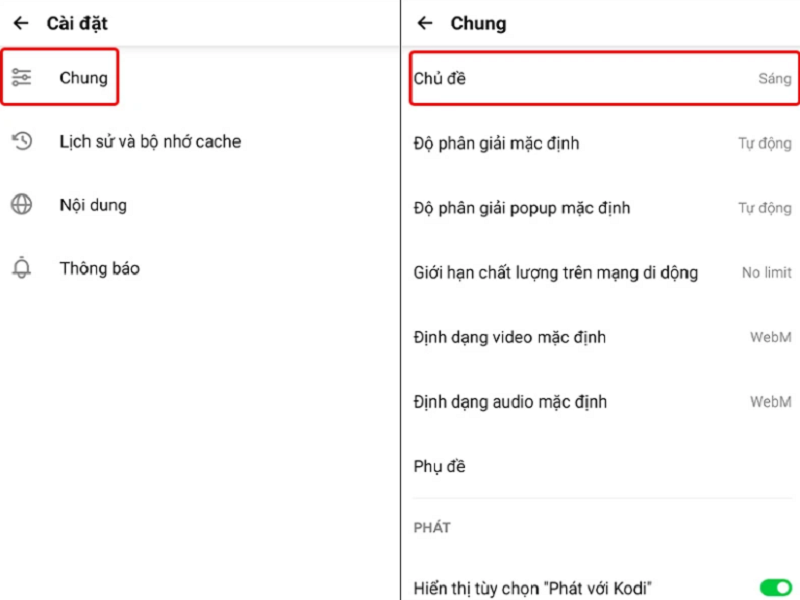
Click on the General section and select Theme.
 |
Step 3:
Select the Dark theme. Finally, click the back arrow to apply the changes.
Source




























![[Photo] Reception to welcome General Secretary and President To Lam and his wife on their State visit to the Philippines](https://vphoto.vietnam.vn/thumb/1200x675/vietnam/resource/IMAGE/2026/06/01/1780295488620_vna-potal-chieu-dai-chao-mung-tong-bi-thu-chu-tich-nuoc-to-lam-va-phu-nhan-tham-cap-nha-nuoc-toi-philippines-8798060-7855-jpg.webp)









































































Comment (0)