

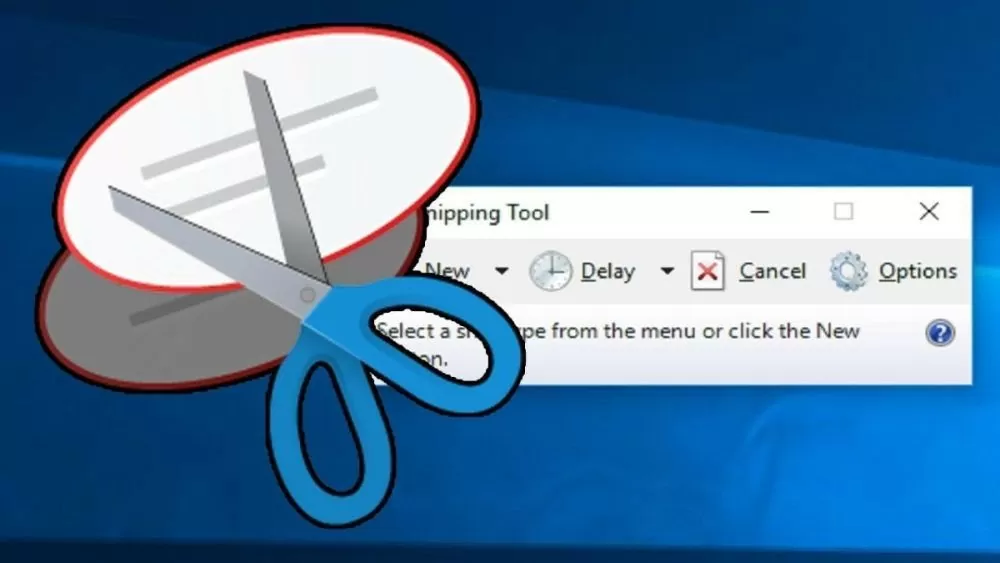
Looking for instructions on how to use and set up keyboard shortcuts for Snipping Tool on Windows 10? This article will guide you on how to quickly take screenshots!
 |
| How to use the Snipping Tool shortcut to take screenshots on your computer. |
Instructions on how to create a shortcut to quickly open the Snipping Tool.
Setting up keyboard shortcuts for Snipping Tool saves you time and effort, especially when you frequently need to take screenshots. Windows 10 doesn't provide a built-in shortcut for Snipping Tool, but you can easily create custom shortcuts. Below are some simple ways to create quick and convenient shortcuts to open Snipping Tool.
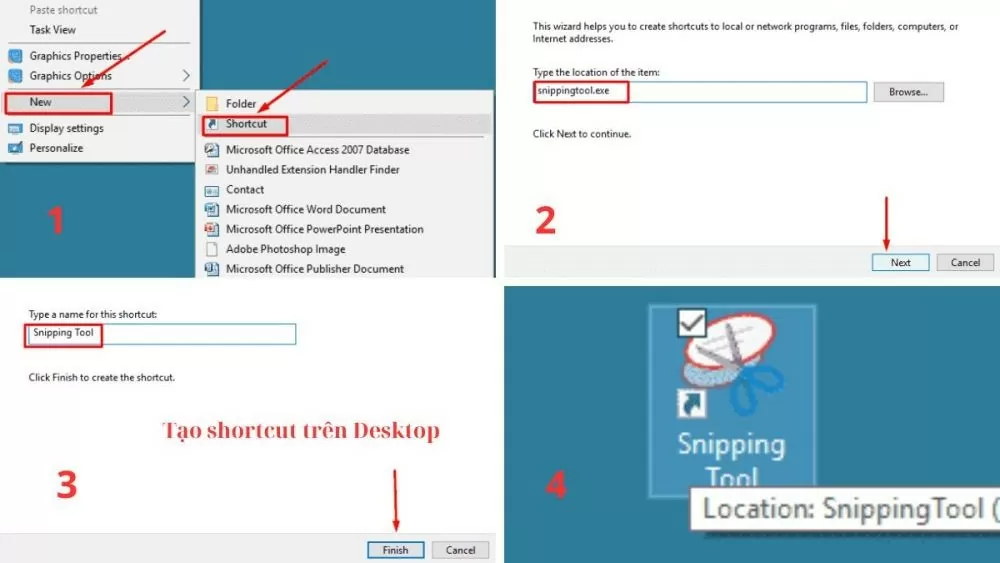
Method 1: Instructions on creating a shortcut on the Desktop
Step 1: On the Desktop, right-click, select "New", then select "Shortcut".
Step 2: Next, in the "Type the location of the item" section, enter "snippingtool.exe" and then click "Next" to continue.
Step 3: Give this shortcut a name of your choice, then click "Finish" to complete the creation process.
Step 4: Now you have a shortcut for Snipping Tool on your desktop. Simply double-click this shortcut to quickly open Snipping Tool.
 |
| How to use the Snipping Tool shortcut to take screenshots on your computer. |
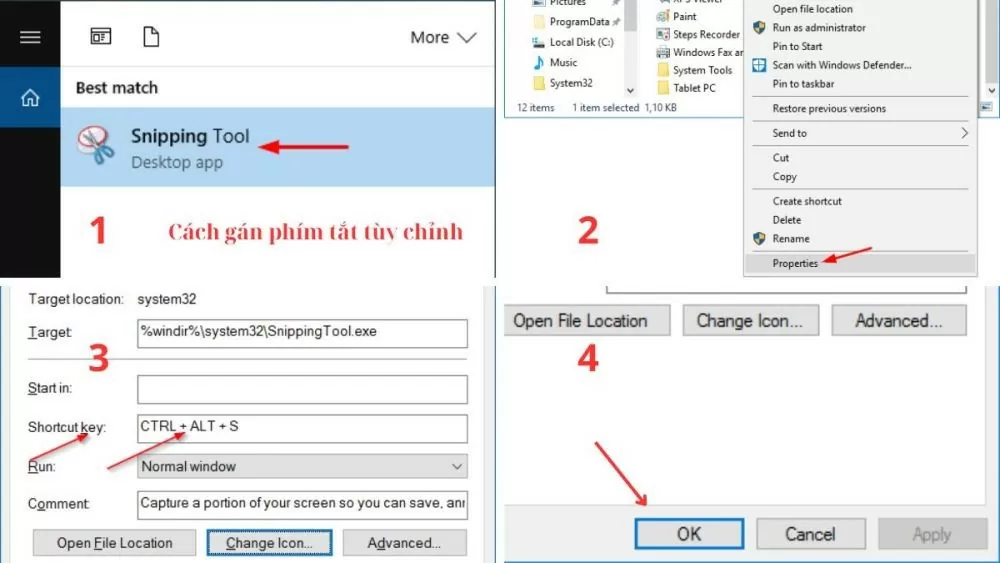
Method 2: Instructions for assigning custom keyboard shortcuts
Step 1: Open the Start Menu and search for "Snipping Tool," right-click on the Snipping Tool icon, and select "Properties" to access the shortcut settings.
Step 2: In the "Shortcut" tab, click on the "Shortcut key" box and enter the keyboard shortcut you want to use (for example: Ctrl + Alt + S).
Step 3: Click "Apply" and then "OK" to apply and save the changes.
Step 4: From now on, you can simply use the keyboard shortcut you just set up to open Snipping Tool quickly and conveniently.
 |
| How to use the Snipping Tool shortcut to take screenshots on your computer. |
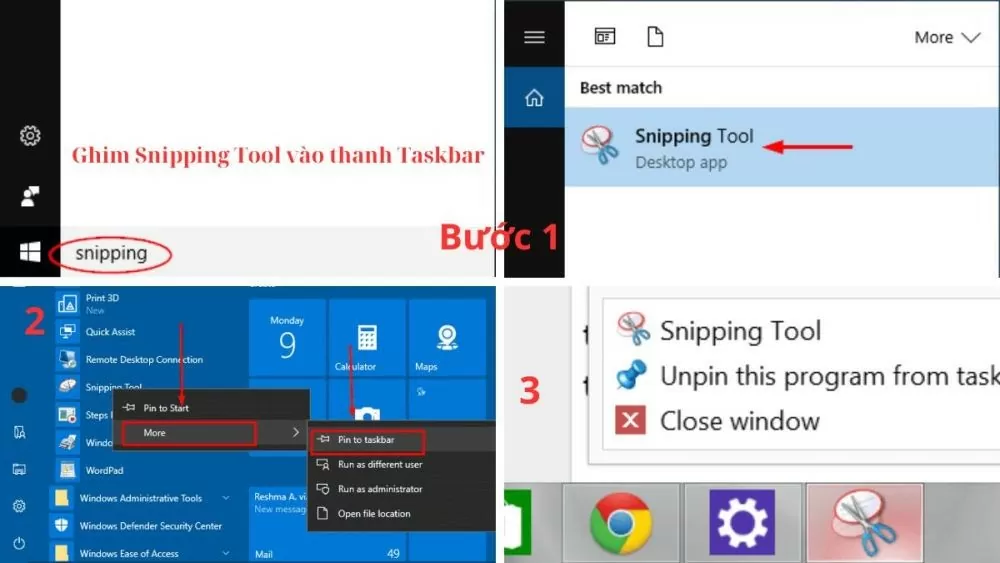
Method 3: Instructions on how to pin the Snipping Tool to the Taskbar
This is the simplest way to quickly access the Snipping Tool without searching for it or using other keyboard shortcuts.
Step 1: Open the Start Menu and type "Snipping Tool" into the search box.
Step 2: When the Snipping Tool application appears in the search results, right-click on its icon, select "More," and then select "Pin to taskbar" for easy access and use later.
Step 3 : The Snipping Tool icon now appears on the Taskbar. Simply click on this icon to quickly open the Snipping Tool.
 |
| How to use the Snipping Tool shortcut to take screenshots on your computer. |
Instructions on how to take screenshots on a Windows computer using Snipping Tool.
Once you know how to use the Snipping Tool shortcut or open the tool via the search bar, you'll see the Snipping Tool interface with its capture options. This shortcut offers various modes, from capturing the entire screen to capturing a selected area, meeting all your screenshot needs.
Full-screen Snip mode on a computer
This is the simplest and fastest way to capture the entire content displayed on your computer screen. To capture the entire screen, simply press the "Prt Sc" key or open Snipping Tool from the Taskbar and select "Full-screen Snip". Immediately, the entire screen will be captured, and you can easily edit or save the screenshot.
Window Snip mode on a computer
This mode is very useful when you only want to capture a specific active window. After pressing the Windows logo key + Shift + S shortcut or clicking the Snipping Tool icon on the Taskbar and selecting "Window Snip," move the mouse cursor to the window you want to capture and click to automatically record the entire content of that window.
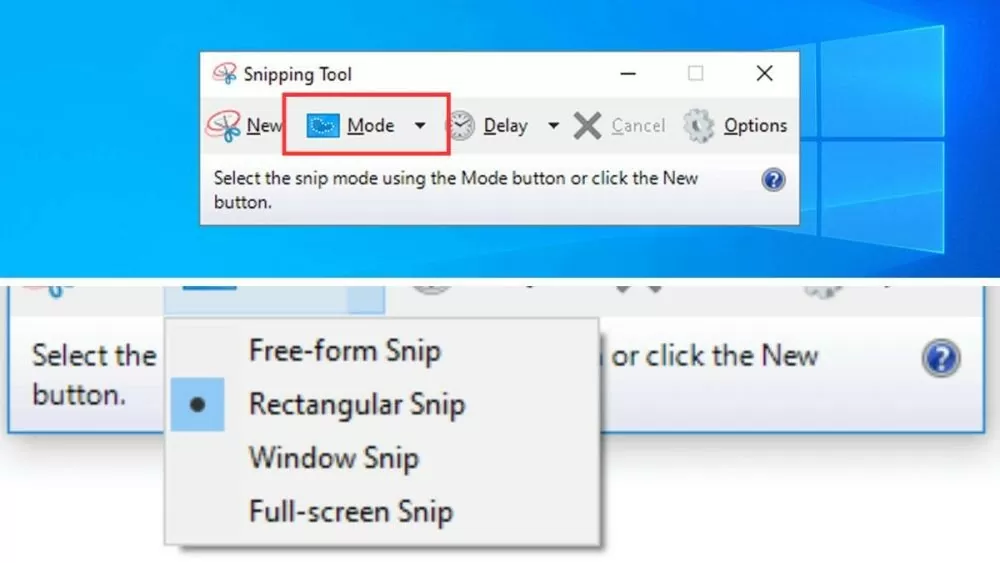
The Rectangular Snip mode on the computer allows you to capture a specific area.
The "Rectangular Snip" mode allows you to freely select a rectangular area on the screen to capture. After setting the Snipping Tool shortcut, select "Rectangular Snip" and press and hold the left mouse button, then drag to select the area you want to capture. As soon as you release the mouse button, the Snipping Tool will automatically capture the selected area.
 |
| How to use the Snipping Tool shortcut to take screenshots on your computer. |
Free-form Snip mode on a computer
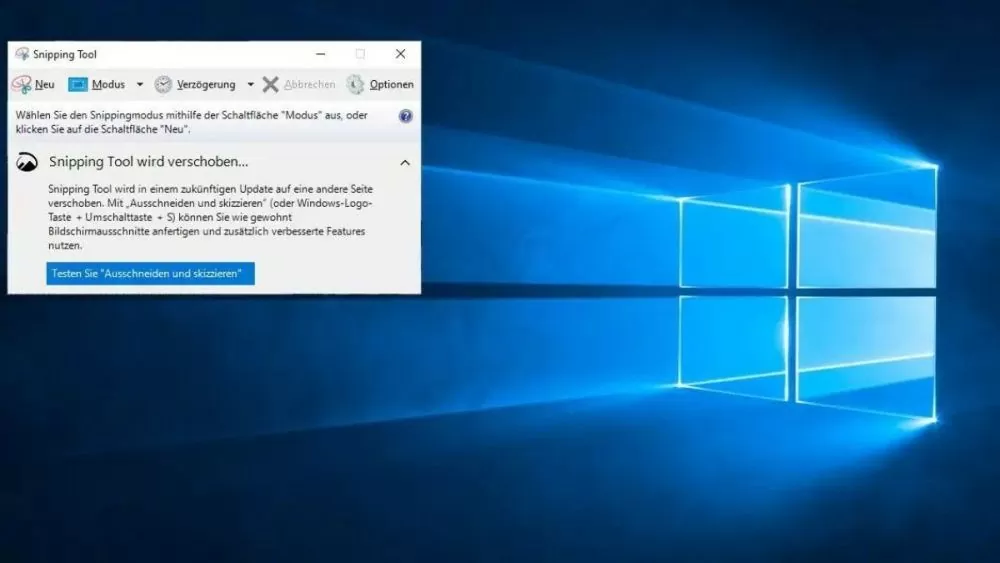
The "Free-form Snip" mode offers maximum flexibility in selecting the capture area. You can draw any shape around the area you want to capture. First, open the Snipping Tool and select "Free-form Snip". Then, hold down the left mouse button and draw freely around the area you want to capture. When you release the mouse button, the Snipping Tool will capture the area you just drew.
 |
| How to use the Snipping Tool shortcut to take screenshots on your computer. |
Instructions on how to take screenshots using Snipping Tool
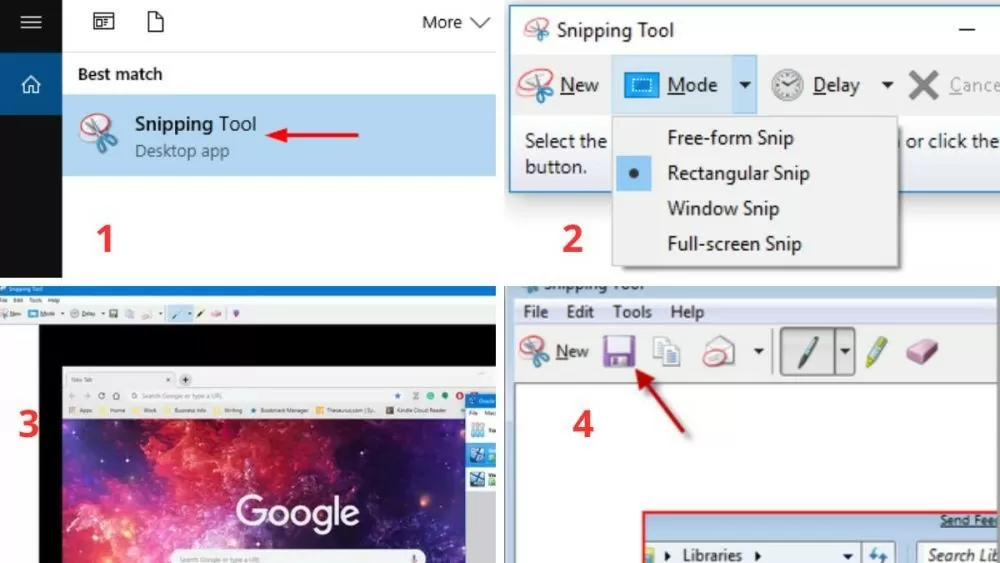
Step 1: Open Snipping Tool using your set keyboard shortcut or search for "Snipping Tool" in the Start Menu.
Step 2: Choose the capture mode that suits your needs, such as full screen, window, custom area, or freehand.
Step 3: Proceed to take photos by performing the operations appropriate to the shooting mode you have selected.
Step 4: After taking the photo, you can edit it using the tools in Snipping Tool, then save or share the captured image.
 |
| How to use the Snipping Tool shortcut to take screenshots on your computer. |
By mastering the Snipping Tool shortcuts, you'll optimize your workflow and save significant time. Hopefully, this article has helped you better understand how to use and set up shortcuts on Windows 10. Experiment and explore other useful features to improve your work and study efficiency.
Source: https://baoquocte.vn/cach-su-dung-phim-tat-snipping-tool-de-chup-man-hinh-tren-may-tinh-279591.html
![[Photo] Secretary of the National Assembly Party Committee, Chairman of the National Assembly presides over the meeting of the Standing Committee and Executive Committee of the National Assembly Party Committee.](https://vphoto.vietnam.vn/thumb/1200x675/vietnam/resource/IMAGE/2026/06/03/1780480353201_ndo_br_bnd-2585-jpg.webp)
![[Photo] First session of the 14th Congress of the Vietnam Trade Union](https://vphoto.vietnam.vn/thumb/1200x675/vietnam/resource/IMAGE/2026/06/03/1780465947883_ndo_br_img-3852-jpg.webp)


![[Photo] General Secretary and President To Lam presides over a meeting with the Central Organizing Committee.](https://vphoto.vietnam.vn/thumb/1200x675/vietnam/resource/IMAGE/2026/06/03/1780482764658_a1-bnd-4741-3342-jpg.webp)

















































![[Video] Sunset at Lap An Lagoon – Where the sun sets over the fishing nets](https://vphoto.vietnam.vn/thumb/1200x675/vietnam/resource/IMAGE/2026/05/31/1780192137701_beach-landscape-sea-water-nature-grass-745871-pxhere-com.jpeg)







































Comment (0)