

When using a computer, encountering driver issues is unavoidable. Check out the following article to learn the most effective ways to fix driver errors!
 |
Driver issues are a common problem on computers, potentially leading to peripheral devices not functioning properly or causing serious problems. To fix this, users can apply several helpful methods and tools.
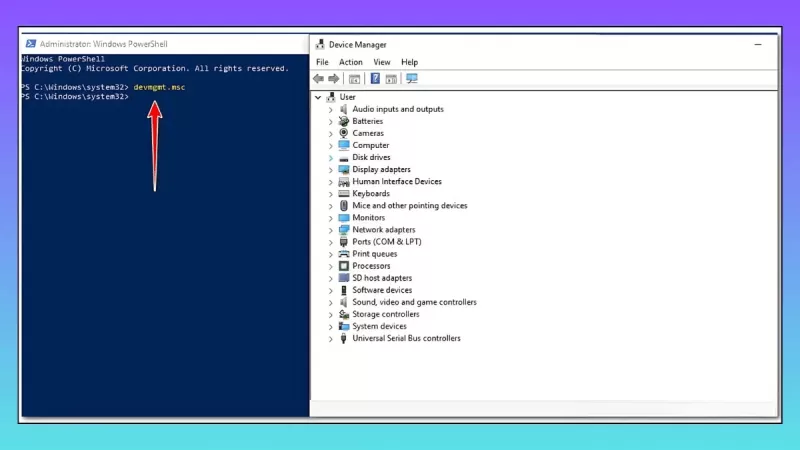
Instructions for updating drivers from Device Manager
Windows 10 automatically installs driver updates when they are released, but sometimes these updates can cause problems with drivers, leading to unstable performance. You can fix this by manually updating the drivers.
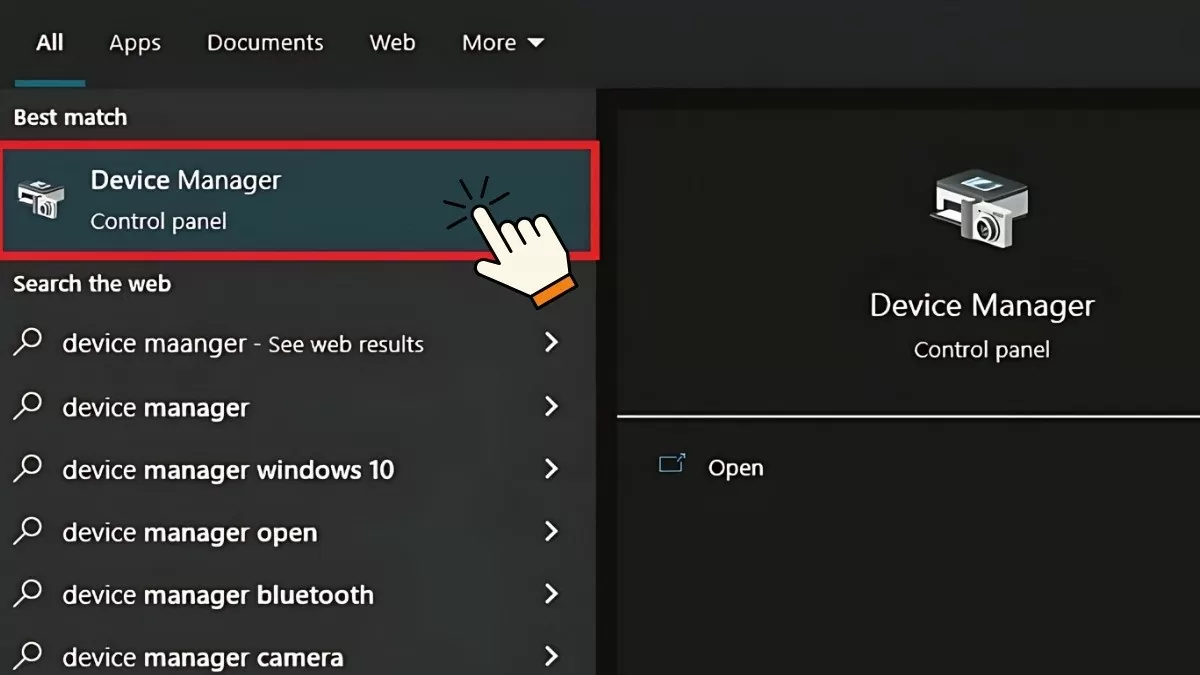
Step 1: Open the Start Menu, search for and type "Device Manager", then press Enter.
 |
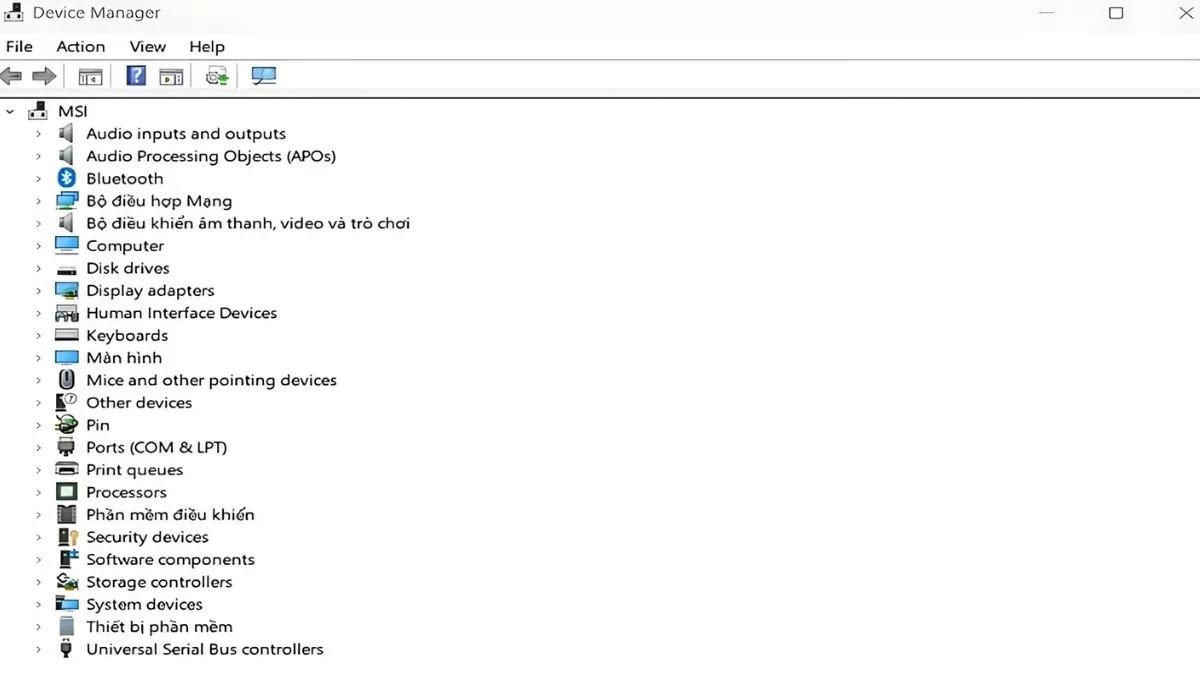
Step 2: Check the list of drivers in Device Manager and expand each entry if necessary. If you see any devices with a yellow exclamation mark icon, that indicates a problem with the driver for that device.
 |
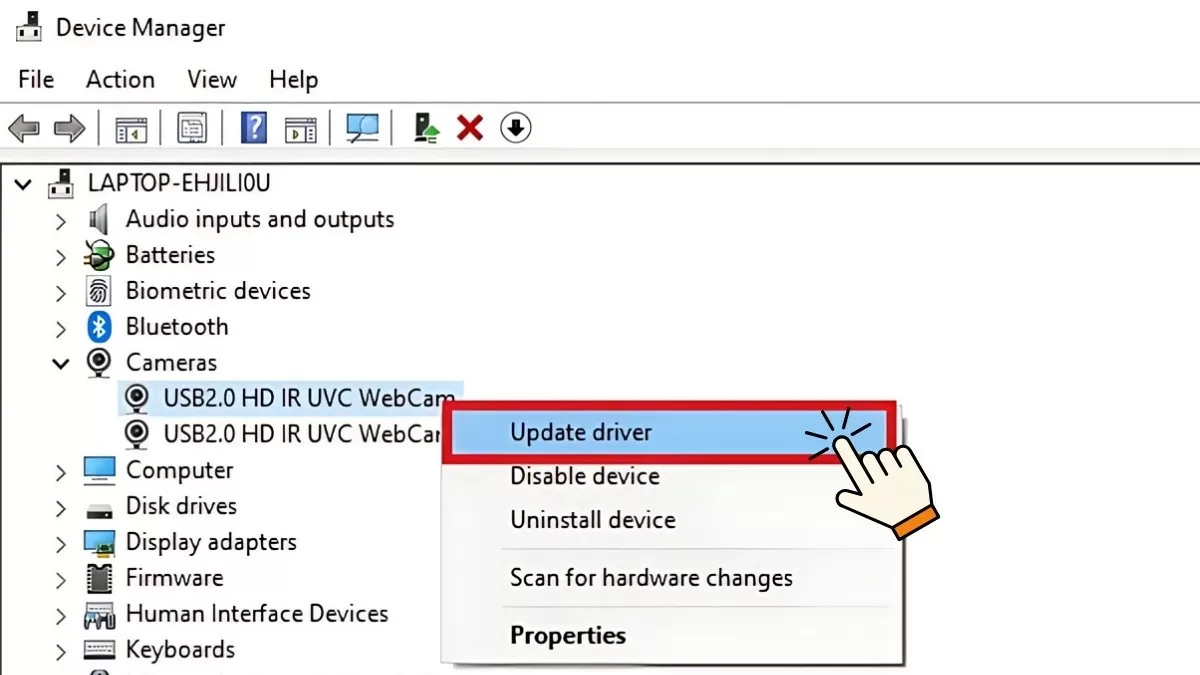
Step 3: If the device displays a yellow exclamation mark icon, right-click on the device and select "Update driver".
 |
The operating system will automatically find and install the latest drivers for you. However, if the latest driver version is not yet available, manually updating it will help resolve these issues.
Instructions on how to reinstall the driver.
If your computer is still experiencing problems after installing the latest driver, please uninstall and reinstall the driver following these steps:
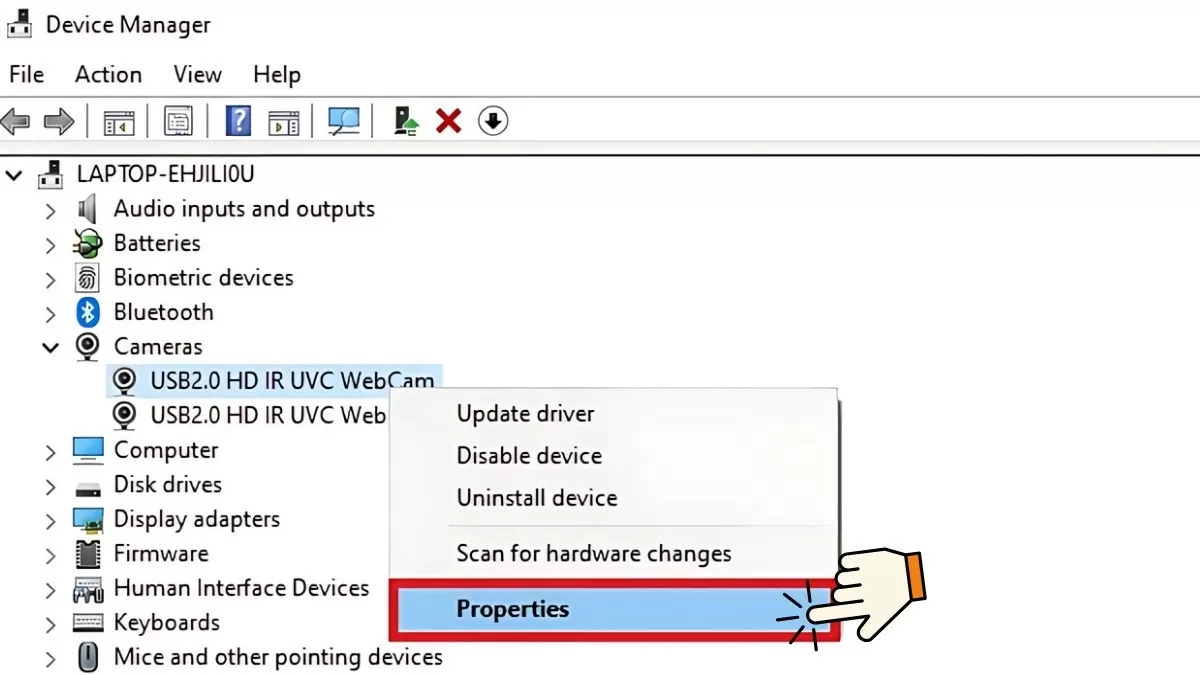
Step 1: Open the Start Menu, type "Device Manager" and press Enter. Then, find the driver causing the error, right-click on it and select "Properties".
 |
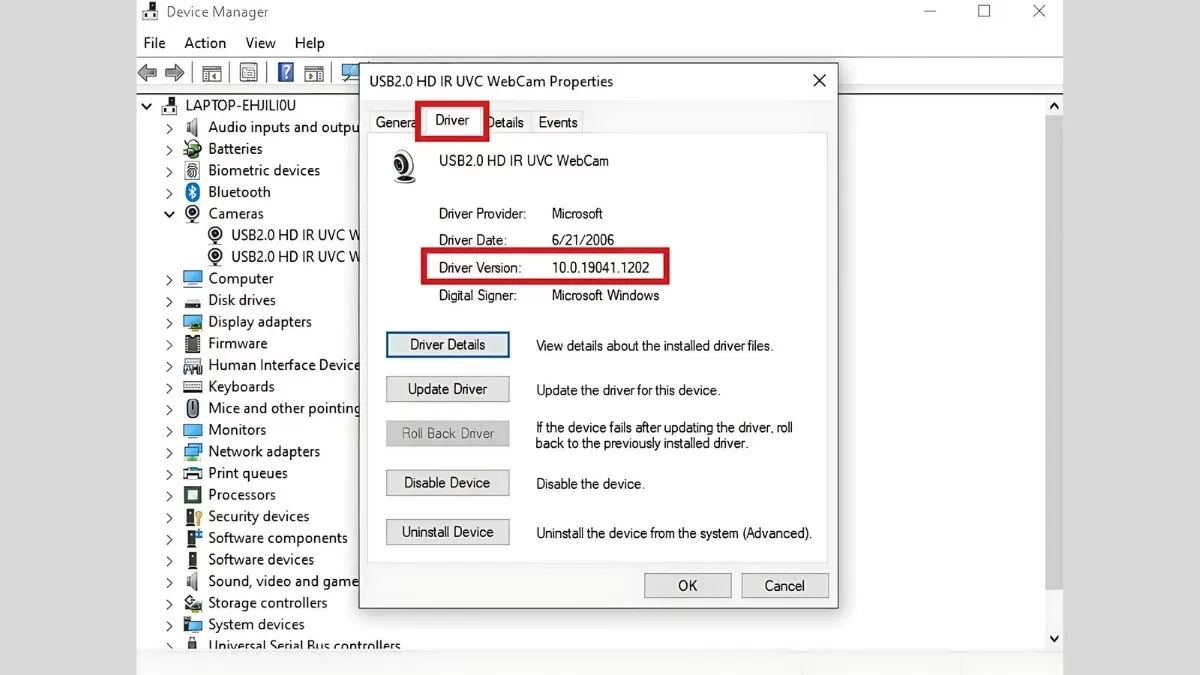
Step 2: In the Properties window, select the "Driver" tab and note down the current driver version in the "Driver Version" field. This information will be useful when you reinstall the driver from the manufacturer's website.
 |
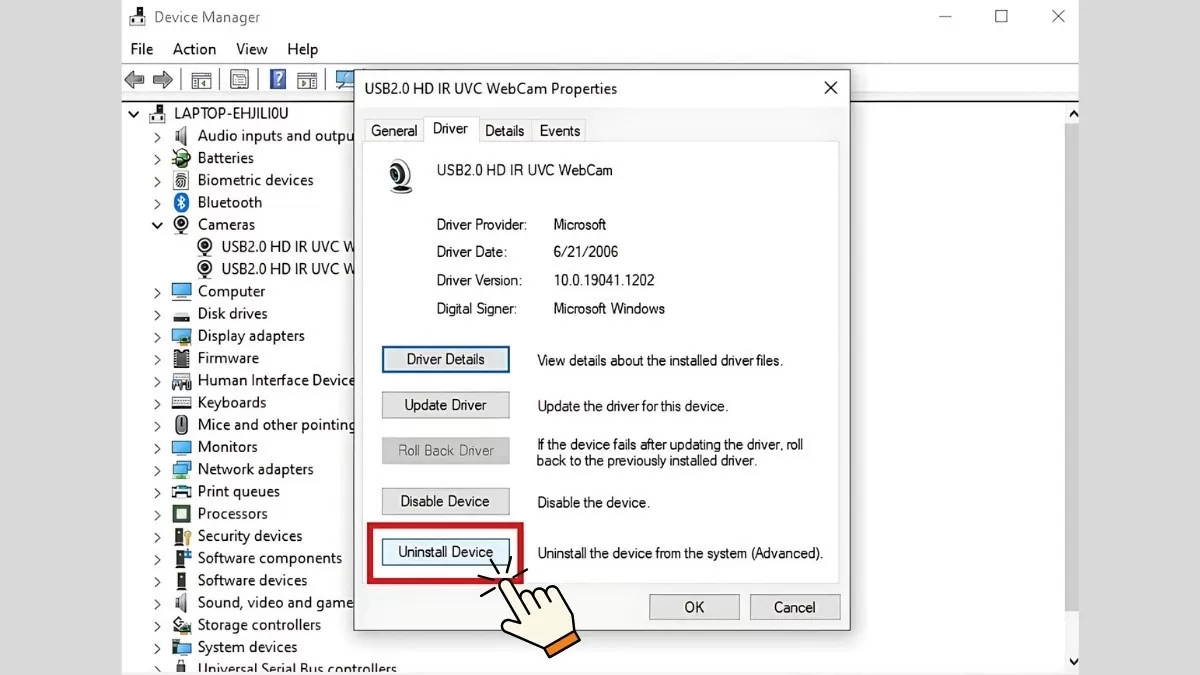
Step 3 : Select "Uninstall Device" to remove the current driver. After the uninstallation is complete, visit the manufacturer's official website to download the driver version recorded in the previous step. Install the new driver and restart your computer to complete the process.
 |
By following the steps above, you will effectively resolve driver-related issues on your computer, ensuring stable device operation.
Instructions for using the Windows Troubleshooter tool.
If manually fixing Windows 10 driver errors is too difficult, use the Windows Troubleshooter. This tool will automatically find and fix driver errors following these instructions:
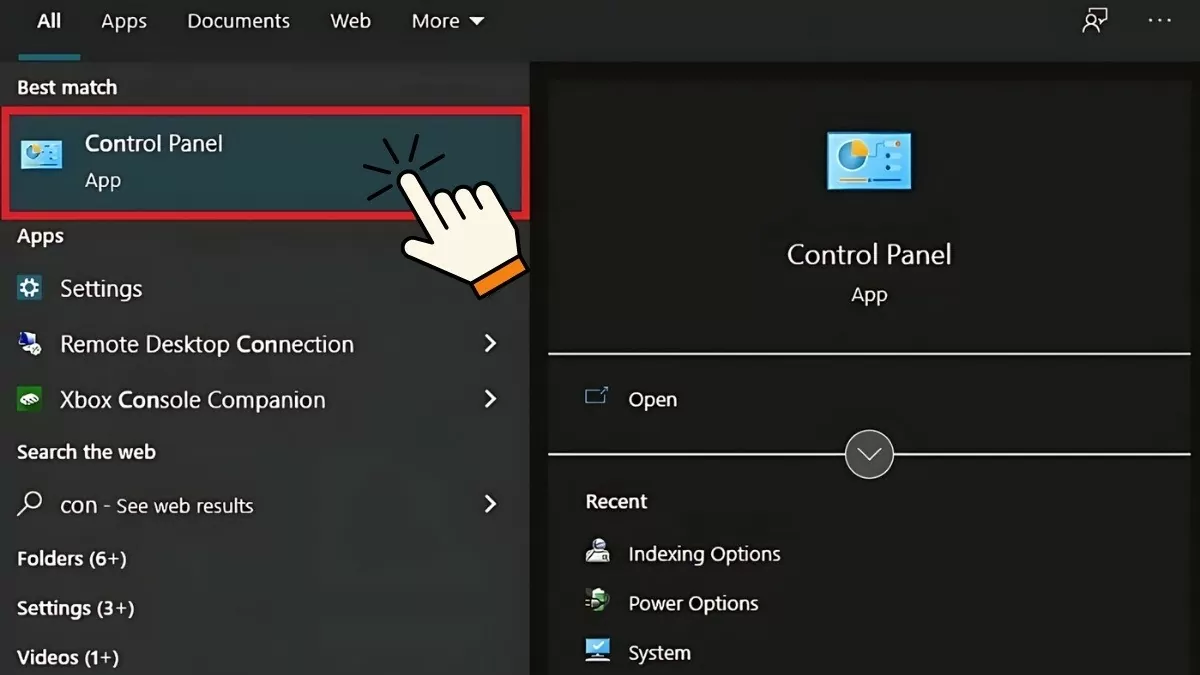
Step 1: First, click the Start icon on your screen, then type "Control Panel" and press Enter.
 |
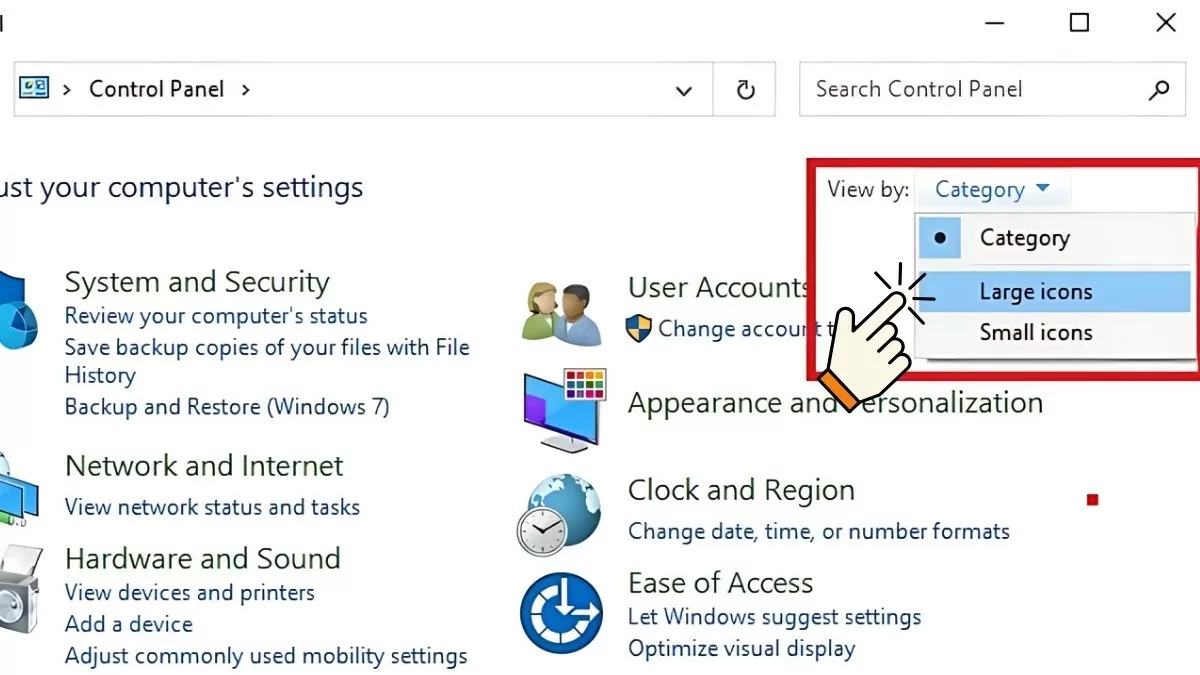
Step 2: In the Control Panel window, select "Large icons" in the "View by" section.
 |
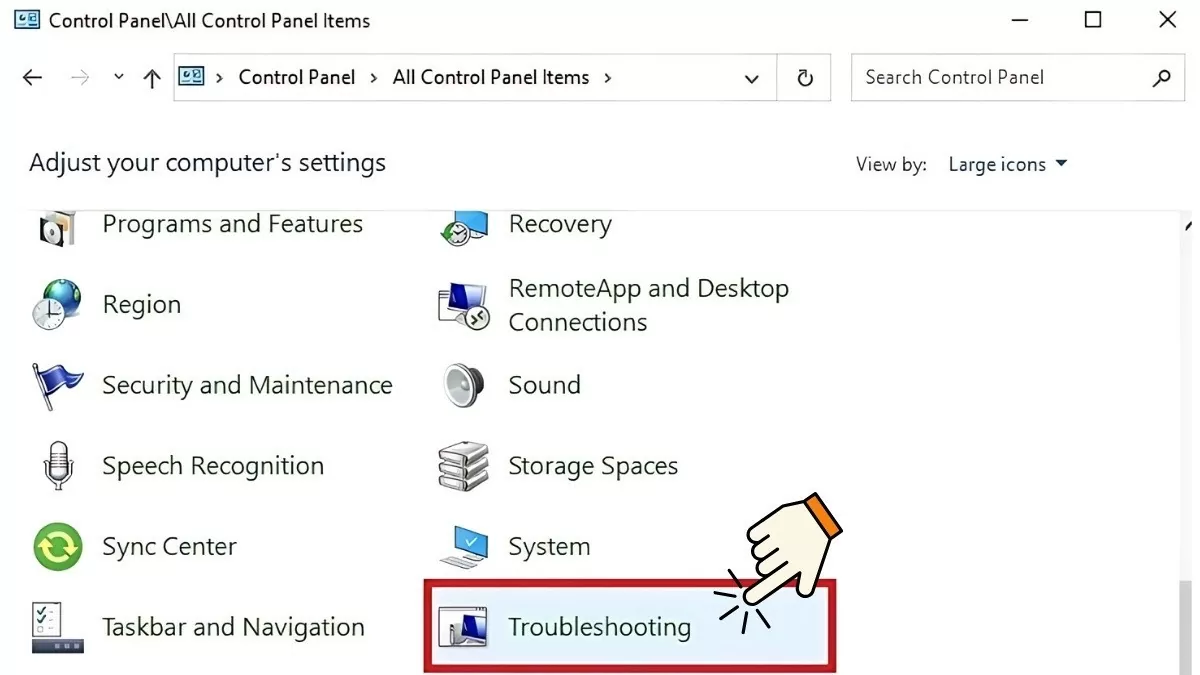
Step 3 : Next, find and click on "Troubleshooting".
 |
Step 4 : From the list, select the "Troubleshooter" that matches your current driver issue. Then, click "Next" and follow the on-screen instructions.
 |
This method allows you to resolve driver issues conveniently and quickly, without needing to perform complicated procedures.
How to scan your computer for viruses using Windows Defender
Sometimes, driver errors can occur because the device is infected with a virus from files downloaded from unreliable websites. To fix this, you can use Windows Defender to scan and remove viruses.
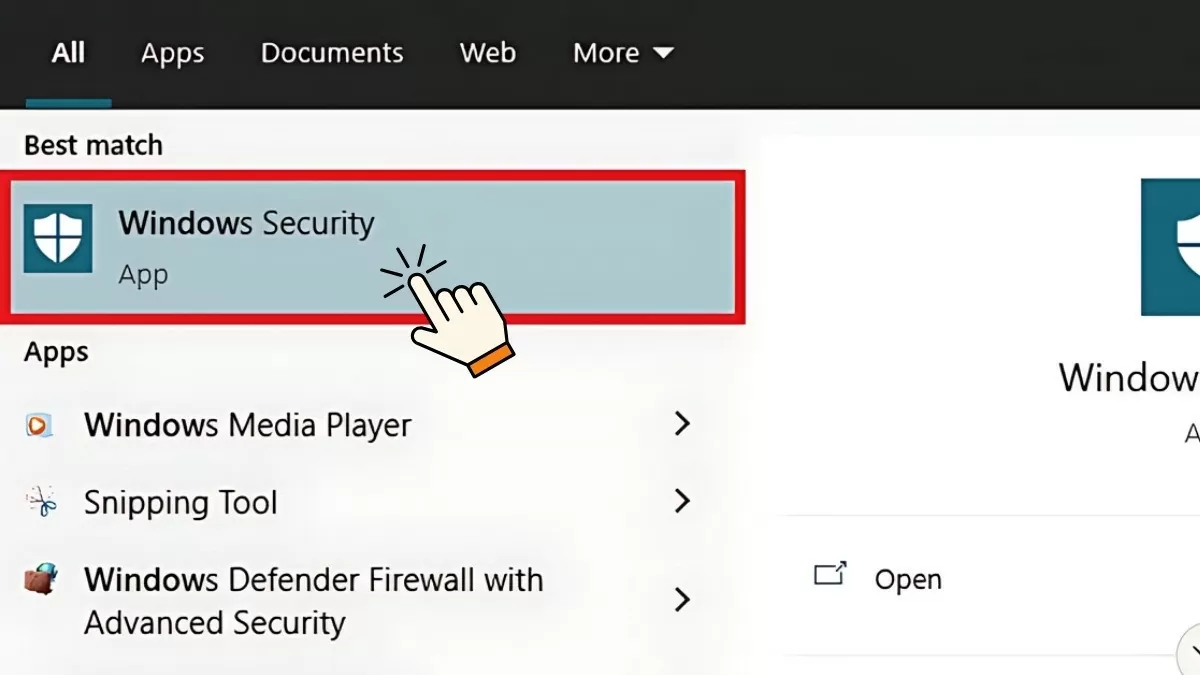
Step 1 : First, open the Start Menu, type "Windows Security" and press Enter.
 |
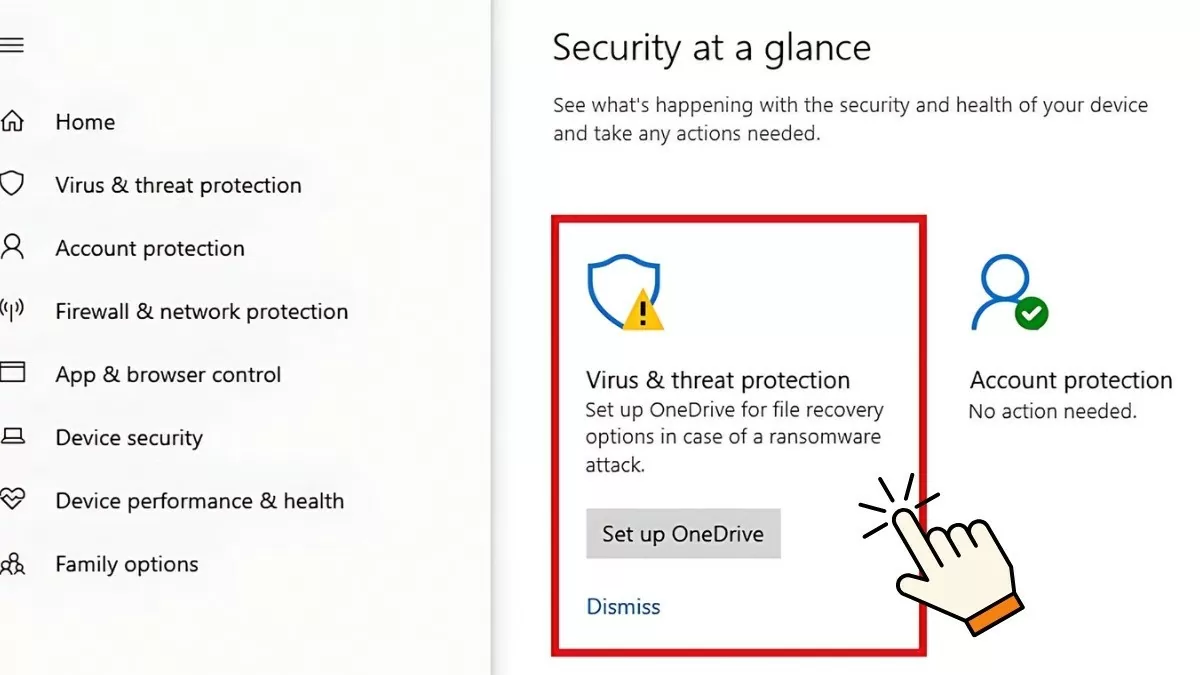
Step 2: Next, select "Virus & threat protection".
 |
Step 3 : In the Virus & Threat Protection screen, you can select "Quick Scan" to quickly check for viruses on your device. Alternatively, you can select "Scan options" for more detailed virus scans.
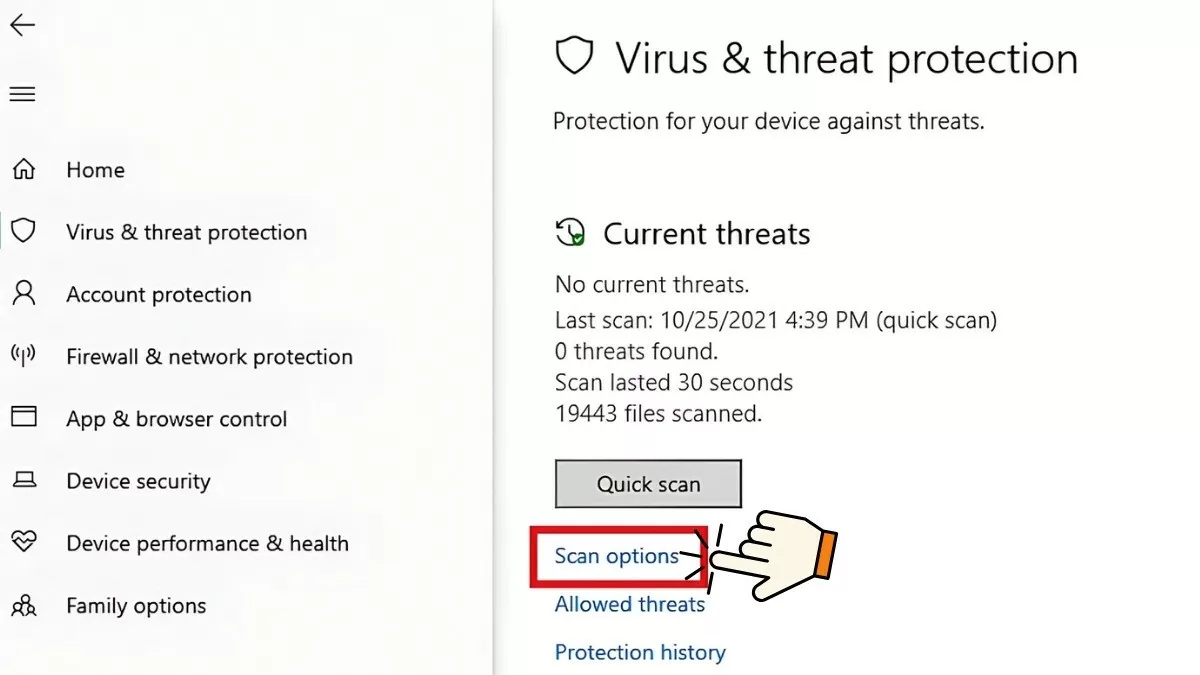 |
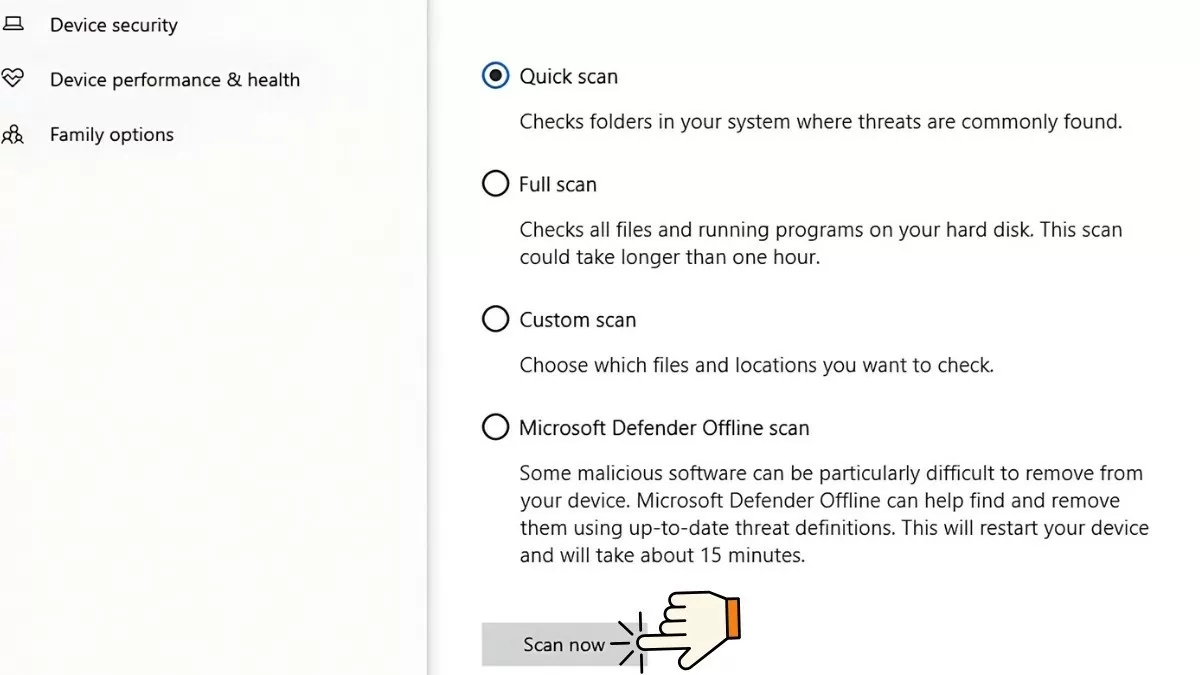
Step 4: In the Scan options section, Windows Defender provides the following virus scanning features:
- Quick scan: Quickly scans system folders for viruses.
- Full scan: This checks all files and applications running on the drive. This process is time-consuming and can take up to an hour.
- Custom scan: Allows you to select specific files to scan for viruses.
- Microsoft Defender Offline scan: Scans and resolves stubborn malware. This process takes approximately 15 minutes.
After selecting the appropriate scan mode, click "Scan now" to start the scan process. The results will be displayed at the top of the Windows Defender report page when the process is complete.
 |
This way, you'll ensure your computer is protected from viruses that can cause driver errors and maintain optimal performance.
Instructions for updating Windows 10
If you encounter driver errors that cannot be resolved by other methods, updating Windows 10 may help. Make sure that the Device installation setting is enabled so that Windows automatically installs drivers during the system update process before proceeding.
Step 1: Open the Start Menu, type "Change device installation settings", and press Enter.
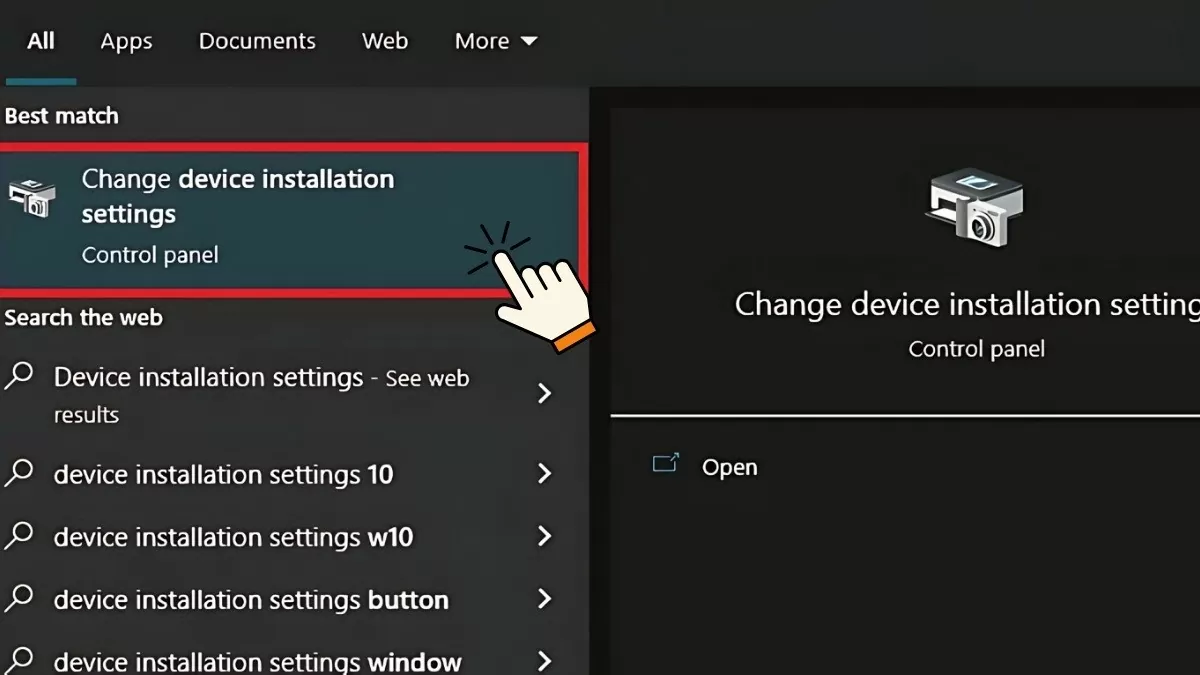 |
Step 2 : When the window appears, you will see a question like the one below - Select "Yes", then click "Save Changes".
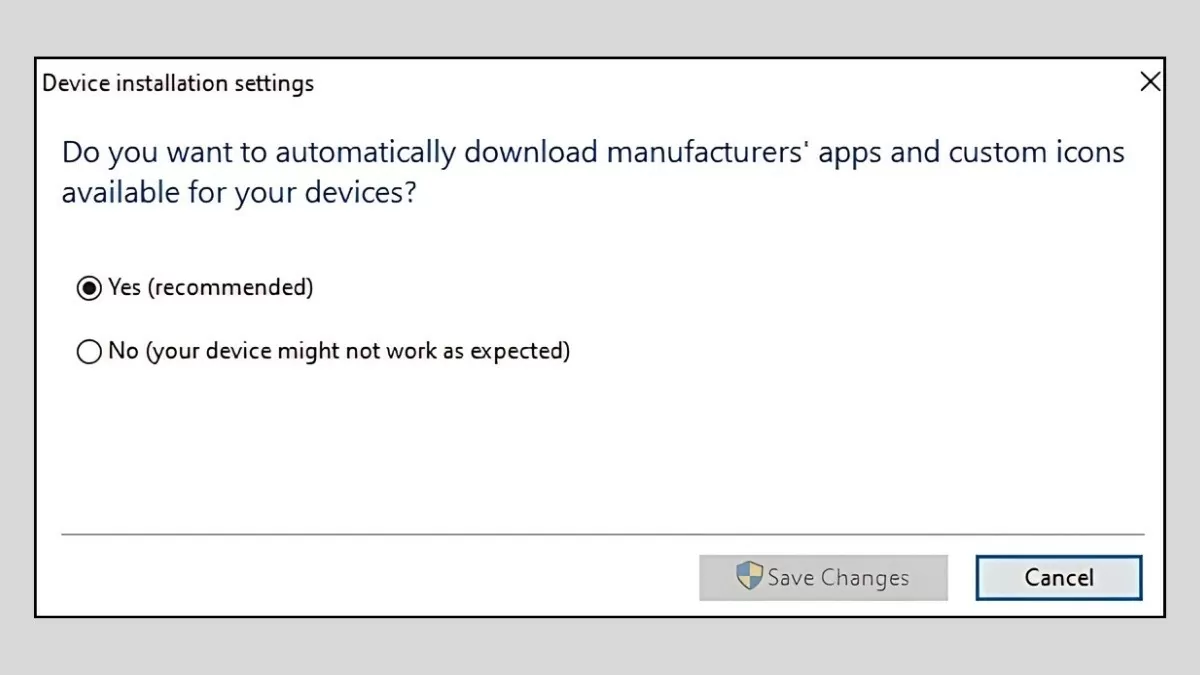 |
Step 3 : Continue selecting options under Windows Update and related driver updates. Finally, click "Download and install" to begin the download and installation process.
Following these steps will help you update Windows 10 to effectively resolve driver issues on your computer, ensuring stable system operation.
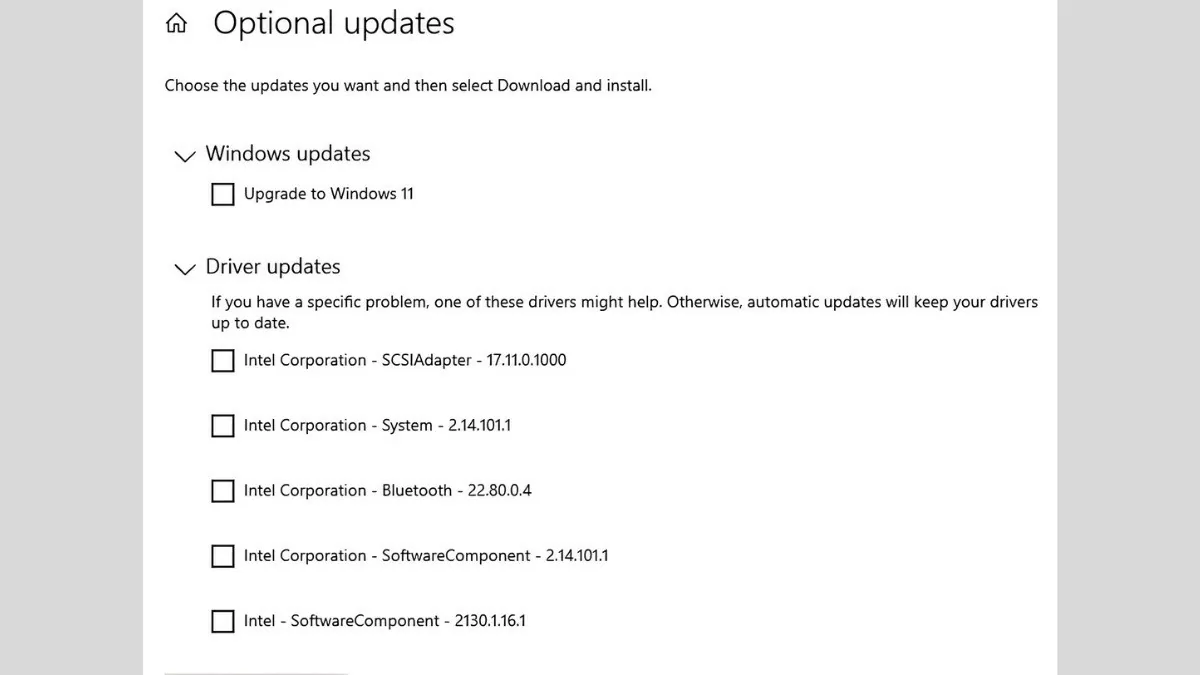 |
To effectively fix driver errors on Windows 10, regularly check and update your drivers. Reinstall drivers when necessary and use the included support tools. Protect your computer from viruses and always use the latest software version to avoid unnecessary driver errors and conflicts.
Source: https://baoquocte.vn/mach-ban-5-cach-sua-loi-driver-hieu-qua-va-nhanh-chong-nhat-278221.html


































































































Comment (0)