

Windows 11 has a feature that can make a big difference in PC performance, optimizing graphics and overall stability. However, unlike other Windows 11 features that can be easily accessed through Settings or the Control Panel, this feature is hidden and requires a bit of knowledge to find. Once accessed, users can speed up system performance by disabling visual effects to significantly improve PC performance and responsiveness.
To access this feature, users must press the Windows + I key combination to open the Settings app. Then, in the left sidebar, select Accessibility > Visual effects . At this point, users need to turn off Animation effects by switching the toggle next to it to the Off position. This will help the system run much faster with a smoother experience.
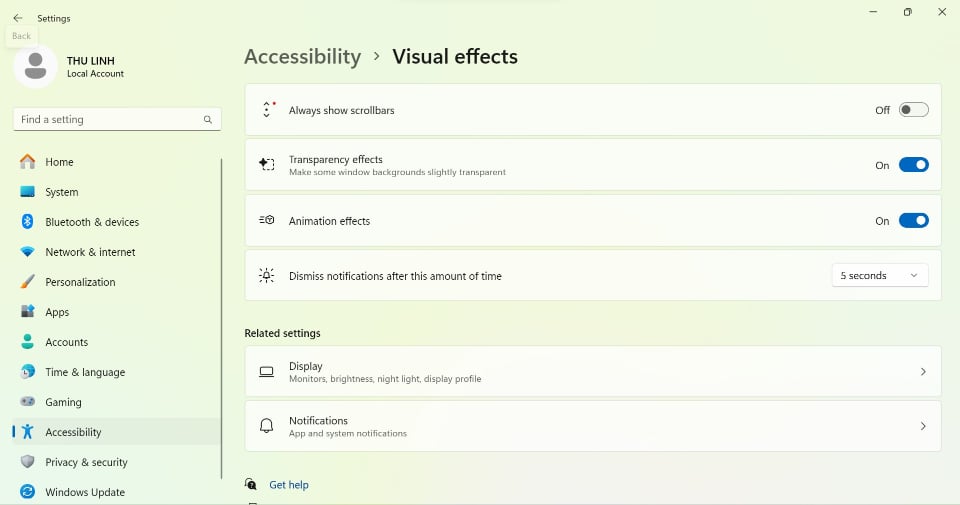
Do this using the Settings app.
The second method is through the Control Panel . This is also an effective alternative to optimize graphics and performance on Windows 11 computers. Go to the Start menu, then in the search bar type Control Panel and open it. Among the available options, select System and Security .
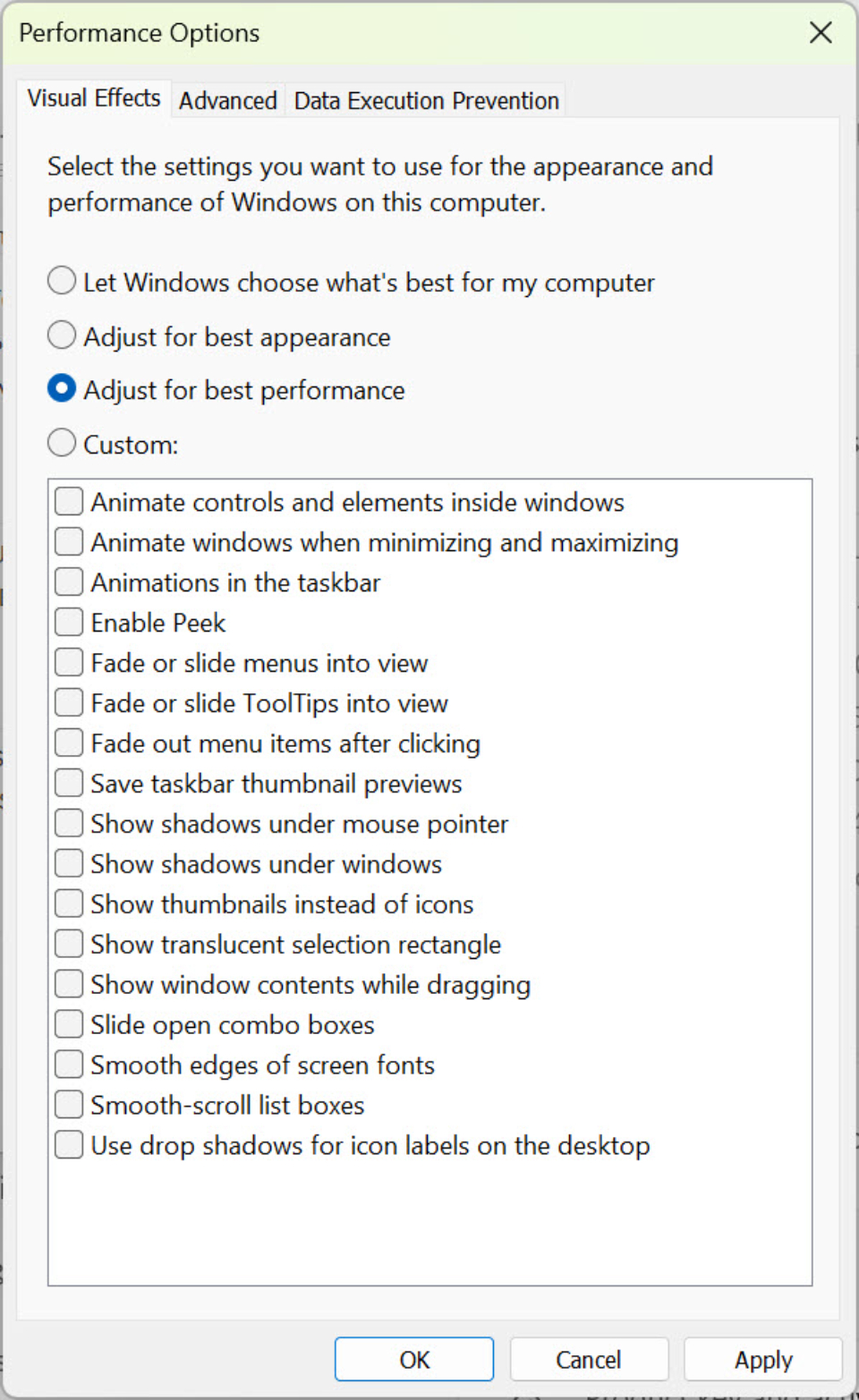
Perform this using the Control Panel.
The next step is to click on System , then select Advanced system settings . A small window will open; in the Advanced section, click on Settings under Performance . In the Visual Effects tab, select Adjust for best performance before clicking Apply > Accept to apply the changes.
By disabling visual effects through Settings or Control Panel , users can speed up PC performance and enjoy a smoother experience in Windows 11.
Source link
![[Photo] General Secretary and President To Lam presides over a meeting on preparations for the review of one year of operation of the three-tiered government system.](https://vphoto.vietnam.vn/thumb/1200x675/vietnam/resource/IMAGE/2026/06/02/1780391821195_a1-bnd-4595-9717-jpg.webp)



















































































Comment (0)