

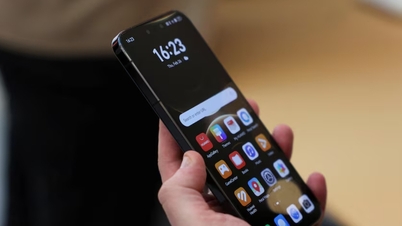
The status bar on Android phones provides a lot of useful information, including battery level, Wi-Fi or mobile data connection status, time, and unread notifications such as messages or calls. However, not everyone knows about a special icon that appears on the status bar: the white dot.

Users can rest assured when they see a white dot in the notification bar.
PHOTO: SLASHGEAR
A white dot usually appears in the upper left or right corner of the notification bar. When you see this icon, you shouldn't worry too much, as it simply indicates that there are too many notifications and not enough space on the screen. This means you may have many notifications from downloaded apps, and the white dot is a way to inform you of that.
How to remove white dots from your phone screen
To remove the white dots displayed on an Android phone, users can try one of the following methods:
- Clear all notifications: Unlock your phone, swipe down to display notifications, and select "Clear all." This will delete all active notifications, including the white dot.
- Delete individual notifications: Users can select individual notifications to open the app or swipe to dismiss them. Note that some options may require the phone to be updated to Android 10 or later.
- Notification settings: Access your Android notification settings to adjust how notifications appear on the lock screen or status bar. These options may vary depending on your phone model.
Besides the white dot, the status bar also features other icons, such as Wi-Fi, airplane mode, and mobile data. Users can control notifications for each downloaded app in their phone's settings. Managing notifications will help users minimize the appearance of the white dot and keep the status bar cleaner.
Source: https://thanhnien.vn/cham-trang-tren-dien-thoai-android-bao-hieu-dieu-gi-18526051213434791.htm













![[Video] Sunset at Lap An Lagoon – Where the sun sets over the fishing nets](https://vphoto.vietnam.vn/thumb/340x192/vietnam/resource/IMAGE/2026/05/31/1780192137701_beach-landscape-sea-water-nature-grass-745871-pxhere-com.jpeg)



![[Photo] The General Secretary, President and his wife lay flowers at the Ho Chi Minh Monument in Manila.](https://vphoto.vietnam.vn/thumb/1200x675/vietnam/resource/IMAGE/2026/05/31/1780219759477_anh-man-hinh-2026-05-31-luc-16-29-07.png)






































Comment (0)