

Mirroring your iPhone screen to your MacBook, laptop, or PC makes sharing content easy and helps you work more efficiently. Check out the detailed instructions below!
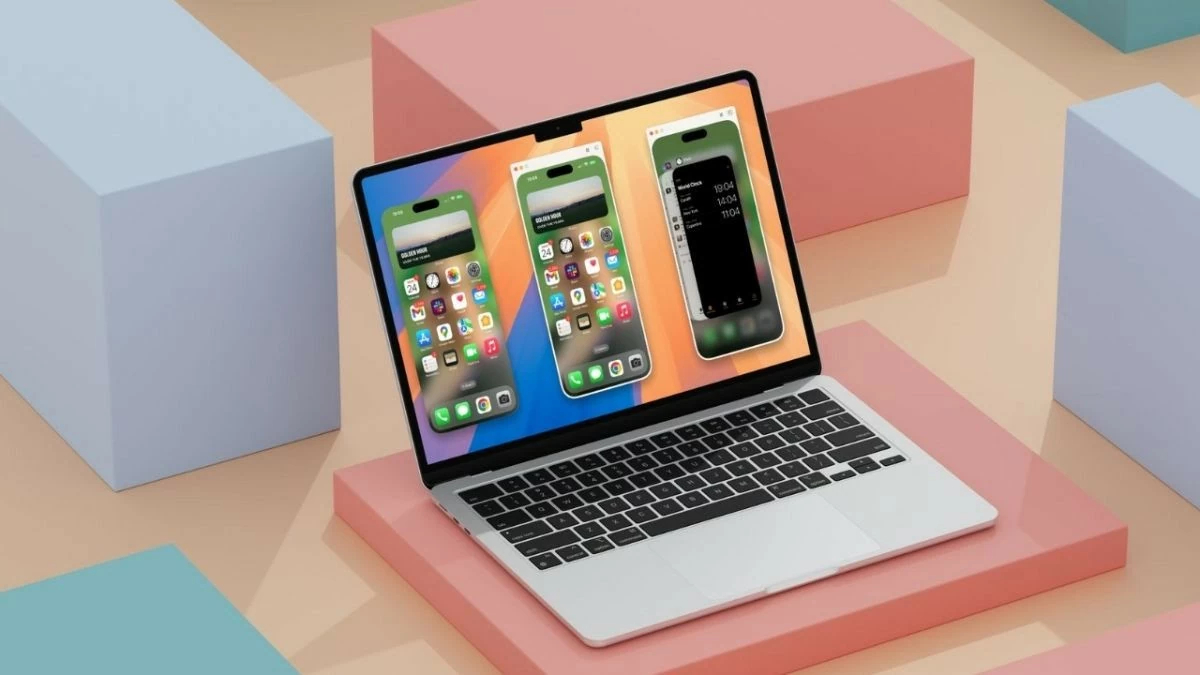 |
Mirroring your iPhone screen to your MacBook, laptop, or PC makes sharing content easier and more efficient without cables. Below are detailed instructions – don't miss them!
Instructions on how to mirror your iPhone screen to your MacBook.
For macOS users, mirroring your iPhone screen to your computer is very easy. Here are the specific steps to do it:
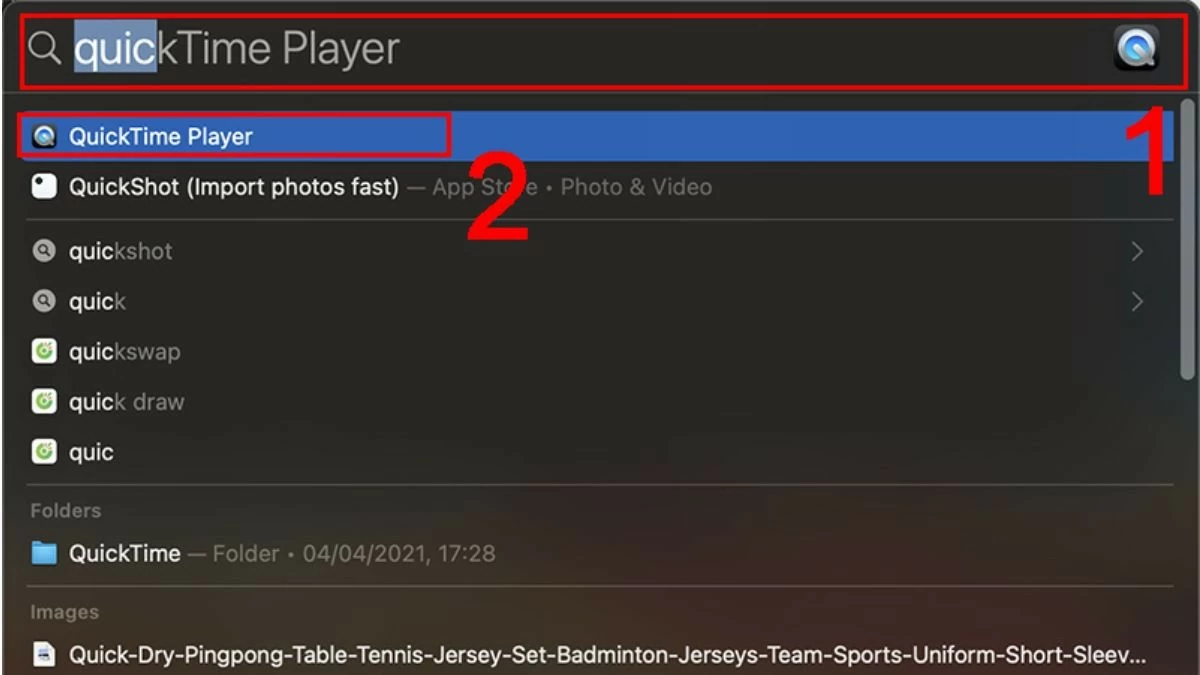
Step 1: First, open Spotlight Search using the Command + Space key combination. Type "QuickTime Player" into the search box and press Enter.
 |
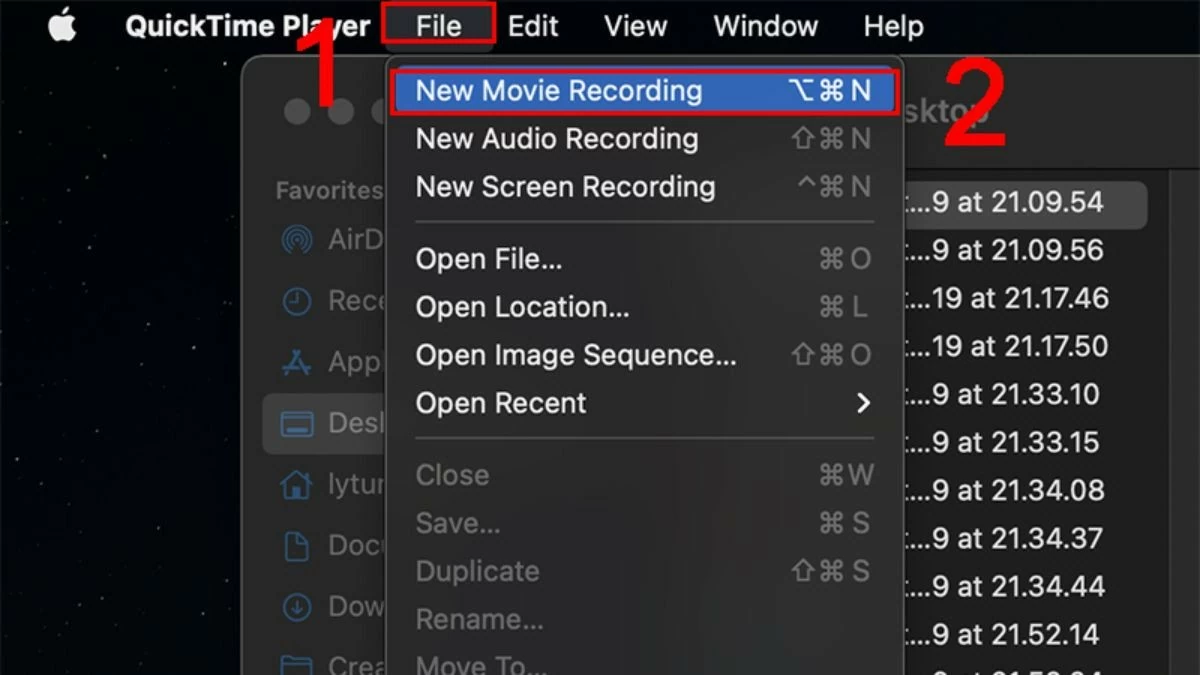
Step 2: Next, go to the File menu and select New Movie Recording.
 |
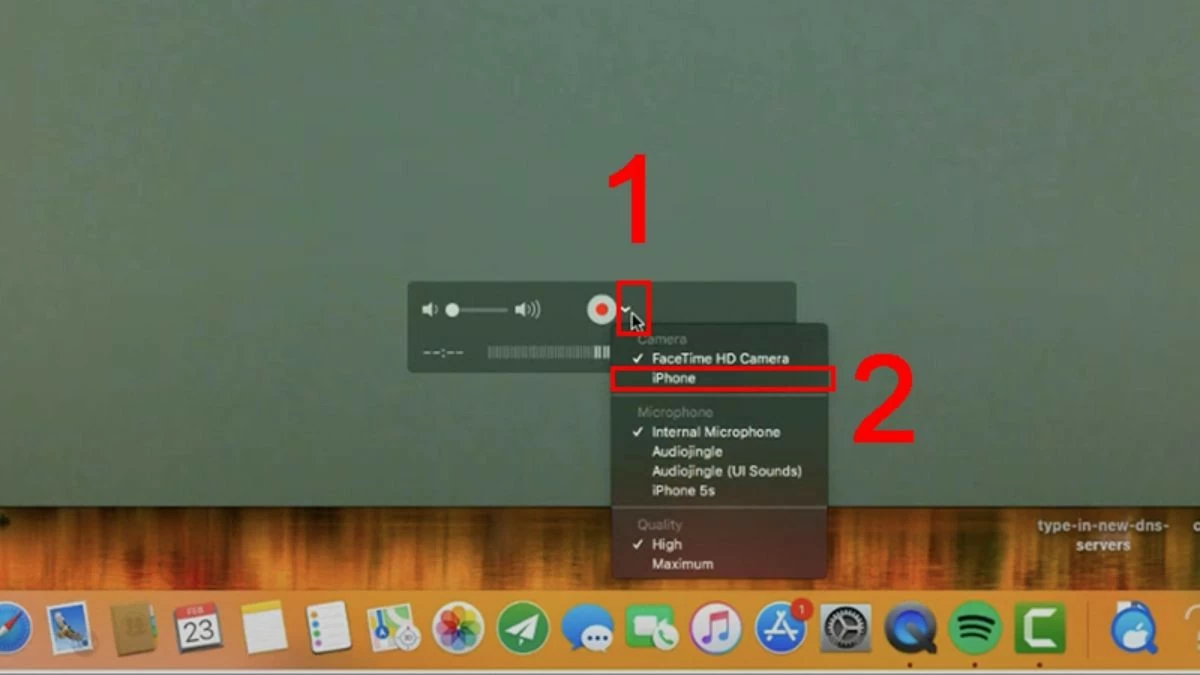
Step 3: Click the arrow icon next to the red screen recording button to open the list of connected devices. Select your iPhone from the list to mirror your screen to your MacBook.
 |
Instructions on how to mirror your iPhone screen to a Windows computer.
If you don't know how to mirror your iPhone screen to a Windows PC or laptop, don't worry. Below is a list of applications that will help you do it quickly. Check them out!
LonelyScreen
With LonelyScreen, you can expand your workspace by mirroring your iPhone screen onto your laptop. The app also allows you to record your activity and easily share it on video platforms.
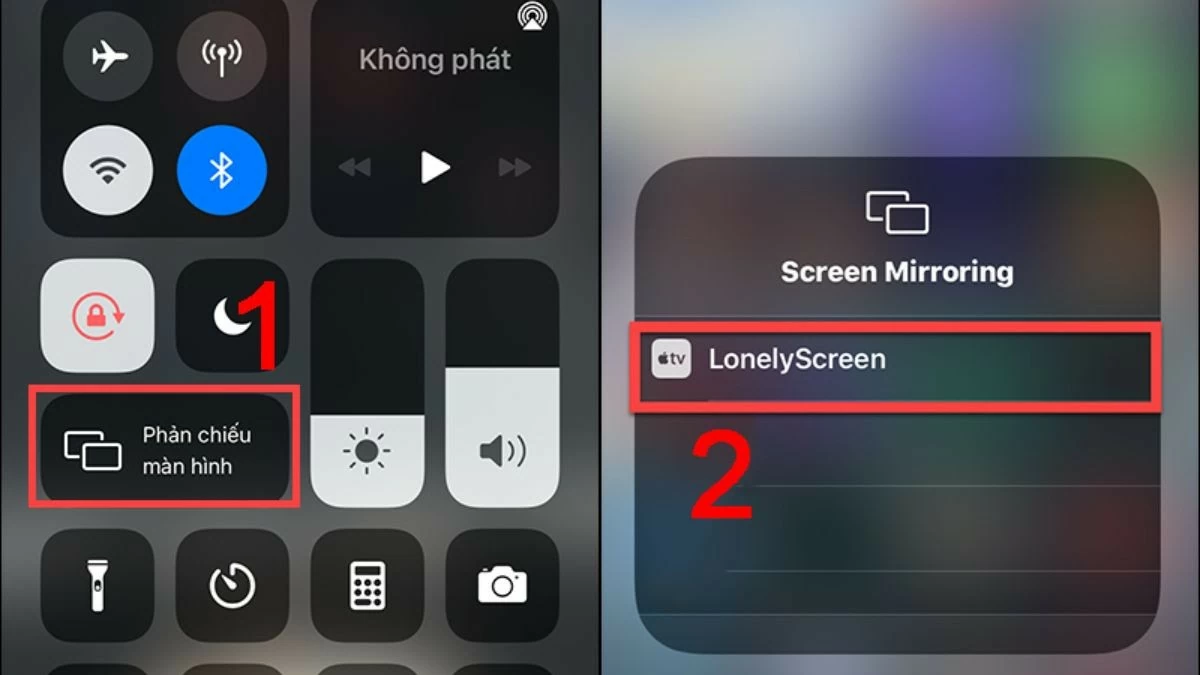
Step 1: First, make sure your device has the LonelyScreen app installed.
Step 2: Next, connect your phone and laptop to the same Wi-Fi network.
Step 3: Finally, open the Control Center on your iPhone and select the option to mirror your screen to your laptop.
 |
AirServer
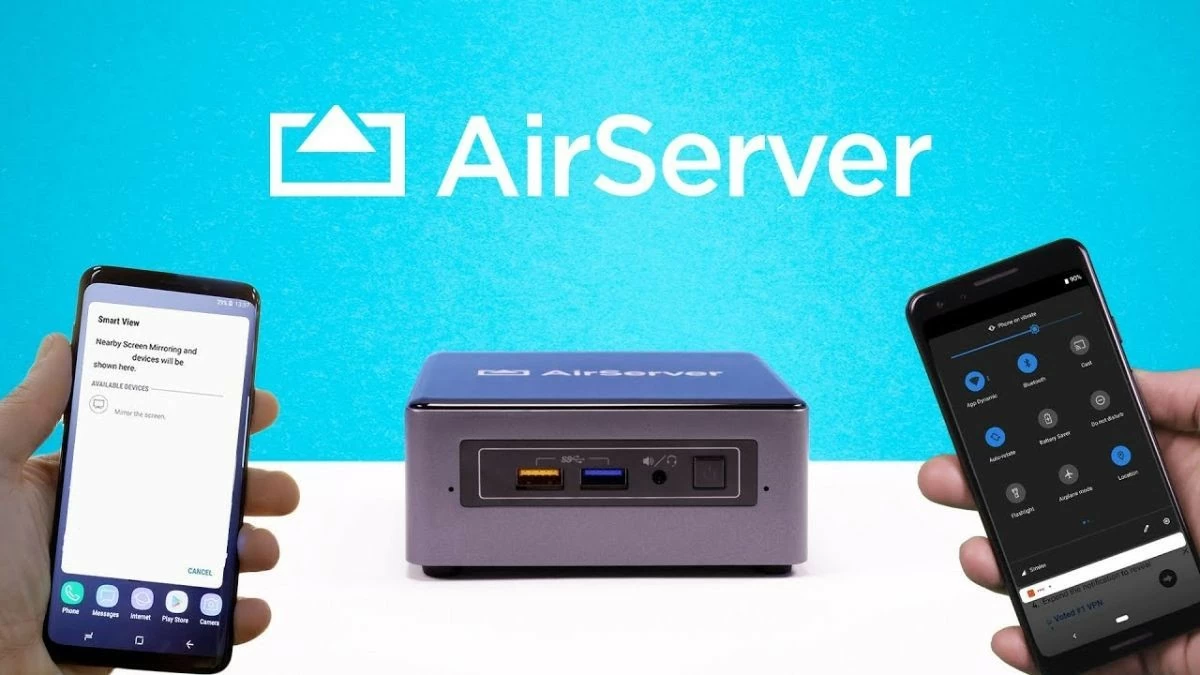
Mirroring your iPhone screen to your computer using AirServer is similar to using LonelyScreen, but this application offers many additional features. You can secure images and videos, and record everything in full HD quality.
Step 1: Download AirServer and open the application on your laptop or PC.
Step 2: To share data between your phone and computer, make sure both devices are connected to the same Wi-Fi network.
Step 3: Next, open the Control Center and select the screen mirroring feature to mirror your screen to the PC or laptop where the software is installed.
 |
Reflector
With its outstanding features, Reflector allows you to seamlessly and flexibly project your iPhone screen onto your computer. Additionally, the ability to connect multiple devices simultaneously makes it easy to manage and share content from various sources.
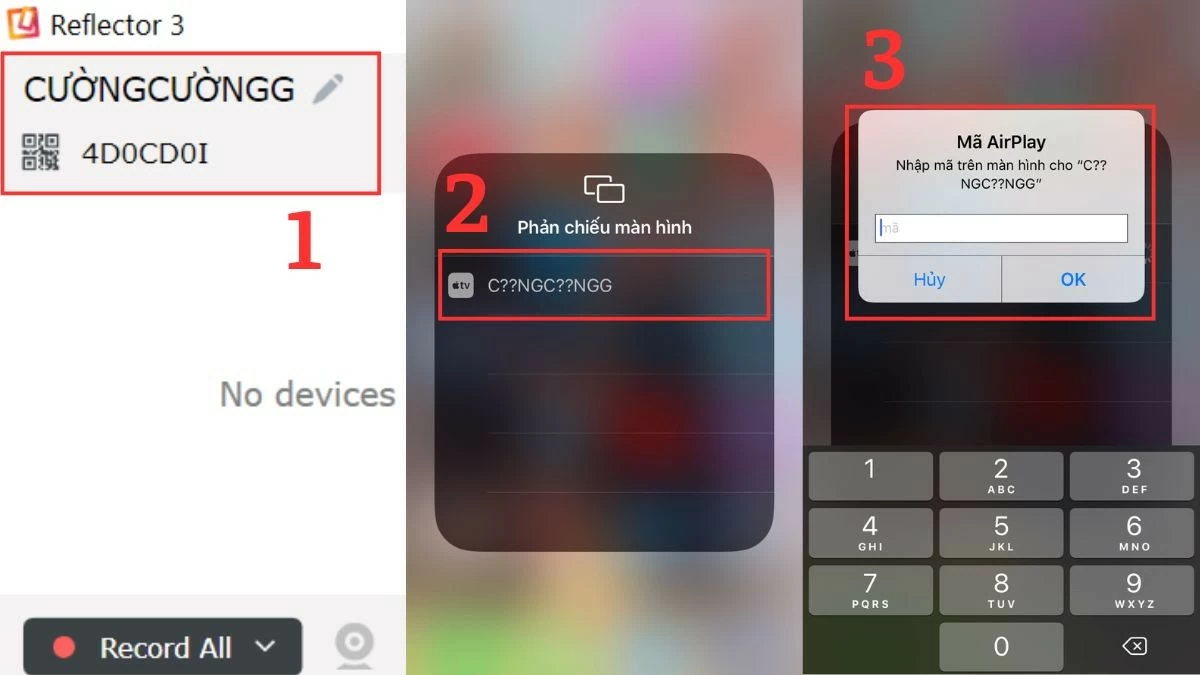
Step 1: Download and open the Reflector app on your device.
Step 2: Open Control Center on your iPhone by swiping down from the top right corner.
Step 3: Select the Screen Mirroring option and enter the passcode to connect to the device where Reflector is installed.
 |
5KPlayer
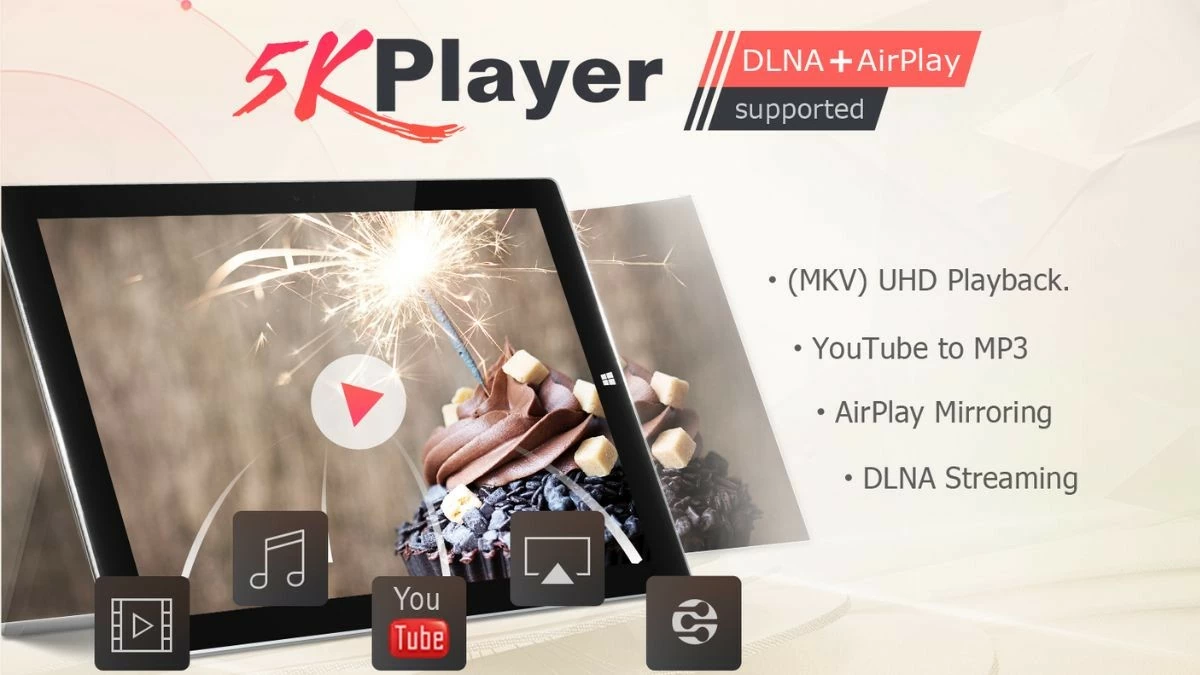
One convenient iPhone screen mirroring app that shouldn't be overlooked is 5KPlayer. This app supports 4K/8K HDR video playback in various formats, meeting the needs of users who want to enjoy high-quality digital content.
Step 1: First, download and install the 5KPlayer software on your computer following the instructions.
Step 2: Next, open the Control Center on your iPhone and select the Screen Mirroring option.
Step 3: In the list of available devices, select the name of the computer on which you installed the application in the previous step.
 |
ApowerMirror
ApowerMirror is a popular choice for mirroring your iPhone screen to a PC or laptop. Besides sharing information, the app also allows you to easily write, draw, and record any screen activity.
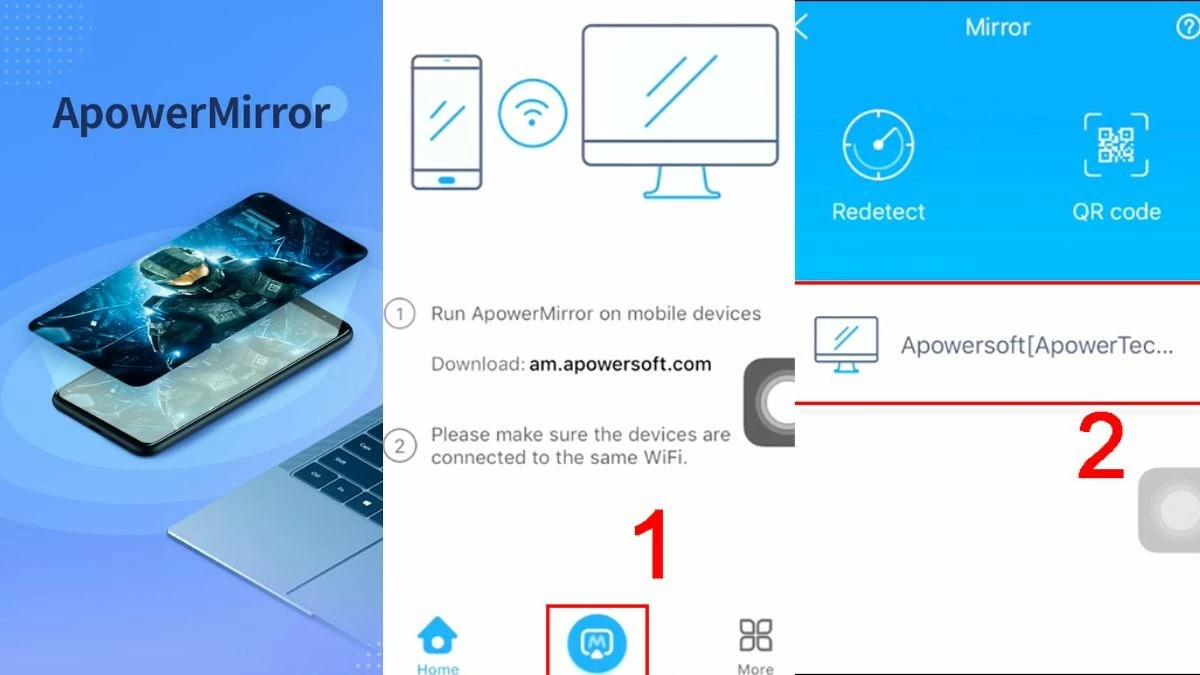
Step 1: Before mirroring your iPhone screen to your computer, make sure both your phone and laptop have the necessary software installed.
Step 2: Next, open ApowerMirror on both your phone and your computer.
Step 3: Next, tap the mirror icon on your iPhone and select the name of your PC or laptop from the list.
 |
iTools
iTools is an effective solution for mirroring your iPhone screen to your computer, making work and entertainment easier. The software also offers other useful features such as data management, backup, and restore. Here's how to mirror your iPhone screen to your laptop or PC using iTools:
Step 1: First, open the iTools application and follow the necessary steps to download the software to your device.
Step 2: Connect your iPhone and computer to the same Wi-Fi network.
Step 3: Finally, open the Control Center and enable screen mirroring on the computer where iTools is installed.
 |
With the information provided, you can easily mirror your iPhone screen to your MacBook, laptop, or PC quickly. This feature helps you present content, work, and study more efficiently. Don't hesitate, apply the instructions now and discover this exciting feature!
Source: https://baoquocte.vn/top-7-cach-phan-chieu-man-hinh-iphone-len-may-tinh-sieu-de-285102.html



![[Image] Nearly 125,000 Hanoi students completed the Literature exam for the 10th grade entrance exam.](https://vphoto.vietnam.vn/thumb/1200x675/vietnam/resource/IMAGE/2026/05/30/1780117233041_ndo_br_thiet-ke-chua-co-ten-2-png.webp)

























































































Comment (0)