

 |
In Google Sheets, you can change the border color to your preferred color in a selected cell, without changing the border color of the entire spreadsheet and without affecting the grid lines in the spreadsheet. Below are the detailed steps on how to create cell border colors in Google Sheets. Let's get started!
Step 1: First, open your Google Sheets spreadsheet. Then, select the area where you want to change the border color and click the border icon.
 |
Step 2: Next, click on the pen icon as shown below to open the color palette. Then, choose a suitable color and click on the "Create all borders" option.
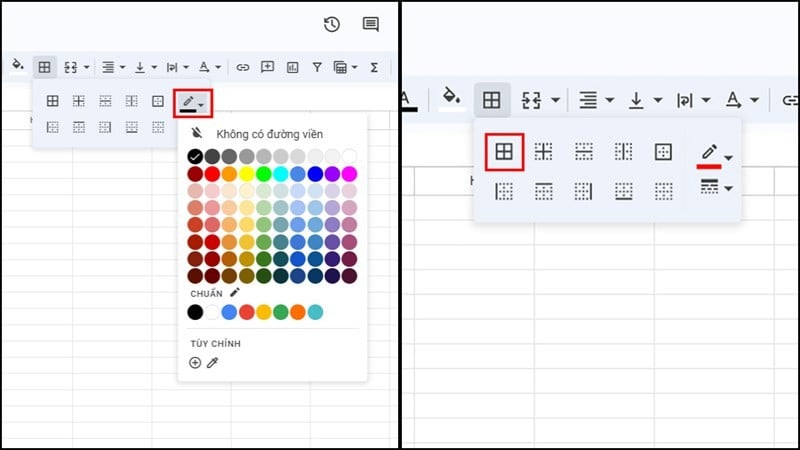 |
Step 3: If you want a bolder border, select the "Border Style" option below the "Border Color" option and choose your preferred style.
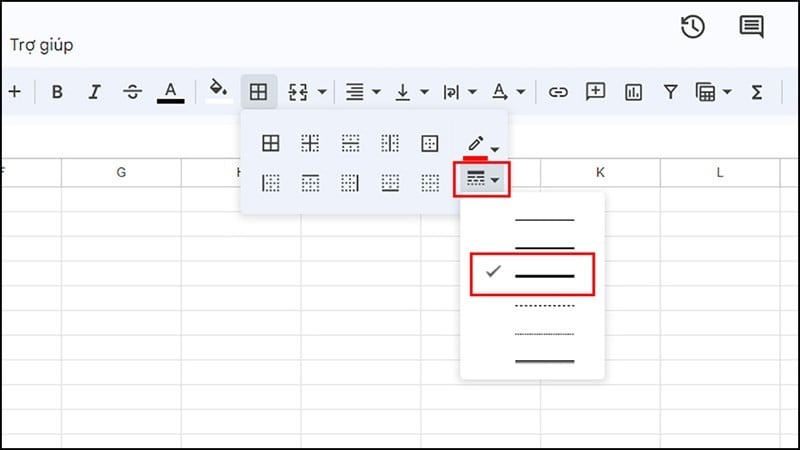 |
Step 4: After completing the above steps, the board borders will now have a different color, as shown in the image below.
 |
That was a simple guide on how to add cell borders in Google Sheets. This method allows you to easily highlight content and avoid confusion. Thank you for watching.
Source


![[Photo] Prime Minister Pham Minh Chinh attends the Conference on the Implementation of Tasks for 2026 of the Industry and Trade Sector](/_next/image?url=https%3A%2F%2Fvphoto.vietnam.vn%2Fthumb%2F1200x675%2Fvietnam%2Fresource%2FIMAGE%2F2025%2F12%2F19%2F1766159500458_ndo_br_shared31-jpg.webp&w=3840&q=75)





































































































Comment (0)