

 |
Let's take a look at the article below to learn 4 simple ways to insert multiple rows in Google Sheets on your computer that you can use in your work.
1. How to insert multiple rows in Google Sheets using tabs
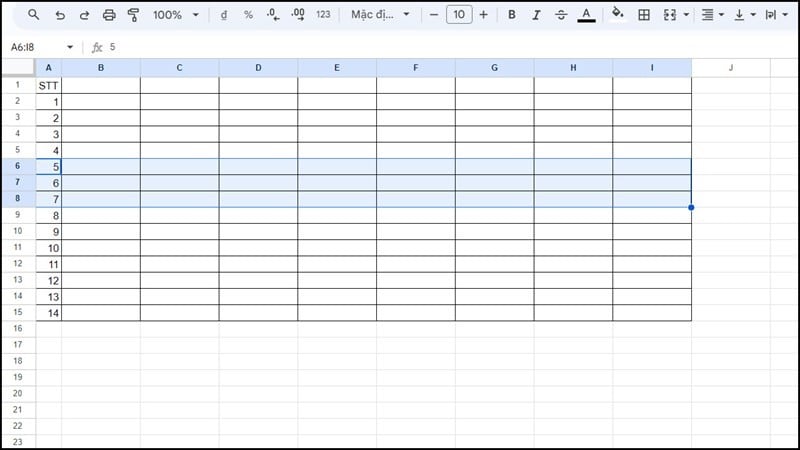
Step 1: First, you need to determine where you want to insert additional lines and the number of lines. Then, highlight all the areas you need.
 |
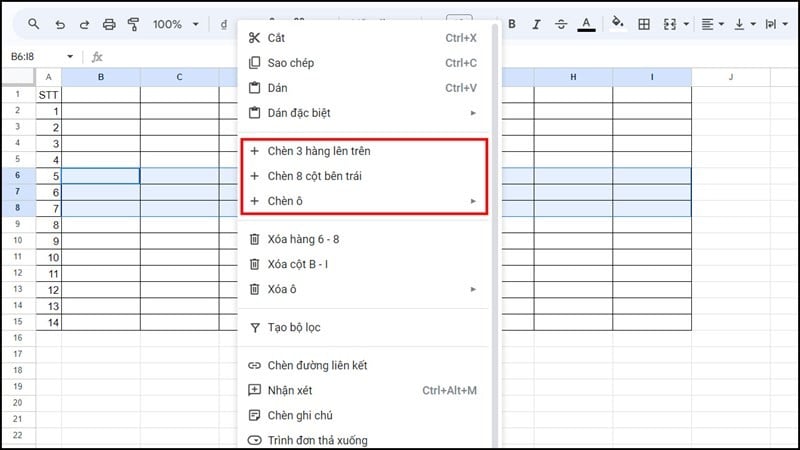
Step 2: Right-click, and two options will appear corresponding to the number of rows and columns you have highlighted. Additionally, you can add options to adjust the number of rows and columns you want to insert.
 |
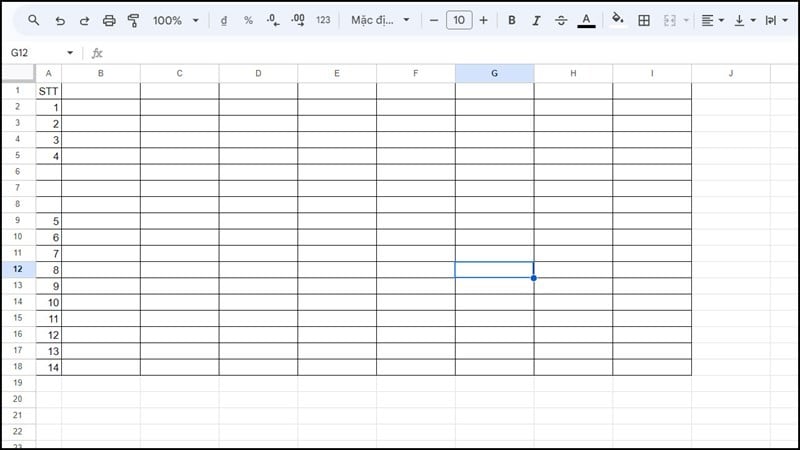
Step 3: Finally, you will obtain a table with the rows inserted according to the option you selected.
 |
2. How to insert multiple rows in Google Sheets using keyboard shortcuts
This method is only suitable when you have just used the insert function to save time, because the F4 key will repeat the action you just used, as illustrated in the example below.
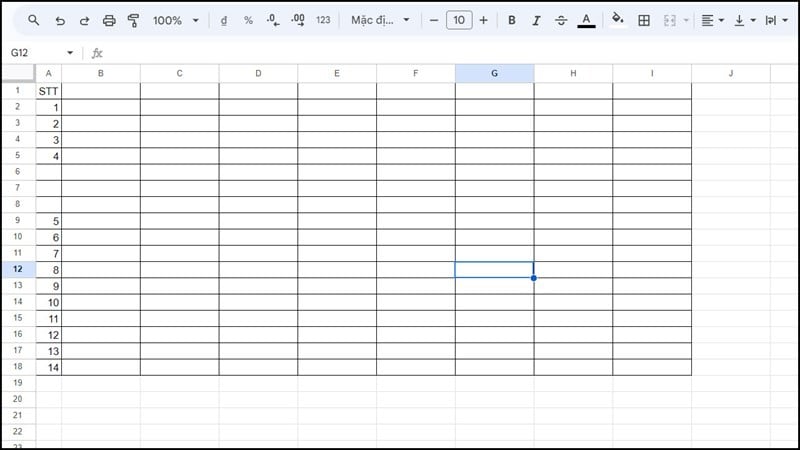
Step 1: Follow the normal insertion steps as described above and you will get the result as illustrated below.
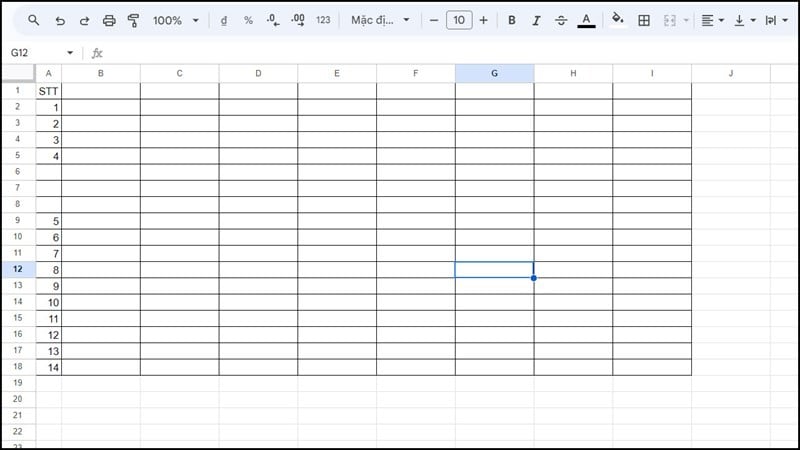 |
Step 2: Press the F4 shortcut key on a PC and Fn + F4 on a laptop. The computer will immediately repeat the task you previously performed, specifically inserting a row.
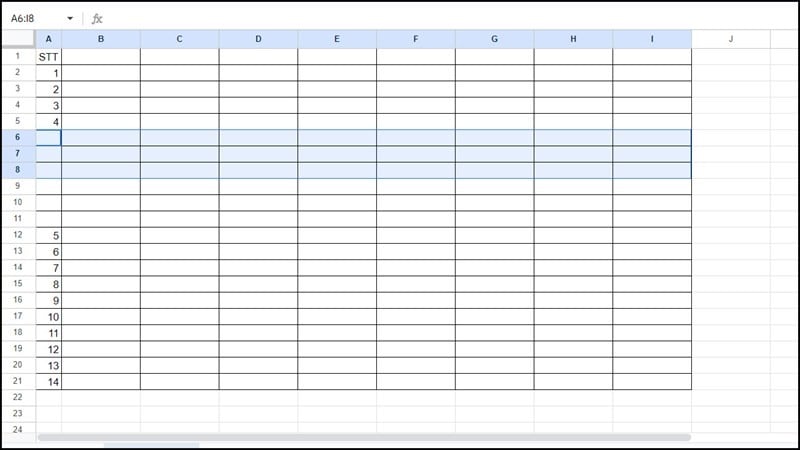 |
3. How to insert multiple rows in Excel using the Macro utility
Simply put, this method saves the action you've performed and turns it into a shortcut to help you save time.
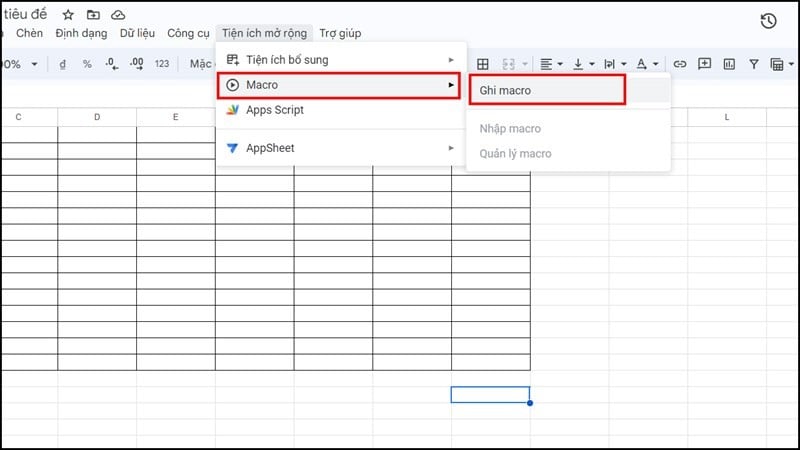
Step 1: First, in the options menu, go to the extensions section. Then, click on the Macros section and select Record Macro to save a task you need.
 |
Step 2: Next, insert the line as you did in the first step. After you have finished inserting, click Save.
 |
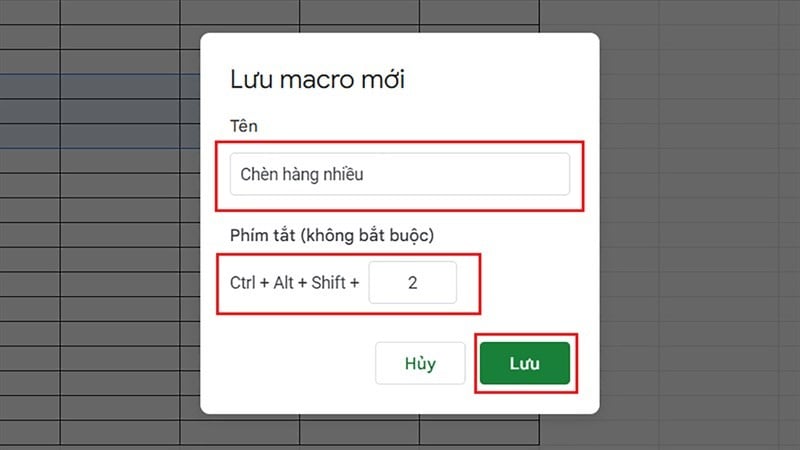
Step 3: Here, you can name the task to avoid confusion, and you can add a shortcut for more convenience during use, then click Save.
 |
Step 4: Finally, you can use the shortcuts you've set up to easily perform this task.
Note: If this is your first time using Macros, you need to grant access permissions as instructed on the screen.
 |
4. How to insert multiple rows in Google Sheets using the action button.
This method will allow you to insert more rows at the end of the spreadsheet.
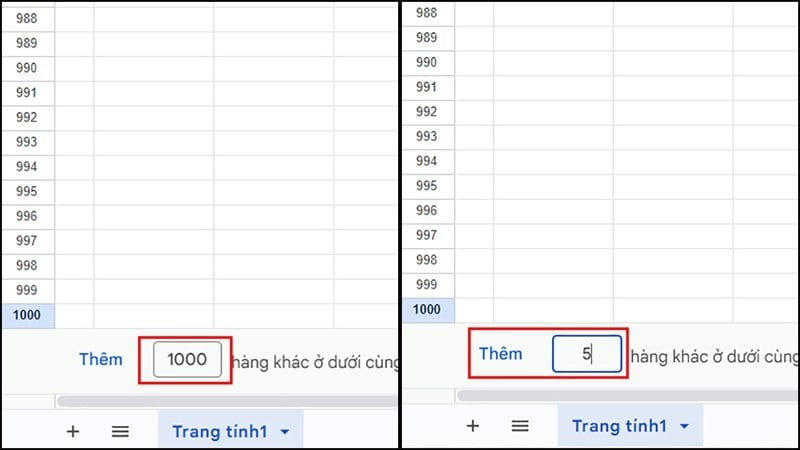
Step 1: First, press the Ctrl key + the Page Down arrow key combination. The Add Rows option will appear. Then, add the desired number of rows. Finally, click Add to complete the process.
 |
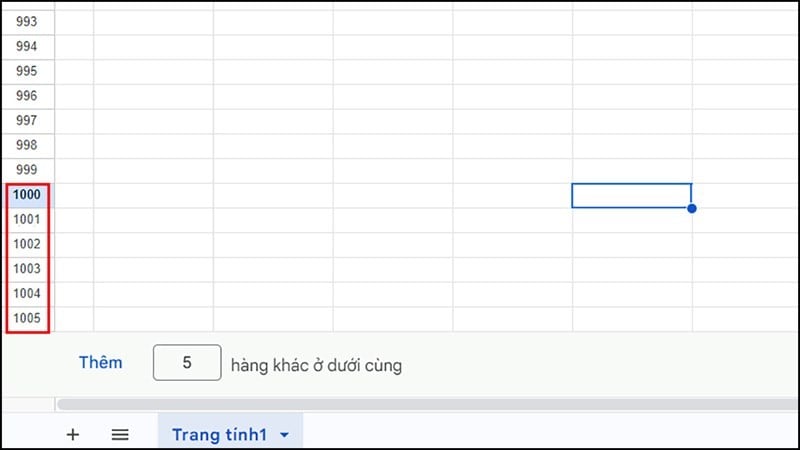
Step 2: After clicking the Add button, you will get a data table with the number of rows corresponding to the number of rows you entered, as illustrated below.
 |
The above were four simple ways to insert multiple rows in Google Sheets that you can apply in your work to save time and effort. Hopefully, this article has helped you learn more useful tips about Google Sheets.
Source



































































































Comment (0)