

You want to hide apps on your iPhone to protect your privacy and prevent others from accessing them. Let's explore 5 quick and easy ways to hide apps on your iPhone below!
 |
Hide apps on iPhone by creating quick folders.
This guide on hiding apps on iPhone by creating folders not only helps protect your privacy but also makes managing apps easier. Follow these steps:
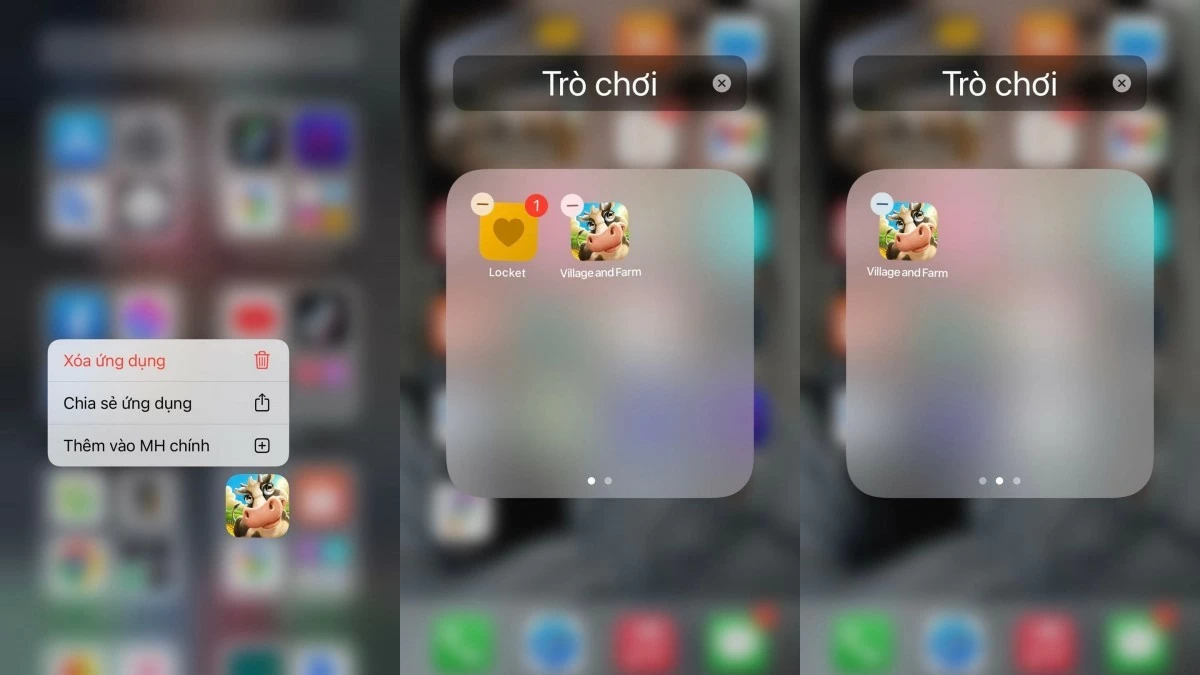
Step 1: On your iPhone's home screen, press and hold the app icon for a few seconds until the Options menu appears > select Edit Home Screen.
Step 2: Drag the app you want to hide and place it on top of another app to create a shared folder, then rename the folder as desired.
Step 3: If necessary, add other applications to the folder, then move the application you want to hide to the second page of the folder.
 |
Hide apps on iPhone using the App Store effectively.
By hiding apps on your iPhone via the App Store, you can easily and quickly hide previously installed apps:
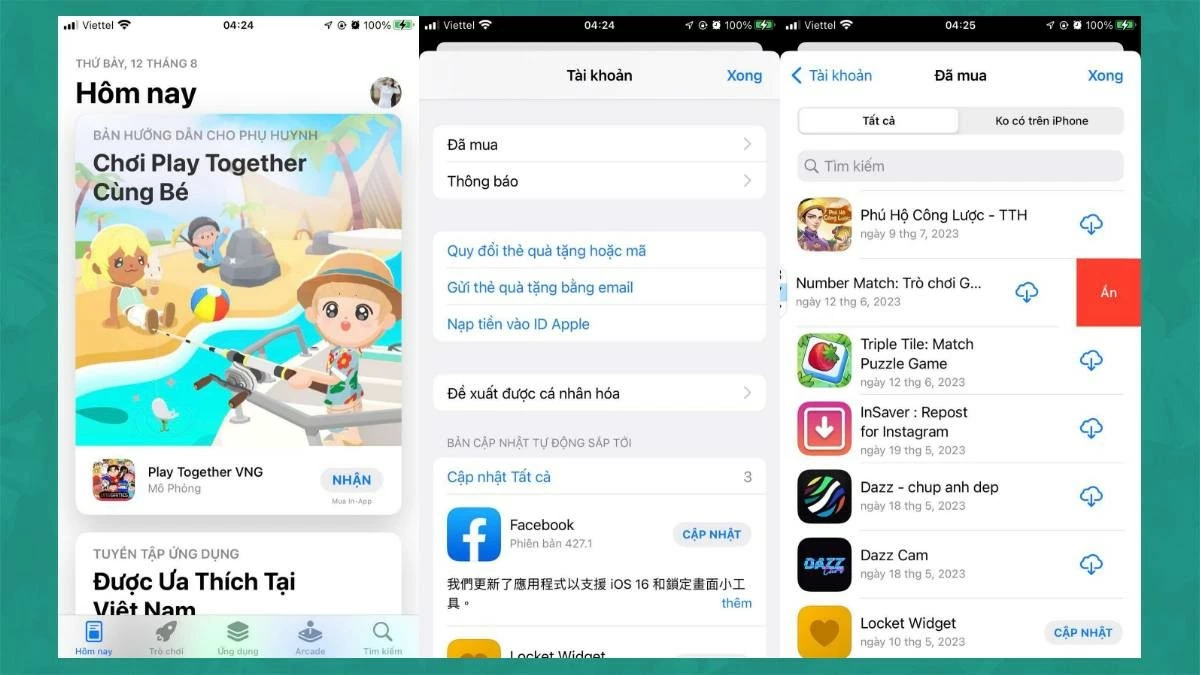
Step 1: Open the App Store.
Step 2: Click on your account picture in the upper right corner, then select "Purchased".
Step 3: Find the app you want to hide, swipe left, and tap Hide. Repeat this process for other apps, then tap Done.
 |
Easily hide apps on iPhone running iOS 13, 14, 15, and 16 using serial numbers.
How to hide apps on iPhone using Siri effectively on many iOS versions and used by many people:
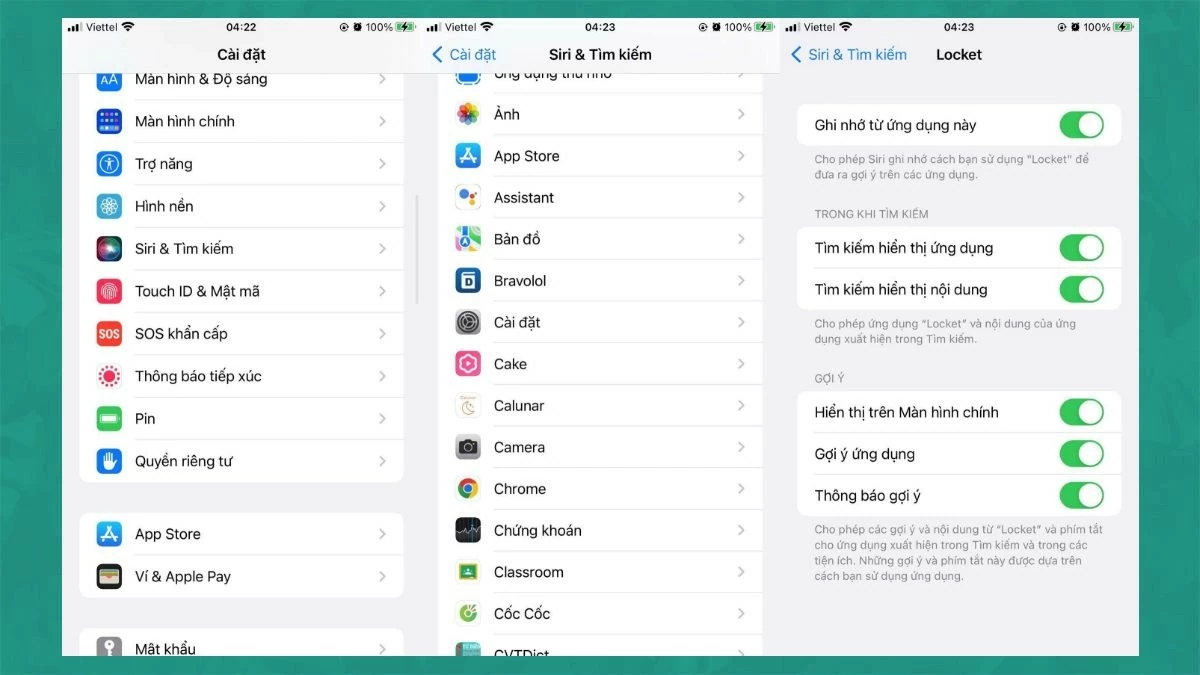
Step 1: Go to Settings > select Siri & Search.
Step 2: A list of applications will appear; select the application you want to hide.
Step 3: Turn off "Show app on home screen" by dragging the button to the left.
 |
Hide apps on iPhone using the Effective Limits feature.
The Restrictions feature, available from iOS 12 onwards, makes it easy to hide apps on your iPhone. Follow these steps:
Hide default apps
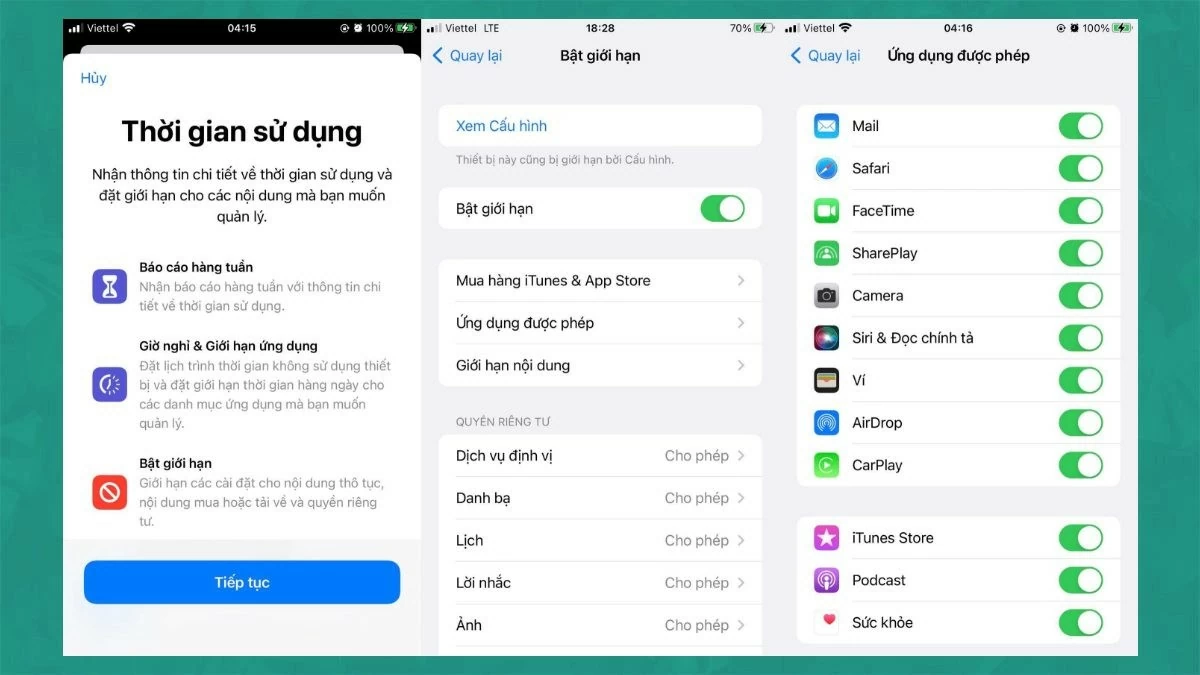
Step 1: Go to Settings, select Screen Time, and tap Turn on Screen Time (if not already enabled), then select Turn on Limits.
Step 2: Under "Enable Limits," drag the circle to the right to turn on this feature.
Step 3: Go to Allowed Apps, and drag the circle to the left for the apps you want to hide.
 |
Hide apps downloaded from the App Store
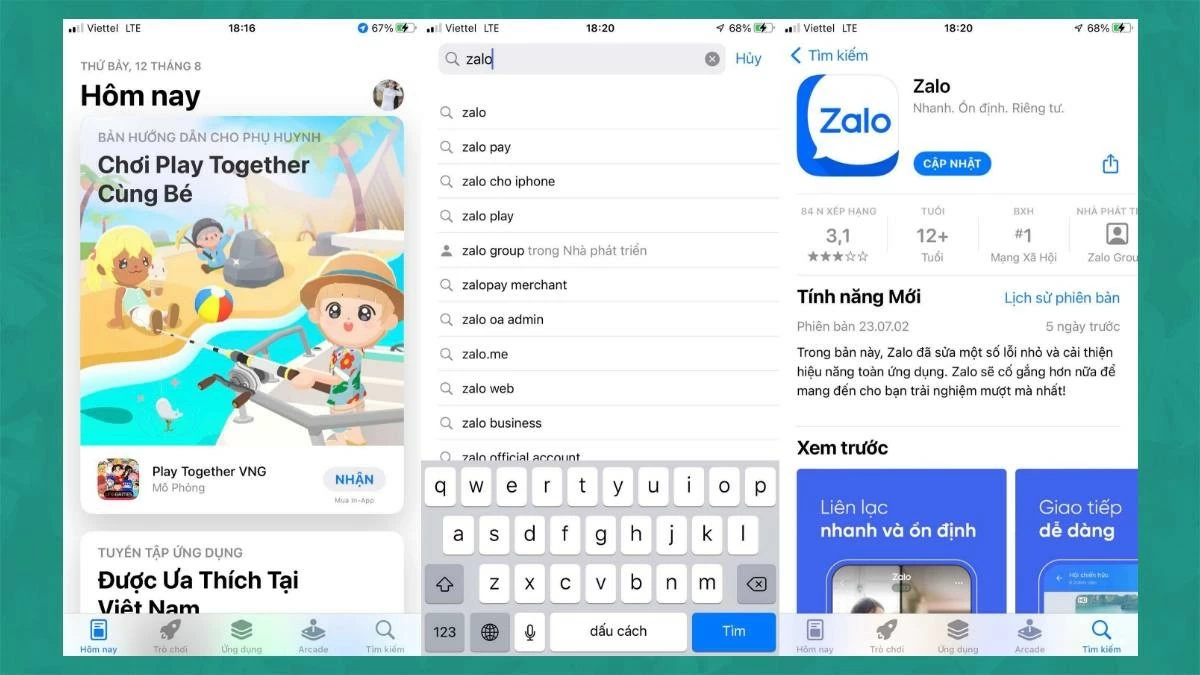
Step 1: Open the App Store, search for the app you want to hide, and check its age restrictions.
 |
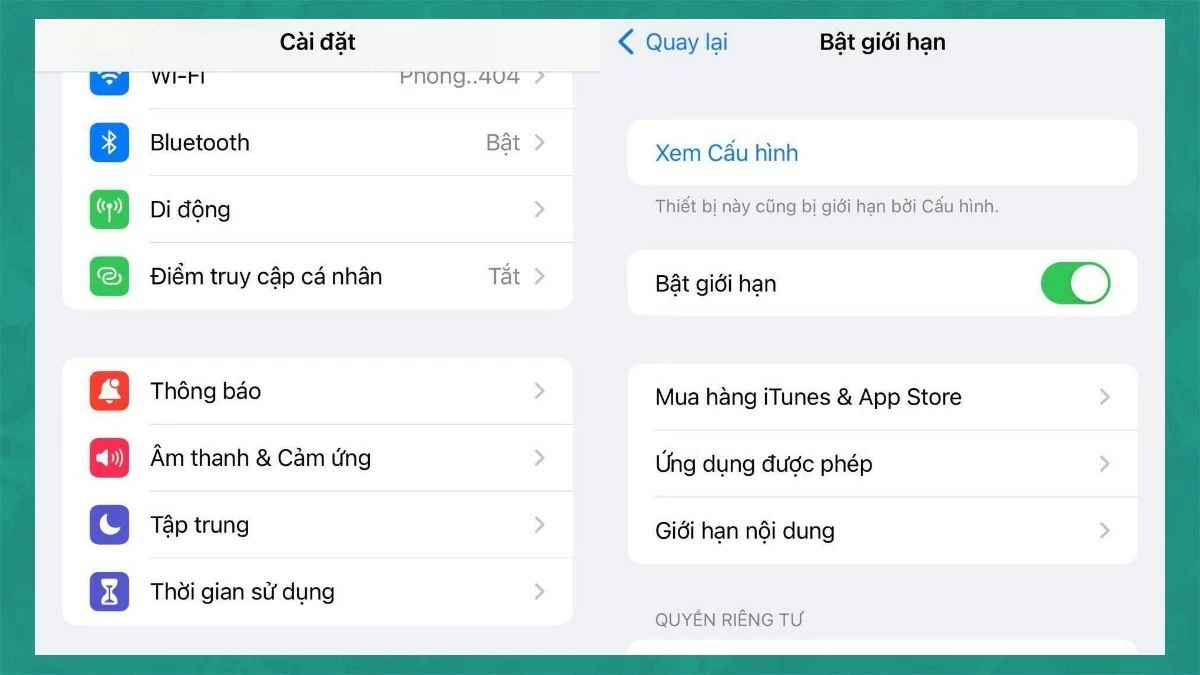
Step 2: Go to Settings, select Screen Time, then tap Enable Limits and select Content Limits.
 |
Step 3: Select the Apps section, then choose an age limit higher than the age limit for the app you want to hide.
 |
Hiding apps on iPhone using third-party software is super easy.
Hiding apps on iPhone using the App Library is only available on iOS 14 and later. If your device is compatible, follow these steps:
Step 1: On the home screen, press and hold the app you want to hide until the Options Menu appears.
Step 2: Select Delete app (red button) > Remove from home screen.
Step 3: The app will be moved to the App Library and will no longer be displayed on the home screen.
 |
How to unhide apps on iPhone
To quickly open apps from the iPhone home screen using Siri:
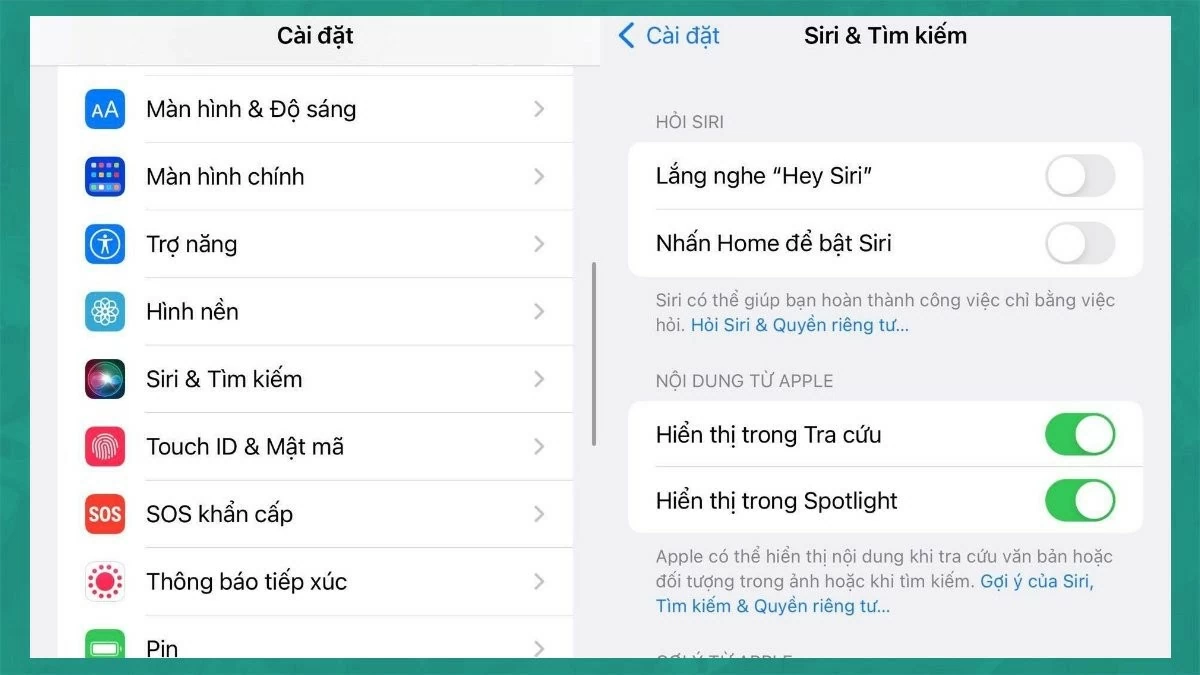
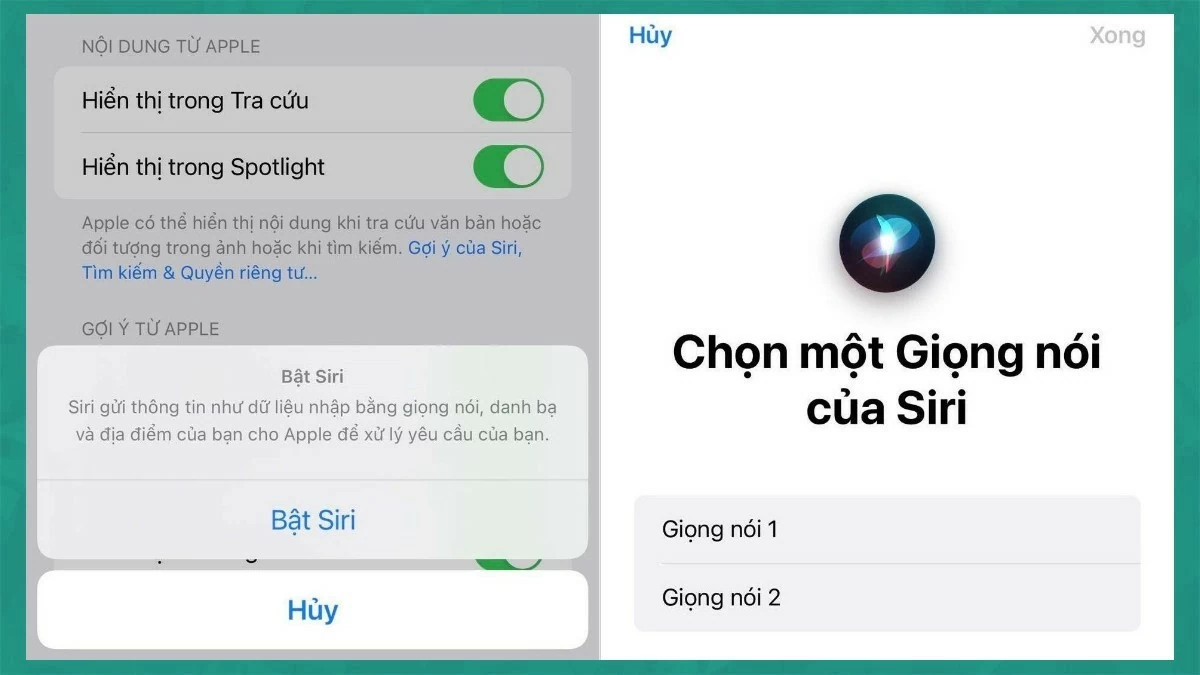
Step 1: Go to Settings, select Siri & Search, then turn on the "Listen for 'Hey Siri'" switch by toggling it to the right.
 |
Step 2: Confirm Siri is enabled, select Siri voice 1 or 2, and tap Done.
Step 3: Then, simply say “Hey Siri, Open” + the name of the app you want to open. For example: “Hey Siri, Open Zalo” if the Zalo app is hidden from the home screen.
 |
Above are 5 of the most effective methods for hiding apps on iPhone. Hopefully, with these instructions, you will easily hide apps on iOS versions 12, 13, 14, 15, and 16, helping to protect your privacy optimally.
Source


![[Photo] Prime Minister Pham Minh Chinh attends the Conference on the Implementation of Tasks for 2026 of the Industry and Trade Sector](/_next/image?url=https%3A%2F%2Fvphoto.vietnam.vn%2Fthumb%2F1200x675%2Fvietnam%2Fresource%2FIMAGE%2F2025%2F12%2F19%2F1766159500458_ndo_br_shared31-jpg.webp&w=3840&q=75)


































































































Comment (0)