

SMS messages disappearing is often due to several reasons, such as accidentally deleting them, phone data errors, or someone borrowing your phone and deleting messages. However, don't worry too much if your SMS messages are lost. All SMS messages can be fully recovered using the two methods described below.
Please note that you should recover SMS messages as soon as possible after they are deleted, to ensure that the recovered message data is as complete as possible.
How to recover deleted messages on Android
Restore using MobiKin Doctor software.
The MobiKin Doctor software on PC will be your "savior" in case your SMS messages are deleted. MobiKin Doctor is recovery software that supports over 2,000 popular Android devices currently available (click here, select Tech Spec to see the list of supported Android devices).
Step 1: Find and download the MobiKin Doctor app, then install it.
Step 2: In the software interface, select Android Recovery to activate the data recovery feature on your Android phone.
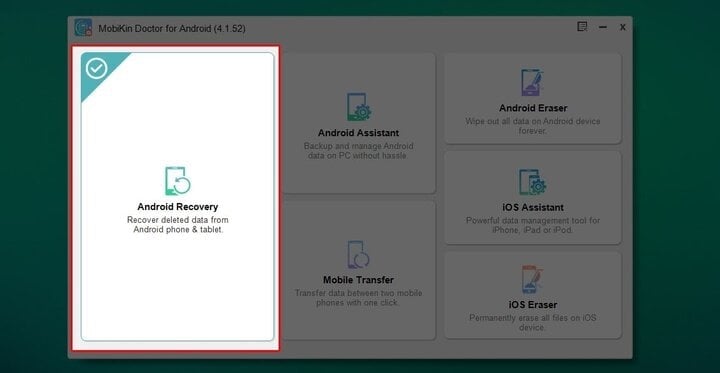
Step 3: Connect the phone from which you want to recover SMS messages to your computer using a cable.
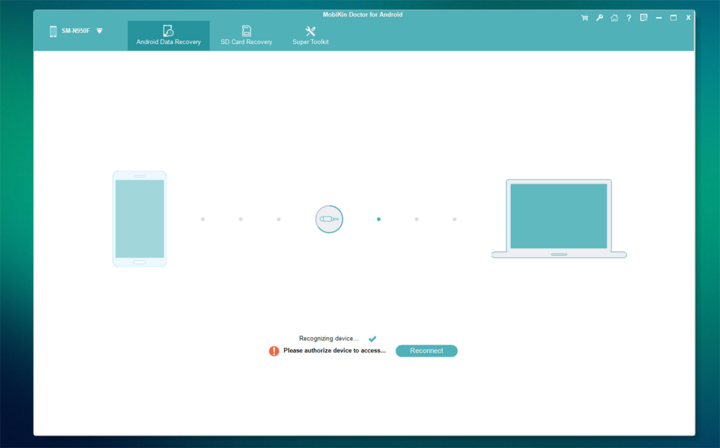
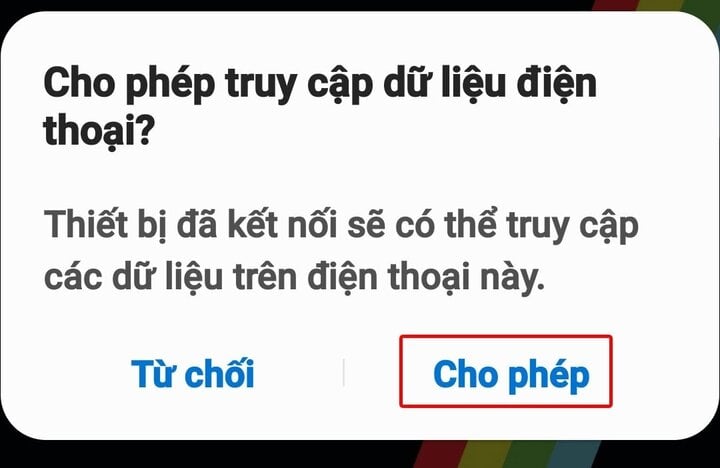
Step 4: Tap Allow on your phone (if available)
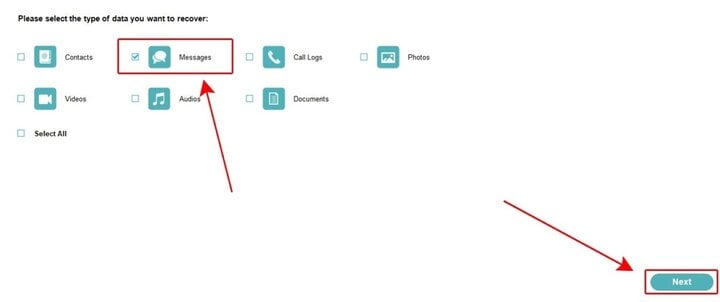
Step 5: On the PC software interface, select Messages (to recover SMS messages). Alternatively, you can select other items to recover, such as:
- Call Logs (call history)
- Contacts
- Photos
- Audios (audio files)
Step 6: Select the messages you want to recover, or you can tap on Messages (on the left) to select all previously deleted messages, then tap "Recovery" to recover them.
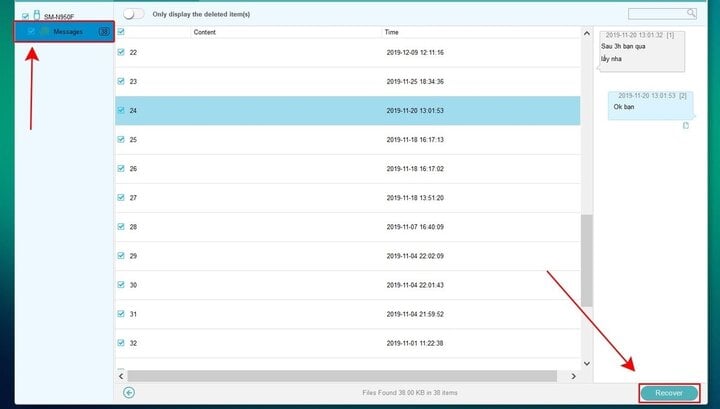
Recover deleted SMS messages directly on your Android phone.
Besides the method above, you can also recover deleted SMS messages using a Google backup file. However, if you want to use this method, your phone must have automatic backup enabled beforehand.
To check if your phone has backed up your SMS messages, follow the steps below (instructions are for a Samsung Galaxy phone; other devices are similar).
Step 1: In your phone's "Settings," select "Google," then select "Backup."
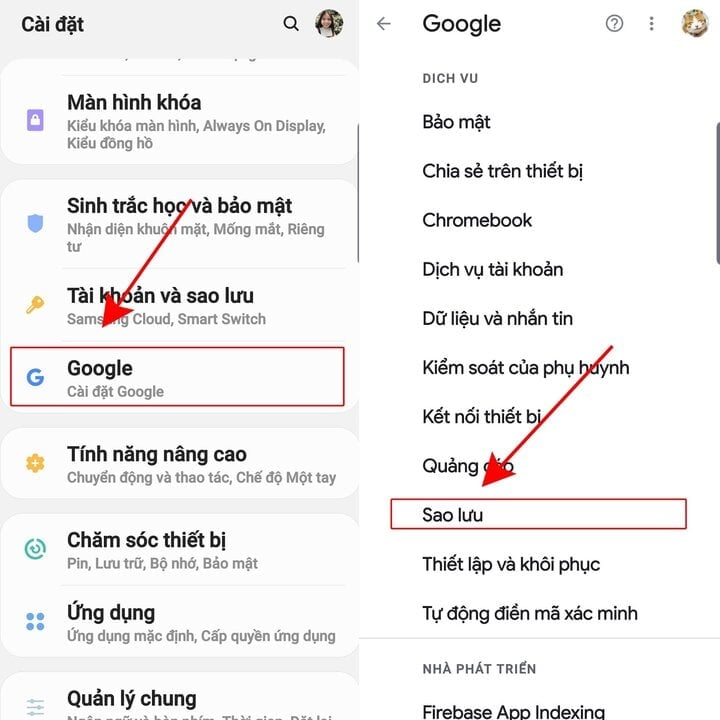
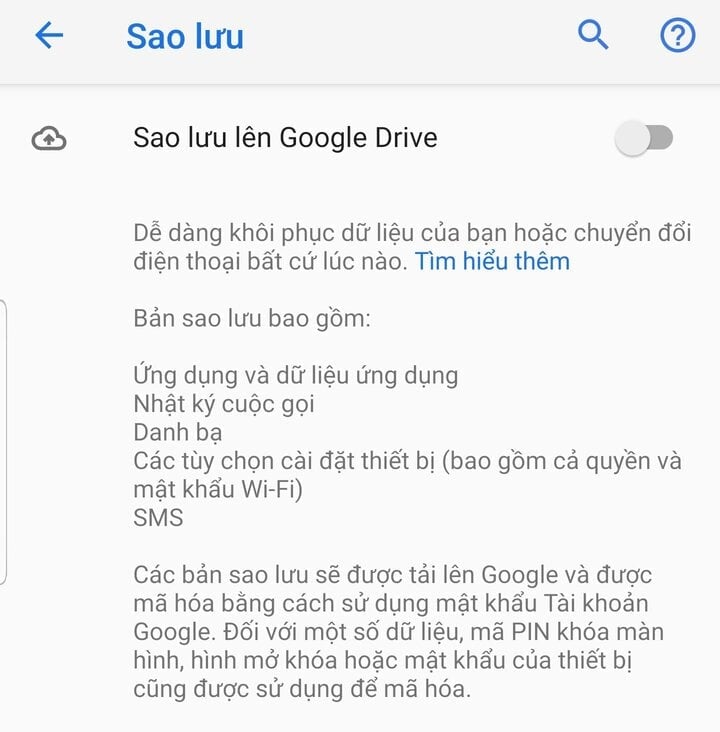
Step 2: If your phone doesn't have the "Back up to Google Drive" feature enabled, it means your phone has never backed up SMS messages and this guide won't work.
Step 3: If your phone has backed up your SMS messages, you will see the "Backup..." option. Select it, and you will see when your SMS messages were backed up.
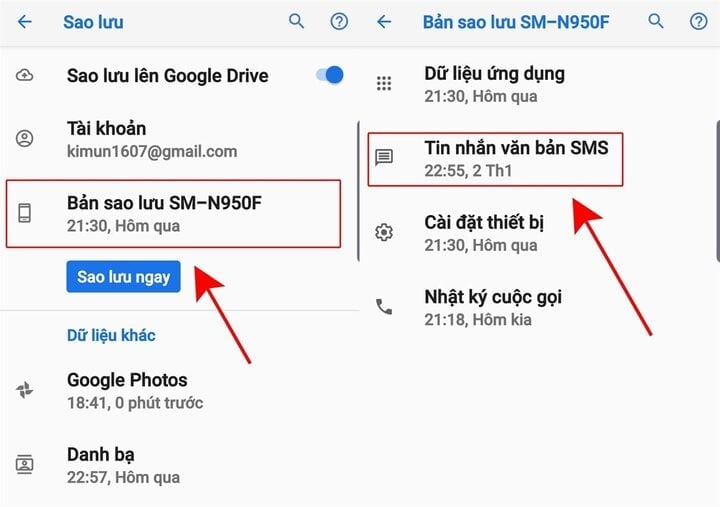
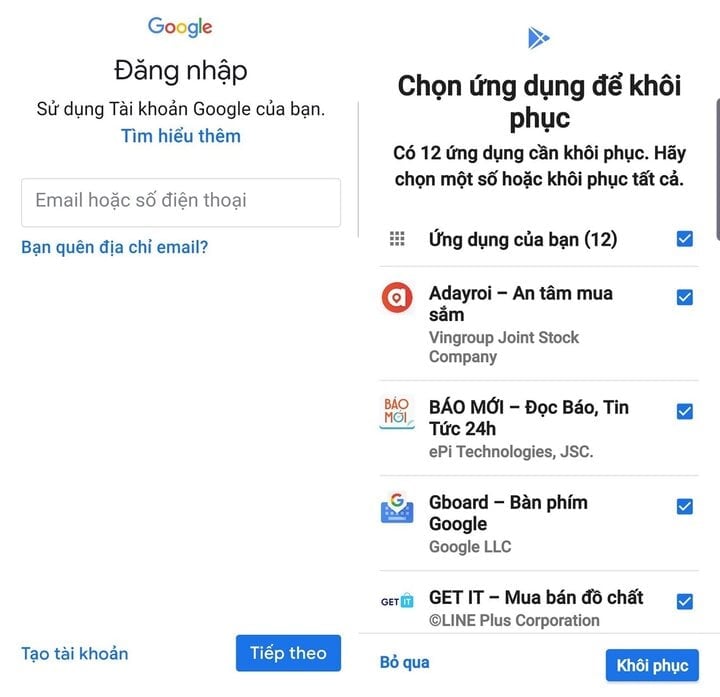
Step 4: Now you need to restore your phone, then log back into your Google account and select restore from backup. In the example above, it's "SM-N950F backup".
Note: SMS messages backed up on the current Android version cannot be restored on Android updates lower or higher than it. For example, if you have an SMS backup on Android 9, but want to restore those SMS messages on a device running Android 9, it will not work.
Khanh Son (Compiled)
Source
![[Photo] The General Secretary, President and his wife begin their state visit to the Philippines.](https://vphoto.vietnam.vn/thumb/1200x675/vietnam/resource/IMAGE/2026/05/31/1780230559452_anh-man-hinh-2026-05-31-luc-19-28-11.png)


![[Photo] Solemn bathing ceremony and Buddha procession in Hue](https://vphoto.vietnam.vn/thumb/1200x675/vietnam/resource/IMAGE/2026/05/31/1780228263543_1-jpg.webp)
![[Photo] Admire the coral "masterpiece" amidst the million-year-old heritage of Dak Lak province.](https://vphoto.vietnam.vn/thumb/1200x675/vietnam/resource/IMAGE/2026/05/31/1780221235105_anh-man-hinh-2026-05-31-luc-16-53-27.png)











![[Video] Sunset at Lap An Lagoon – Where the sun sets over the fishing nets](https://vphoto.vietnam.vn/thumb/340x192/vietnam/resource/IMAGE/2026/05/31/1780192137701_beach-landscape-sea-water-nature-grass-745871-pxhere-com.jpeg)



























![[Photo] Admire the coral "masterpiece" amidst the million-year-old heritage of Dak Lak province.](https://vphoto.vietnam.vn/thumb/402x226/vietnam/resource/IMAGE/2026/05/31/1780221235105_anh-man-hinh-2026-05-31-luc-16-53-27.png)



























Comment (0)