

There are many reasons why a laptop battery might drain quickly, and different solutions are available depending on the cause. Below are some causes and solutions you can refer to.
1. Screen brightness
When you're using your laptop with the screen brightness set higher than normal, power consumption increases, leading to faster battery drain.
If you need to check your laptop screen brightness, you can lower it by going to Settings > System > Display and then adjusting the screen brightness to a level you find suitable.
2. Network connection
Rapid battery drain can also result from having multiple network connections connected to your laptop. To fix this, follow these steps: Go to Settings > Network Connections > Control Panel > Network and Internet > Network Connections, right-click on the network you don't actually need and turn it off.

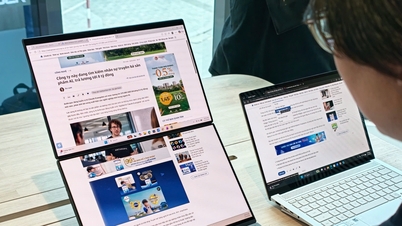
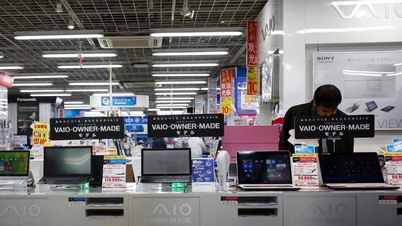
How to fix a laptop battery that drains too quickly.
3. Peripheral devices
Connecting to several external devices can also cause excessive battery drain. You need to access system settings or click on the device icon in the taskbar and right-click on it to safely remove the device.
With wirelessly connected peripherals, you can disconnect them simply by turning off Bluetooth on your laptop or device.
4. Bluetooth and Wi-Fi
Connecting via Bluetooth and Wi-Fi also drains your laptop's battery quickly. Therefore, when not needed, disconnect these connections from your computer to help the battery last longer after each charge.
Additionally, turning off Wi-Fi when not in use helps you save data, eliminate pop-up notifications, and keep your computer safe from online threats.
5. Keyboard backlight
It's always recommended to turn off keyboard backlights because they drain your computer's battery very quickly. It's best to only use them when absolutely necessary. If you can still use the keyboard and don't need the backlight, quickly turn it off to prevent your computer's battery from draining rapidly.
6. Install the laptop power supply.
Adjusting your laptop's power settings can help limit battery drain caused by applications or software interfering with the battery life. This can be done by going to Settings > System > Power & Sleep > Adjust screen sleep settings.
The adjustments should ensure that your laptop's power package is designed for battery efficiency.
7. Background tasks/programs
When you're running a specific task/application, it's very likely that many unwanted programs and applications are running in the background. This causes your computer's battery to drain quickly, so you need to close unnecessary background tasks/programs.
8. Unwanted processes
Similar to background apps, unwanted processes running in the background are also a major cause of battery drain. You can access Task Manager and disable all of these processes.
If you've tried all eight methods above and nothing works, you should take your computer to a reputable store for inspection and battery replacement if necessary.
The above article explains how to fix a laptop battery that drains too quickly. Hopefully, this information will be helpful to you.
Dinh Trung
Source

![[Photo] General Secretary and President To Lam presides over a meeting with the Central Organizing Committee.](https://vphoto.vietnam.vn/thumb/1200x675/vietnam/resource/IMAGE/2026/06/03/1780482764658_a1-bnd-4741-3342-jpg.webp)

![[Photo] First session of the 14th Congress of the Vietnam Trade Union](https://vphoto.vietnam.vn/thumb/1200x675/vietnam/resource/IMAGE/2026/06/03/1780465947883_ndo_br_img-3852-jpg.webp)
![[Photo] Secretary of the National Assembly Party Committee, Chairman of the National Assembly presides over the meeting of the Standing Committee and Executive Committee of the National Assembly Party Committee.](https://vphoto.vietnam.vn/thumb/1200x675/vietnam/resource/IMAGE/2026/06/03/1780480353201_ndo_br_bnd-2585-jpg.webp)















































![[Video] Sunset at Lap An Lagoon – Where the sun sets over the fishing nets](https://vphoto.vietnam.vn/thumb/1200x675/vietnam/resource/IMAGE/2026/05/31/1780192137701_beach-landscape-sea-water-nature-grass-745871-pxhere-com.jpeg)






























Comment (0)