

Using smartphones has become an indispensable part of daily life. However, along with these conveniences comes the risk of phone addiction, negatively impacting health and social relationships. Recognizing this reality, Apple has integrated a Screen Time feature.
What are time limits on iPhone?
Screen Time is a feature built into Apple's iOS, iPadOS, and macOS operating systems to help users track, manage, and control their device usage time.
This feature provides a detailed report on how you use your phone throughout the day, including:
- Total time using the machine
- Time spent using each application
- Number of times the app was opened
- Notification received
Thanks to these statistics, users can understand their device usage habits and adjust accordingly.
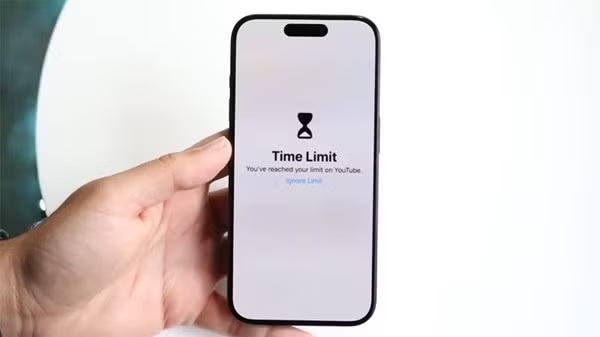
Apple has built-in time limit features into its operating system.
In addition to monitoring, Screen Time also allows you to set various limits such as:
- Set time limits for each application.
- Schedule breaks to limit device use.
- Content control and privacy
- Managing children's phone usage.
In many cases, when these restrictions disrupt the experience, you can learn how to disable app restrictions on your iPhone to use your device more flexibly.
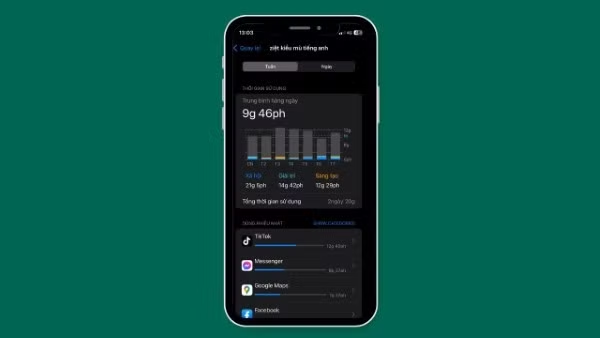
Screen Time allows users to set various limits.
Schedule times when you won't be using your iPhone.
One of the key features of Screen Time is Downtime. When this mode is enabled, the iPhone will automatically restrict the activity of many apps during the set time frame.
To set up a break time, follow these steps:
Step 1: Go to Settings → Select Screen Time → Select Break Time.
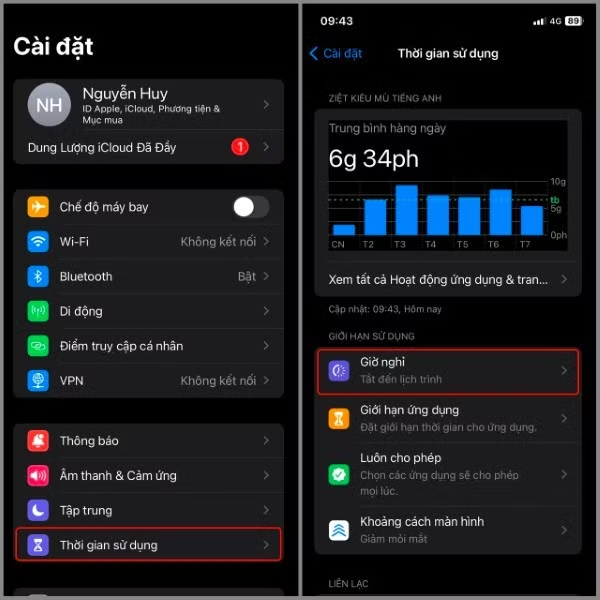
Select Usage Time → Select Break Time
Step 2: Select Scheduled → Here you can choose the frequency of this feature and set the time interval for it to run.
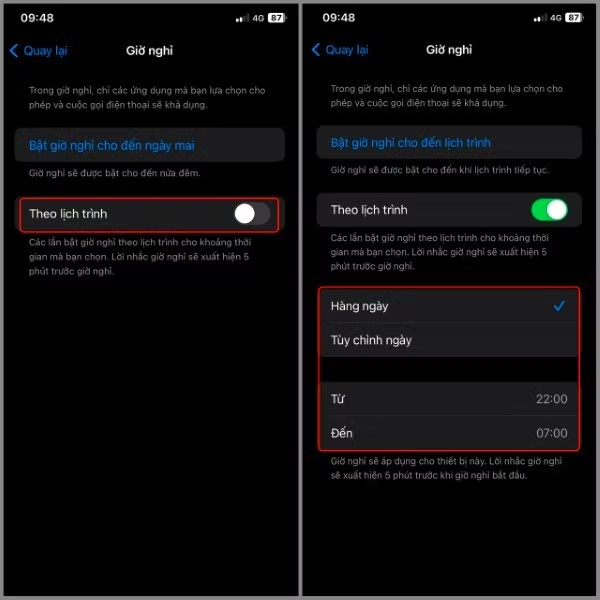
Select "According to schedule".
For example, you can set a sleep timer from 10 PM to 6 AM to limit phone use before bed.
If you don't want apps to be restricted during this time, you can disable app restrictions on your iPhone by adjusting or turning off the Screen Time feature.
Turn on on-demand breaks.
In addition to setting fixed schedules, the iPhone also allows you to activate instant breaks when you need to focus or rest.
The process is very simple:
Step 1: Go to Settings → Select Screen Time → Select Break Time.
Select Usage Time → Select Break Time
Step 2: Select Turn on the sleep time until tomorrow.
When this mode is enabled, many apps will be temporarily restricted until the next day. To return to normal use, simply select Turn off sleep time.
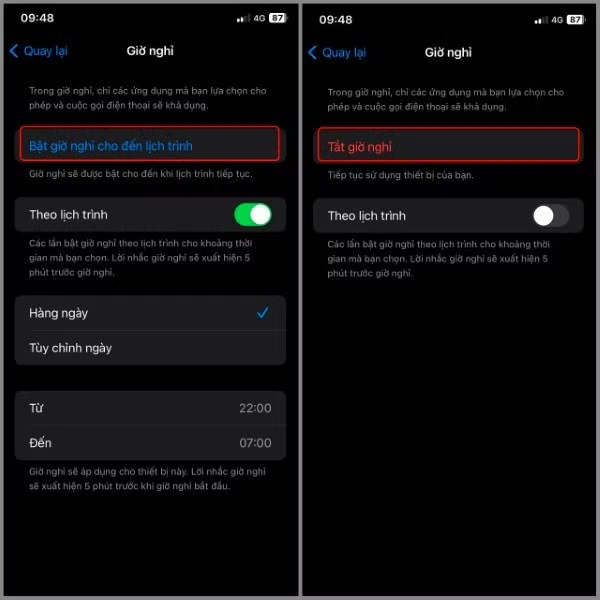
Select Turn on the sleep timer until tomorrow.
If you're frequently interrupted while working, knowing how to disable app restrictions on your iPhone will allow you to proactively adjust this feature whenever you need to.
Set limits on app usage.
Screen Time allows users to set usage limits for specific groups of apps, such as social media, games, or entertainment.
The steps are as follows:
Step 1: Go to Settings → Select Screen Time → Select App Limits.
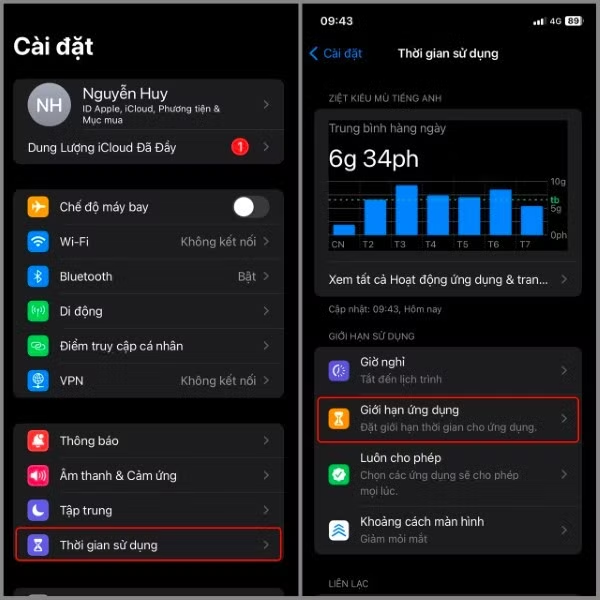
Select Screen Time → Select App Limits
Step 2: Select Add Limits → You can select multiple categories or a single category depending on the arrangement of the plan you initially designed.
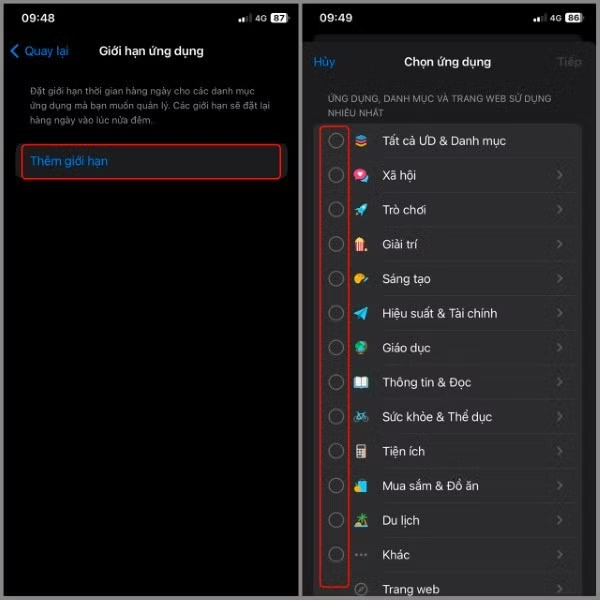
Select Add restrictions
Step 3: After selecting your desired items → Select Next → Then, set the usage time for the applications in the selected items above. Additionally, you can choose the frequency of this feature's operation → Select More.
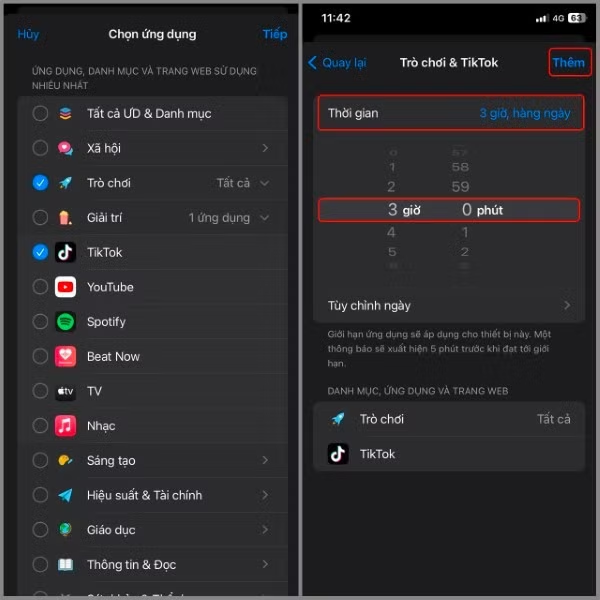
Proceed to set the usage time limits for applications.
Once the allotted time is reached, the app will be locked and display a limit notification. To continue using it, you will need to enter your ScreenTime passcode or find a way to disable app limits on your iPhone to remove this restriction.
Set communication limits.
In addition to limiting apps, Screen Time also supports contact and call management, which is especially useful when parents want to control their children's devices.
The setup steps are as follows:
Step 1: Go to Settings → Select Screen Time → Select Contact Limits.
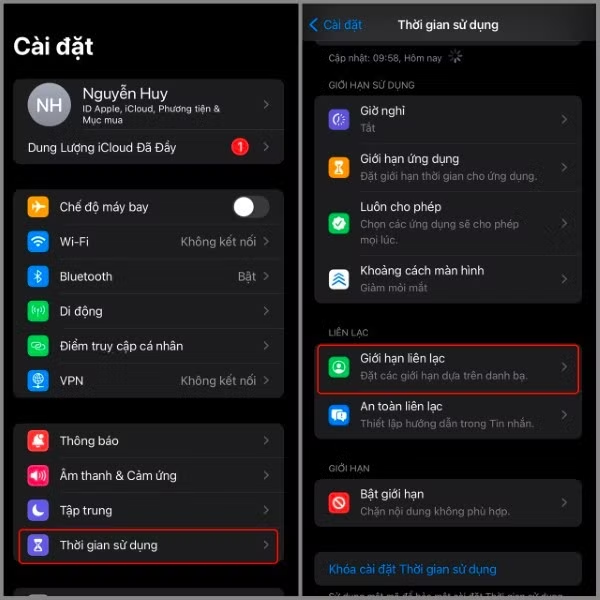
Select Usage Time → Select Communication Limits
Step 2: If you select "During use" → You can set up by choosing one of three options:
- Contacts only
- Contacts & groups have at least one contact.
- Everybody
It depends on your original purpose.
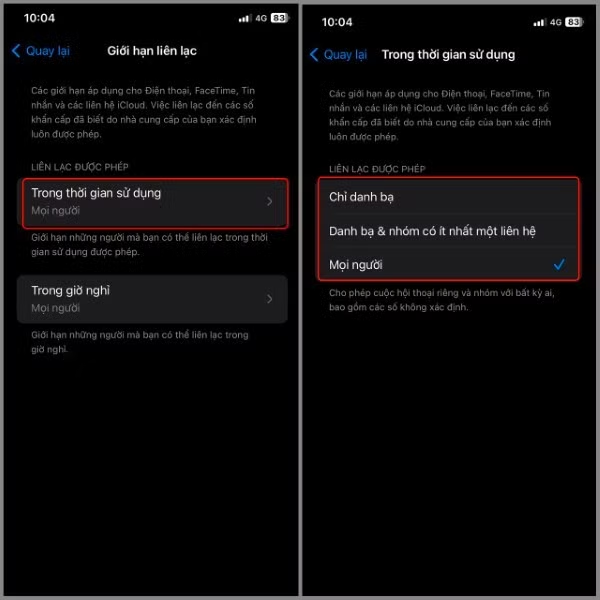
Select During use
Step 3: If you select "During break time" → You can only choose one of the two options:
- Contact us for details.
- Everybody
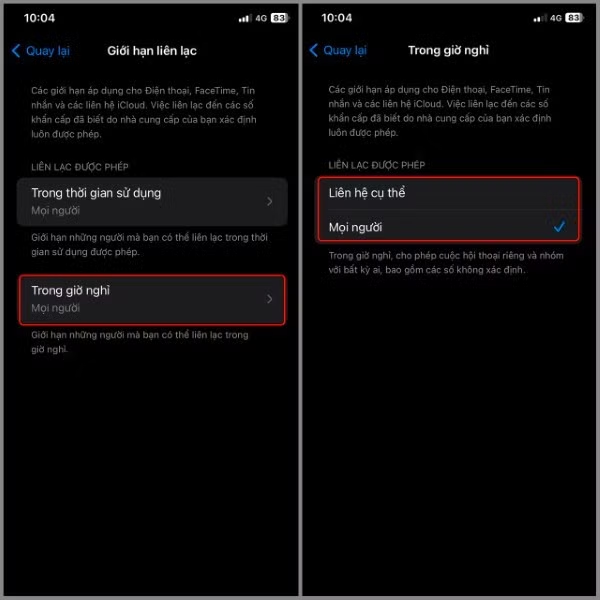
Select During break time
This feature helps control communication, especially useful when children use phones. However, when it's no longer needed, many people often look for ways to turn off app restrictions on their iPhones to use the device more freely.
Select the apps and contacts you want to allow at all times.
In Screen Time, Apple also allows you to set up a list of apps that are always used, even during breaks.
Here's how to do it:
Step 1: Go to Settings → Select Screen Time → Select Always Allow.
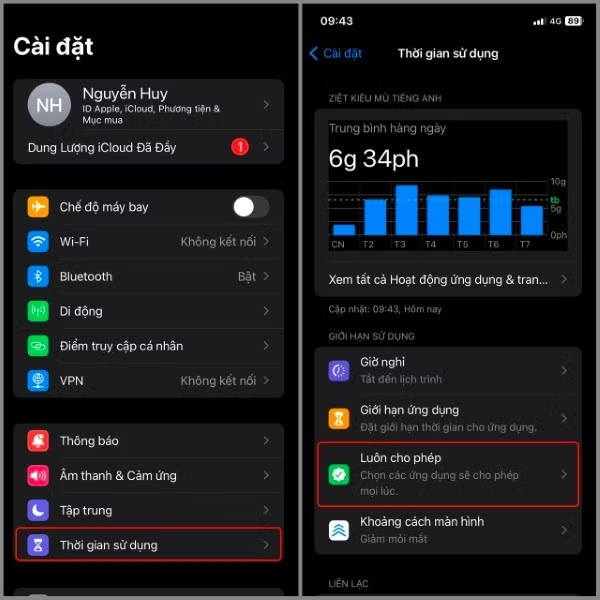
Select Usage Time → Select Always Allow
Step 2: Select the "+" sign to add the app you want.
For example, you can allow applications such as:
- Phone
- Message
- Map
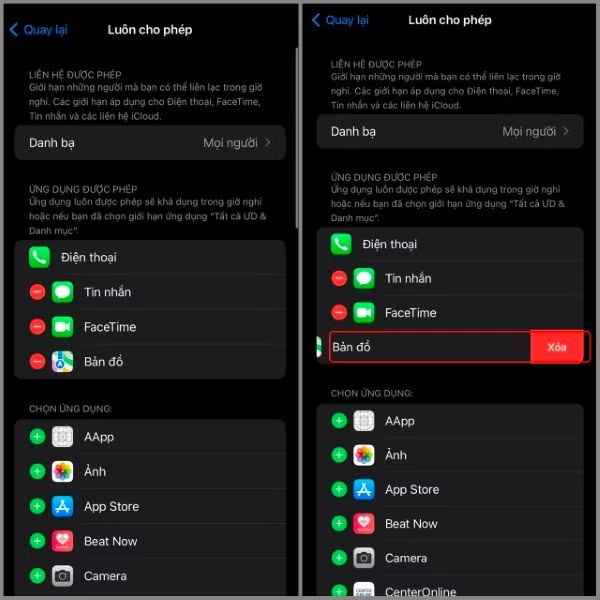
Select the + sign to add an app.
Additionally, if you don't want a particular app to be managed under that feature, select the minus sign → Choose Delete. This allows you to flexibly adjust the list of important apps without having to completely disable app restrictions on your iPhone.
Set content and privacy limits.
Screen Time also provides content control tools to restrict access to inappropriate content.
To set up this feature, follow these steps:
Step 1: Go to Settings → Select Screen Time.
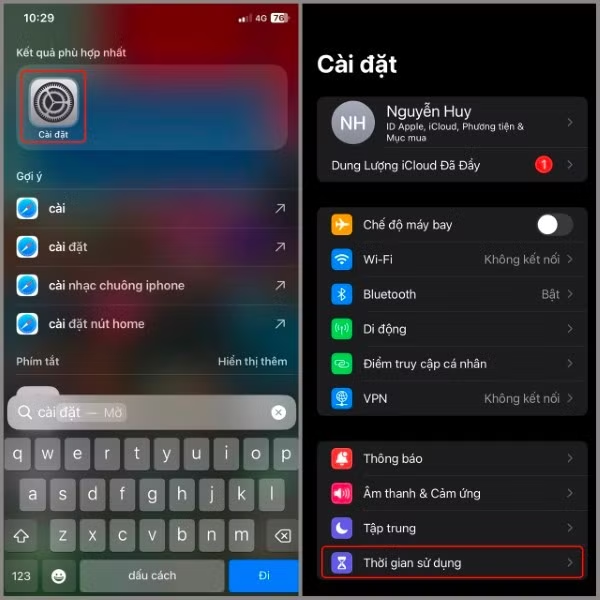
Open Settings → Select Screen Time
Step 2: Select Enable Limits → Slide to the right to turn on Enable Limits.
After activation, you can customize many aspects such as:
- Web content restrictions
- Age restrictions apply.
- Control purchases in the App Store
- Privacy management
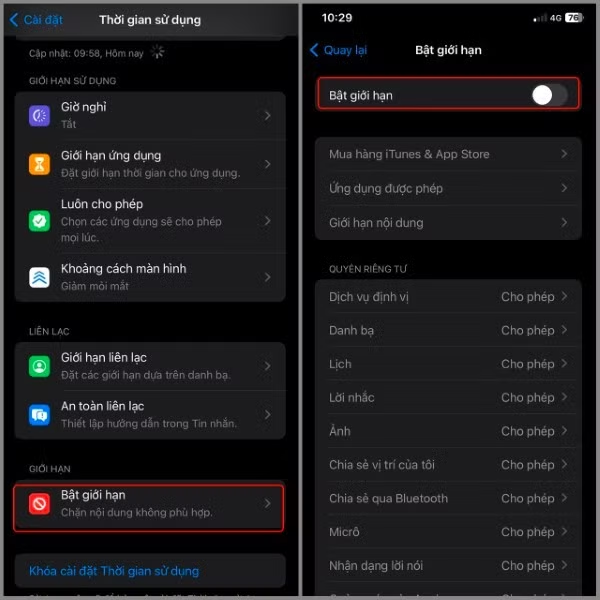
Select Enable restrictions
If you no longer need to control this content, learning how to disable app restrictions on your iPhone will help your device function normally as before.
Who should use time limits?
Time limits aren't just for children or parents. They're a useful tool for anyone who wants to manage their device usage habits.
Some situations where Screen Time should be used include:
Reduce your phone usage time.
Apps like social media, short videos , or games can consume a lot of users' time. Setting limits helps to better control usage.
Improve sleep quality
By setting a bedtime break, you can limit your phone use late at night, which in turn can help you sleep better.
Improve concentration
During studying or working, limiting entertainment apps helps you avoid distractions.
Allocate time for other activities.
By reducing your phone usage time, you'll have more time for activities like:
- Do exercise
- Read a book
- Meet up with friends.
- Spend time with family.
Parents manage their children's devices.
Screen Time helps parents control their children's screen time while protecting them from inappropriate content online.
Source: https://baohatinh.vn/cach-tat-gioi-han-ung-dung-tren-iphone-cho-moi-phien-ban-ios-post310956.html

![[Photo] Standing Committee member of the Party Central Committee Tran Cam Tu working with the Central Inspection Committee](https://vphoto.vietnam.vn/thumb/1200x675/vietnam/resource/IMAGE/2026/05/28/1779969579668_ndo_br_bnd-2495-jpg.webp)






































































































Comment (0)