

Viewing recalled messages on Messenger can be done on both phones and computers. However, the method varies depending on the phone manufacturer.
1. View recalled messages on Messenger using iPhone.
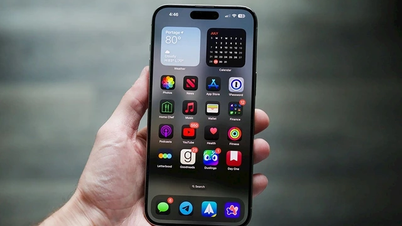
Unfortunately for Apple users, the iPhone currently does not support viewing recalled messages, nor does it allow third-party applications to do so. Therefore, if you want to read recalled messages, please try using a computer or another type of phone.
2. View recalled messages on Messenger using a Samsung phone.
Unlike iPhones, viewing recalled messages on Messenger is very easy on Samsung devices; just follow these steps:
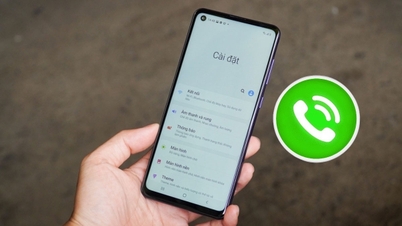
Step 1: Open Settings > Tap Notifications > Go to Advanced Settings.
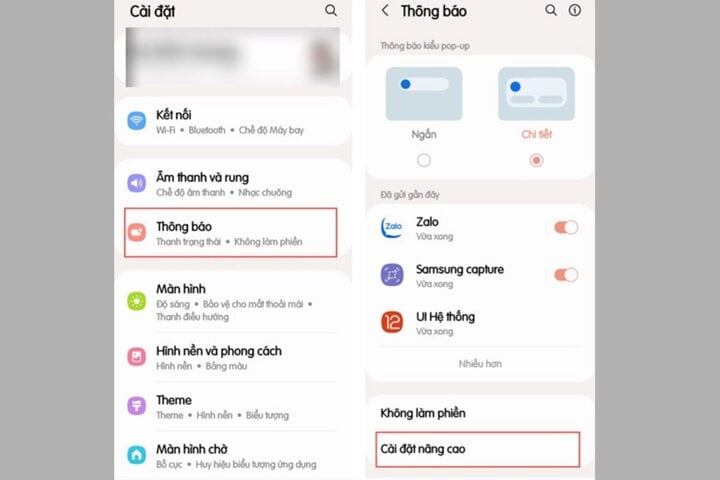
Open Settings > Tap on Notifications > Go to Advanced Settings
Step 2: Here, select Notification Log > Then select the Messenger app to view the content of the previously recalled message, and you're done.
3. View recalled messages on Messenger using Xiaomi.
To view recalled messages on Messenger using a Xiaomi phone, use the Notification Log feature. However, this feature is not built-in on some devices. In this case, follow these steps to view recalled messages:
Step 1: Users access the Google Play Store > Search for and download the MIUI Downloader application.
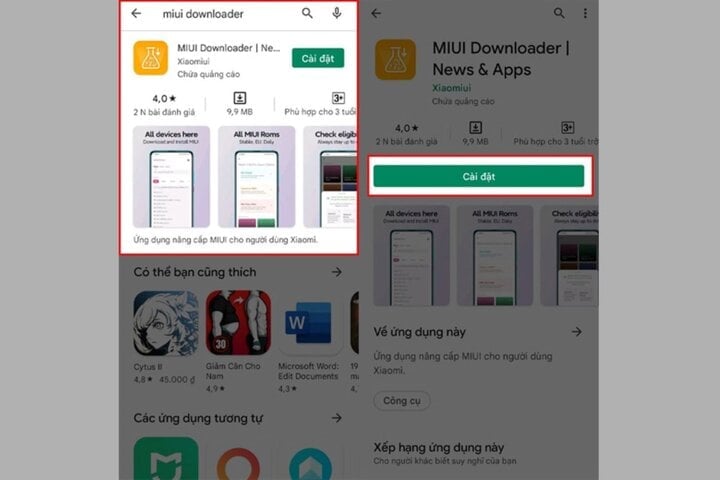
MIUI Downloader app.
Step 2: After downloading the app, open it. In the functions section, select Hid. Features to see features your device doesn't have yet > select Adaptive Notifications to go to the Advanced Notifications section.
Step 3: Here, access the Notification Log to review the recalled messages. Note that you must enable "Use notification log" first.
4. How to view recalled messages on Messenger using OPPO.
Similar to Samsung, viewing recalled messages on OPPO phones is quite easy thanks to a built-in feature. Here are the steps:
Step 1: Go to Settings > Tap Notifications and status bar > Go to Manage notifications.
Step 2: Tap Notification History > Turn on the toggle switch for Notification History.
Step 3: Finally, check your Notification History to read the Messenger messages that have been recalled.
5. View recalled messages on Messenger using a PC or laptop.
To view recalled messages on your PC or laptop, use the History Remove Messages application.
Step 1: First, download the application by accessing this link:
https://www.mediafire.com/file/ov8iobdwwr02i51/History_Remove_Messages.rar/file?utm_source=j2team&utm_medium=url_shortener
Step 2: Next, go to Chrome Extensions > Turn on Developer Mode.
Step 3: Then select “Load unpacked” > “History Remove Messages” > Copy the extension ID.
Step 4: Once the History Remove Messages file has been extracted, select the util.js file > Click on “edit” > Paste the ID you copied above into the location shown in the illustration > Press Ctrl + S to save.
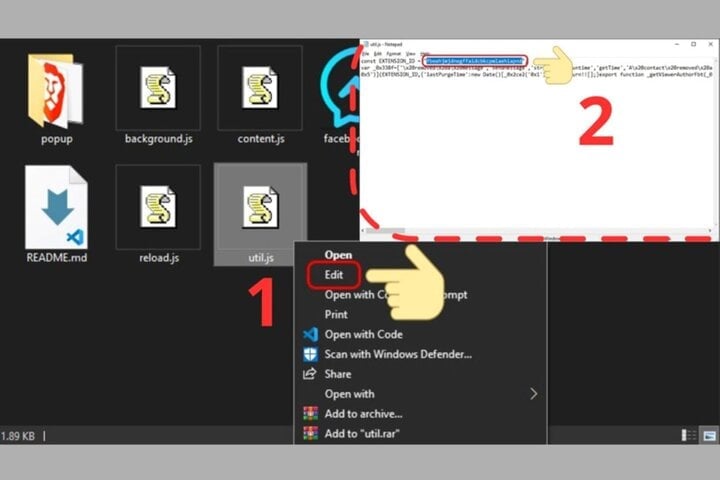
Paste the copied ID into the location shown in the illustration.
Step 5: Next, go back to Chrome Extensions > Click the refresh icon to update the History Remove Messages extension. Finally, simply access Messenger from your computer's browser > Click on the installed extension icon to view your entire deleted message history on the Messenger app.
Above is how to view deleted messages on Messenger. Hopefully, this information will be helpful to you.
Dinh Trung
Source
![[Photo] First session of the 14th Congress of the Vietnam Trade Union](https://vphoto.vietnam.vn/thumb/1200x675/vietnam/resource/IMAGE/2026/06/03/1780465947883_ndo_br_img-3852-jpg.webp)
![[Photo] General Secretary and President To Lam presides over a meeting with the Central Organizing Committee.](https://vphoto.vietnam.vn/thumb/1200x675/vietnam/resource/IMAGE/2026/06/03/1780482764658_a1-bnd-4741-3342-jpg.webp)
![[Photo] Secretary of the National Assembly Party Committee, Chairman of the National Assembly presides over the meeting of the Standing Committee and Executive Committee of the National Assembly Party Committee.](https://vphoto.vietnam.vn/thumb/1200x675/vietnam/resource/IMAGE/2026/06/03/1780480353201_ndo_br_bnd-2585-jpg.webp)




















































![[Video] Sunset at Lap An Lagoon – Where the sun sets over the fishing nets](https://vphoto.vietnam.vn/thumb/1200x675/vietnam/resource/IMAGE/2026/05/31/1780192137701_beach-landscape-sea-water-nature-grass-745871-pxhere-com.jpeg)


































Comment (0)