

 |
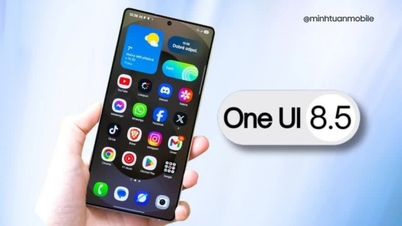
The new video editor on Samsung One UI 6 helps you create better, more engaging videos, and the process is incredibly simple.
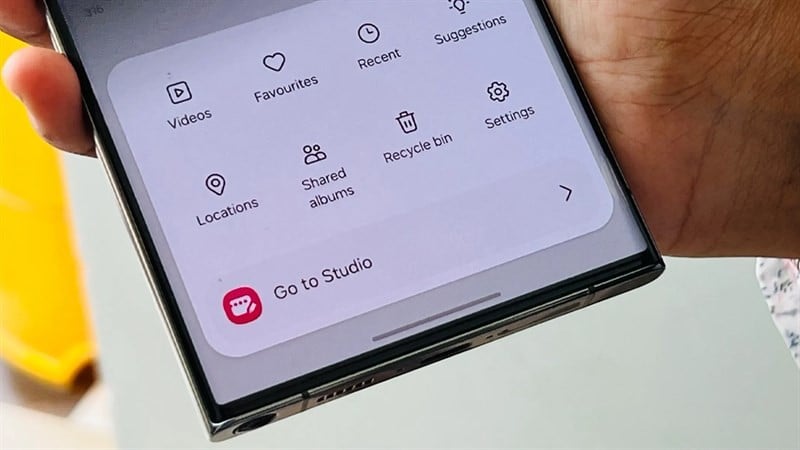
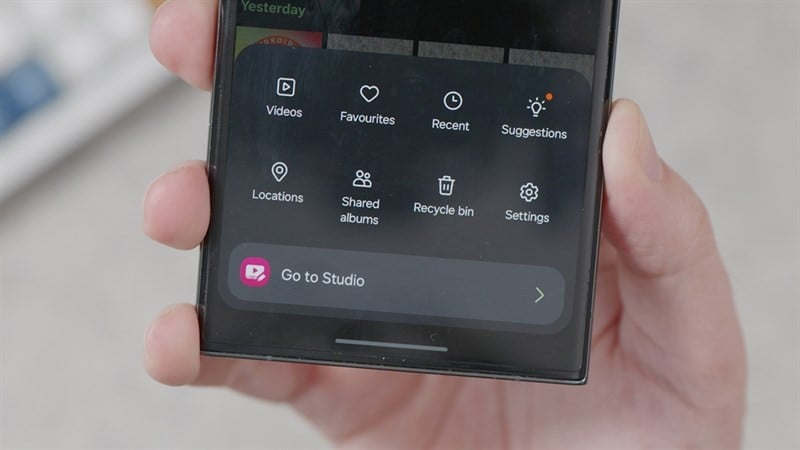
Step 1: Once your Samsung phone has been upgraded to One UI 6, when you open the Gallery app, the three horizontal lines in the bottom right corner of the screen will show a "Go to Studio" option. Tap it to open. A "Start New Project" button will then appear; tap it to create a video editing project.
 |
Step 2: Next, select the photos and videos you need for your project. Wait a moment for your data to be added to the editor. The main interface of the video editor will display the video and photos you just added. Next to it, there will be a "+" sign so you can add other image data.
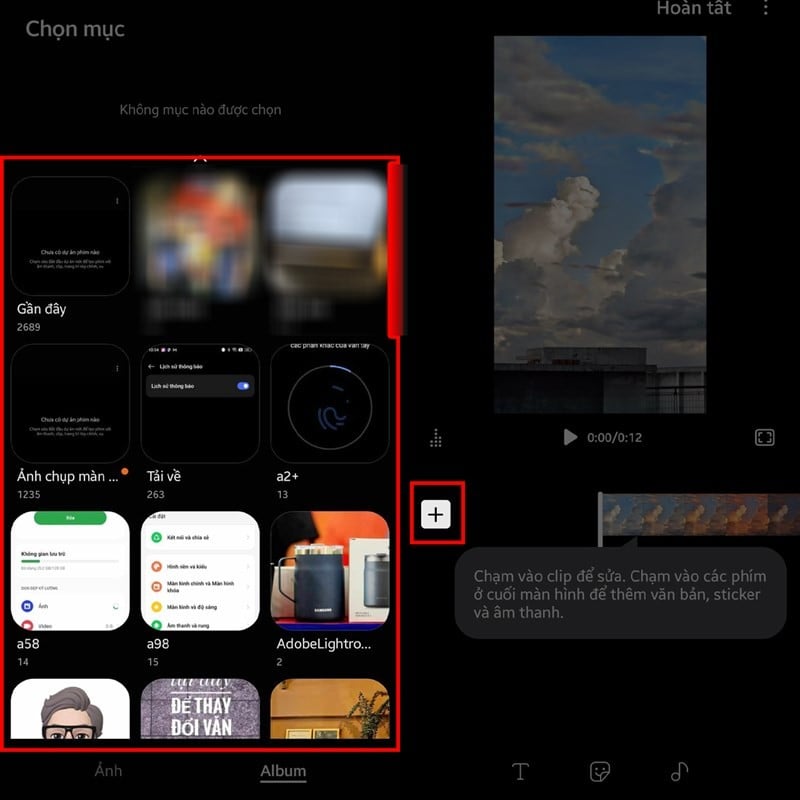 |
Below, you'll also find other options such as adding text, stickers, and music to the entire video. Specifically, you can select the area between the two video segments and add transition effects.
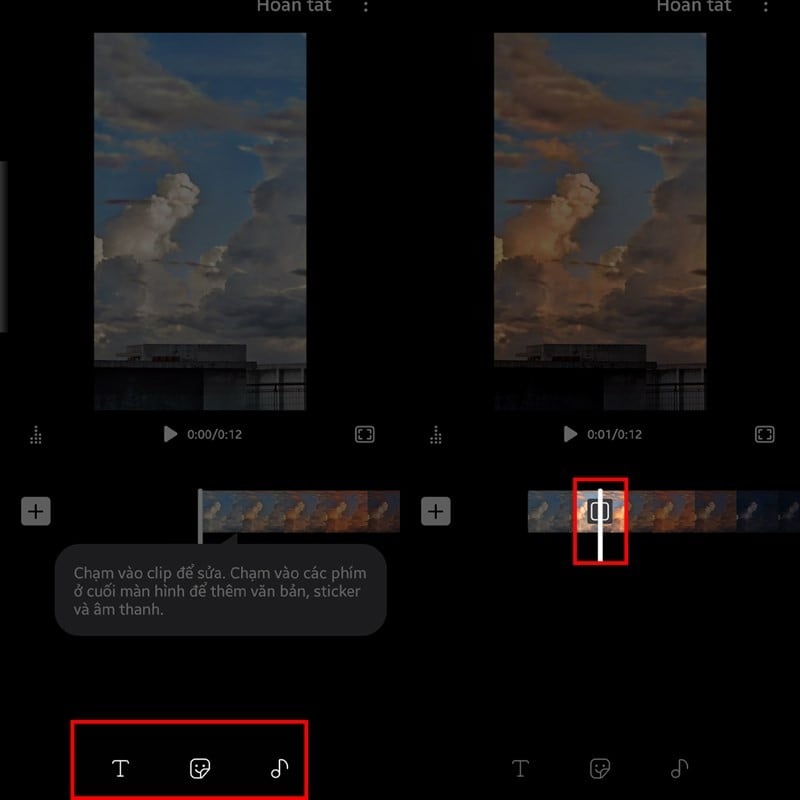 |
Step 3: When you select videos on the timeline, several additional tools will appear to help you edit them more easily. Below are the tools and options for adjusting the selected video. You can also adjust the video size, color filters, playback speed, color correction, etc.
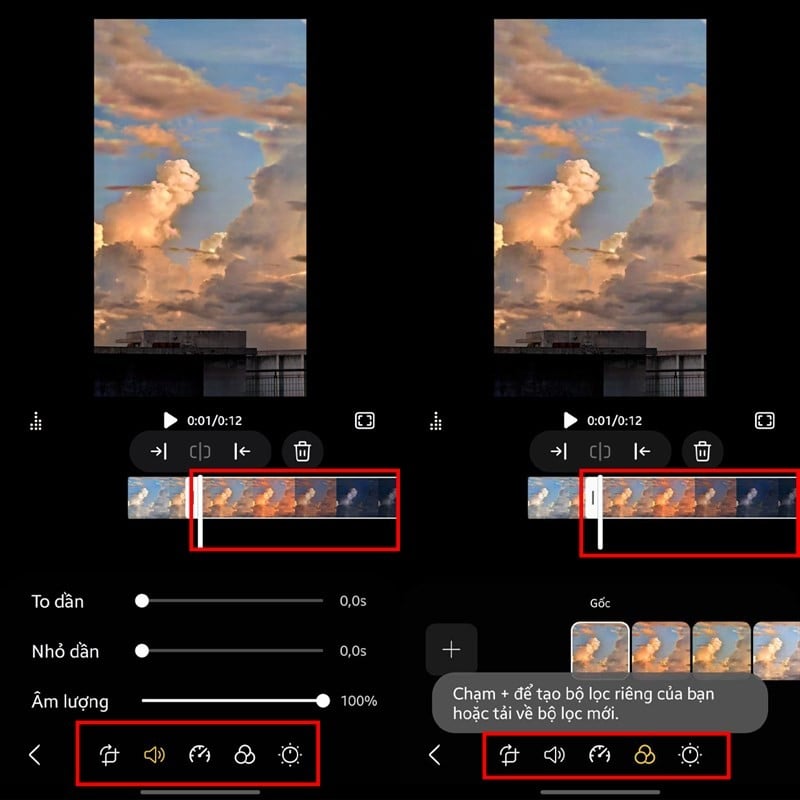 |
Step 4: After making the adjustments, click "Finish" to save it to your computer. Additionally, in the upper right corner, clicking the three vertical dots icon will display a series of options. Among them is "Project Settings," where you can select the aspect ratio. Adjust it to suit your project.
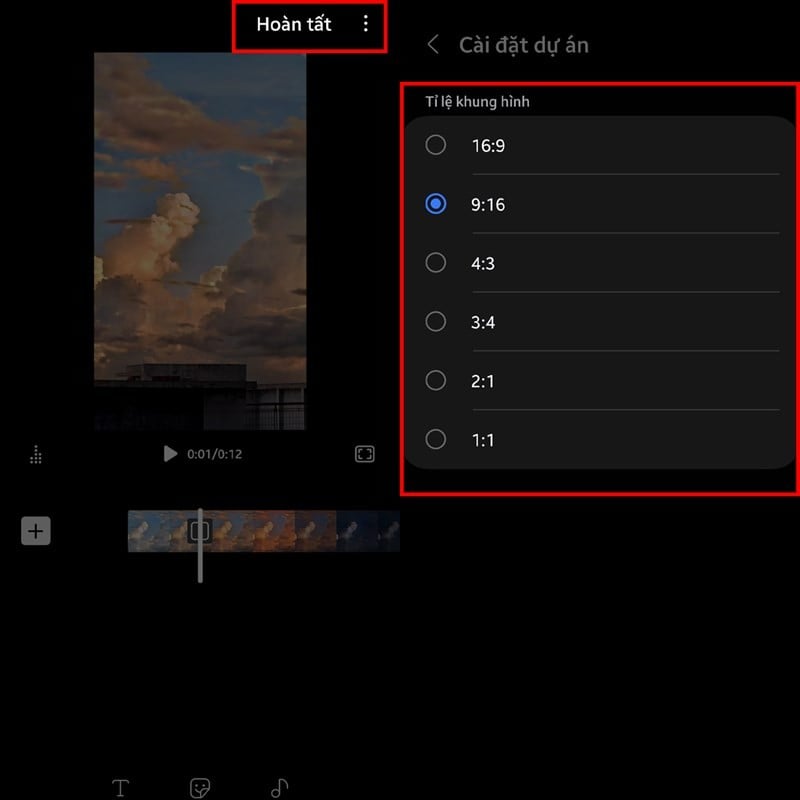 |
That's how to use the new video editor on One UI 6. We hope you get great results creating high-quality videos with this Samsung feature.
Source


![[Image] Central Party Office summarizes work in 2025](/_next/image?url=https%3A%2F%2Fvphoto.vietnam.vn%2Fthumb%2F1200x675%2Fvietnam%2Fresource%2FIMAGE%2F2025%2F12%2F18%2F1766065572073_vptw-hoi-nghi-tong-ket-89-1204-jpg.webp&w=3840&q=75)

























































Comment (0)