

 |
How can you delete a single photo, multiple photos, or all photos from your Google Photos account? Let's explore the different ways to delete photos on Google Photos in the article below.
Delete a photo from Google Photos
Deleting a photo from your Google Photos library is quick and easy, as follows:
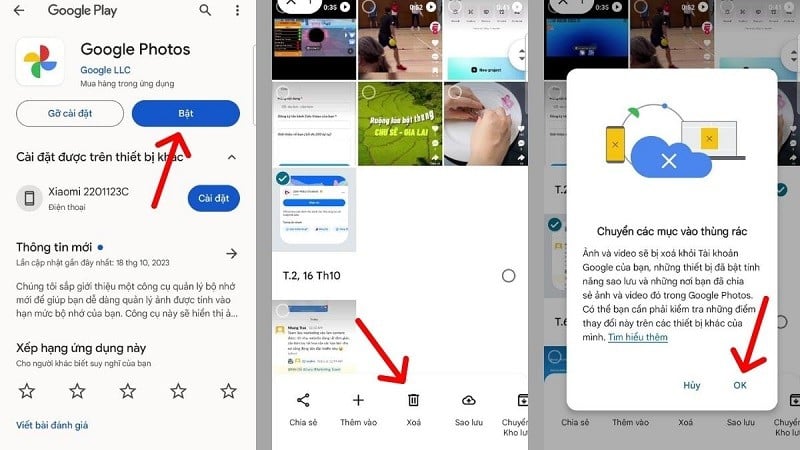
Step 1: First, open the Google Photos app on your device. Then, go to your photo library.
Step 2: In your photo library, press and hold the photo you want to delete. Hold until a checkmark appears next to the photo.
Step 3: Next, press the "Delete" button. Then select "OK" to confirm again. After that, allow the selected photos to be moved to the trash to complete the deletion process on Google Photos.
 |
Note: With the 3 steps above, you have completed deleting photos from your main library. However, if you want to permanently delete photos, you need 2 more steps to remove them from the trash. Details are as follows:
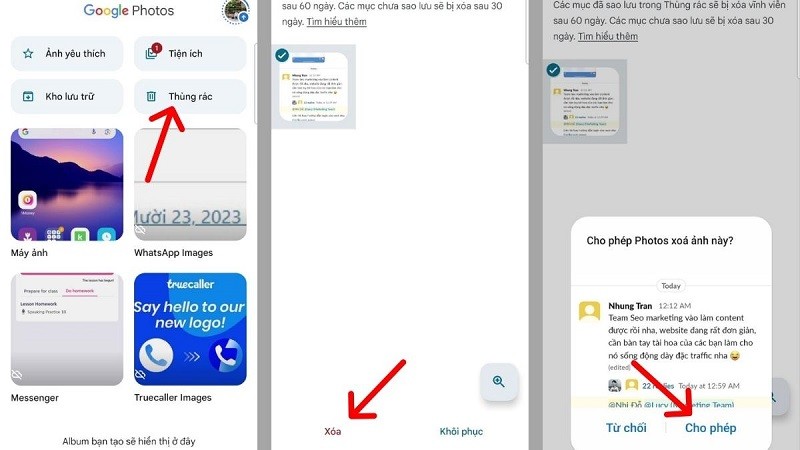
Step 1: Go to the "Library" section in Photos. Then, tap on the "Trash" tab. Here, you will see deleted photos in the trash. To delete photos from the trash on Google Photos, tap on the photo and select "Delete".
Step 2: Tap "Allow Photos" to remove this photo from your account, and you're done.
 |
Delete multiple photos at once on Google Photos
To delete multiple photos at once on Google Photos, follow these steps in order:
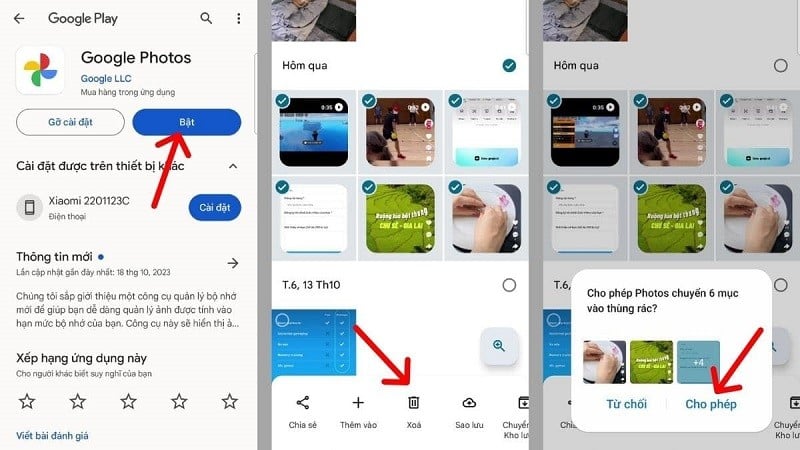
Step 1: Go to Google Photos and select the "Photos" section. Here, choose the photos you want to delete by pressing and holding them until a checkmark appears on the image.
Step 2: Click the “Delete” button.
Step 3: Allow Photos to move the selected photos to the trash to complete the process of deleting photos on Google Photos. Afterward, you can also go to the trash to permanently delete the photos if you wish.
 |
Delete all photos on Google Photos
If you want to quickly delete all photos from your Google Photos account, you need to do the following:
On the phone
For mobile phones, Google Photos currently doesn't have the function to select all photos at once to delete. Therefore, you still have to manually select photos as instructed above. First, select the photos you want to delete, then press the "Delete" button. Finally, confirm once more to complete the process.
 |
On a computer
If you want to quickly delete multiple photos or all photos in your account, follow the instructions below on how to delete photos on Google Photos using a computer.
Step 1: First, access Google Photos on your computer at the following link: https://photos.google.com/. Then, log in to the account containing the photos you want to delete.
Step 2: Once in Photos, go to the "Photos" section located in the top left corner of the screen.
 |
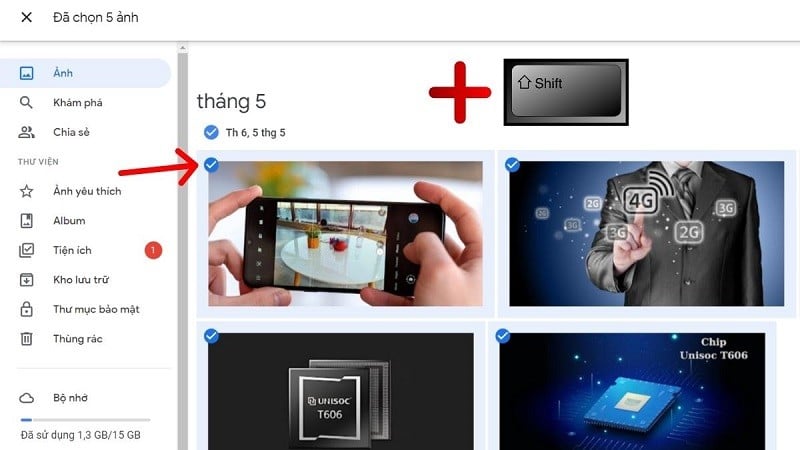
Step 3: Here, to quickly delete all photos in your account, click on the first photo. Then, scroll down to the bottom of the gallery. Next, press the Shift key on your keyboard. At this point, you will see that all photos in the gallery have a "checkmark" in the top left corner.
 |
Step 4: Tap the "trash can" icon and confirm again to complete the process.
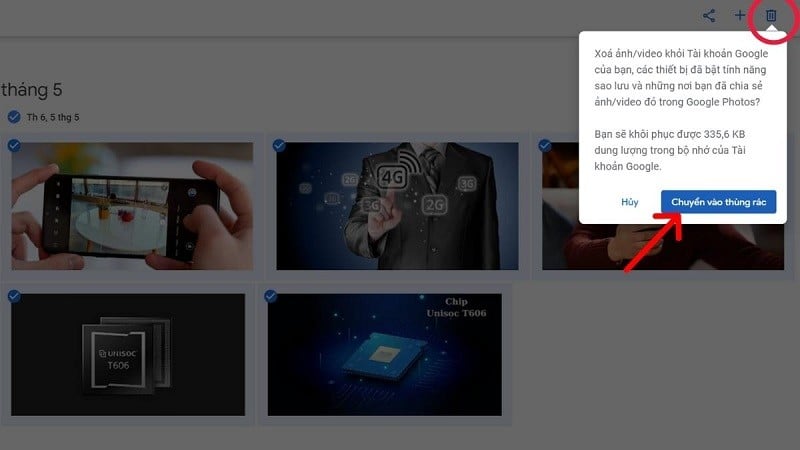 |
When you delete photos from Google Photos using a computer, those photos are also deleted from your phone thanks to the sync feature. Furthermore, photos deleted from your computer will be moved to the trash and will be permanently deleted after 60 days if you don't recover them.
Source


![[Photo] Prime Minister Pham Minh Chinh attends the Conference on the Implementation of Tasks for 2026 of the Industry and Trade Sector](/_next/image?url=https%3A%2F%2Fvphoto.vietnam.vn%2Fthumb%2F1200x675%2Fvietnam%2Fresource%2FIMAGE%2F2025%2F12%2F19%2F1766159500458_ndo_br_shared31-jpg.webp&w=3840&q=75)


























































































Comment (1)