

According to Macrumors , here are some notable tips for iPhone users running iOS 26 or later:
Turn apps into widgets.
Users can quickly turn most apps into widgets – convenient features that display information directly on the home screen without opening the app. Simply press and hold the app icon, then select one of the display sizes shown at the top.
This feature applies to both Apple and third-party apps (if widgets are supported). To return to the regular icon style, simply press and hold and select the four-square icon in the upper left corner.
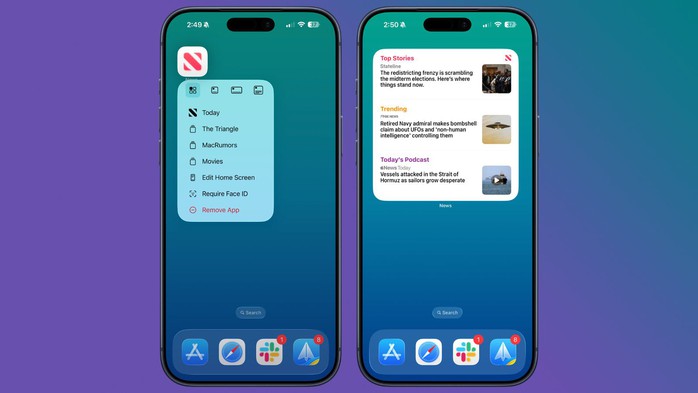
Turn apps into widgets.
Review the places you've been to.
The Maps app allows users to review their travel history, which is very useful when they want to find places they've been to before, such as restaurants or tourist attractions.
To access: open Maps -> tap on profile -> select "Places" -> "Visited". Places will be categorized by category (entertainment, shopping, etc.) and by province/city.
Users can delete history or set a storage time limit. To disable it completely, go to: Settings -> Maps -> Location -> Visited Places.
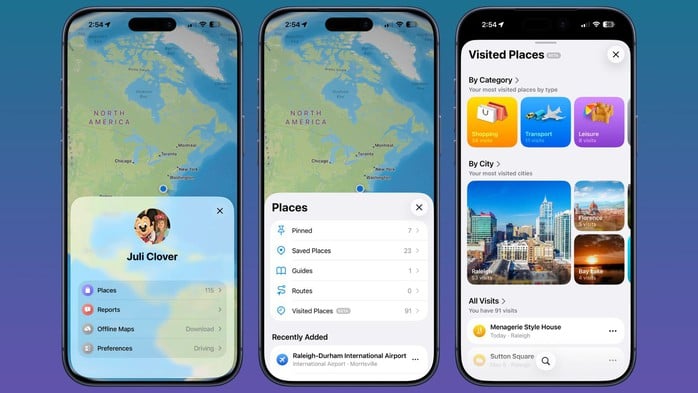
How to review places you've been to
Create custom vibrations
In addition to ringtones and notification sounds, iPhones also allow you to set up custom vibration patterns for each person. This is especially useful when the phone is in silent mode.
How to do it: Open Contacts -> select contact -> Edit -> select Message tone or Ringtone -> "Touch" -> "Create new vibration pattern". Then, users can create their own desired vibration rhythm.

Set individual vibration patterns for each person.
Customize the lock screen buttons.
The two default buttons (Flashlight and Camera) on the lock screen can be replaced with other functions in the Control Center, including those from third-party apps.
Follow these steps: press and hold the lock screen -> select "Customize" (or the "+" sign) -> delete the old button using the "-" sign -> add a new function using the "+" sign.

Customize the lock screen buttons.
Back Tap
The Back Tap feature allows users to tap the back of their iPhone to activate actions such as taking a screenshot, turning on the flashlight, or running a shortcut.
To set this up: go to Settings -> Accessibility -> Touch -> "Back Tap". Users can set it to double tap or triple tap.

Touch-to-reverse feature
Take a screenshot of the entire website.
In addition to regular screenshots, iPhones also support capturing the entire content of a webpage or PDF file.
Instructions: Take a screenshot -> open the preview image -> select "Full page" -> save.
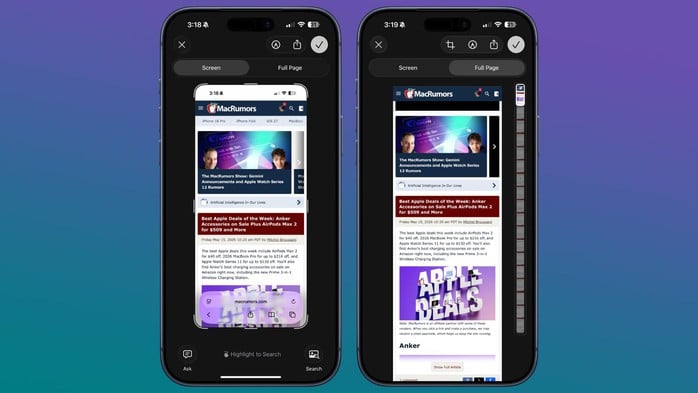
Capture the entire content of a webpage or PDF file.
Hide apps
Users can hide individual apps or entire app pages for a cleaner interface.
To hide the entire page: press and hold the screen → enter edit mode → tap the dots at the bottom → deselect the page you want to hide. These apps can still be found via search or in the App Library.

Hide apps
Set a timer quickly
Users can add timer tools to the Control Center for quick access using a slider.
Instructions: Add "Timer" to Control Center -> press and hold the icon -> select the time -> press Start. The time can be adjusted from 1 minute to 2 hours.
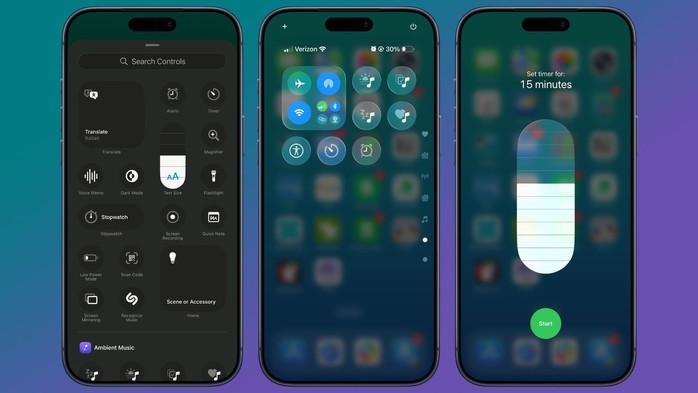
Set a timer quickly
Remove location data from photos.
To protect their privacy, users can remove location information before sharing photos.
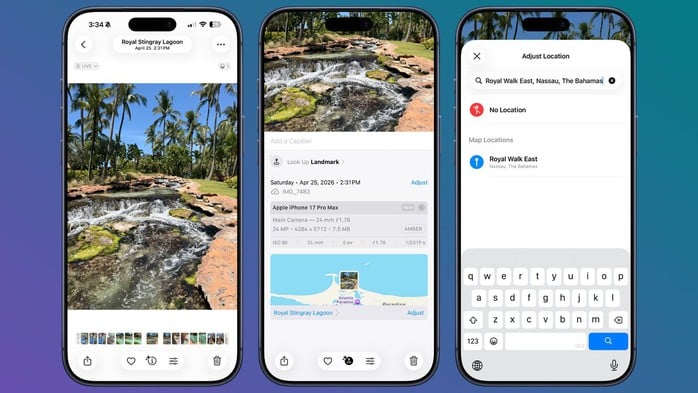
Method 1: Open the image -> swipe up -> select "Adjust position" -> select "No position".
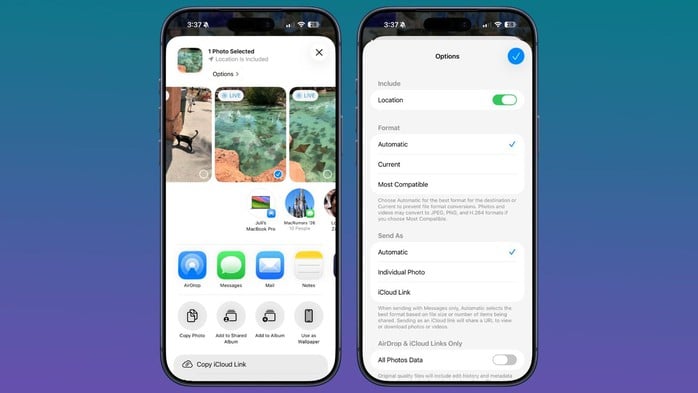
Method 2: When sharing photos -> select "Options" -> turn off "Location".
Use a timer to automatically turn off the music.
The iPhone allows you to use a timer to pause music, podcasts, or audiobooks, which is convenient for listening before bed.
How to do it: Open the Clock app -> Timer -> select the time -> When the timer ends -> select "Stop playback".
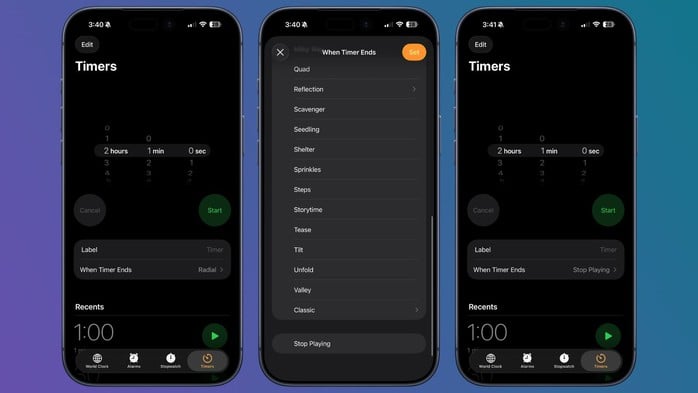
Use a timer to automatically turn off the music.
Source: https://nld.com.vn/10-meo-cuc-ky-huu-ich-บน-iphone-phien-ban-ios-26-196260516132728811.htm



![[Image] Close-up view of the interchange connecting the two expressways and Long Thanh Airport.](https://vphoto.vietnam.vn/thumb/1200x675/vietnam/resource/IMAGE/2026/05/25/1779703378210_ndo_br_z7863716673926-224453a31600126cce10622af6290afd-4549-jpg.webp)

![[Image] Hanoi's urban life under the challenge of a "scorching hot" environment](https://vphoto.vietnam.vn/thumb/1200x675/vietnam/resource/IMAGE/2026/05/25/1779706979265_nang-nong-t5-2026-minh-duy-7-4636-jpg.webp)

























































































Comment (0)