

One of the notable features in iOS 18 is the ability to customize app icon colors to display in separate light and dark modes, and users can even force all their app icons to use a custom color scheme. So how do you take advantage of this feature? Let's find out in the guide below.
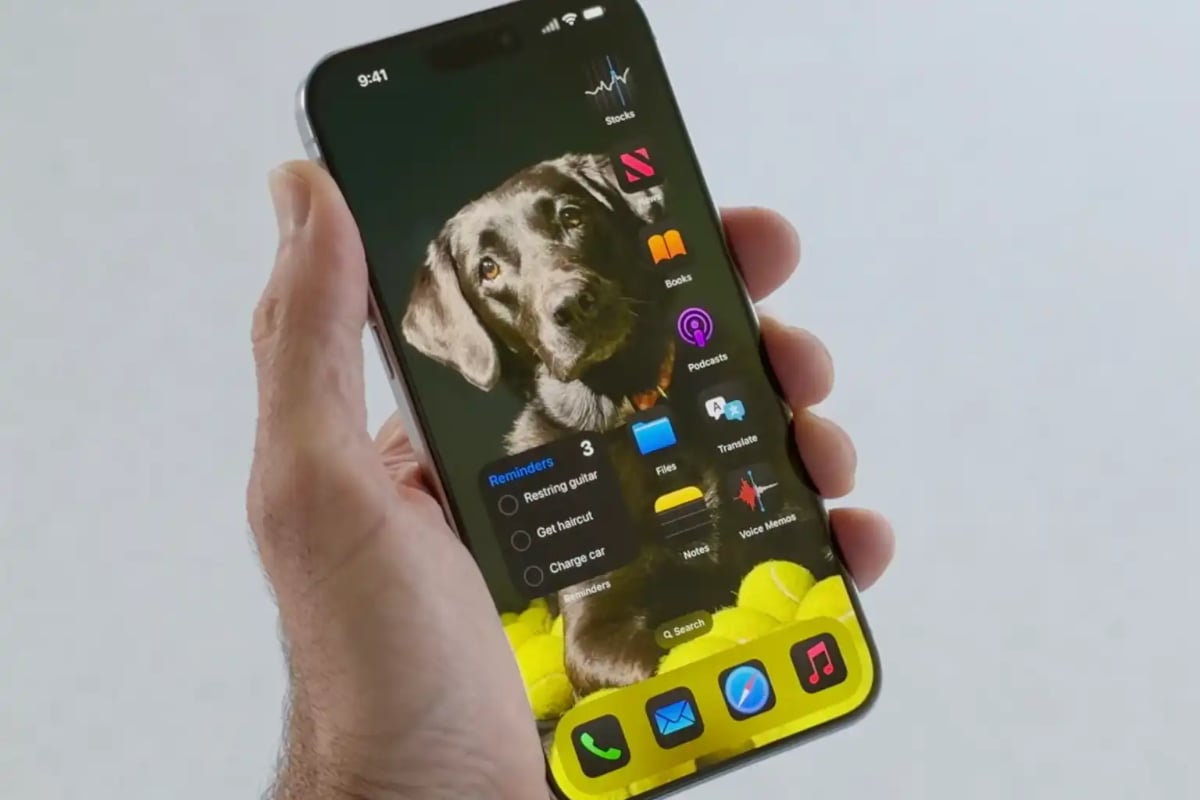
iOS 18 offers more appealing customization options.
To change the appearance of the icons, start by pressing and holding on the home screen in an area without app icons for a few seconds. The app will wiggle and display a delete button (-) in the upper left corner of each icon. This is home screen editing mode, where users can easily move or delete app and widget icons.
Click the Edit button in the upper left corner, and a pop-up menu will appear showing Add Widget and Customize . Select Customize . At the bottom of the screen, you'll see app and widget controls where you can switch between small or large (unlabeled) icons and choose how they are displayed.
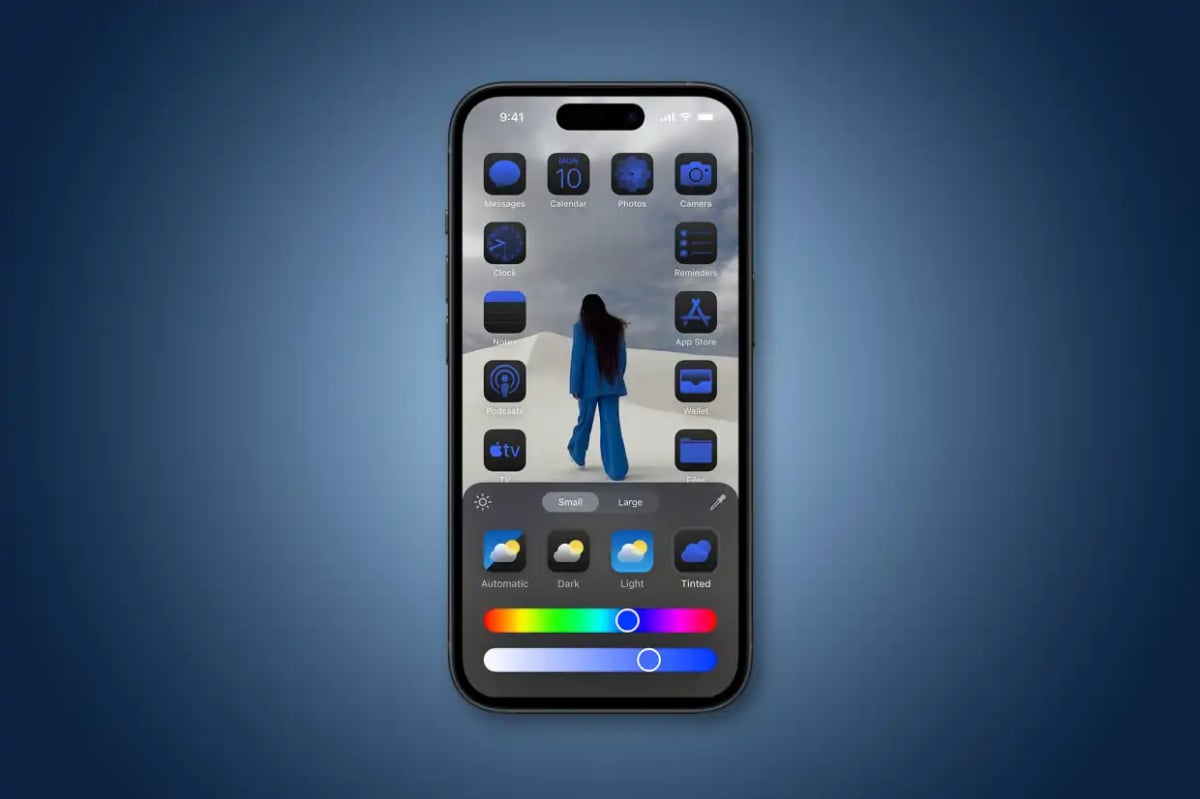
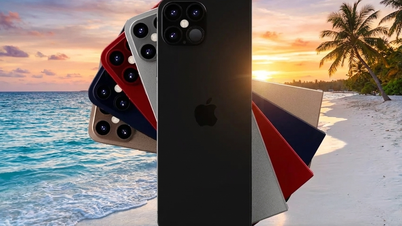
The app color options that users can choose in iOS 18.
- Automatic: Switches between Light and Dark modes to match whatever mode your iPhone is currently using, which is very useful for those whose iPhones are set to dark mode at sunset.
- Dark: Always force icons to be in dark mode.
- Light: Always force the light mode icons.
- Tinted: Choose a custom tint to override the color of all apps and widgets. This does not require developer assistance.
Dark mode icons aren't necessarily supported by all apps; however, developers must use the new API to define the dark mode icon. It will work across all Apple apps, and it's likely many third-party apps will be updated to include the dark mode icon after iOS 18 is released. If a mode is selected and not liked, users can simply return to the aforementioned menu and select a different mode.
Source: https://thanhnien.vn/cach-thay-doi-mau-bieu-tuong-ung-dung-ios-18-tren-man-hinh-chinh-185240627130355743.htm

![[Image] Central Party Office summarizes work in 2025](/_next/image?url=https%3A%2F%2Fvphoto.vietnam.vn%2Fthumb%2F1200x675%2Fvietnam%2Fresource%2FIMAGE%2F2025%2F12%2F18%2F1766065572073_vptw-hoi-nghi-tong-ket-89-1204-jpg.webp&w=3840&q=75)

















































































Comment (0)