

Comparing two Excel files with data in business and finance is crucial. So, if you're looking for ways to compare two Excel spreadsheets, check out these five tips!
 |
To help you compare two Excel files and find similarities or differences, it's very simple. Just follow one of the five methods below. These are:
Instructions for manually comparing data in two Excel files.
This is a method for comparing duplicate data in two Excel files, useful for detailed checks and ensuring 100% accuracy. To perform a manual data comparison, follow these steps:
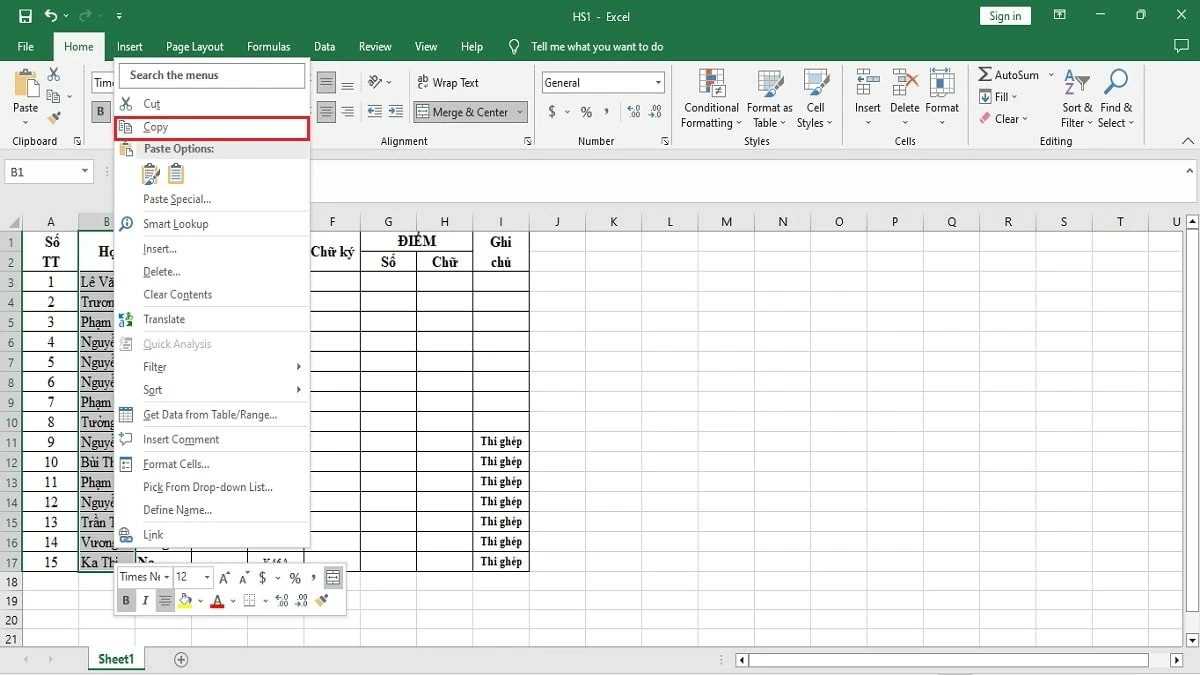
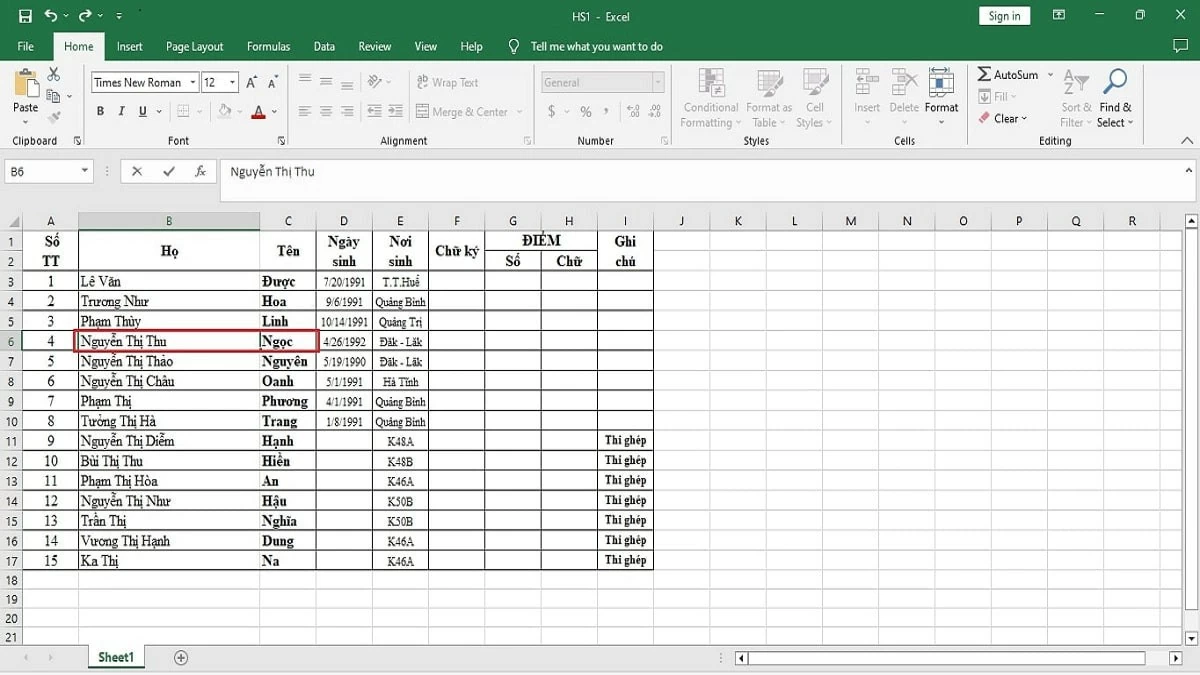
Step 1: First, open the two files you want to compare in two different tabs on your screen. Then, copy the column you want to check for duplicates and paste it into an empty cell in the other file.
 |
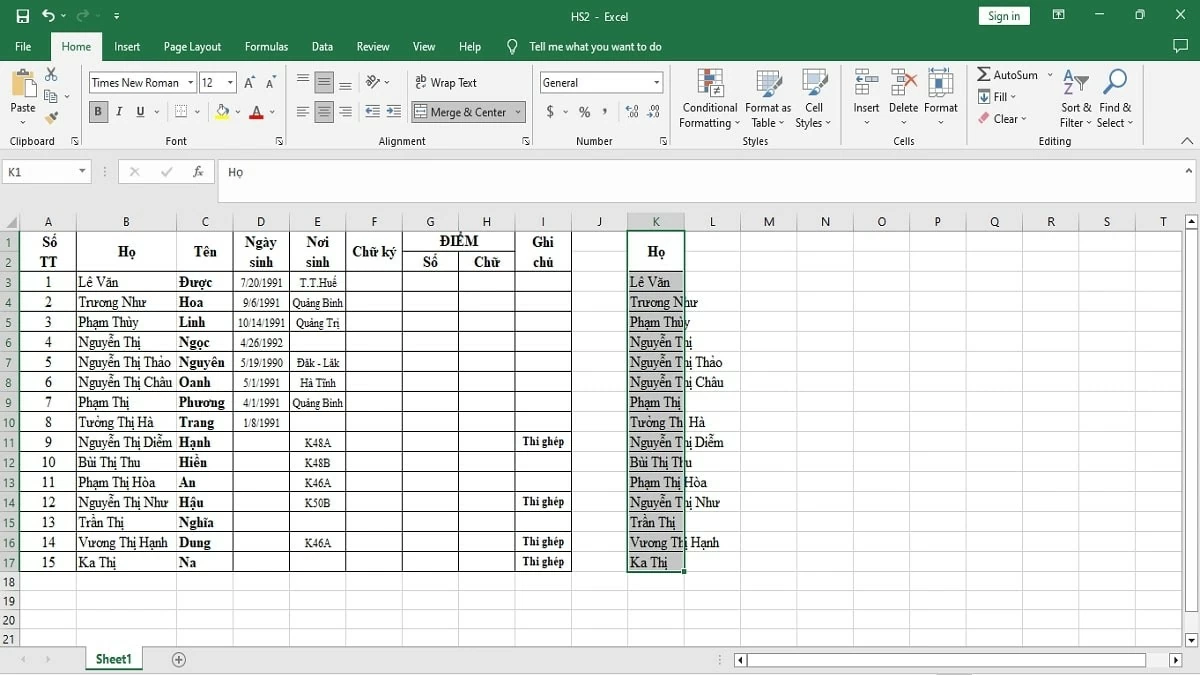
Step 2: Inspect each selected cell and column, then compare the values between the two files to find any differences.
 |
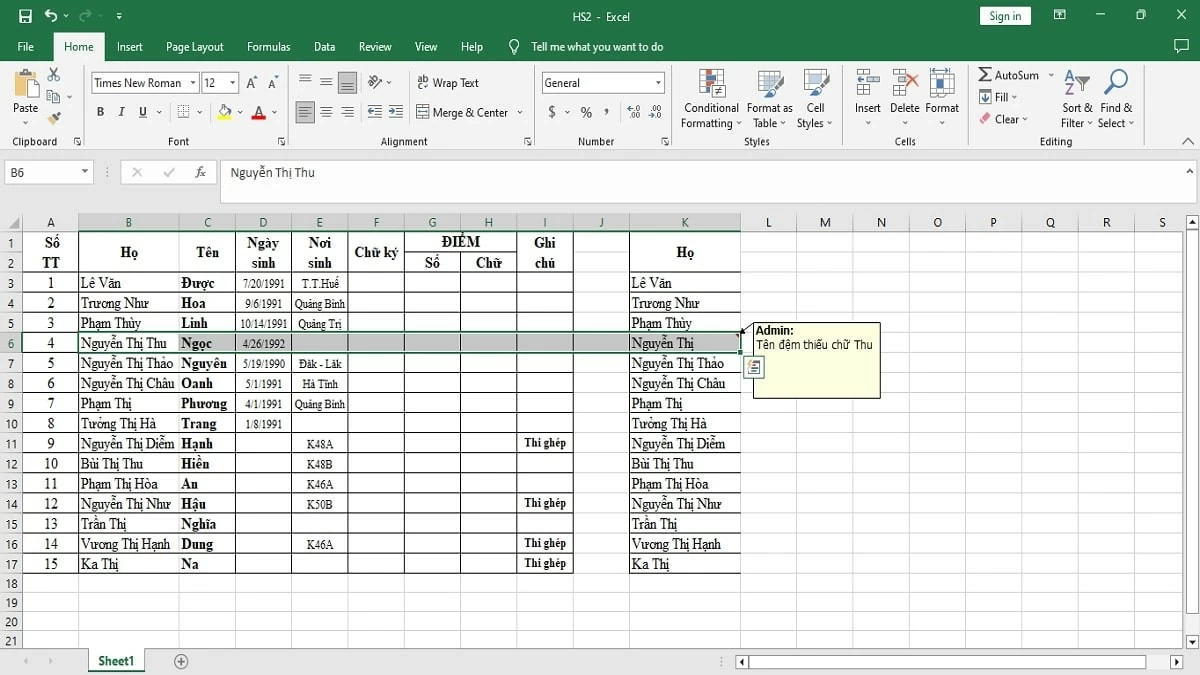
Step 3: When you find discrepancies, create notes directly on the file for easy tracking and to determine the appropriate course of action.
 |
Step 4: If the table has many columns and rows to compare, organize the data systematically to facilitate the verification process.
Step 5: Based on the collected data differences, you can edit, add, or delete data to ensure consistency between the two files.
 |
Instructions on comparing two Excel files using Side-by-Side View
To compare data between two Excel files using the "View Side by Side" option, open both Excel spreadsheets you want to check and arrange them horizontally or vertically. Then, proceed to compare the data following this procedure:
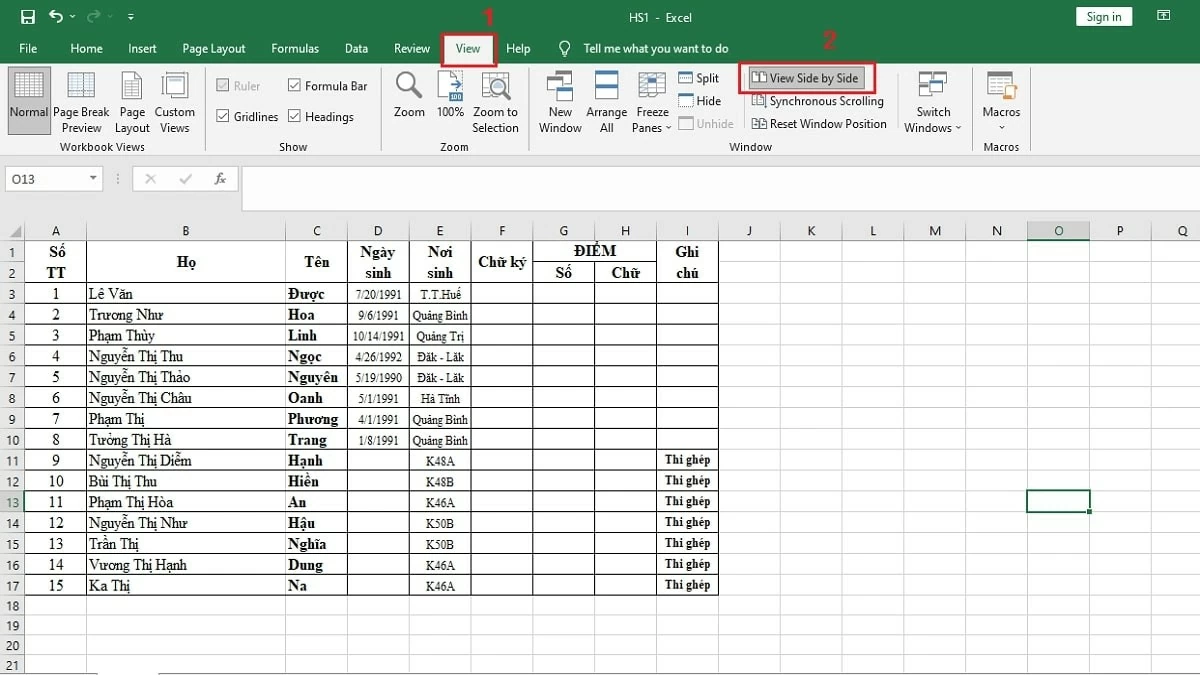
Step 1: In your Excel file, go to the View tab and select the View Side by Side option.
 |
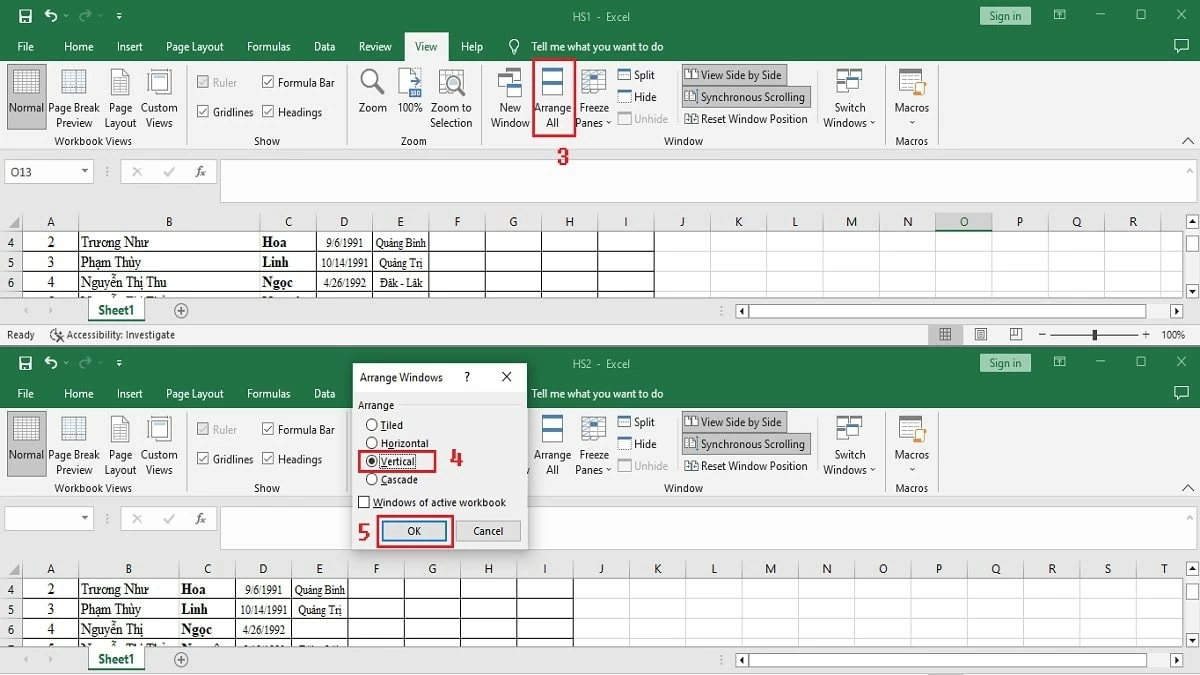
Step 2: For easier comparison, click Arrange All to adjust the display of the two Excel spreadsheets. Select the Vertical option and click OK to display both spreadsheets side-by-side vertically.
 |
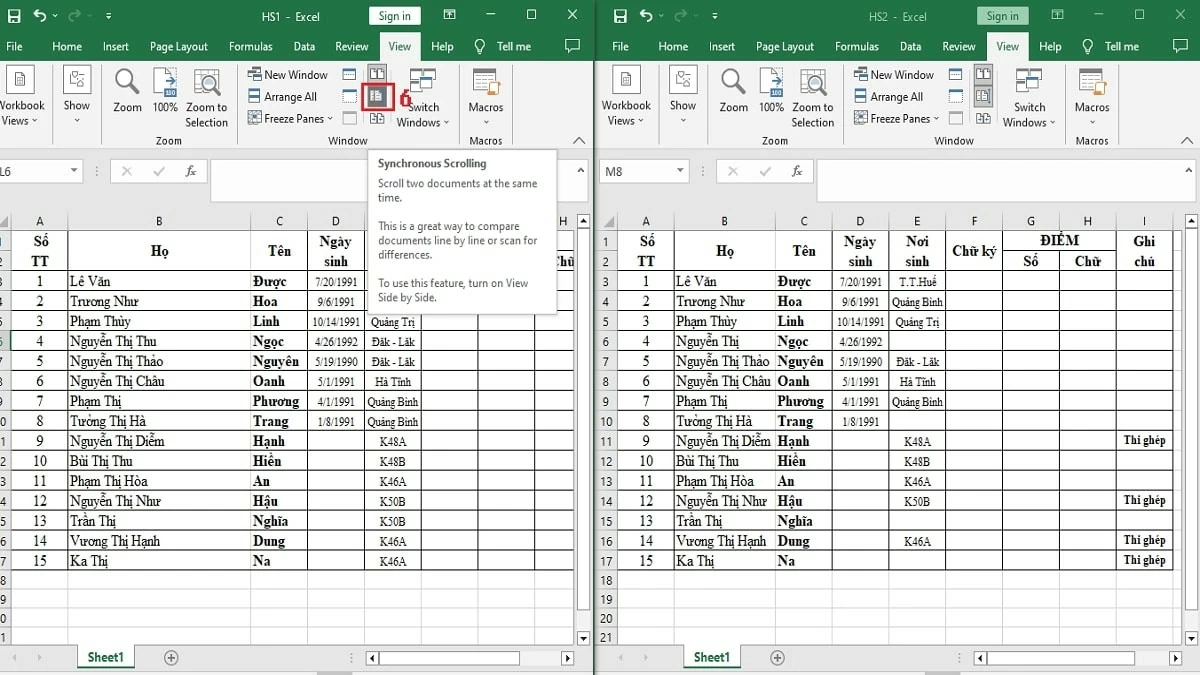
Step 3: Click the Enable Synchronous Scrolling icon to scroll through both Excel files simultaneously. This makes checking easier and helps you quickly spot differences between the two files.
 |
Instructions on comparing data in two Excel files using the IF function.
If the two Excel files or spreadsheets you need to check contain a lot of data, comparing them using the methods above can be time-consuming. Instead, you can use the method below to detect differences more quickly:
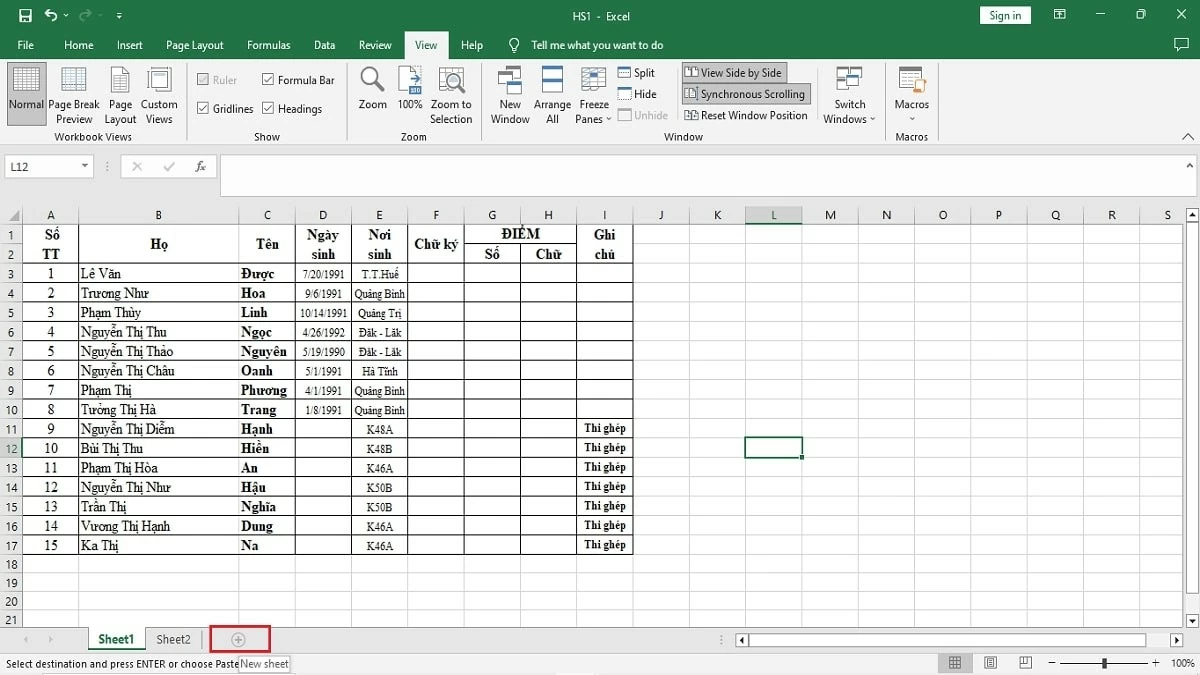
Step 1: In Excel, import the two data files you want to compare into Sheet1 and Sheet2 . Then, click the "+" icon. to open a new window next to it.
 |
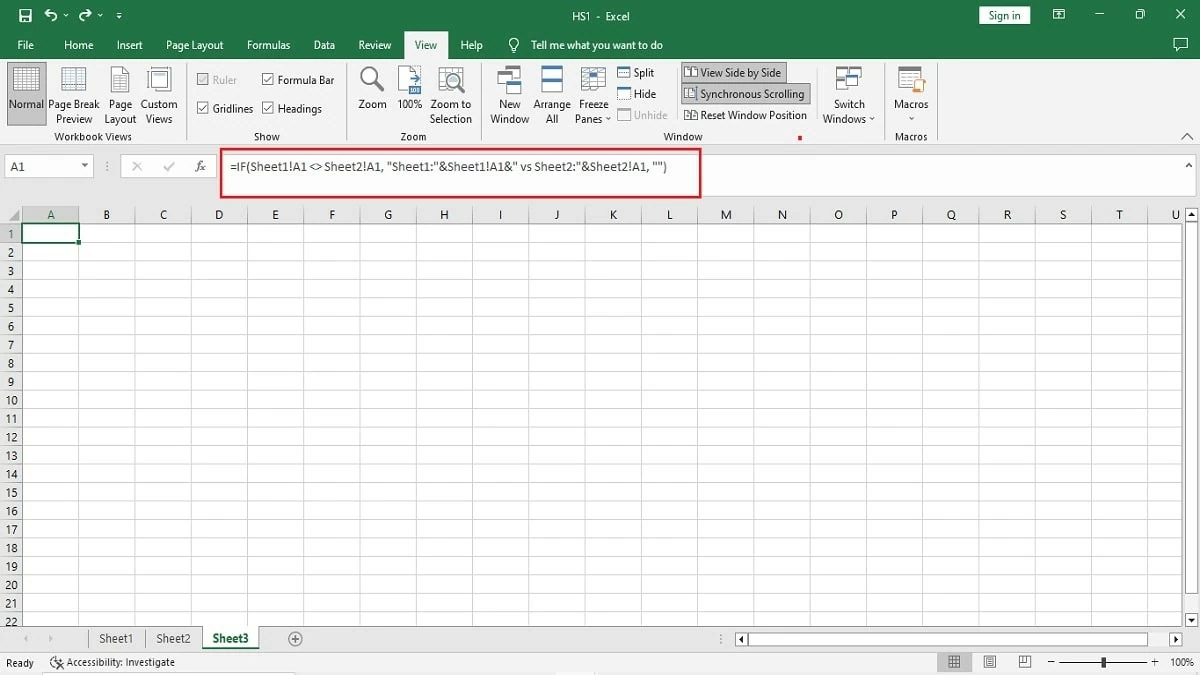
Step 2: Click on cell A1 of both Sheet1 and Sheet2. Then, in cell A1 of the new table, enter the function `=IF(Sheet1!A1 Sheet2!A1 , "Sheet1:"&Sheet1!A1&" vs Sheet2:"&Sheet2!A1, "")` and press Enter.
 |
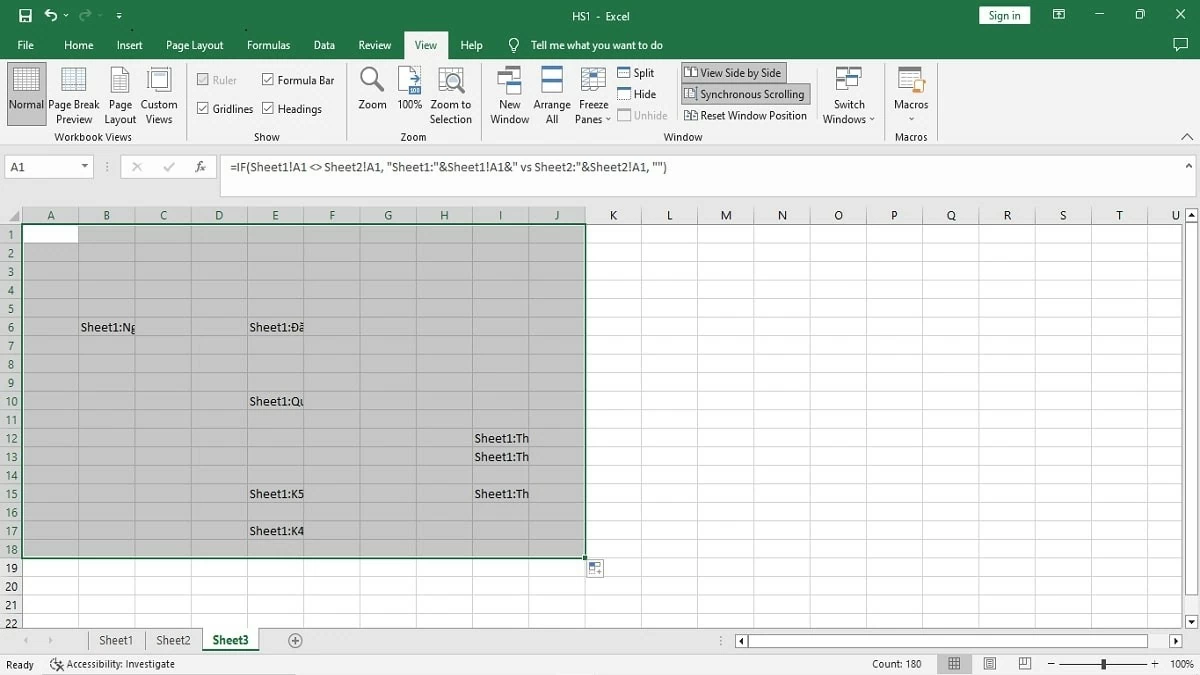
Step 3: To compare the differences between the two tables, simply drag your mouse from cell A1 to the end of the data range you want to compare. The differences will be displayed immediately.
 |
Instructions on comparing two worksheets within the same Excel spreadsheet.
If the IF function is too complex, you can use the method of comparing two sheets within the same Excel spreadsheet. Here's the procedure for performing the check:
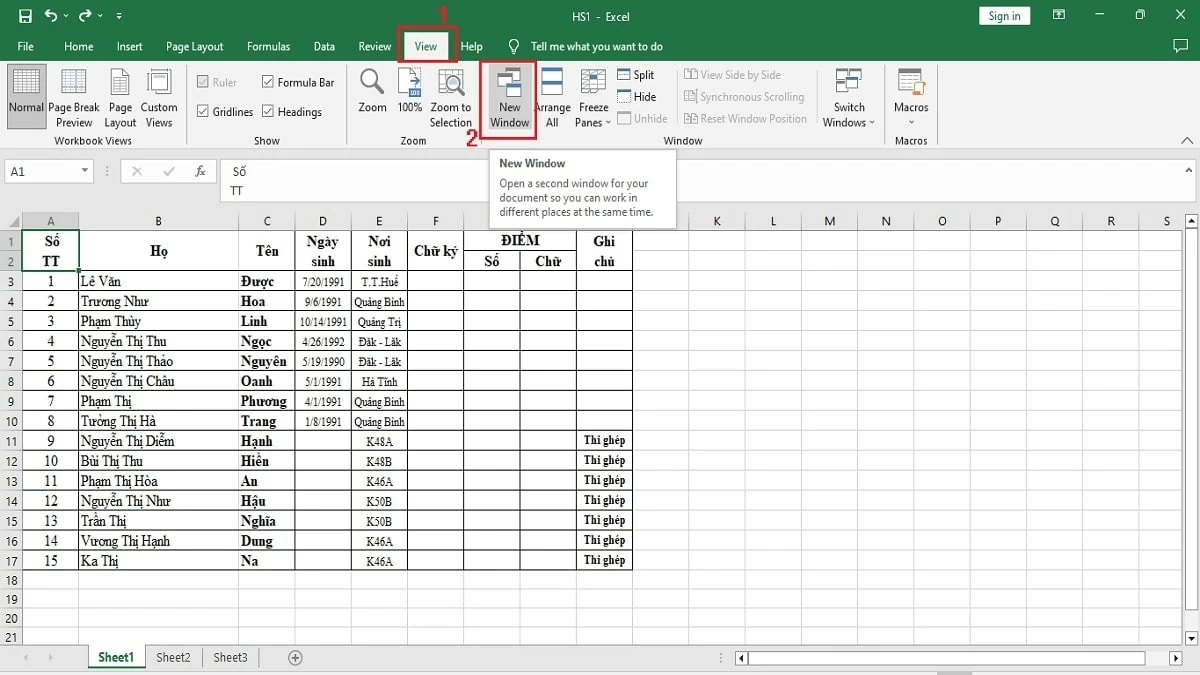
Step 1: In your Excel file, go to the View tab and select New Window to open a new window.
 |
Step 2: In the first window, click on Sheet1 and select Sheet2 in the other window.
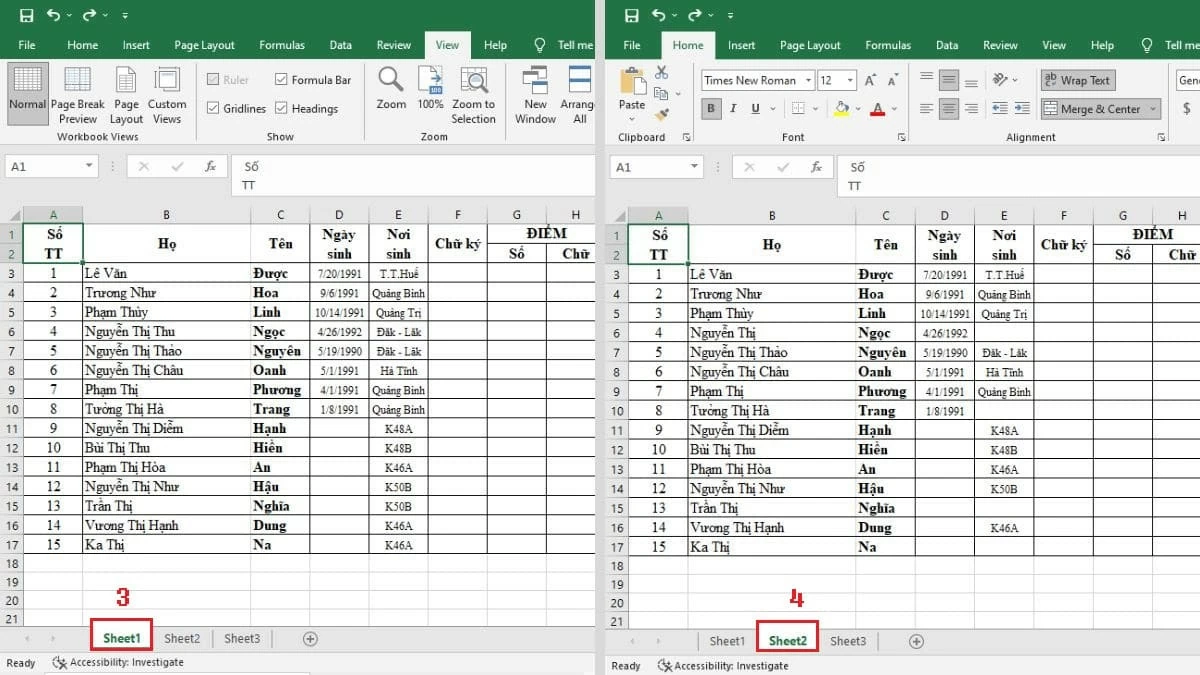 |
Step 3: Next, click on "View Side by Side" to display two spreadsheets side-by-side, making comparison easier.
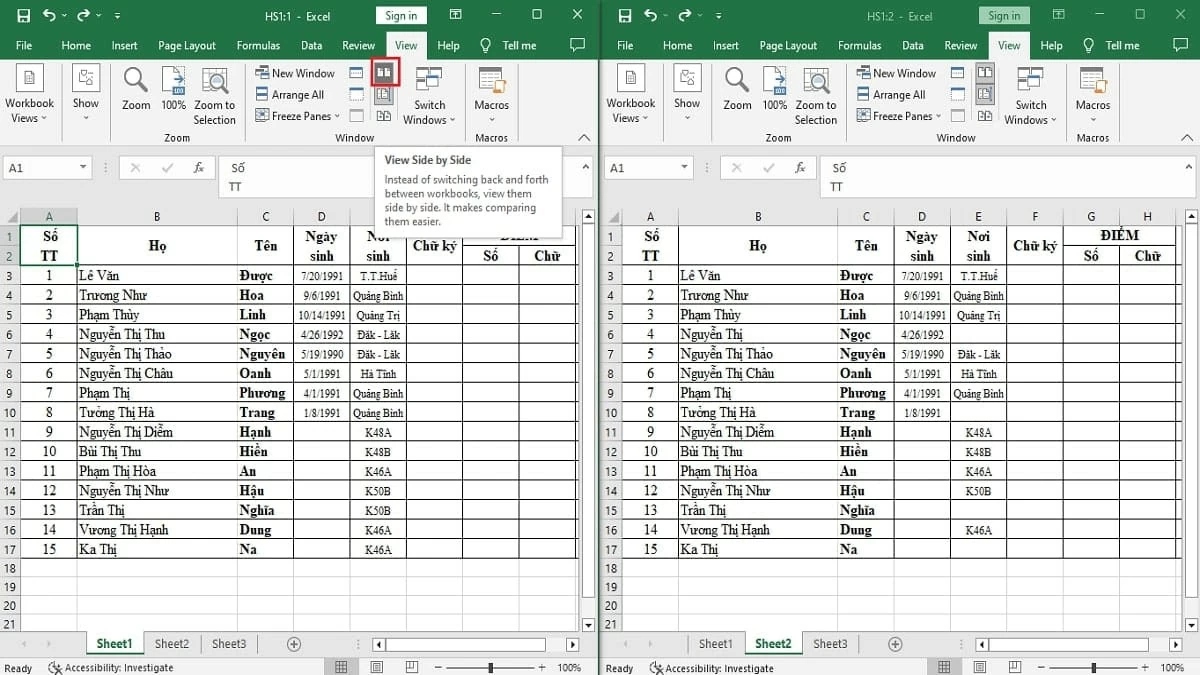 |
Instructions on comparing two Excel files using Compare and Merge Workbooks
In addition to comparing data between two Excel files, if you want to merge them, use the Compare and Merge Workbooks feature. This feature will highlight the differences so you can easily identify them, specifically as follows:
Step 1: In the Excel file, click the File tab, then scroll down and select the Options option.
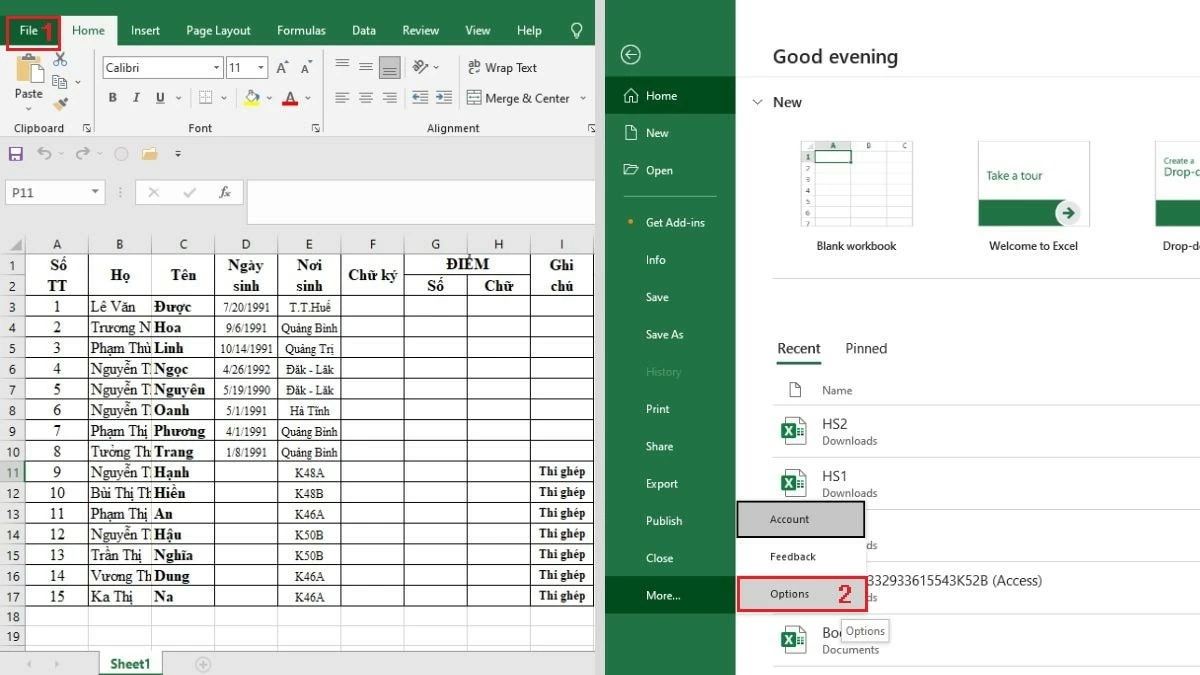 |
Step 2: Click on the Quick Access Toolbar and select All Commands. Then, in the dropdown list, find and select Compare and Merge Workbooks, click Add, and click OK to confirm.
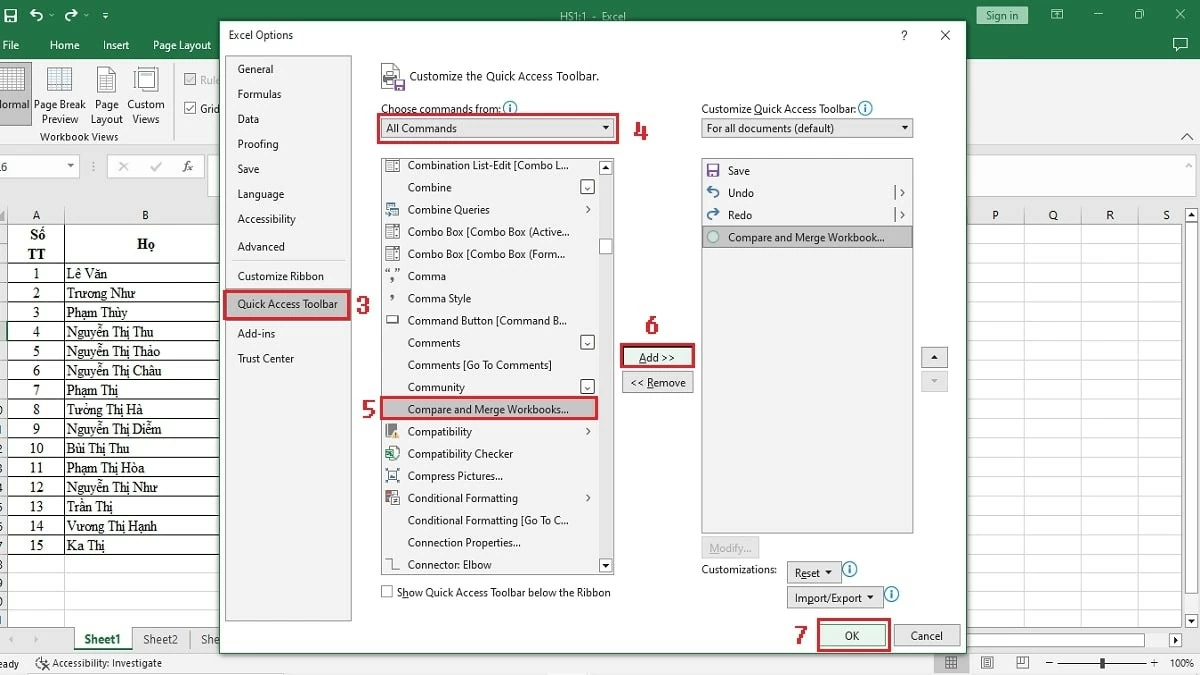 |
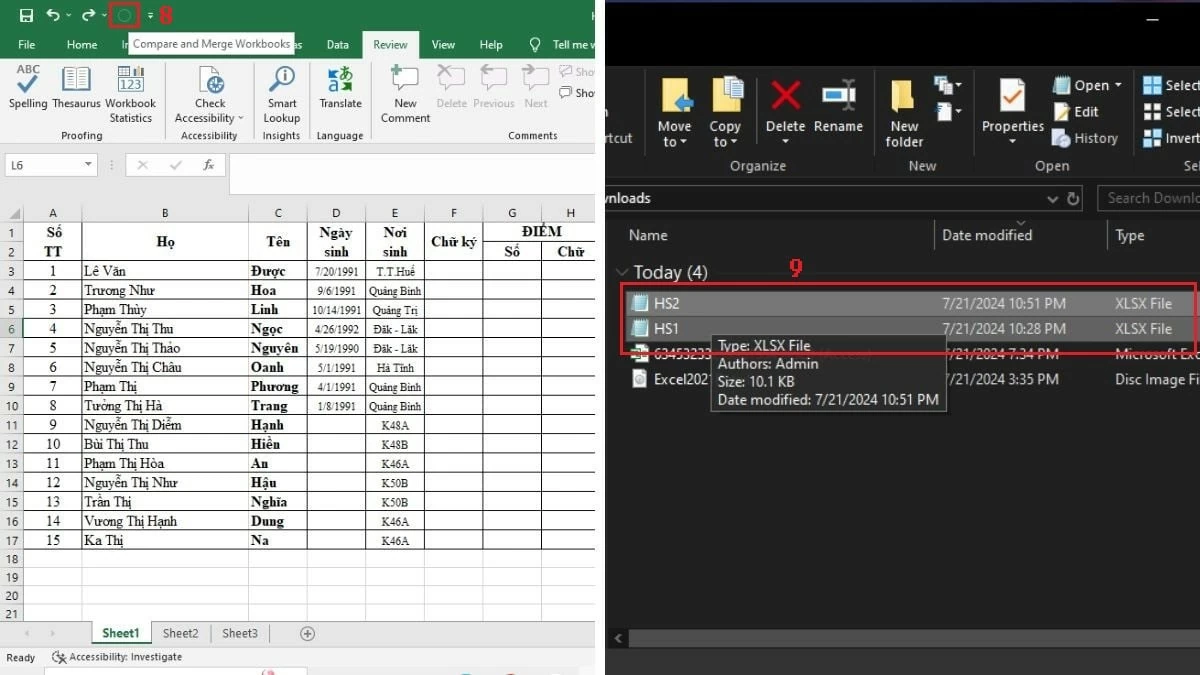
Step 3: In Excel, click the Compare and Merge Workbooks icon, then select the data files you want to compare and merge in the new window.
 |
In summary, this article has guided you through 5 simple and quick ways to compare the differences between two Excel files. With these detailed steps, we hope you can easily and successfully compare data in two Excel files or spreadsheets. This will help you manage and track your work more effectively, and significantly improve your productivity.
Source: https://baoquocte.vn/5-cach-loai-bo-su-trung-lap-du-lieu-giua-2-file-excel-282602.html


![[Image] Central Party Office summarizes work in 2025](/_next/image?url=https%3A%2F%2Fvphoto.vietnam.vn%2Fthumb%2F1200x675%2Fvietnam%2Fresource%2FIMAGE%2F2025%2F12%2F18%2F1766065572073_vptw-hoi-nghi-tong-ket-89-1204-jpg.webp&w=3840&q=75)





































































































Comment (0)