

Moving columns in Excel helps organize data efficiently and makes it easier to track, much like reorganizing a drawer. This article will guide you through the process!
 |
How to effectively move a column in Excel.
To move a column in Excel, you can use the convenient drag-and-drop method. This is the optimal way to rearrange a spreadsheet while keeping the data intact. However, be careful not to accidentally drag the wrong column. This method will help your data look neater and easier to follow.
To move a column in Excel, you can use the quick drag-and-drop operation:
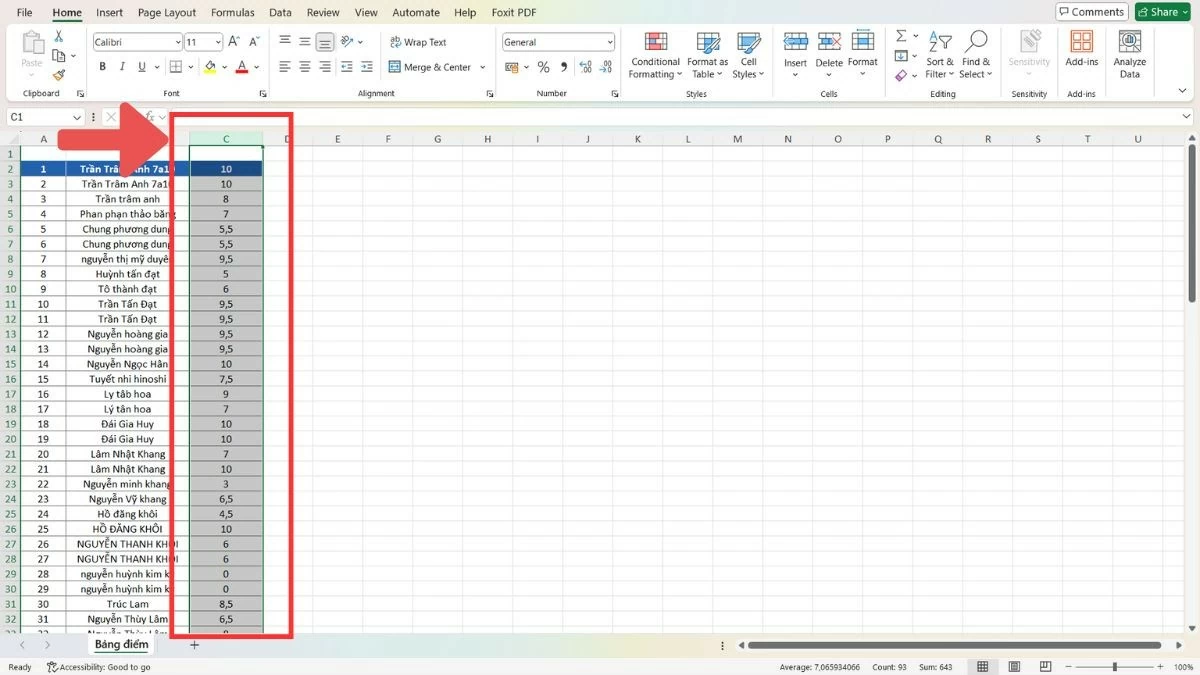
Step 1: Select a column by clicking on the first letter of the column (A, B, C...).
 |
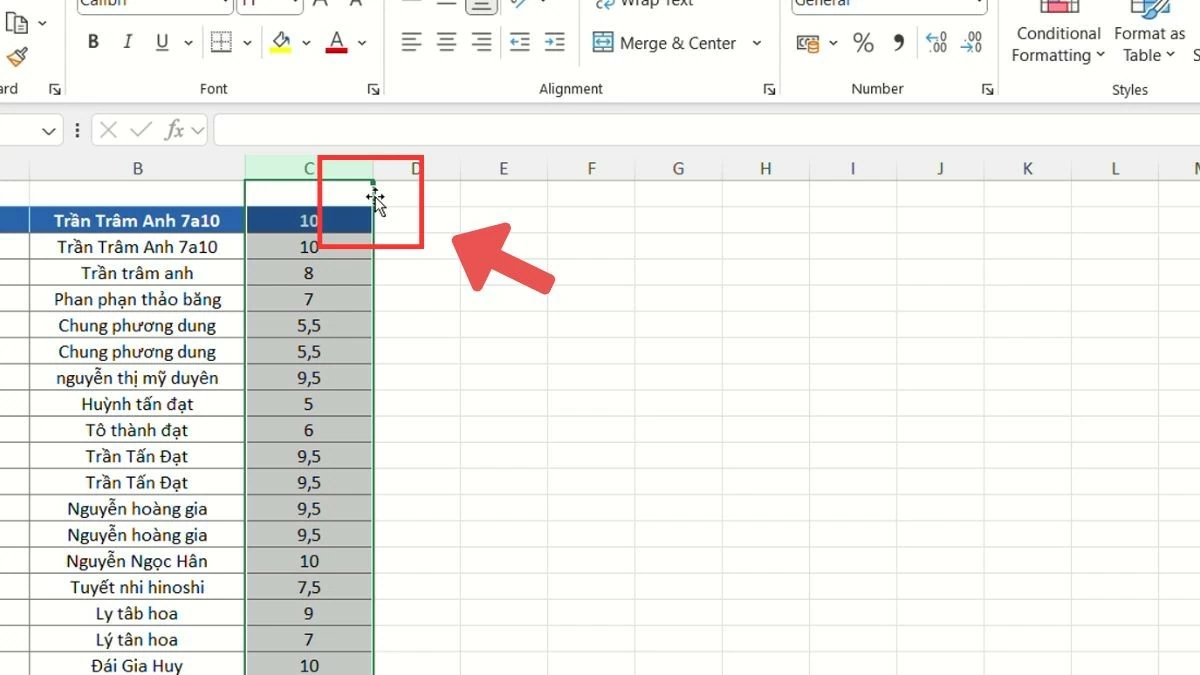
Step 2 : Move the mouse cursor to the edge of the column and wait until the cursor changes to a four-way arrow.
 |
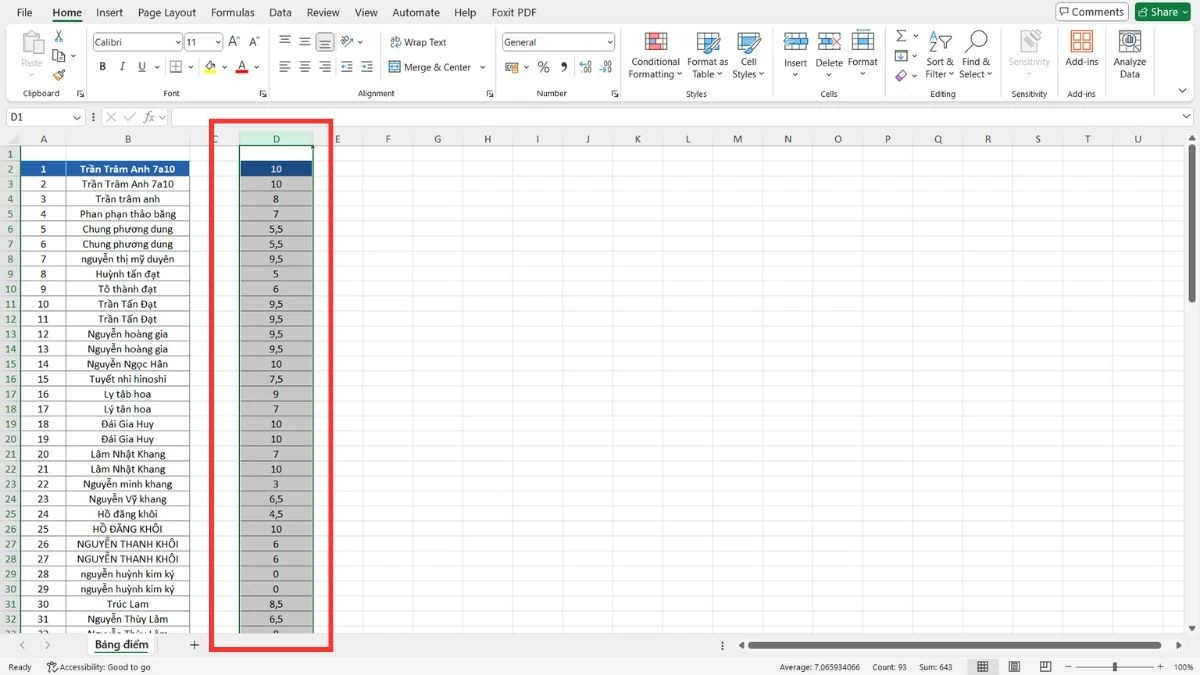
Step 3 : Drag the column to the new position and then release the mouse.
 |
Alternatively, you can also use the "Cut" command to move columns:
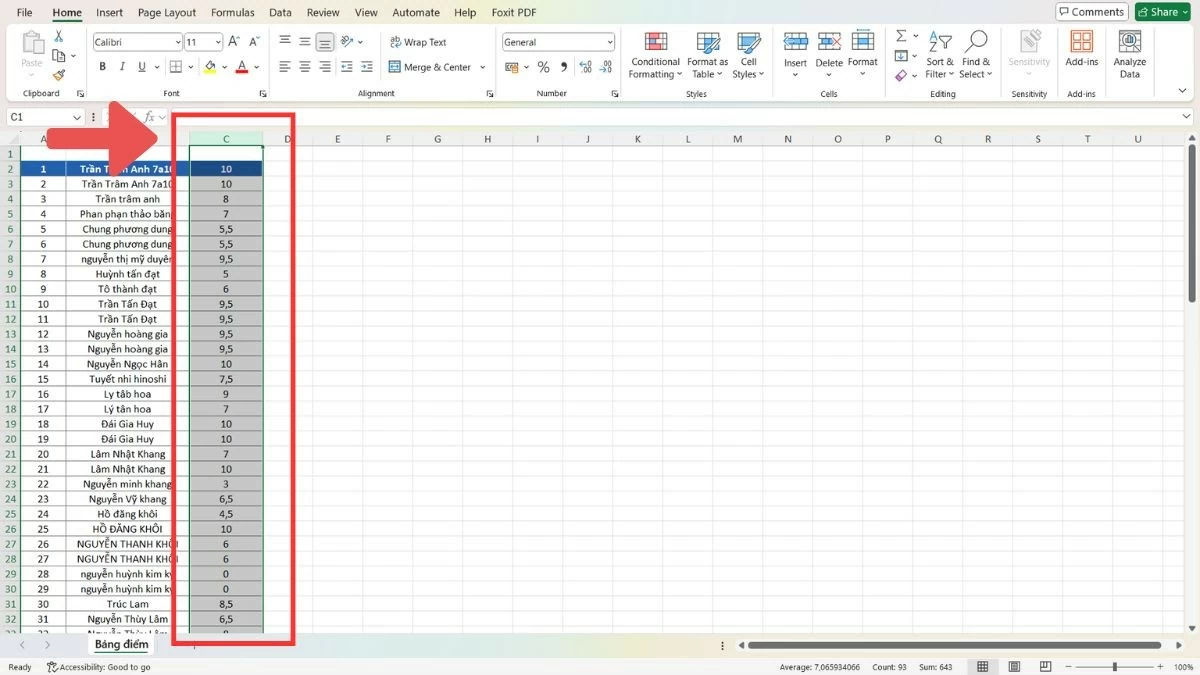
Step 1 : Select the column you want to move by clicking on the first letter of the column (A, B, C...).
 |
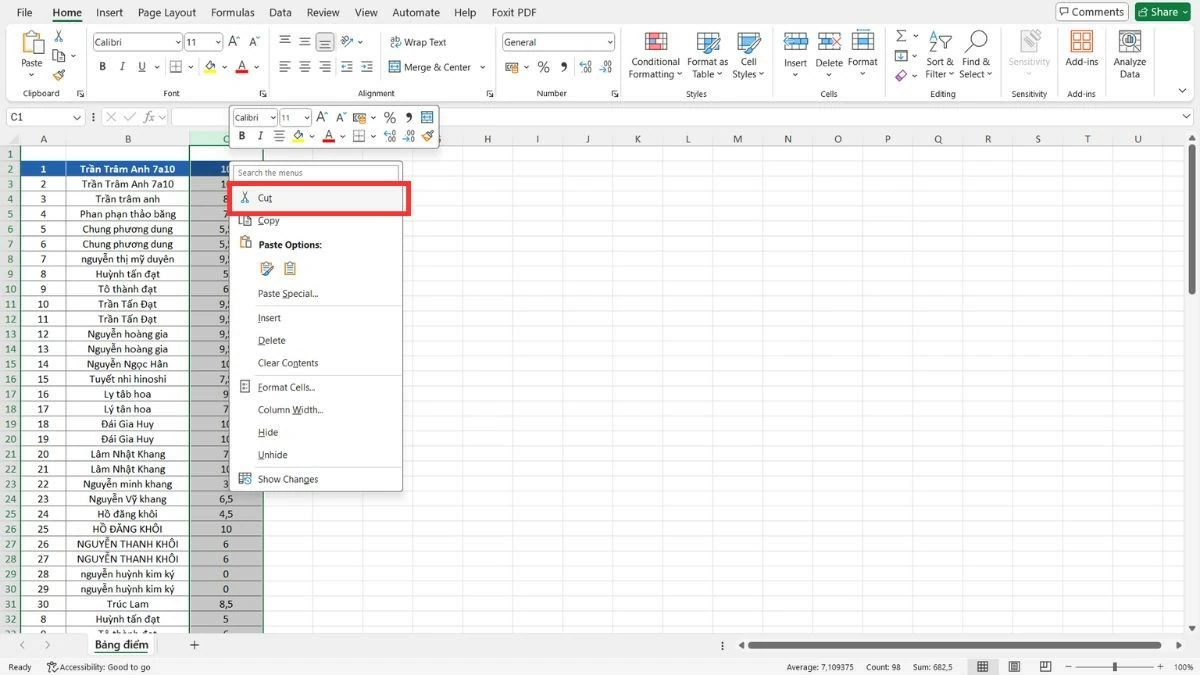
Step 2 : Press Ctrl+X or right-click and select "Cut".
 |
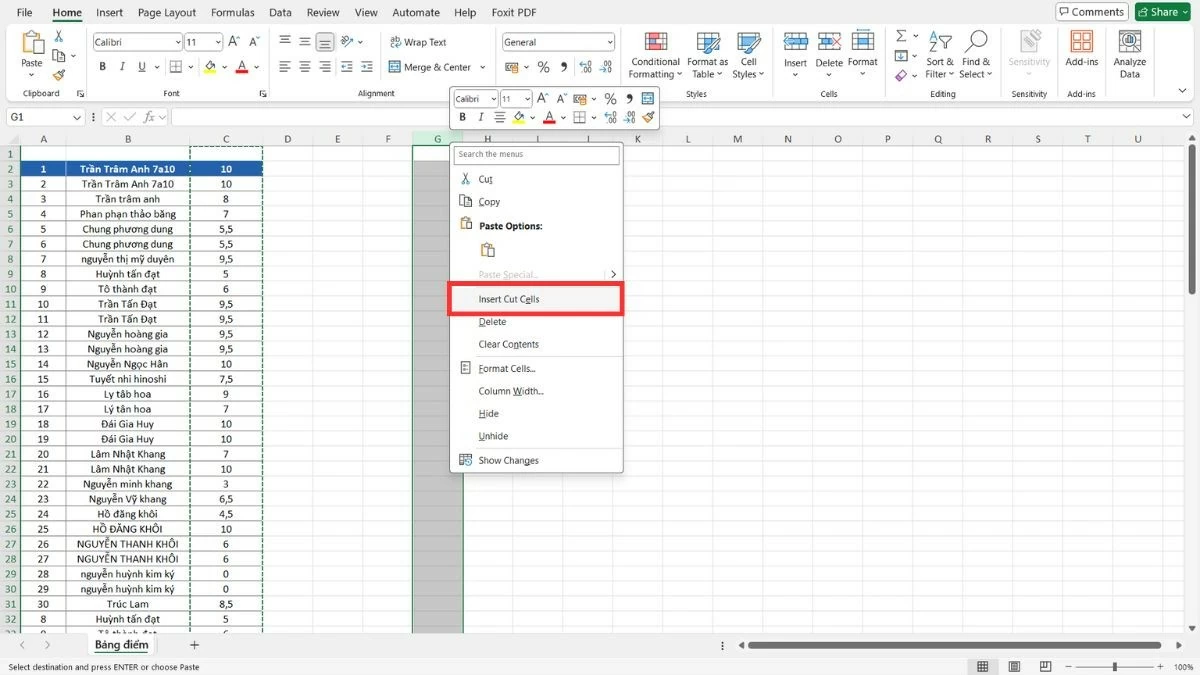
Step 3 : Select the new location, right-click, and choose "Insert Cut Cells".
 |
How to quickly move multiple columns in Excel
Thanks to the flexible column movement options in Excel, you can arrange data as you wish, making your spreadsheets more intuitive and easier to understand. You can choose between drag-and-drop or cut-and-paste methods to move columns effectively.
Drag and drop multiple columns in Excel
The drag-and-drop method makes it easy to rearrange large data sets. If dragging and dropping proves difficult due to the large number of columns, you can choose another method.
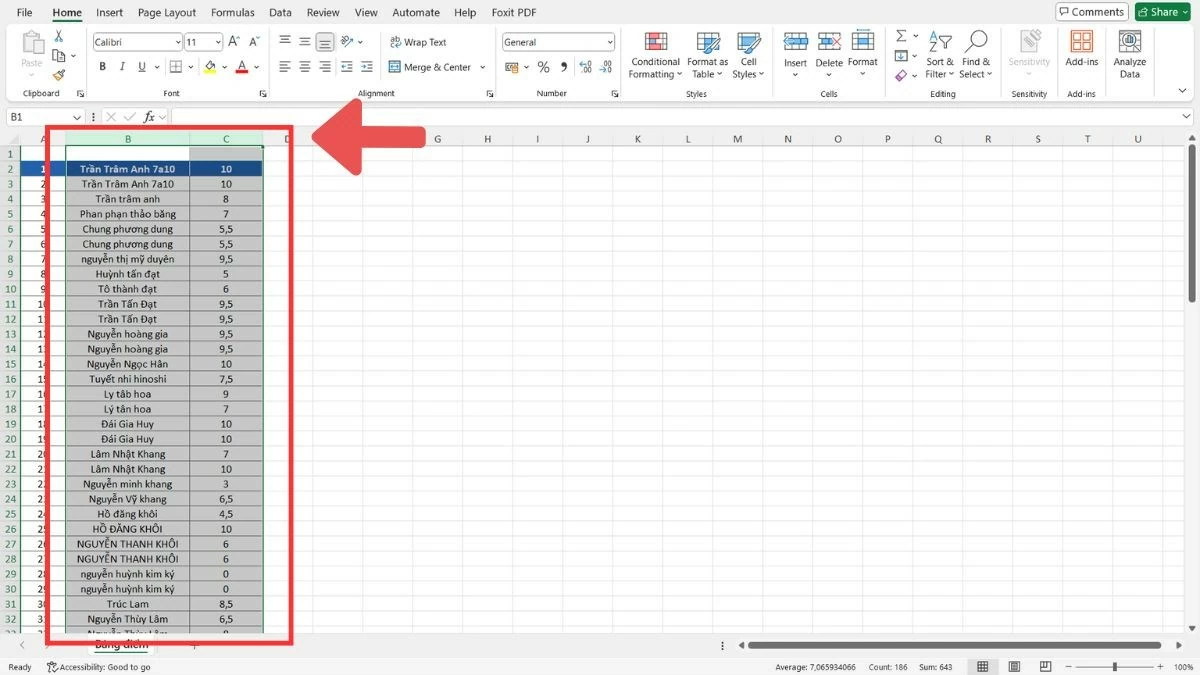
Step 1 : Place the cursor on the first column name, hold the mouse button and drag to the right until you have selected all the columns you want to move.
 |
Step 2 : Once you have selected the columns, move the mouse cursor to the edge of each column until a four-way arrow icon appears.
 |
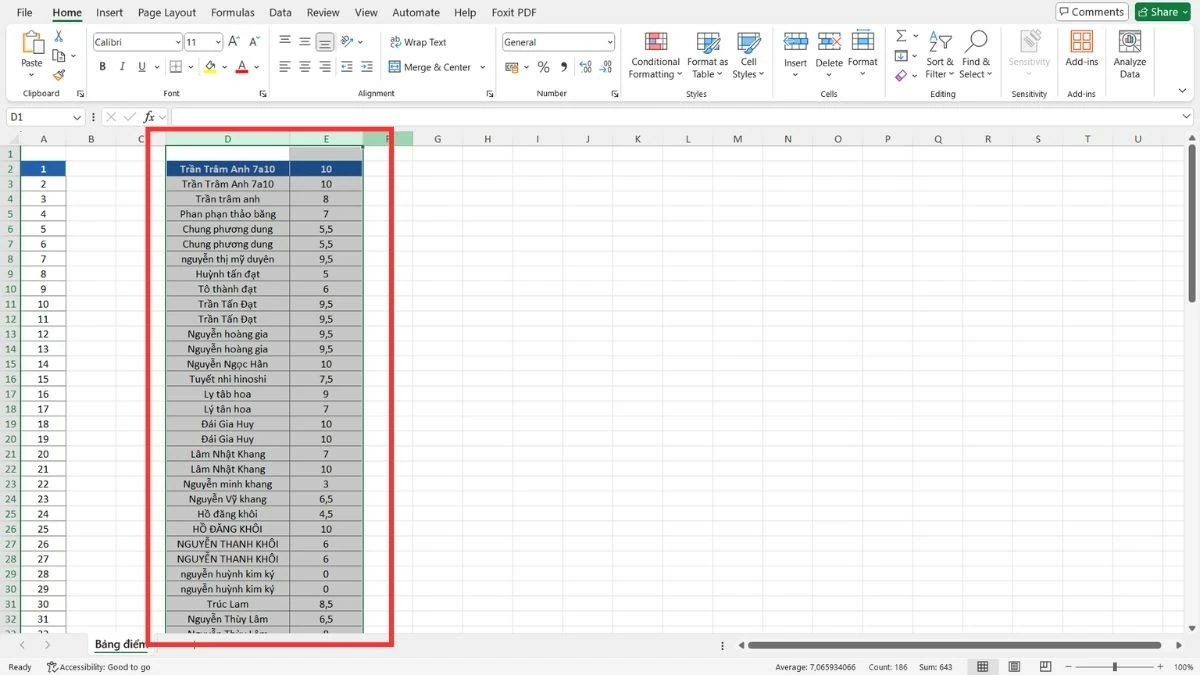
Step 3 : Drag the columns to the desired position and then release the mouse.
 |
Instructions on how to copy and paste columns in Excel
This is an alternative method when drag-and-drop is inconvenient, especially when you need to move a column to a distant location in Excel without using drag-and-drop. This method helps preserve data without causing unintended changes.
Step 1 : Drag your mouse over the column names to select the columns you want to move.
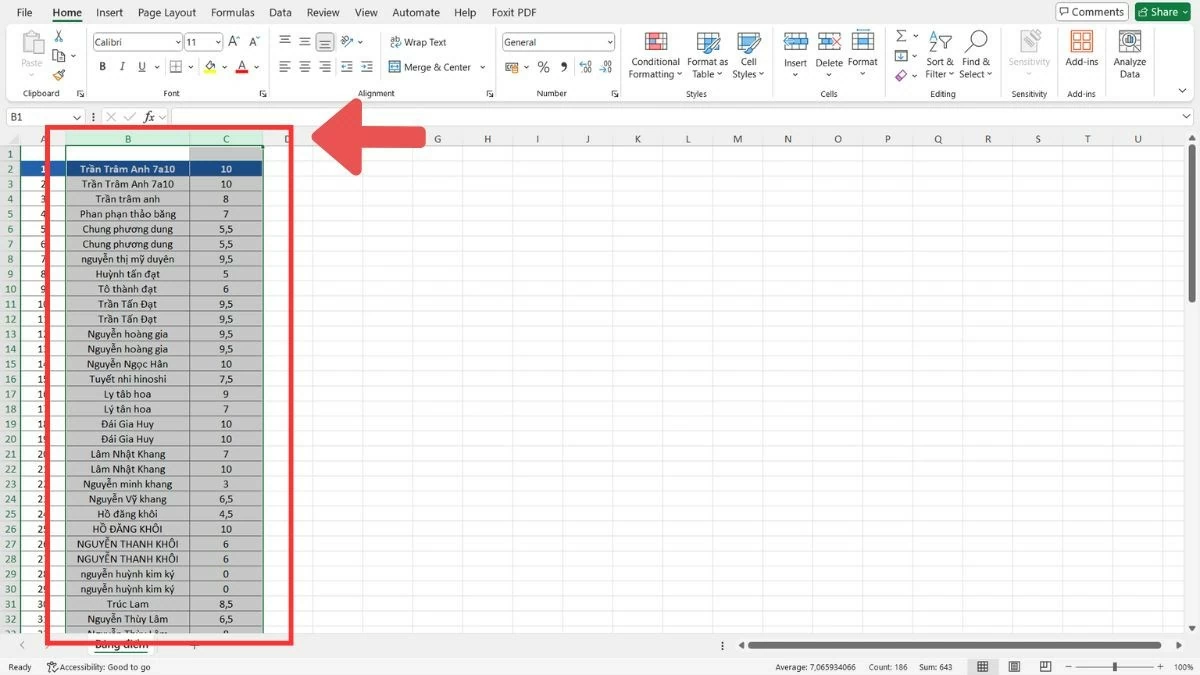 |
Step 2 : Press Ctrl+C or right-click and select "Copy" to copy the selected columns.
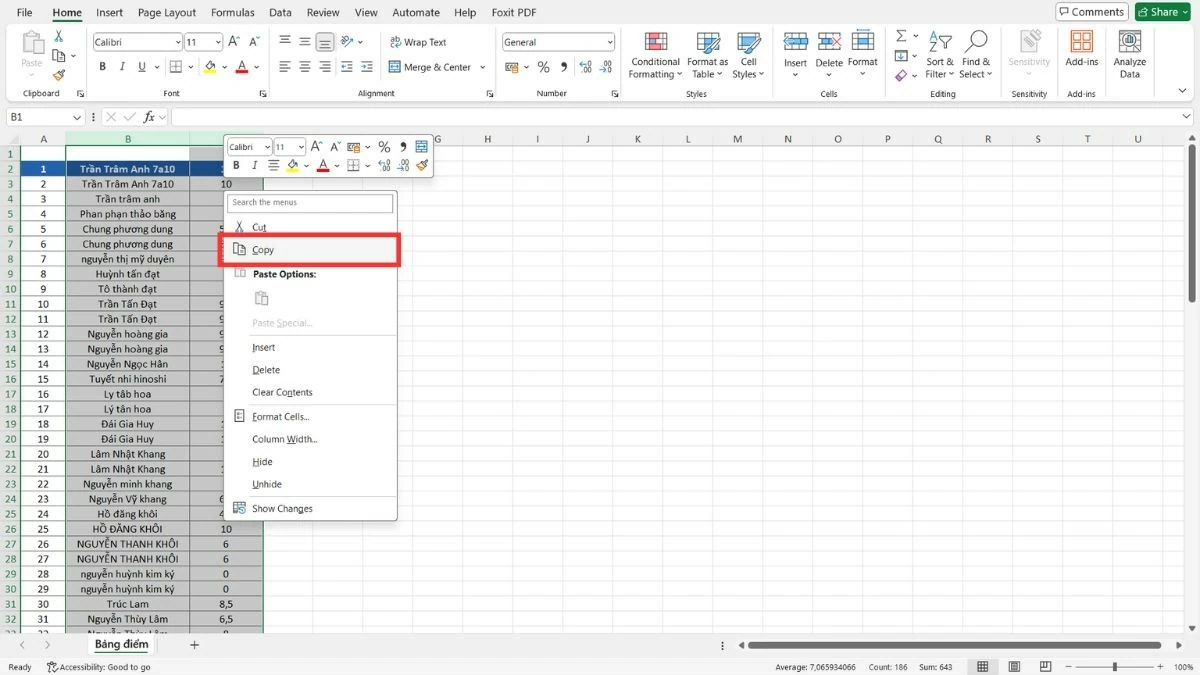 |
Step 3 : Go to the new location, right-click and select "Insert Copied Cells".
 |
Step 4 : After the data has been transferred, you can select "Delete" to remove the old columns.
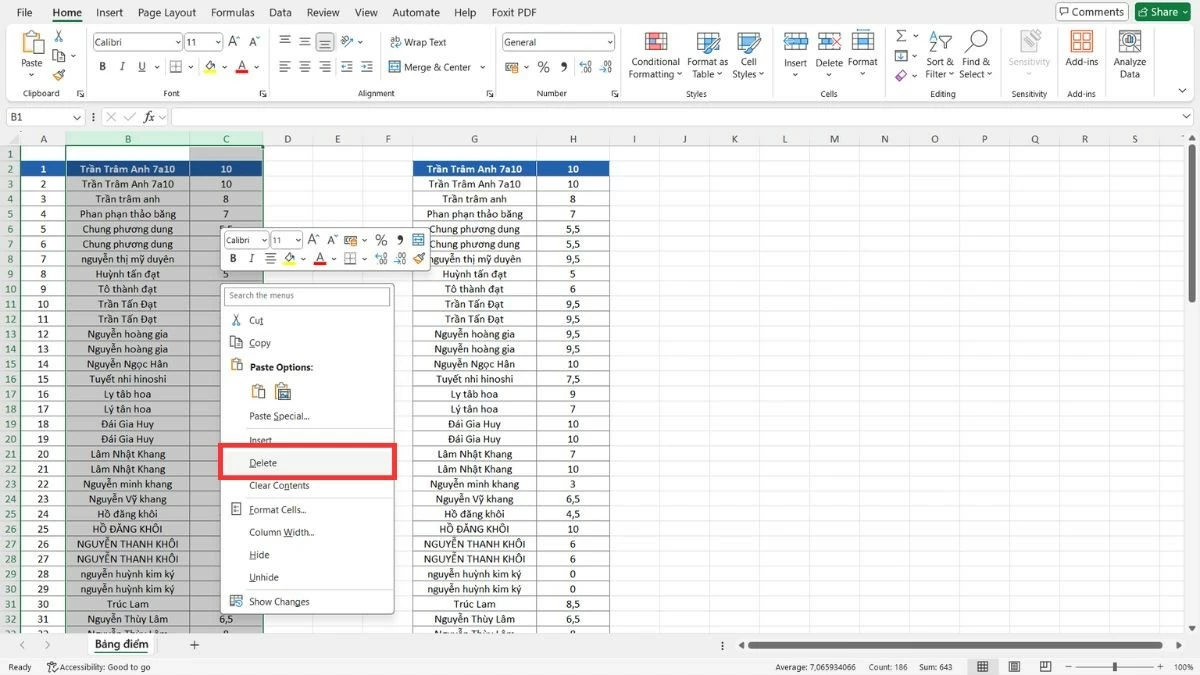 |
Instructions on how to move a row in Excel
Similar to moving columns in Excel, you can also easily move rows to rearrange data in your desired order. This method is useful when you only need to change the position of a few rows without affecting the entire table.
Step 1 : Select the row you want to move by clicking on the row number to the left of the data table.
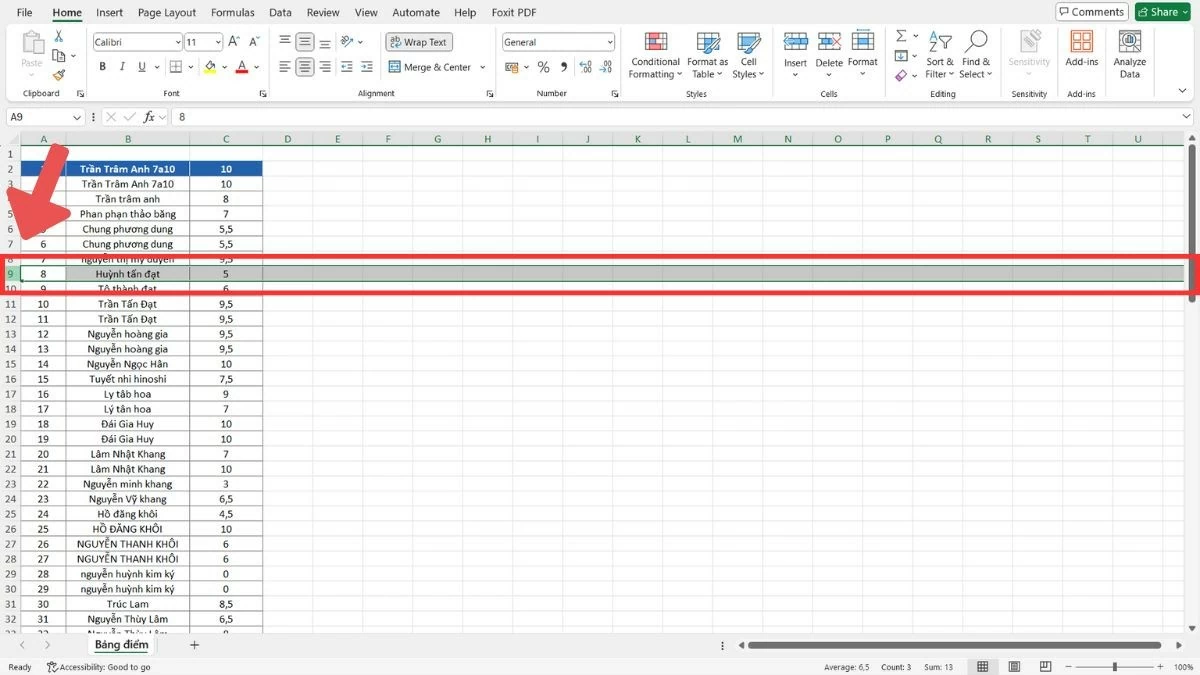 |
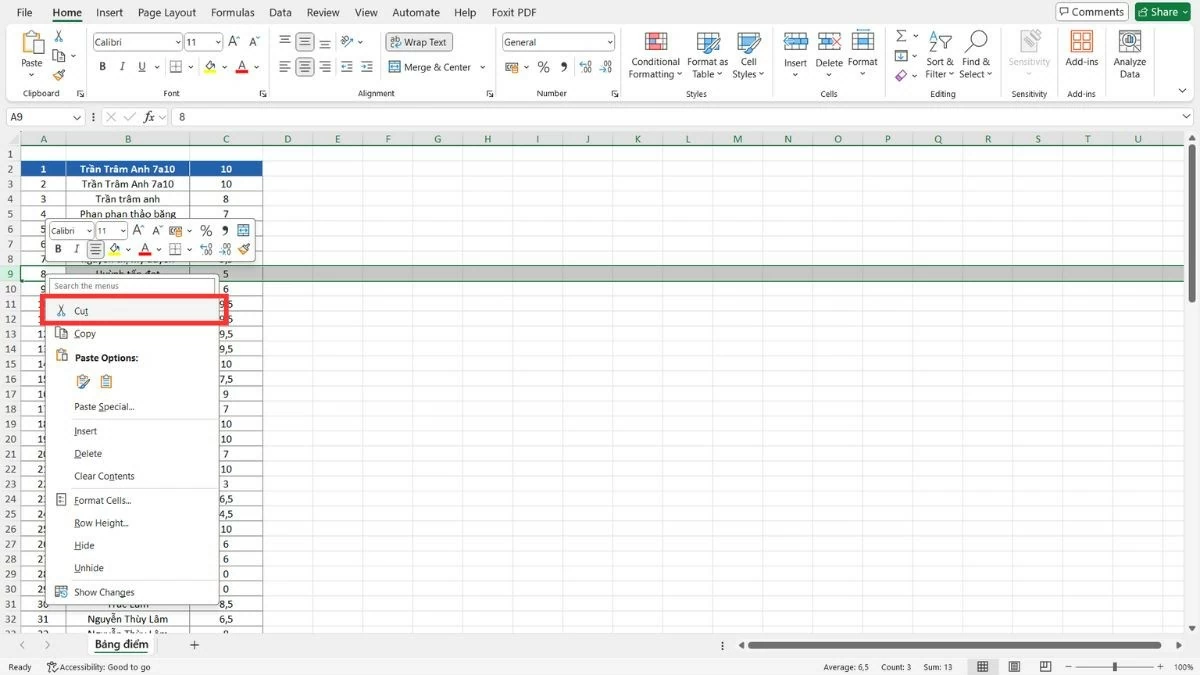
Step 2 : Press Ctrl+X or right-click and select "Cut" to cut the selected row.
 |
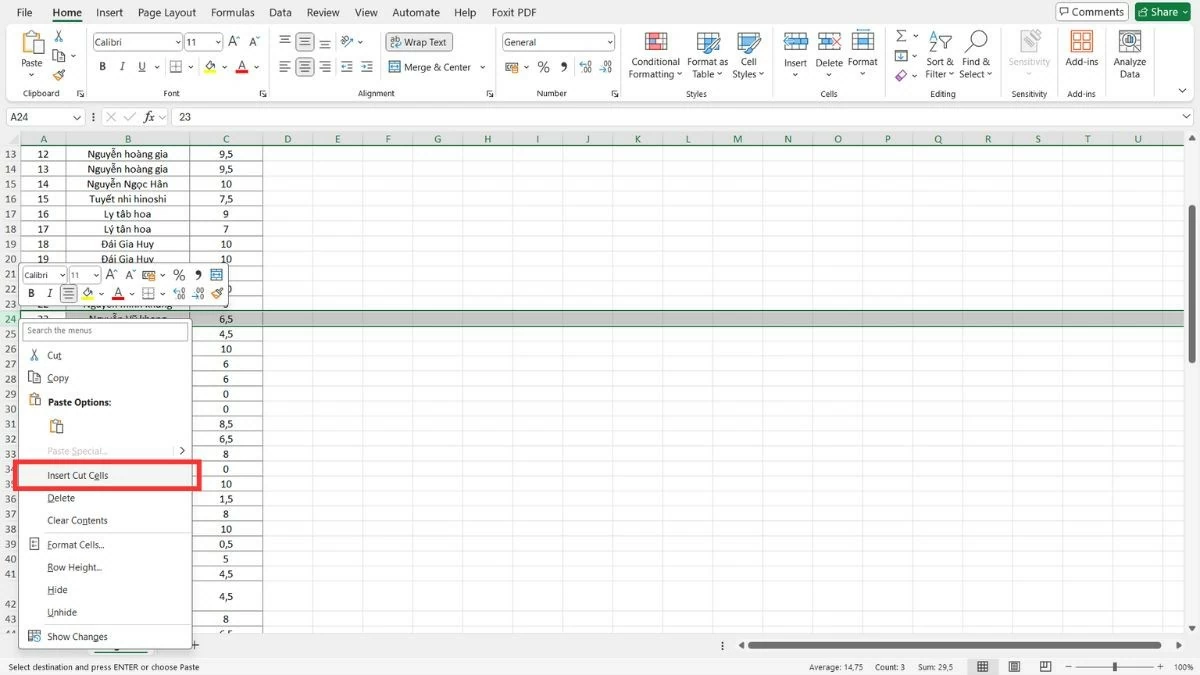
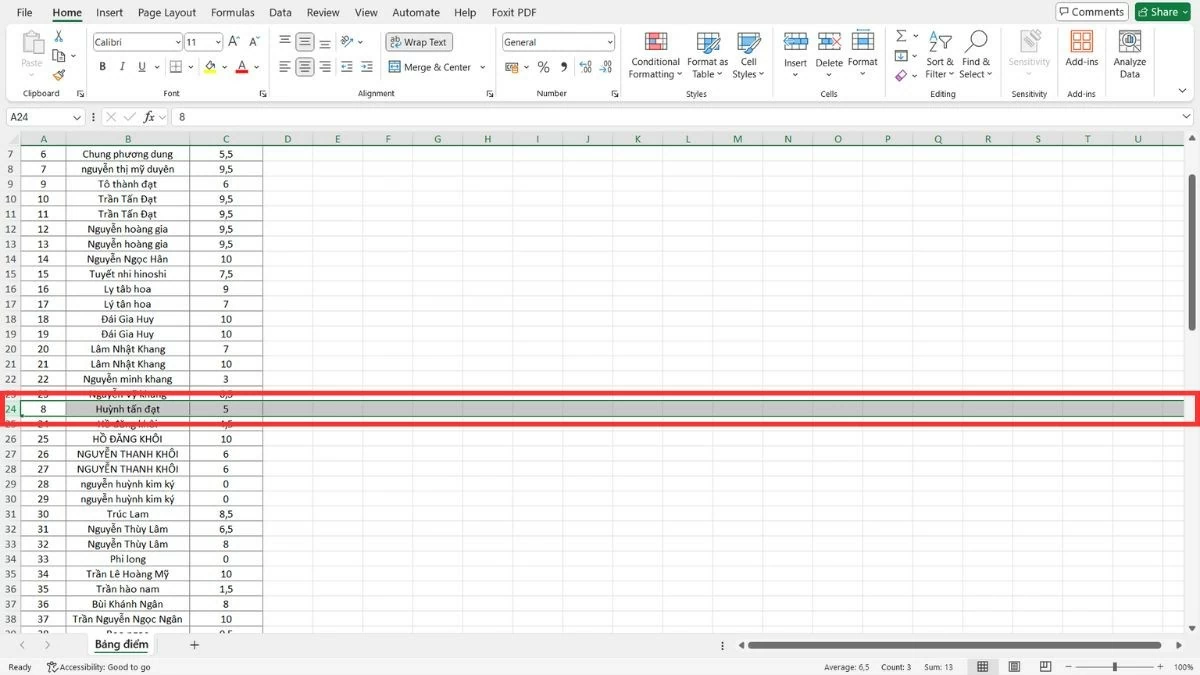
Step 3 : Move to the new location, right-click, and select "Insert Cut Cells" to paste the row into that position.
 |
 |
Instructions on how to move multiple rows in Excel
Similar to moving columns in Excel, there are two common methods for quickly and efficiently moving multiple rows. You can drag and drop directly with your mouse, or use copy, paste, and delete operations for more flexibility when moving rows.
Use the mouse to drag and drop multiple rows.
Drag and drop multiple rows to quickly move related data groups in Excel.
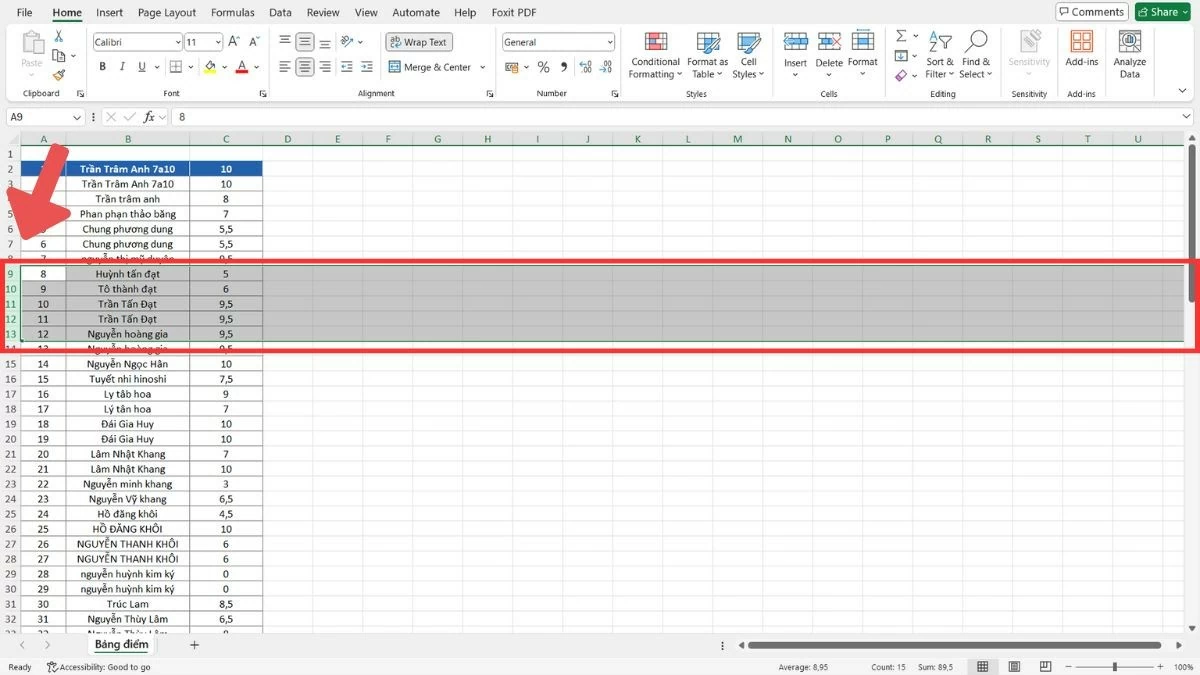
Step 1 : Select the rows you want to move by dragging your mouse from the first row number to the last row number.
 |
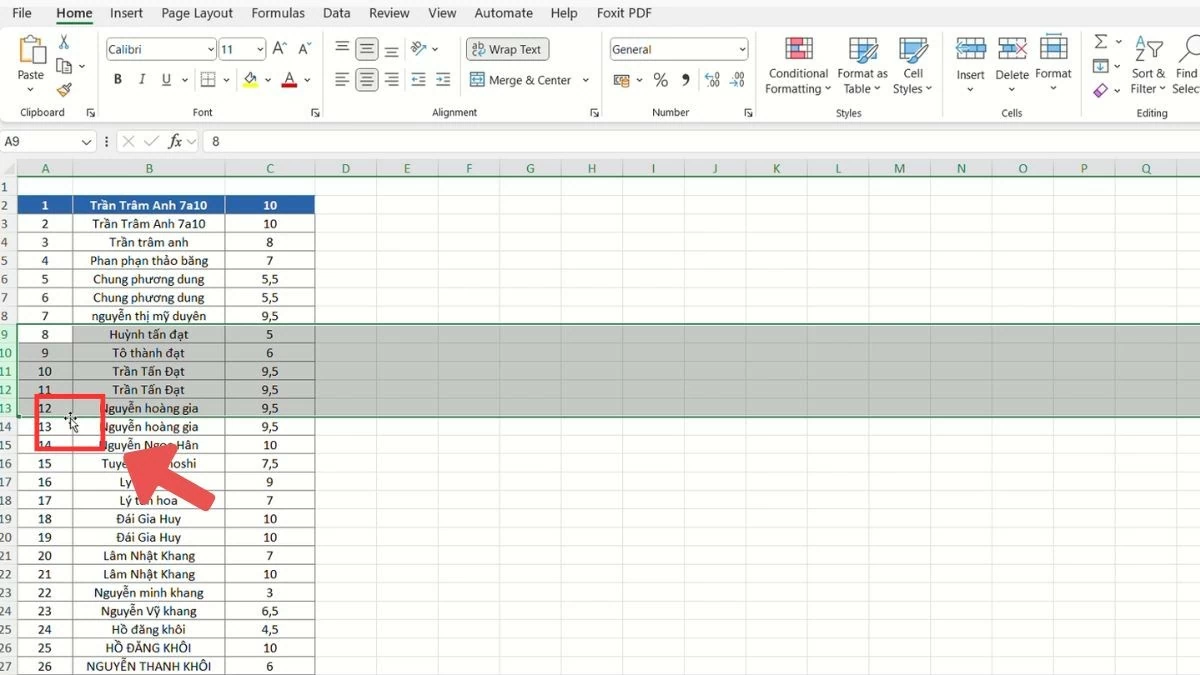
Step 2 : After making your selection, move the mouse cursor to the edge of one of the selected rows and wait for the four-way arrow icon to appear.
 |
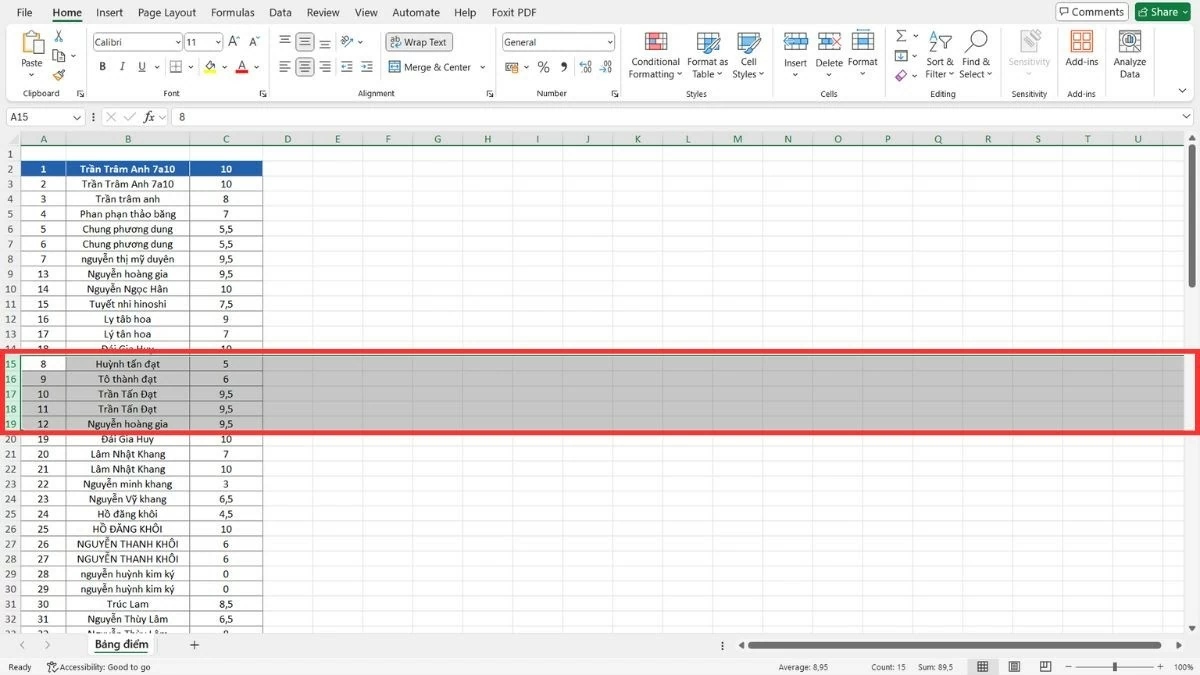
Step 3 : Press and hold the Shift key, drag the rows to the new position, and release the mouse.
 |
How to use copy, paste, and delete operations to move rows.
Besides moving columns in Excel, you can also use the copy, paste, and delete method to move multiple rows without worrying about changing the size or structure of the table. This method allows you to move data precisely without dragging and dropping.
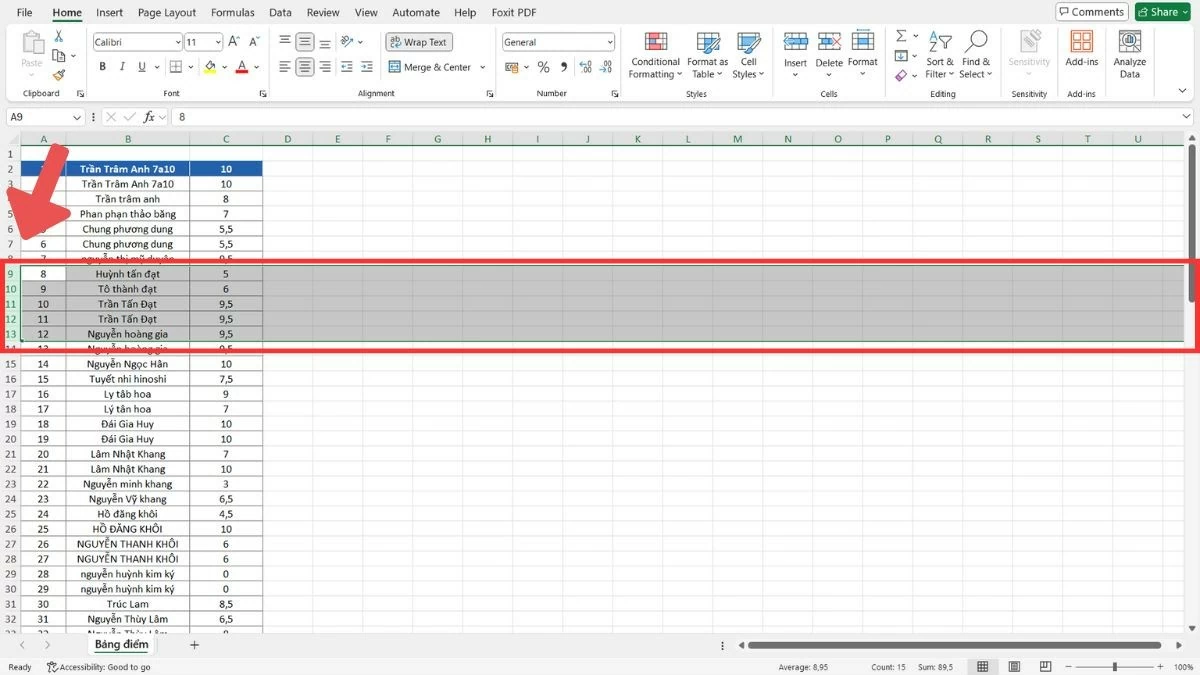
Step 1 : Drag the mouse to select the rows you want to move.
 |
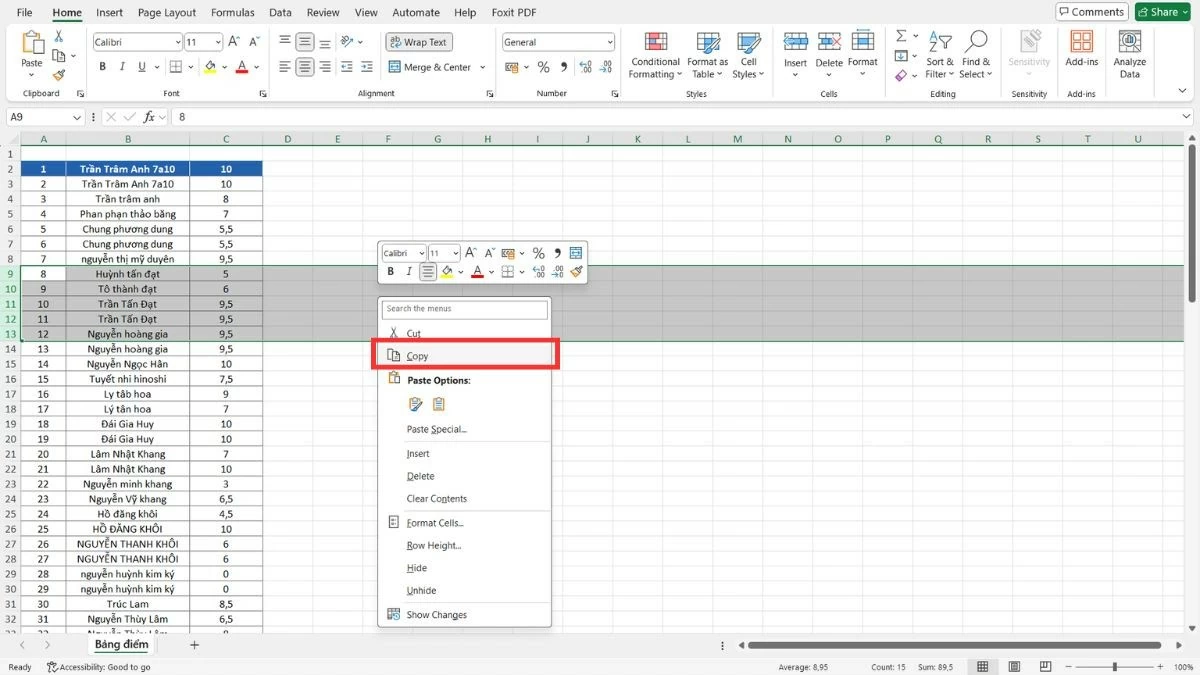
Step 2 : Press Ctrl + C to copy (or select "Copy" from the right-click menu).
 |
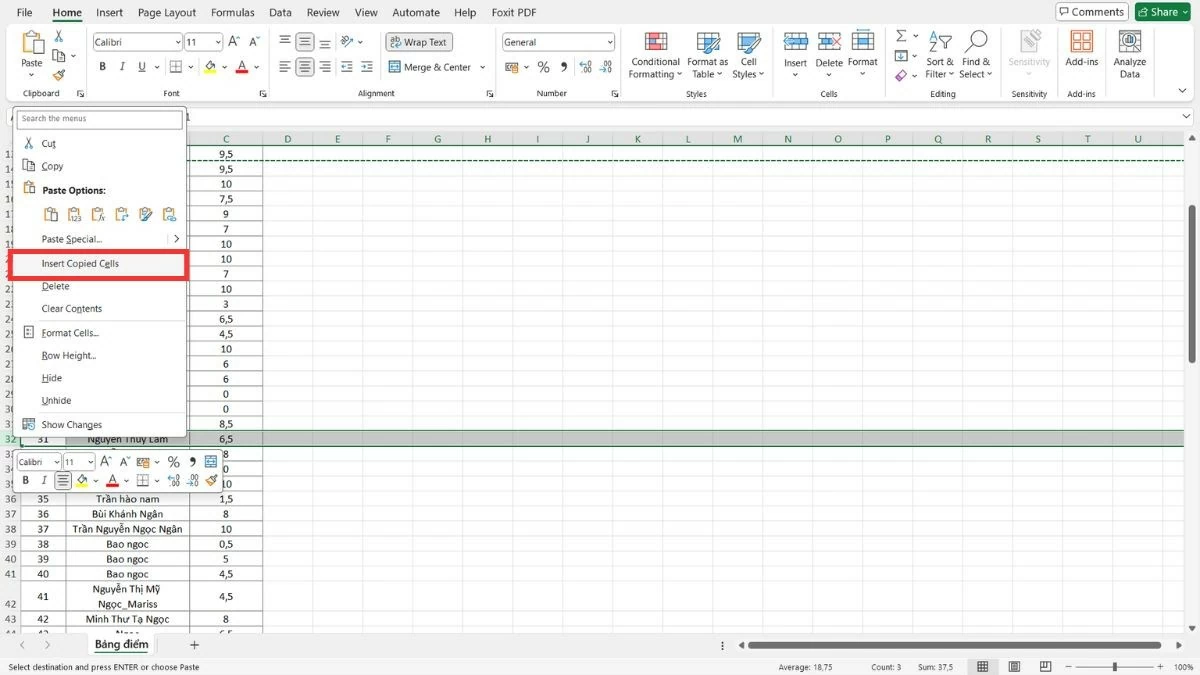
Step 3 : Move to the new location, right-click, and select "Insert Copied Cells".
 |
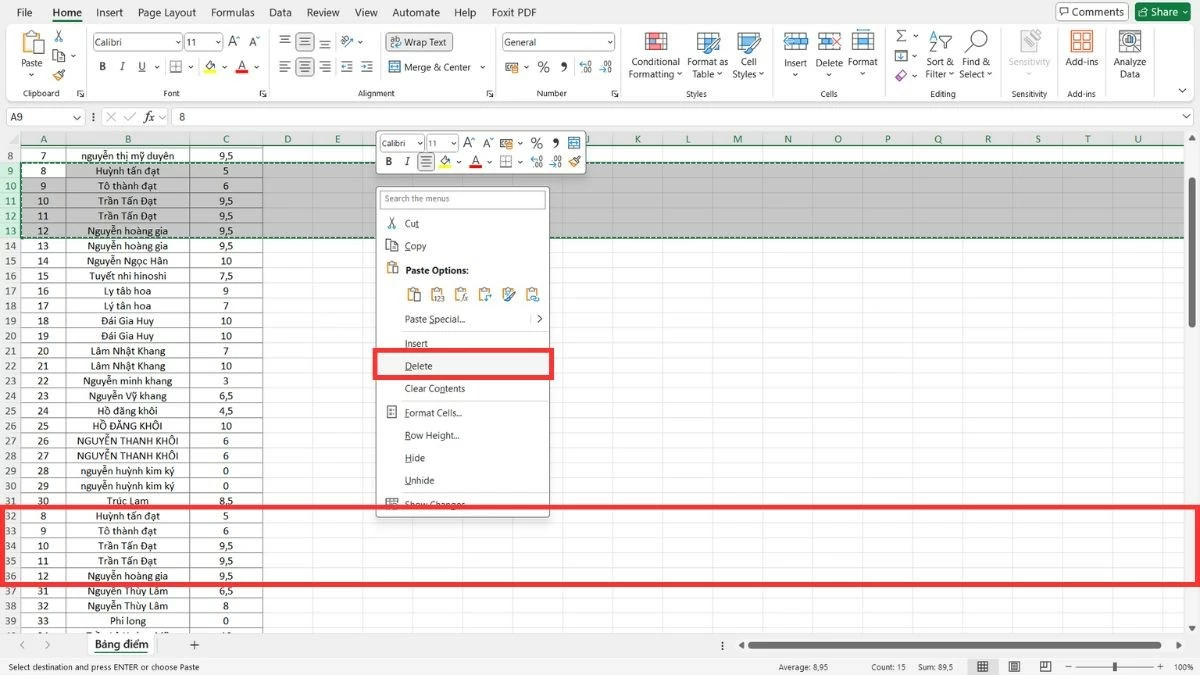
Step 4 : After the data has been transferred, you can select "Delete" to remove the old rows.
 |
With these detailed instructions on how to move columns in Excel, you will easily organize and arrange data efficiently. Mastering column movement operations will give you more confidence when working with complex spreadsheets. This skill not only saves time but also improves your work efficiency.
Source


![[Image] Central Party Office summarizes work in 2025](/_next/image?url=https%3A%2F%2Fvphoto.vietnam.vn%2Fthumb%2F1200x675%2Fvietnam%2Fresource%2FIMAGE%2F2025%2F12%2F18%2F1766065572073_vptw-hoi-nghi-tong-ket-89-1204-jpg.webp&w=3840&q=75)




































































































Comment (0)