

Are you having trouble with website search and display errors on Google Chrome? Here are some of the most effective solutions!
 |
Google Chrome may experience issues such as being inaccessible, unresponsive, and crashing due to various reasons, including incompatible versions, conflicts between extensions, unstable network connections, or insufficient device specifications.
Here are 6 common mistakes when using Google Chrome and effective ways to fix them, saving you time and money.
How to fix Google Chrome Vietnamese typing errors
Google Chrome is experiencing search errors due to a conflict between Unikey's accent removal mode and the browser's suggestion feature. When using Unikey's Telex mode, the computer removes the accent mark from the first character and places it on the next, while Google Chrome automatically completes the search immediately after typing the first unaccented character, leading to errors when typing Vietnamese.
To fix website display errors on Google Chrome caused by incorrect Vietnamese typing, you can follow these steps:
Step 1: Click the three vertical dots icon in the corner, then select "Settings".
Step 2: Next, click on "Privacy and security" in the "Advanced" section to see the options.
Step 3: Please turn off search suggestions in Google Chrome.
 |
Fixing the "Oh no, broken!" error page in Google Chrome.
Google Chrome may encounter the "Oh no!" error due to the following reasons: poor network connection or sudden disconnection, firewall restricting access to certain websites, an outdated version of Chrome unable to access the website, or a problem with the Chrome browser profile.
To fix the "Oh no, it's broken!" error on Google Chrome, follow these steps:
Step 1: Please check your network connection and try reloading the website by clicking the link and then pressing Enter.
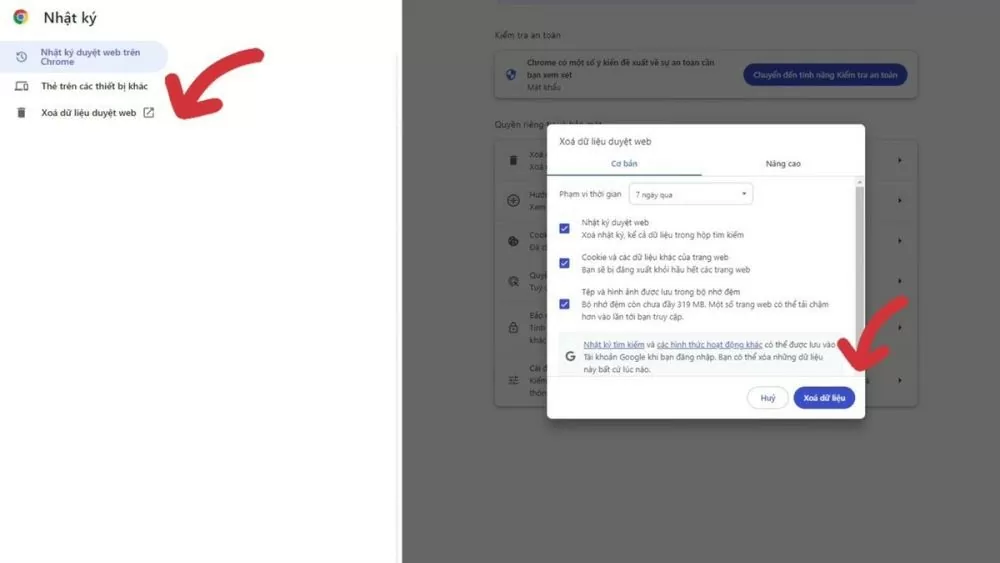 |
Step 2: If the website still won't load, you can clear your Google Chrome search history. Press Ctrl-H, then select "Clear browsing data". Choose the time period you want to delete (1 day, 7 days, 1 month, or from the past to the present) and click "Clear data" to remove your search history.
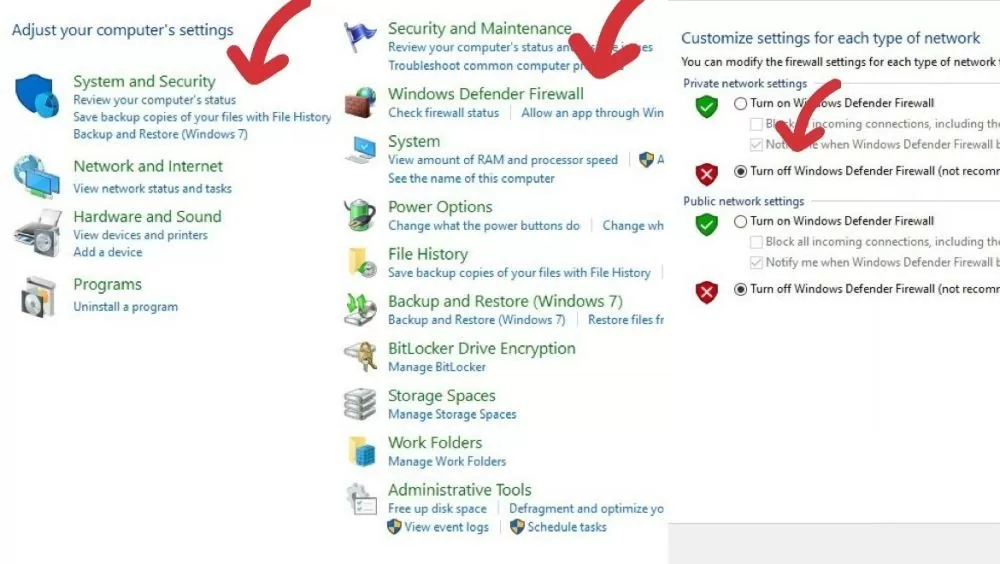 |
Step 3: To reinstall the firewall if you still cannot access the website after performing the above steps, follow these steps:
- Open the Control Panel and select Windows Defender Firewall under System and Security.
- You select "Turn Windows Defender Firewall on or off".
- Check all the boxes for "Turn off Windows Defender Firewall" and then click OK to turn off the firewall on your computer.
How to fix the Google Chrome "not responding" error.
The "Google Chrome is not responding" error often occurs when too many tabs are open, memory is full, or an outdated version of Chrome is being used.
To fix the "Google Chrome not responding" error, you can do the following:
Method 1: To restart your computer, simply click the Start icon (or Start Menu) in the bottom left corner of the screen, then select the power icon and choose Restart from the menu.
Method 2: To close unnecessary tabs on Google Chrome, you can click the X icon on each tab or use the keyboard shortcut Ctrl + W to quickly close the current tab.
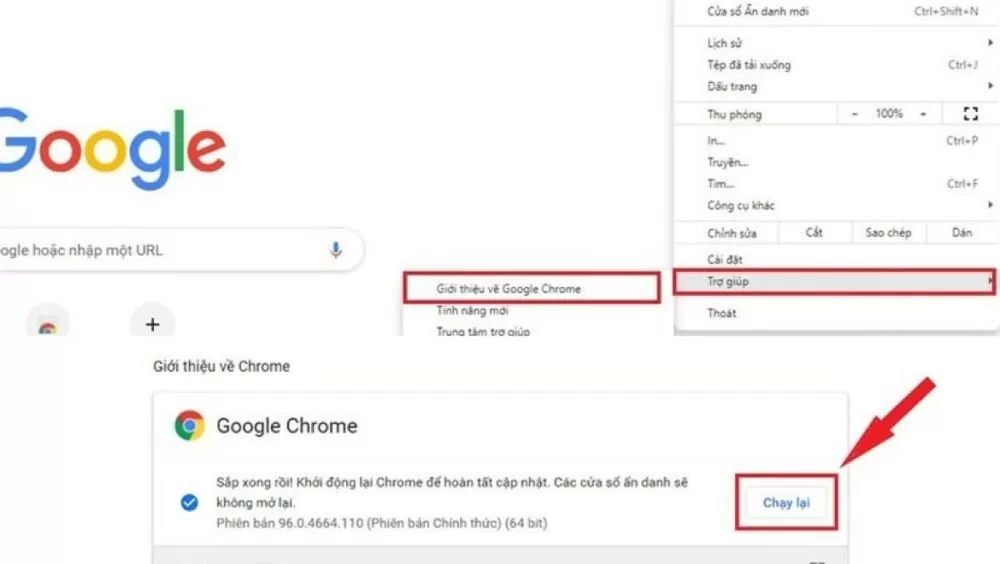
Method 3: To update and use the latest version of Google Chrome, you can do the following:
Click the three vertical dots icon in the upper right corner of Chrome, select "Help," then select "About Google Chrome." Check if Chrome is installed with the latest version. If not, select "Update Google Chrome," then select "Run again" to complete the update process.
 |
Instructions on how to fix Google Chrome freezing or becoming unresponsive.
Google Chrome may experience website display errors or freezes due to several reasons, such as low computer specifications when opening and loading large files, opening too many tabs simultaneously in Chrome, or using an outdated and incompatible version.
To resolve issues when Google Chrome freezes, becomes unresponsive, or fails to load pages, you can do the following:
Step 1 : To close Google Chrome, you can press the Alt + F4 key combination.
Step 2 : Check if you are using the latest version of Google Chrome.
Step 3: Next, delete your search history to free up storage space.
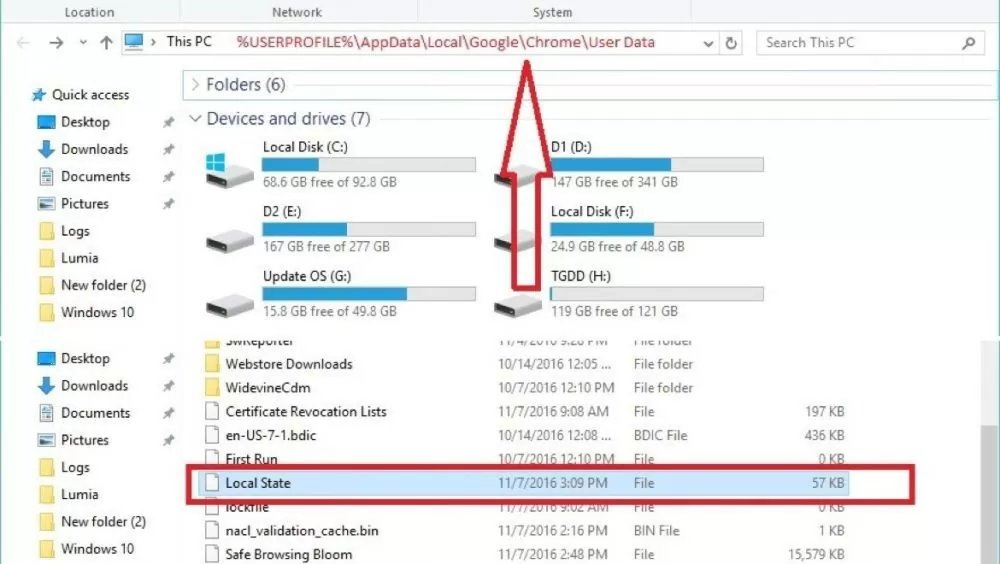
Step 4: Find and delete the Local State file on your computer (if it exists).
Step 5: If you have followed all the steps above and are still experiencing errors when using Google Chrome, try deleting the application, then downloading and reinstalling it.
 |
Simple ways to fix Google Chrome sync errors
Google Chrome may experience errors such as inability to access the browser or data synchronization failing due to reasons like interrupted network connection, logging out of Gmail while synchronization is in progress, or settings that automatically stop synchronization when the browser is closed.
Here's how to fix the synchronization error on Google Chrome:
Step 1: Check your computer's network connection.
Step 2: Check if you are logged into Gmail. If so, you can log out and log back in on Google Chrome.
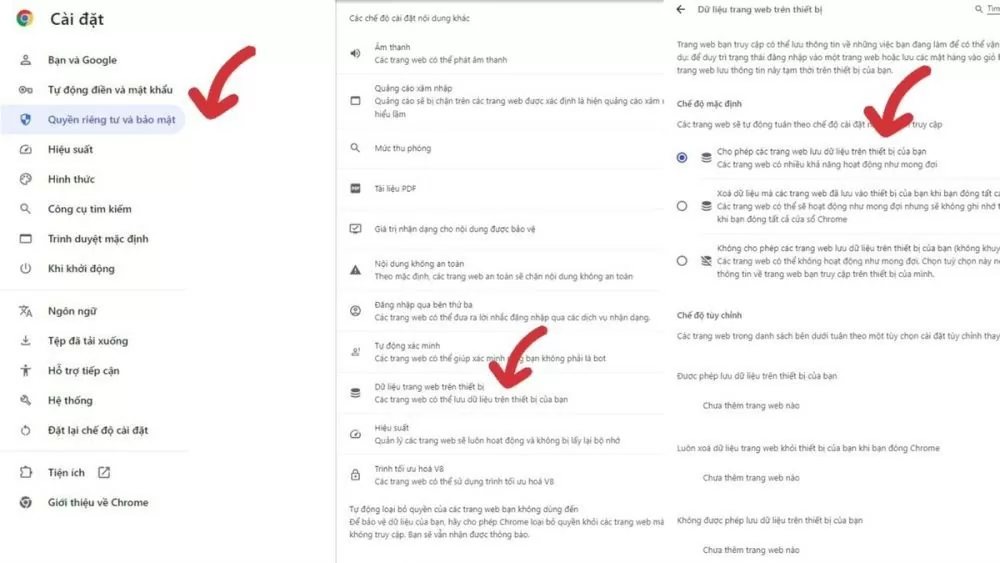
Step 3 : To customize synchronization settings on Google Chrome, click the three vertical dots next to your profile icon, select "Privacy and security" in the "Settings" section. Next, select "Site settings," then select "Other content settings," and continue selecting "Website data on device." Finally, click to allow saving web data to your device.
 |
Guide to fixing Google Chrome crashes
Google Chrome can crash due to various reasons, such as: installing too many extensions causing conflicts, websites incompatible with the current Chrome version, full memory, or an unstable network connection.
To resolve issues when Google Chrome fails to open or crashes on your computer, you can do the following:
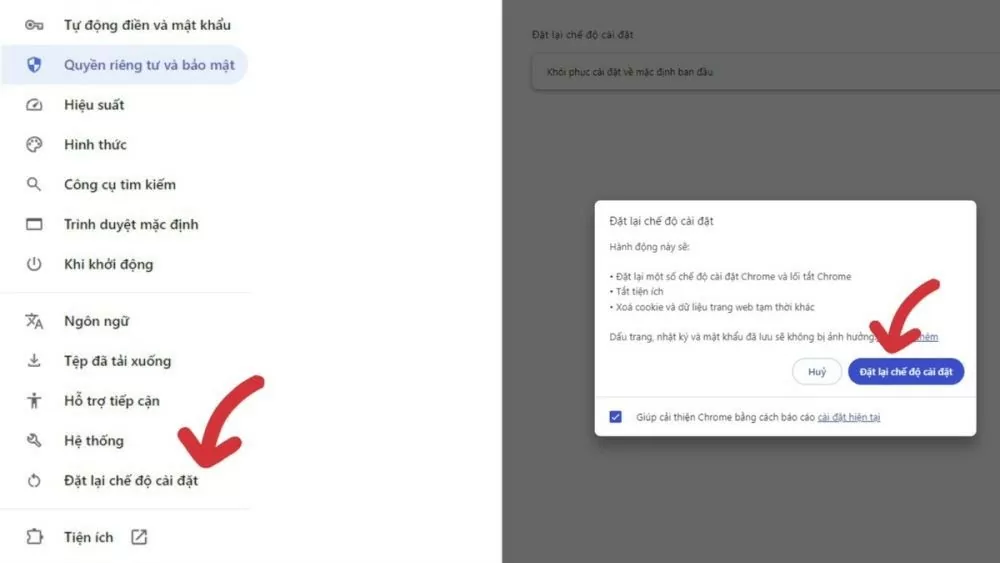
Step 1: Reopen Google Chrome, click the three vertical dots icon, then select "Settings". Next, go to "Reset settings" to continue.
Step 2: Next, tap "Restore settings" to return the settings to their original default state.
 |
Additionally, you can free up memory by clearing your search history, removing unnecessary extensions from Google Chrome, and updating to the latest version to avoid crashes.
The above are some methods that can help you fix common problems when using Google Chrome, making the browser more stable and avoiding search and website display errors.
Source: https://baoquocte.vn/6-loi-thuong-gap-บน-google-chrome-va-cach-khac-phuc-sieu-nhanh-278696.html





























![[Photo] General Secretary To Lam visits the exhibition space showcasing books, photo exhibitions, and achievements of digital transformation in journalism.](/_next/image?url=https%3A%2F%2Fvphoto.vietnam.vn%2Fthumb%2F1200x675%2Fvietnam%2Fresource%2FIMAGE%2F2025%2F12%2F19%2F1766110879215_1766110240024-jpg.webp&w=3840&q=75)









































































Comment (0)