

Cropping images in PowerPoint is a simple yet incredibly useful trick that helps highlight content. This feature is often used to draw attention to important elements.
 |
Below are detailed instructions on 3 ways to crop images as desired in PowerPoint, helping you create impressive images.
Instructions on cropping images in PowerPoint to custom sizes.
Cropping images in PowerPoint to custom sizes allows you to easily edit images to your needs. To crop an image to your desired size in PowerPoint, follow these simple steps:
Step 1: First, select the image in PowerPoint that you want to crop.
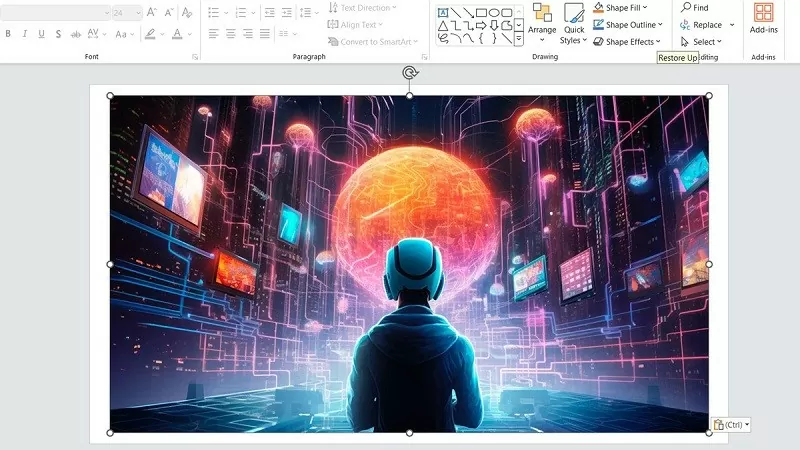 |
Step 2: In the toolbar, find the phrase "Picture Format," then click on the item called "Crop" under "Size" to adjust the image in PowerPoint.
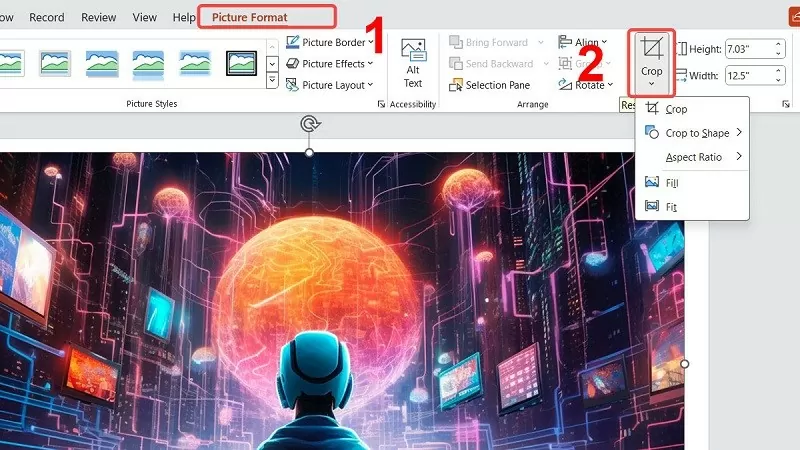 |
Step 3: Click and hold the mouse at the marked points and drag them closer to crop. If you want a uniform image, press and hold the "CTRL" key while holding the mouse button. After you're finished, press the "Esc" key to return to normal mode.
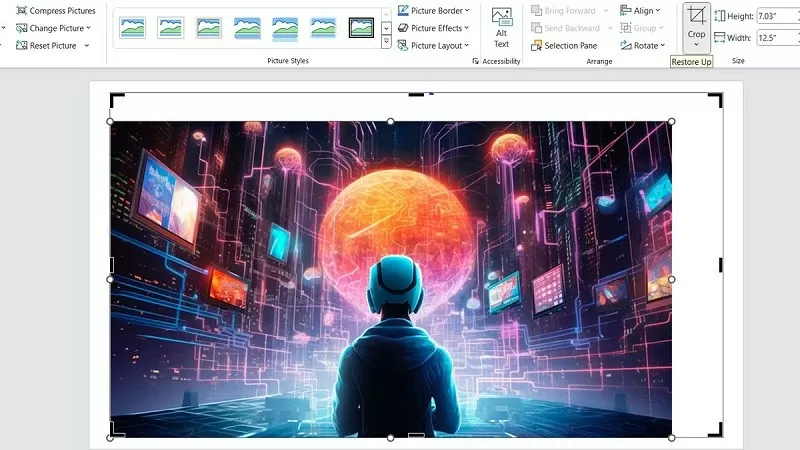 |
Instructions on how to crop images in PowerPoint to any shape.
Here's a simple way to crop an image into a circle or square in PowerPoint; anyone can do it.
Step 1: Select the image you want to crop using the shape cropping method in PowerPoint.
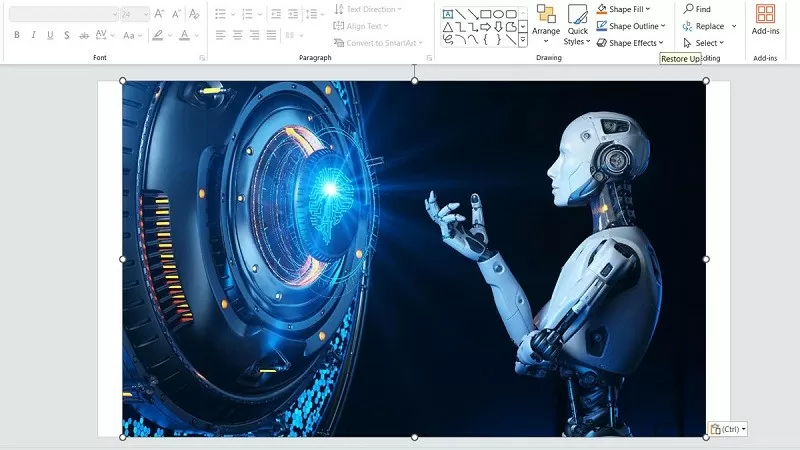 |
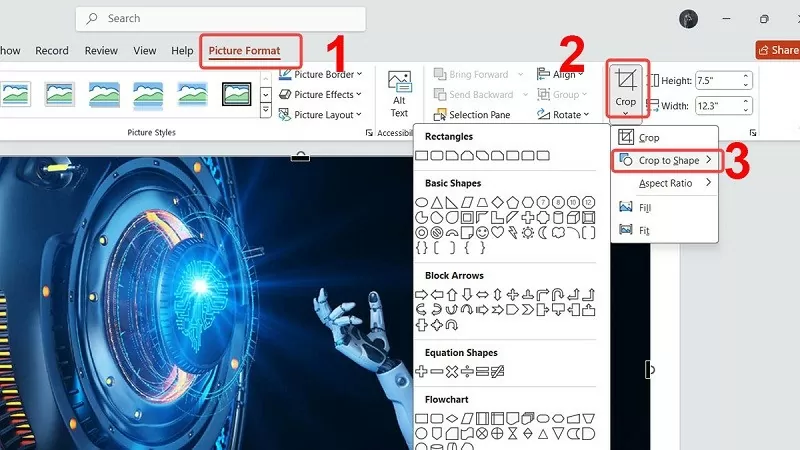
Step 2: Next, access the tab called "Picture Format," then select "Crop to Shape" in the "Crop" option. Choose the shape you want to crop for your PowerPoint.
 |
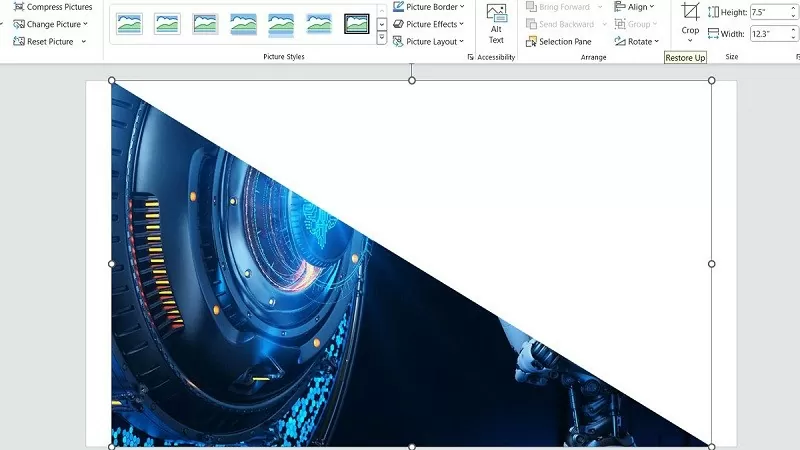
Step 3: After the image has been cropped as desired, follow the instructions above to crop the image in PowerPoint.
 |
Instructions on cropping images in PowerPoint to standard aspect ratios.
If you want to crop images to a standard aspect ratio, ensuring they fit your slide design, PowerPoint offers tools to help you do this. Cropping images to a fixed aspect ratio makes them look better and keeps the presentation layout more professional. Below is how to crop images to a standard aspect ratio in PowerPoint.
Step 1: Find and select the image you want to crop in PowerPoint.
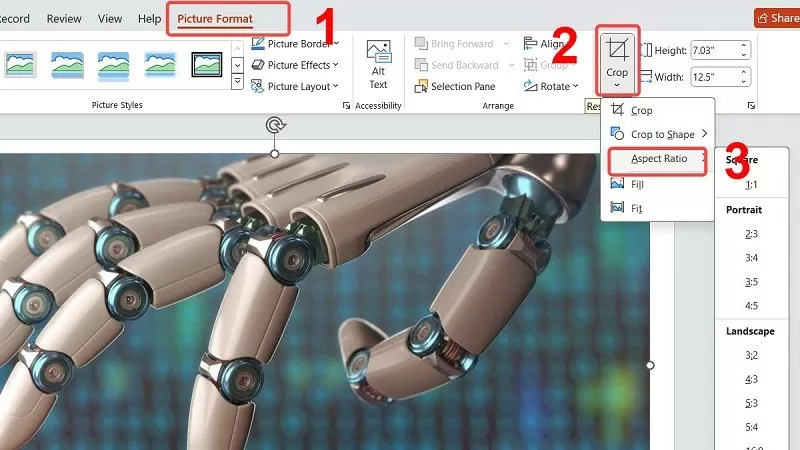 |
Step 2: Access “Picture Format”, then click on the “Aspect Ratio” option after selecting “Crop”.
 |
Step 3: Here, click on your desired ratio in the list. Finally, press the "ESC" key to return to the default state.
 |
Above are three ways to crop images in PowerPoint to quickly edit them. Hopefully, these tips will help you create perfect slides.
Source
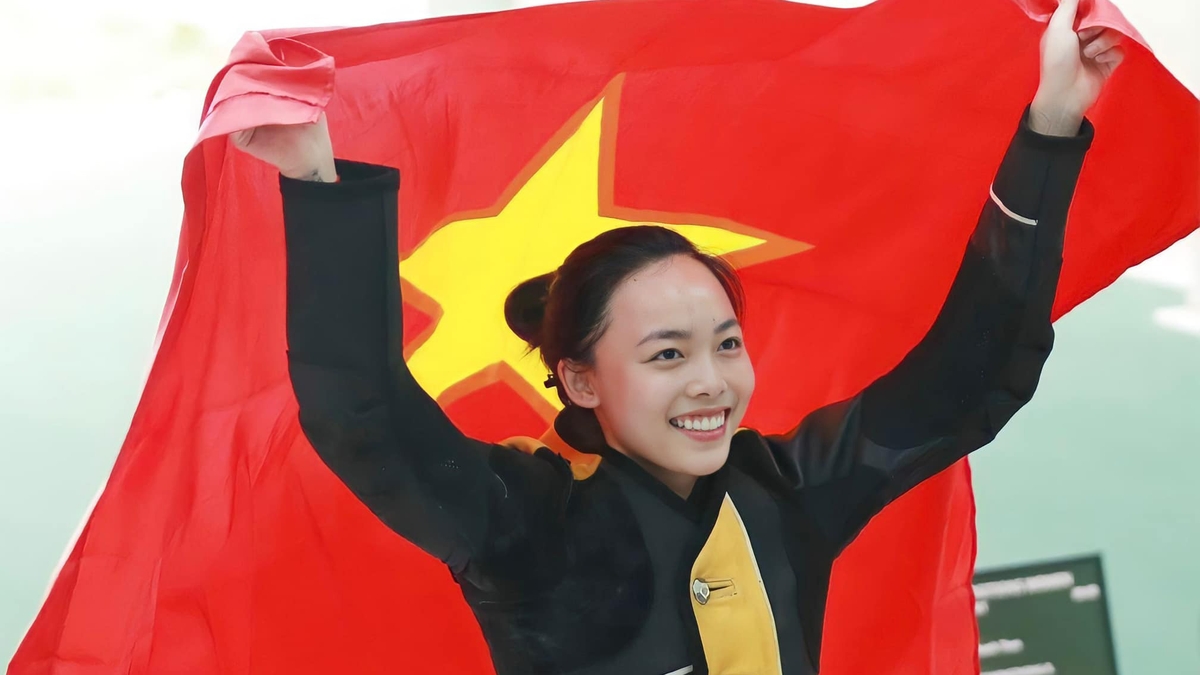
![[Image] The tenacious fighting spirit of Vietnamese women's football](/_next/image?url=https%3A%2F%2Fvphoto.vietnam.vn%2Fthumb%2F1200x675%2Fvietnam%2Fresource%2FIMAGE%2F2025%2F12%2F17%2F1765990260956_ndo_br_4224760955870434771-copy-jpg.webp&w=3840&q=75)
![[Photo] Prime Minister Pham Minh Chinh receives Lao Minister of Education and Sports Thongsalith Mangnormek](/_next/image?url=https%3A%2F%2Fvphoto.vietnam.vn%2Fthumb%2F1200x675%2Fvietnam%2Fresource%2FIMAGE%2F2025%2F12%2F16%2F1765876834721_dsc-7519-jpg.webp&w=3840&q=75)
![[Photo] Prime Minister Pham Minh Chinh receives the Governor of Tochigi Province (Japan)](/_next/image?url=https%3A%2F%2Fvphoto.vietnam.vn%2Fthumb%2F1200x675%2Fvietnam%2Fresource%2FIMAGE%2F2025%2F12%2F16%2F1765892133176_dsc-8082-6425-jpg.webp&w=3840&q=75)
![[Image] Leaked images ahead of the 2025 Community Action Awards gala.](/_next/image?url=https%3A%2F%2Fvphoto.vietnam.vn%2Fthumb%2F1200x675%2Fvietnam%2Fresource%2FIMAGE%2F2025%2F12%2F16%2F1765882828720_ndo_br_thiet-ke-chua-co-ten-45-png.webp&w=3840&q=75)
![[Live] 2025 Community Action Awards Gala](/_next/image?url=https%3A%2F%2Fvphoto.vietnam.vn%2Fthumb%2F1200x675%2Fvietnam%2Fresource%2FIMAGE%2F2025%2F12%2F16%2F1765899631650_ndo_tr_z7334013144784-9f9fe10a6d63584c85aff40f2957c250-jpg.webp&w=3840&q=75)


















































![[Live] Closing Ceremony and Award Presentation for the "Impressive Vietnam Tourism" Video/Clip Creation Contest 2025](https://vphoto.vietnam.vn/thumb/402x226/vietnam/resource/IMAGE/2025/12/17/1765974650260_z7273498850699-00d2fd6b0972cb39494cfa2559bf85ac-1765959338756946072104-627-0-1338-1138-crop-1765959347256801551121.jpeg)






















Comment (0)