

Connect your Android phone to your TV, especially with popular brands like Samsung, Sony, and LG. Check out the quick and convenient connection instructions below!
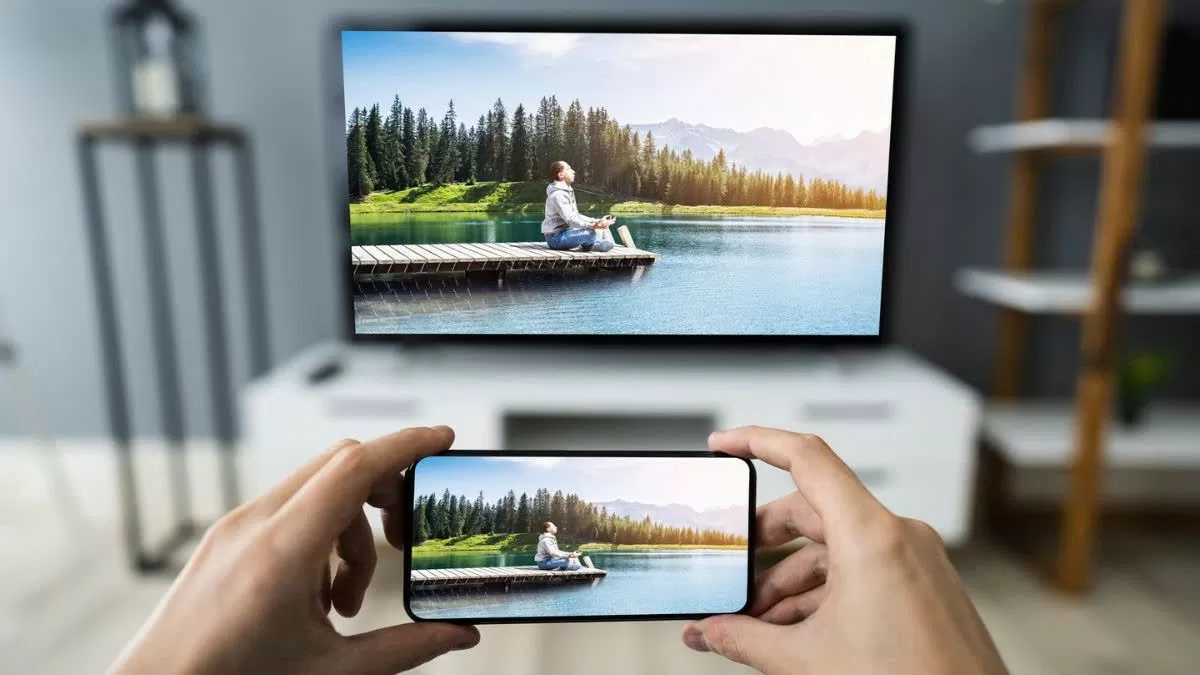 |
A guide on how to quickly connect your Android phone to your TV.
To quickly connect your Android phone to your TV, you can choose between connection methods via cable, wireless network, or app, depending on your TV model and supported features.
Using an MHL connection: MHL (Mobile High-Definition Link) is a simple way to transmit high-quality video and audio from your phone to your TV via an MHL cable, suitable for TVs that do not support smart data transmission.
Step 1: Check if your phone supports MHL by visiting the website http://www.mhltech.org/devices.aspx.
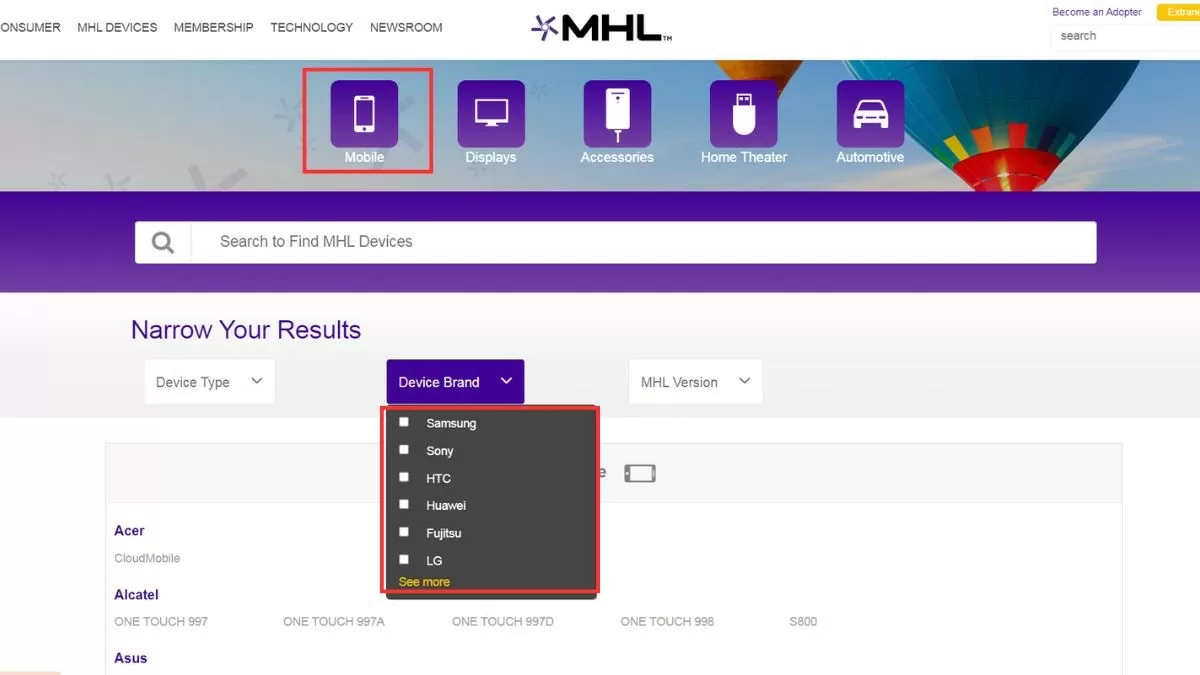 |
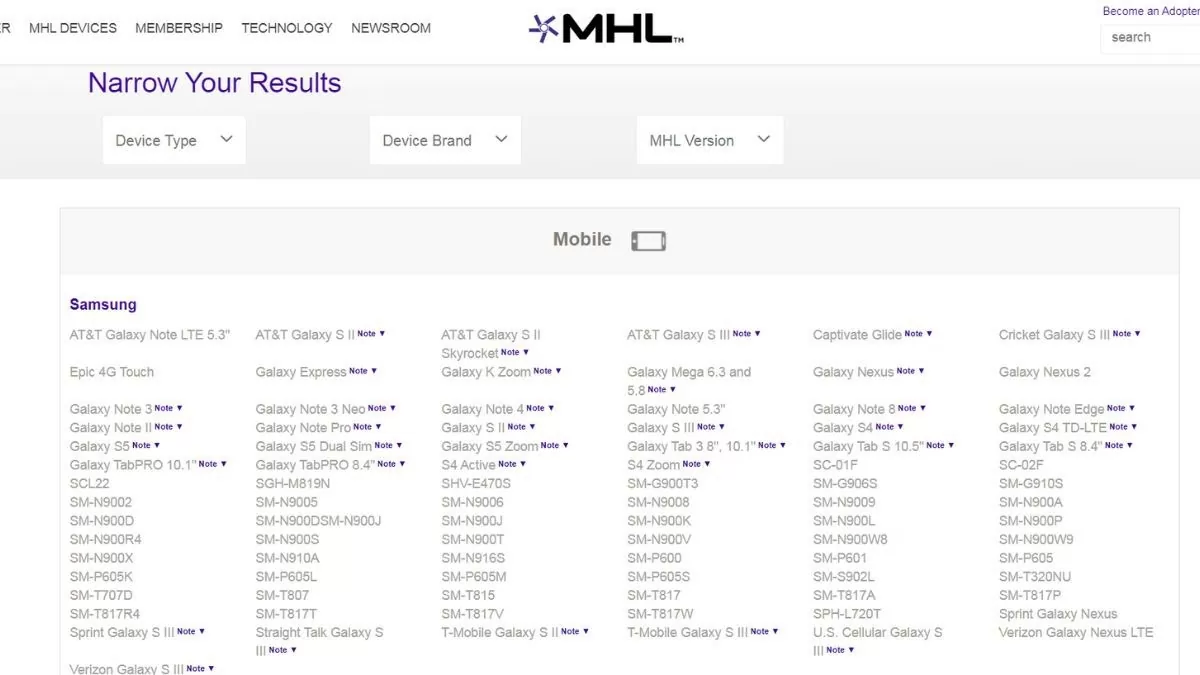
Step 2: Select "Mobile" and search for your brand to see if your device is on the list of MHL-supported devices.
 |
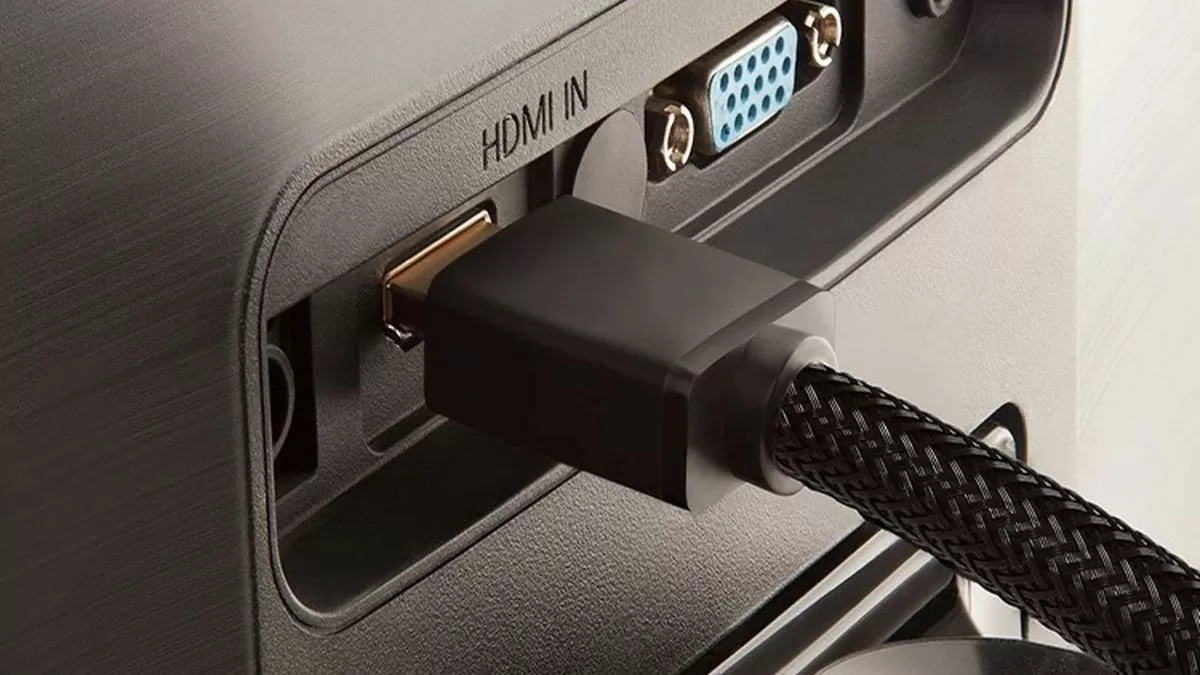
Step 3: Use an MHL cable to connect your phone's charging port to the HDMI port on your TV.
 |
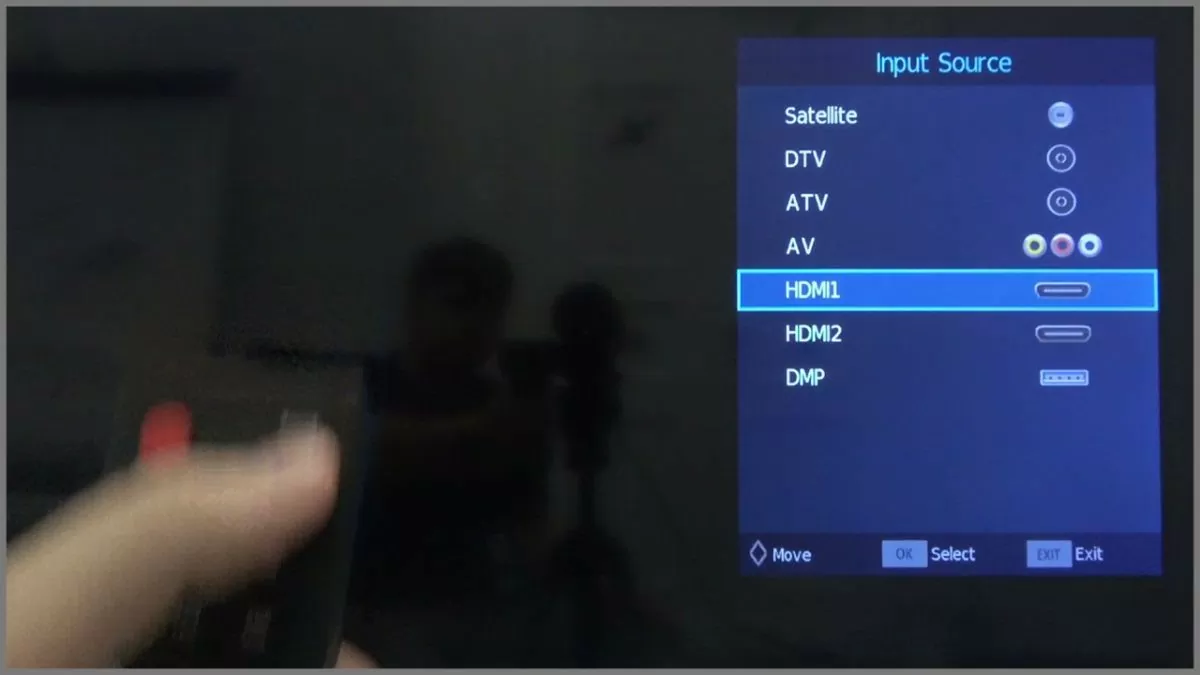
Step 4: Switch the TV to the corresponding HDMI port, and your phone screen will be displayed on the large screen.
 |
Use DLNA connection
DLNA is a technology that allows devices in the home to connect and share content with each other. With DLNA, you can stream images, videos , and music from your Android phone to your TV without using cables. Many smart TVs from brands like Samsung, LG, Sony, and others support this technology.
Step 1: Connect both your phone and TV to the same Wi-Fi network.
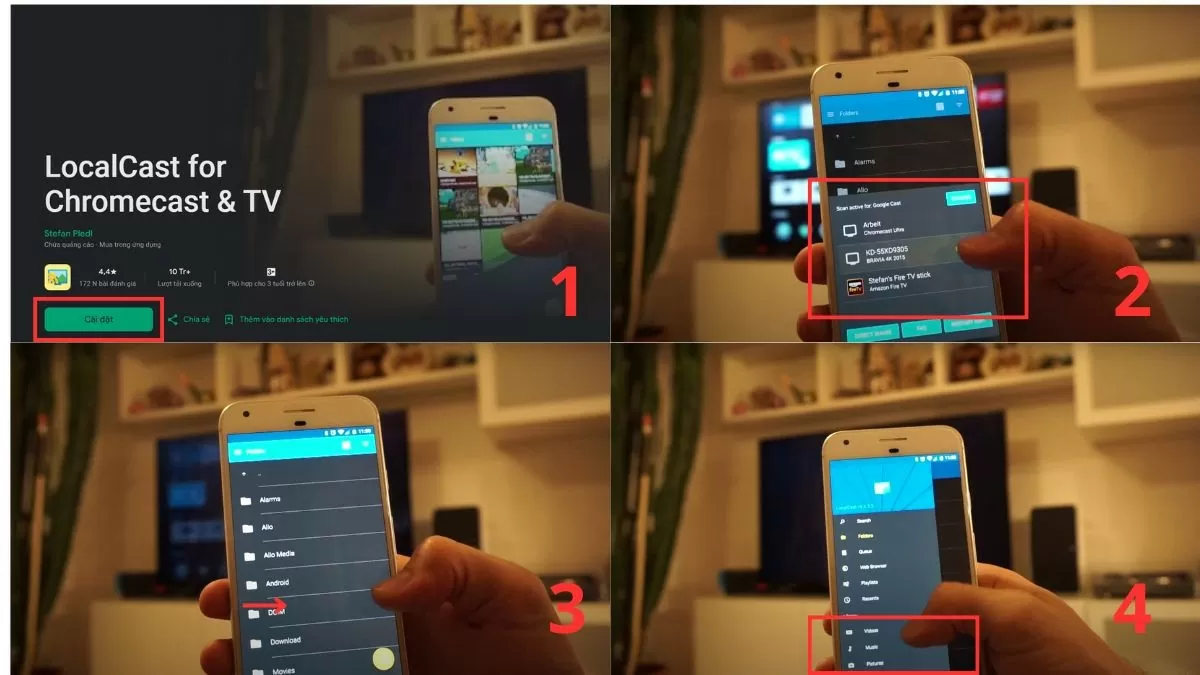
Step 2: Install a DLNA-compatible app, such as Local Cast, on your phone.
Step 3: Open the app and swipe the screen to the left to open the toolbar.
Step 4: Select the content you want to share, such as videos or images, and stream it live to your TV.
 |
Use the infrared port.
Some Android phones are equipped with an infrared port, allowing you to control your TV like a remote. This is very useful when using older TVs that don't support wireless connectivity.
Step 1: Check if your phone supports an infrared port.
Step 2: Download a control app compatible with your TV, such as ASmart Remote or other control apps.
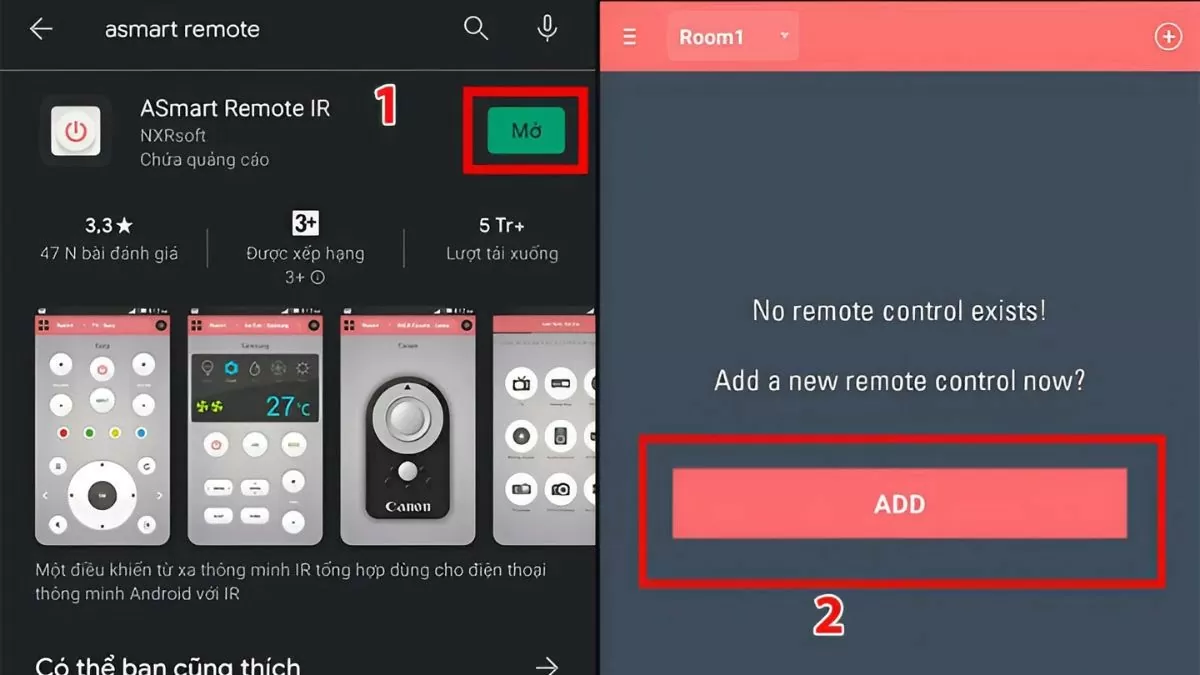 |
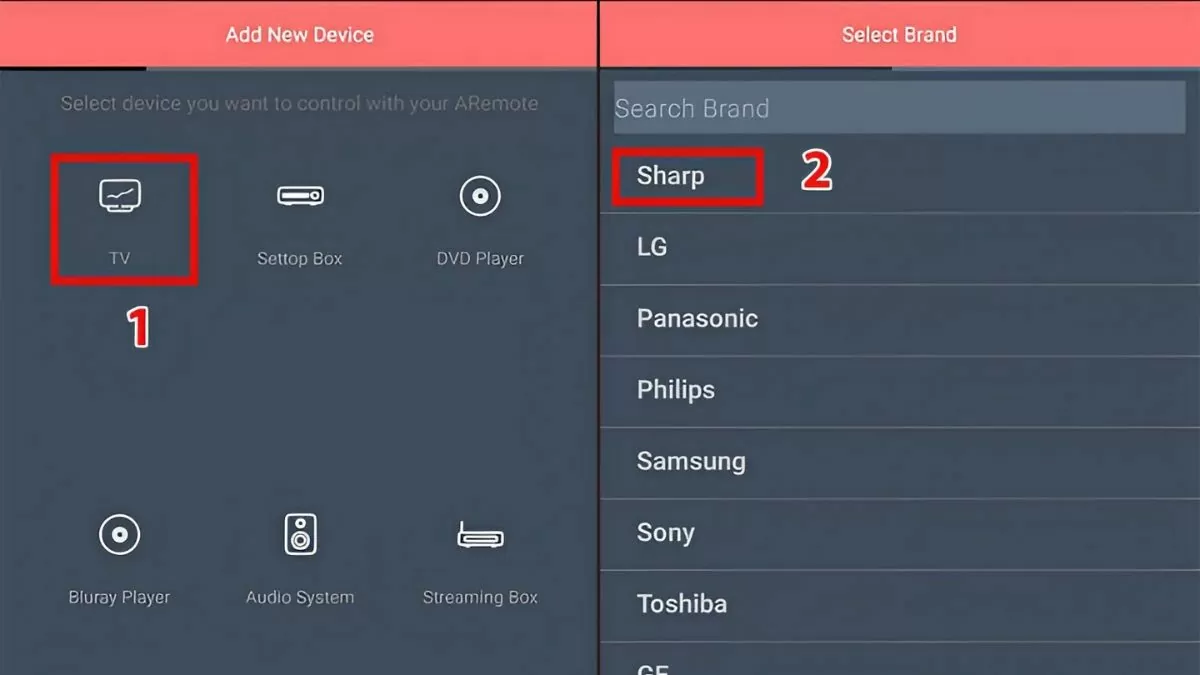
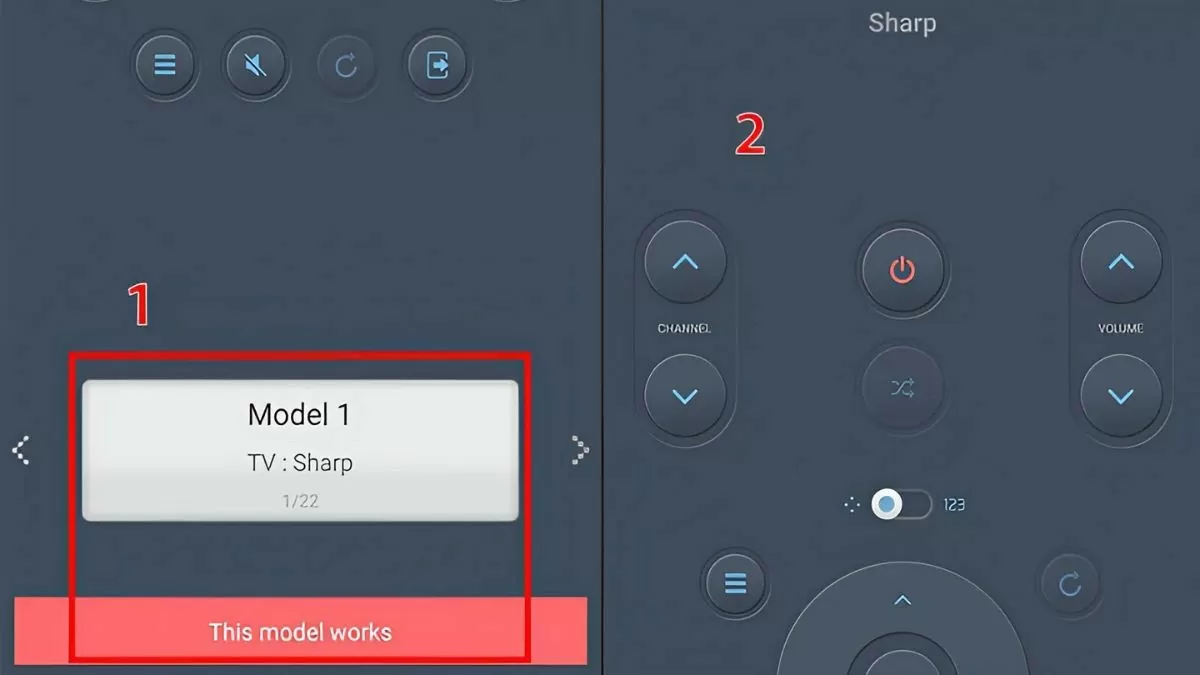
Step 3: Open the app and tap “ADD”, then select your TV from the list.
 |
Step 4: Select “This model works” to switch the application to the control panel, and you can begin using it.
 |
Using a TV control app on your phone is simple.
Many tech companies have developed apps that allow users to control their TVs using Android phones. Simply download the appropriate app and connect your phone and TV via Wi-Fi, and you can easily control your TV. Here are some popular apps:
- LG Smart TV : This refers to either LG TV Remote or LG TV Plus.
- Sony Android TV : That's Sony Video & TV SideView
- Samsung Smart TV : That's Samsung Smart View
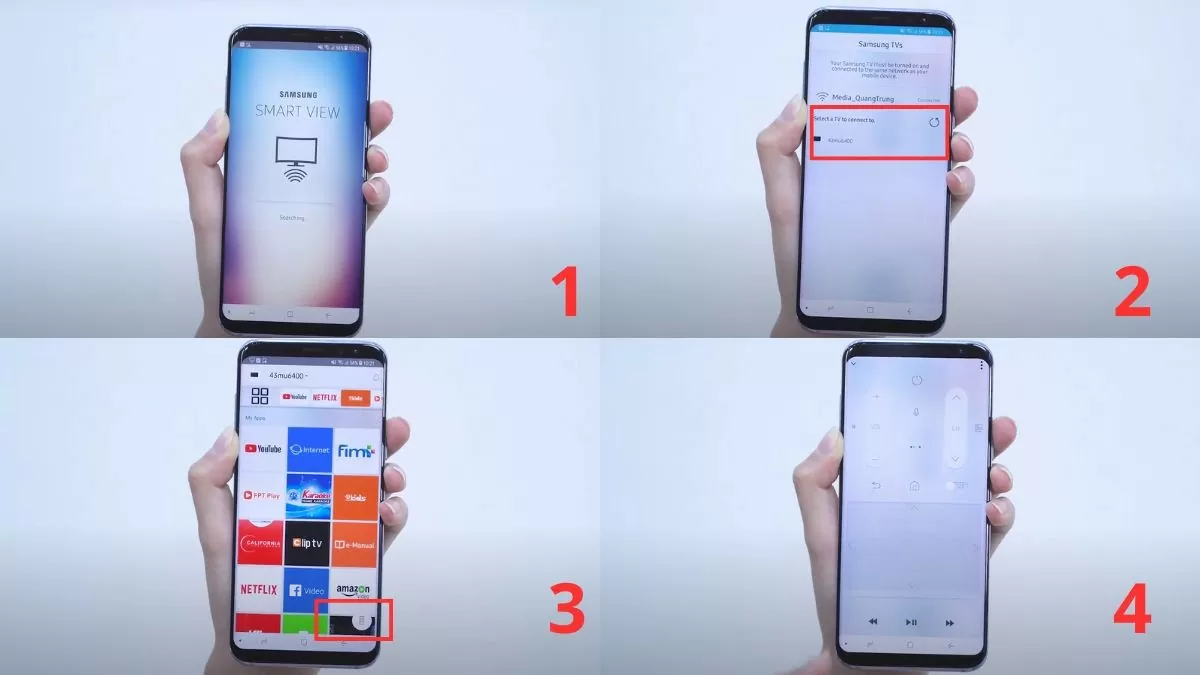
Here are the instructions for using Samsung Smart View:
Step 1: Launch the Samsung Smart View app.
Step 2 : Select your TV from the list.
Step 3 : Tap the remote icon in the bottom right corner; the application interface will switch to a remote control, allowing you to adjust the TV settings just like a regular remote.
 |
Use the screen mirroring feature on your phone to your TV effectively.
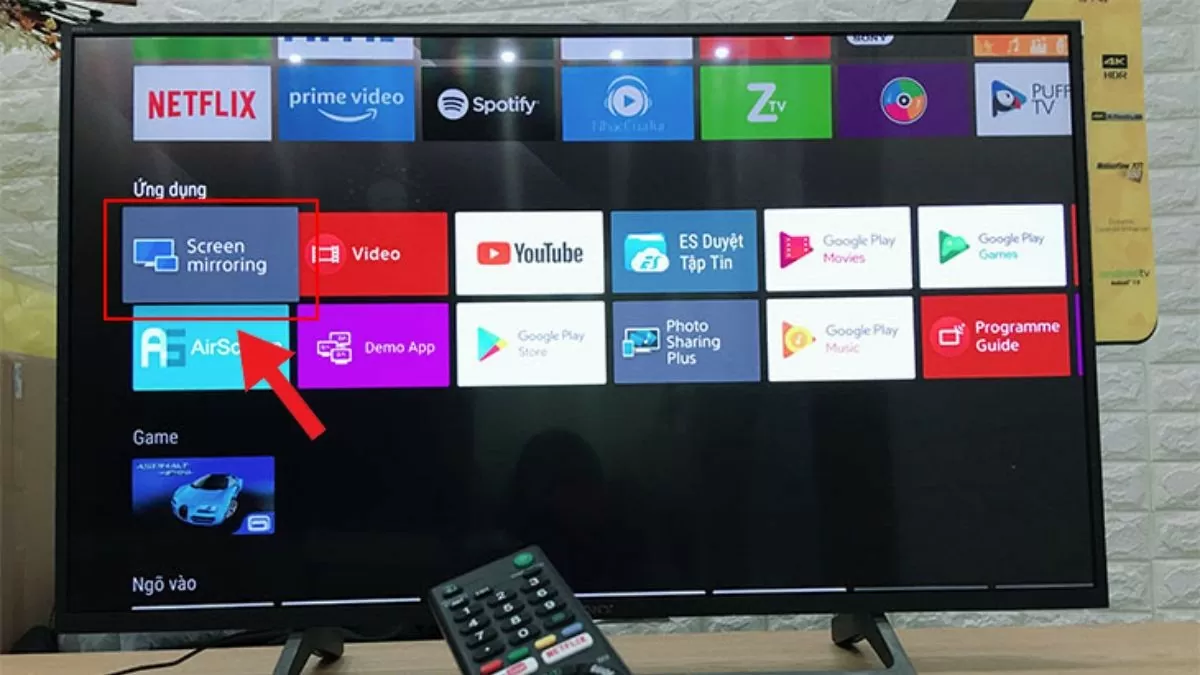
If your TV supports Screen Mirroring or Miracast, you can easily project your Android phone screen onto the TV. This allows you to conveniently enjoy content or play games on a larger screen. To use this feature, follow these steps:
Step 1: Turn on the TV and open the pre-installed Screen Mirroring app.
 |
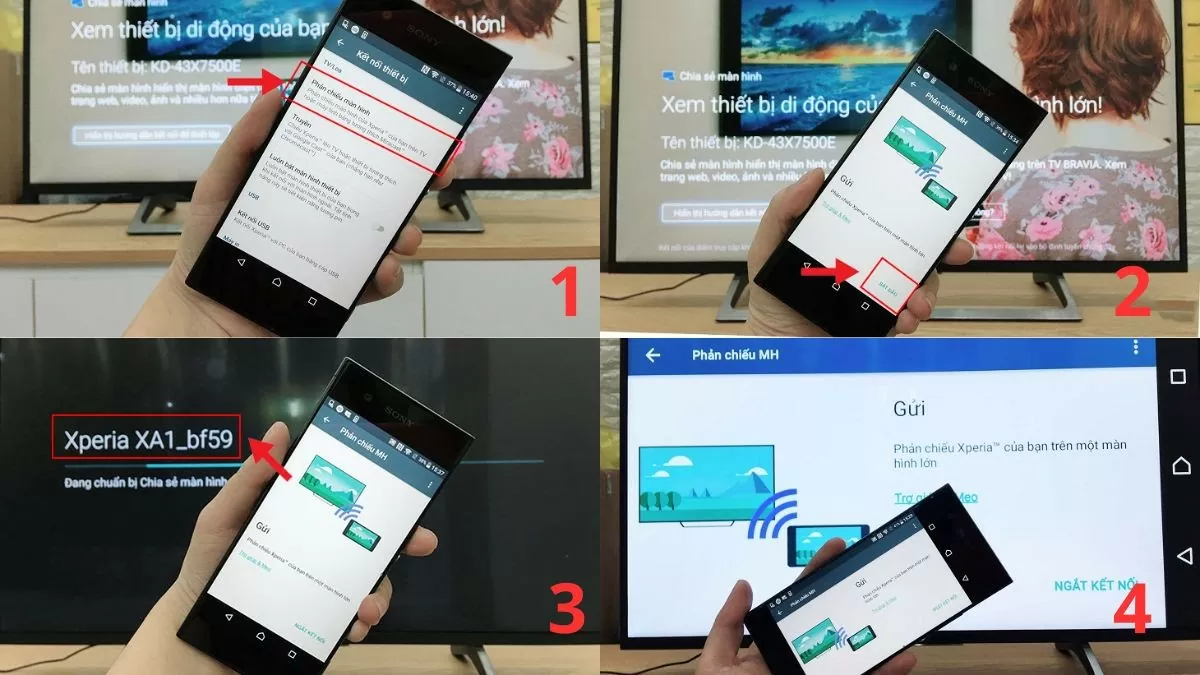
Step 2: Access your phone's settings, select Display, and then select Screen Mirroring.
Step 3: Next, press "Start" on your phone and wait for the device to search for the TV. Then, select the TV you want to connect to.
Step 4: The TV will display the name of the connected phone device.
Step 5: Once the connection is successful, the TV will display the content on your phone screen exactly as shown.
 |
Use Photo Share or Google Cast quickly.
Currently, connecting an Android phone to a Sony TV via Photo Share and Google Cast is very simple because both Sony Internet TVs and Android TVs support these features. When projecting, you can connect up to 10 devices, and the image will be displayed at its original size. Here's how to connect your Android phone to your TV:
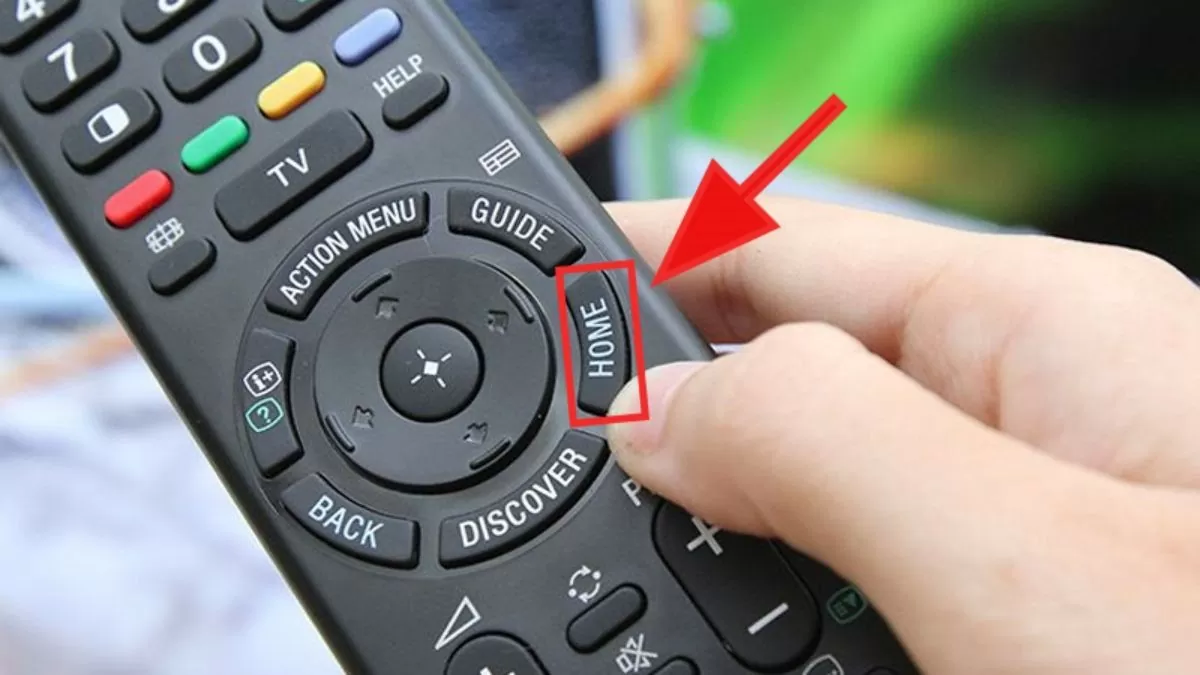
Step 1: First, press the HOME button on your TV remote.
 |
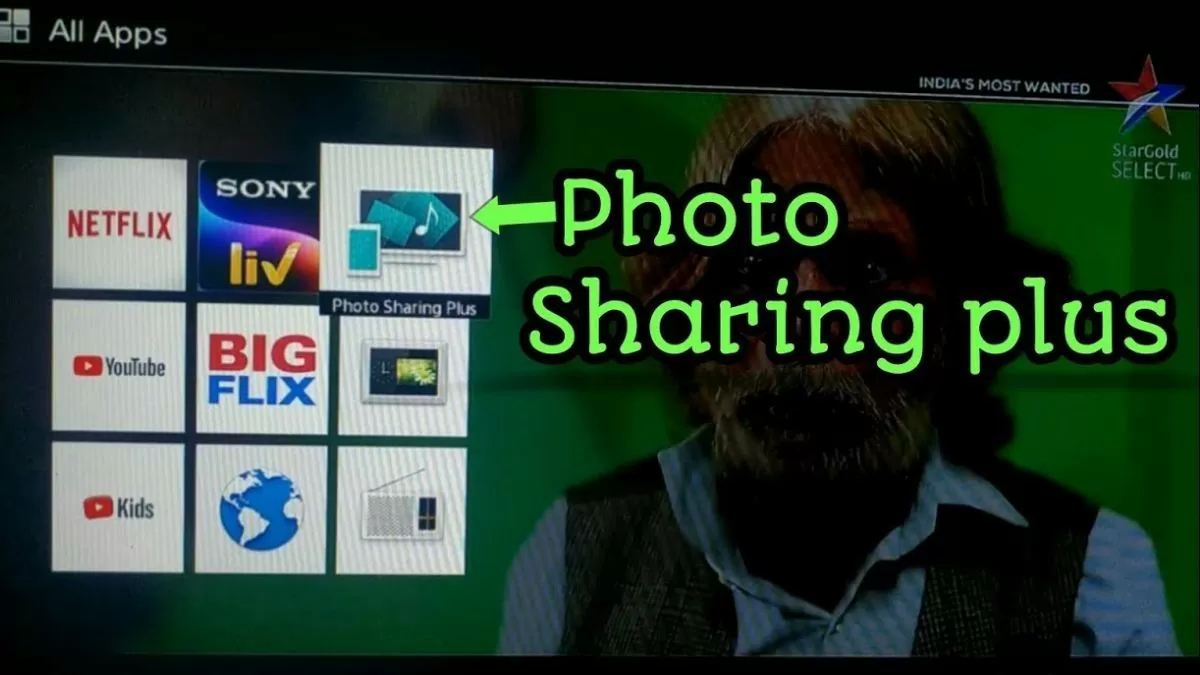
Step 2: Next, on the TV screen, select the Photo Sharing Plus app.
 |
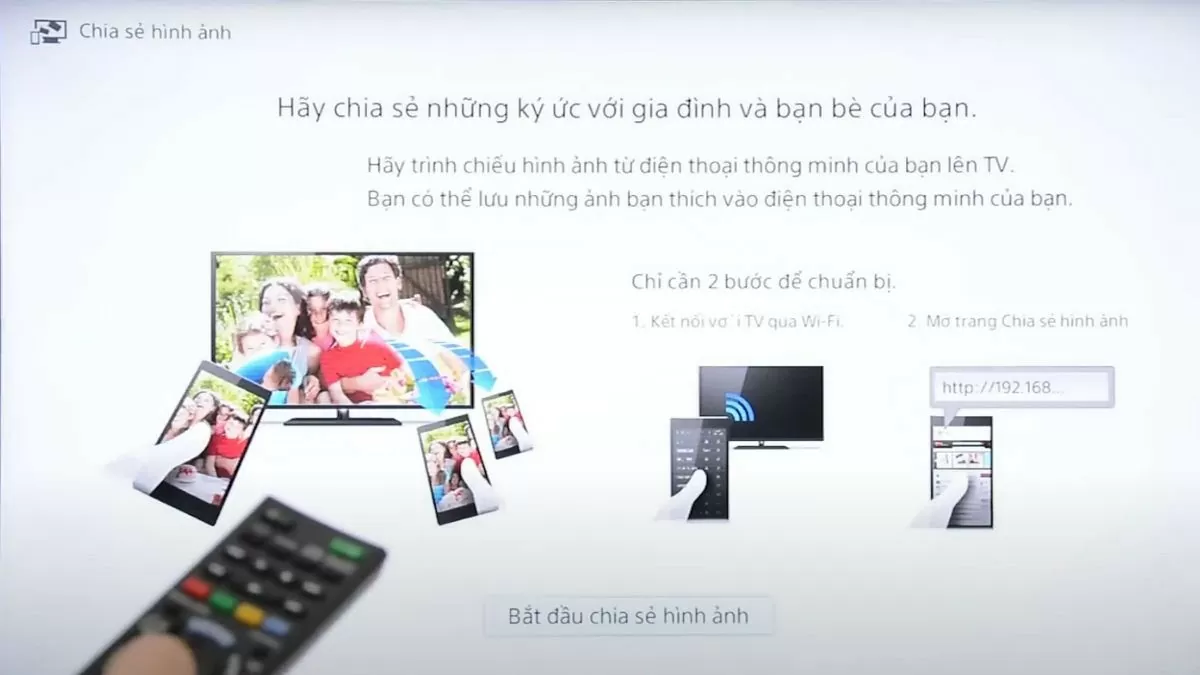
Step 3: Next, press "Start". The device will display the Wi-Fi name and password. Select "Next" to view the password.
 |
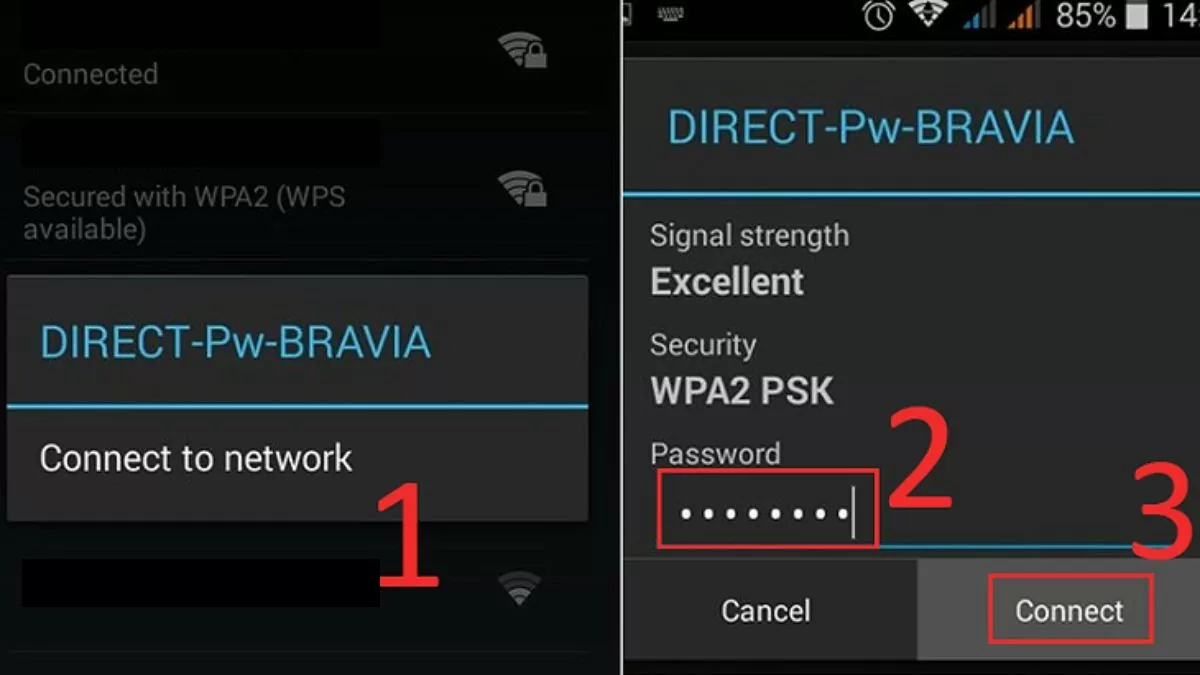
Step 4: On your phone, select the TV you want to connect to, enter the password displayed on the TV, and press "Connect".
 |
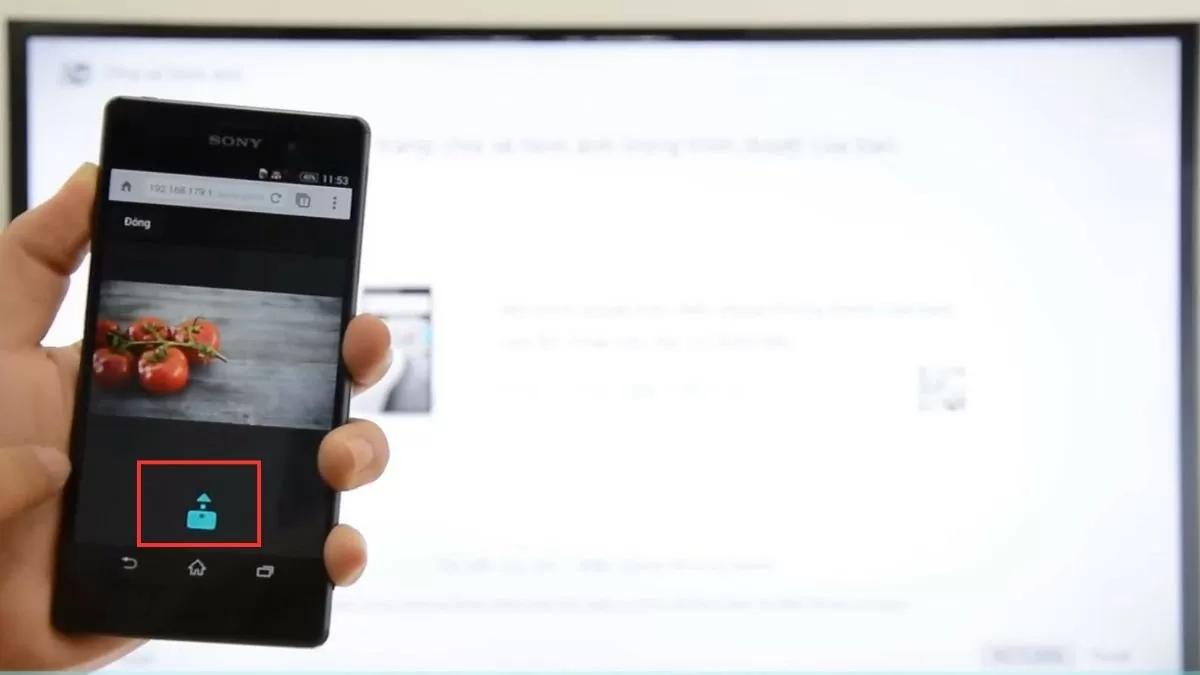
Step 5: The TV will then display the IP address. Open your phone's browser and enter that address. Then, select the file you want to stream to the TV and press "Share".
 |
Streaming YouTube videos from your phone to your TV is effective.
To project videos from your phone to your TV, you need to ensure your device supports YouTube Cast. With a Chromecast connection, you can easily watch YouTube videos on your TV without using cables.
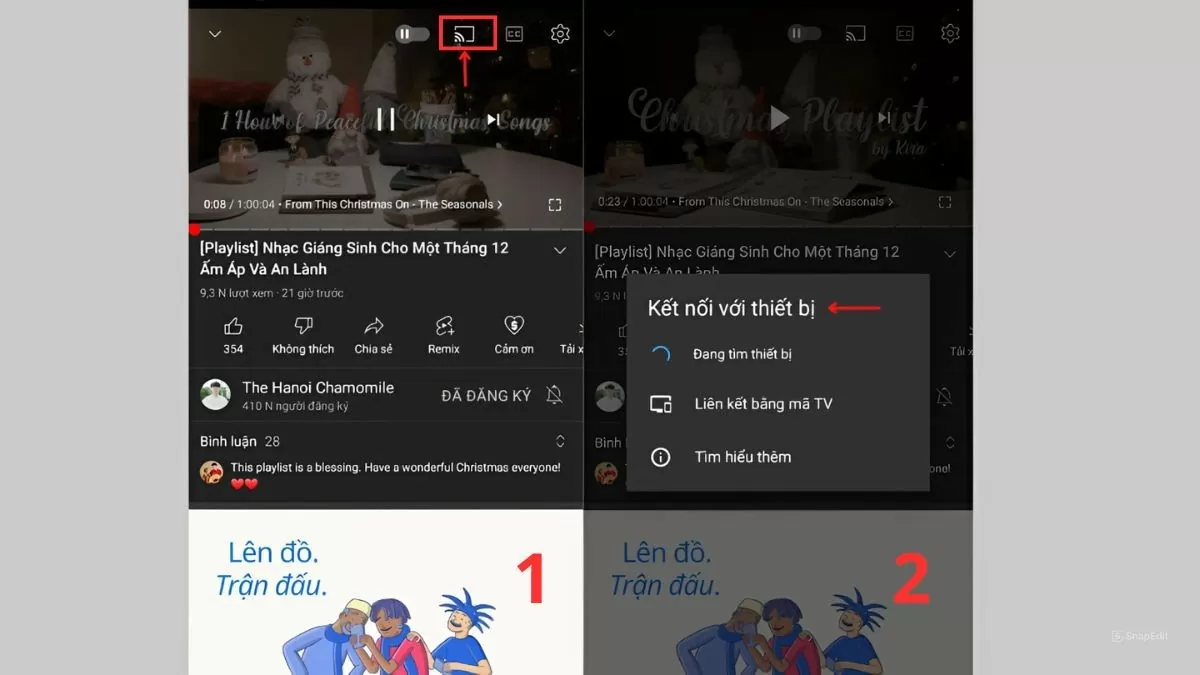
Step 1: First, open the YouTube app on your phone.
Step 2: Select the Chromecast icon in the upper right corner of the video to stream the video to your TV.
Step 3: Select the TV from the list of devices; the video will then play directly on the TV screen.
 |
Above is a detailed guide on how to connect your Android phone to Samsung, Sony, and LG TVs. Thanks to wireless connection methods, you can easily project content from your phone to your TV and enjoy it on a large screen. Using these features not only enhances your entertainment experience but also maximizes the potential of both your phone and your TV.
Source





















![[Photo] Prime Minister Pham Minh Chinh holds a phone call with the CEO of Russia's Rosatom Corporation.](/_next/image?url=https%3A%2F%2Fvphoto.vietnam.vn%2Fthumb%2F1200x675%2Fvietnam%2Fresource%2FIMAGE%2F2025%2F12%2F11%2F1765464552365_dsc-5295-jpg.webp&w=3840&q=75)








































Comment (0)