

Messenger is a utility that allows people to send messages and make calls for free. All you need is a Wi-Fi or 4G connection to chat with your friends. In some situations, you might need to record a call on Messenger; follow the instructions below.
For those using Android phones, you need to install a third-party call recording app to record video /audio calls on Messenger. Since Android devices don't support native recording apps, you can use the completely free "AZ Screen Recorder" app to record Messenger calls.
This app features screen recording and audio recording, common on Android phones. You can also use it to record Messenger calls. Here's how:
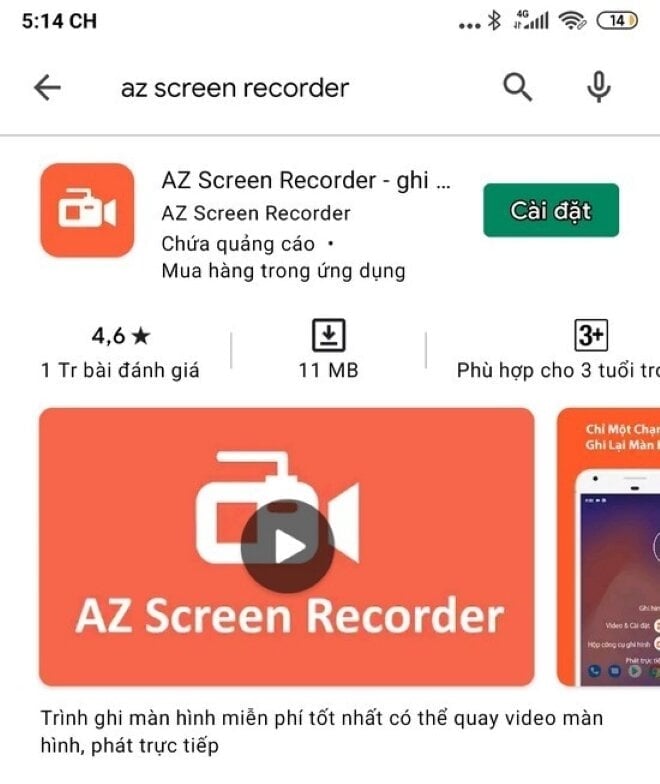
Step 1: First, you need to download and install the "AZ Screen Recorder" application.
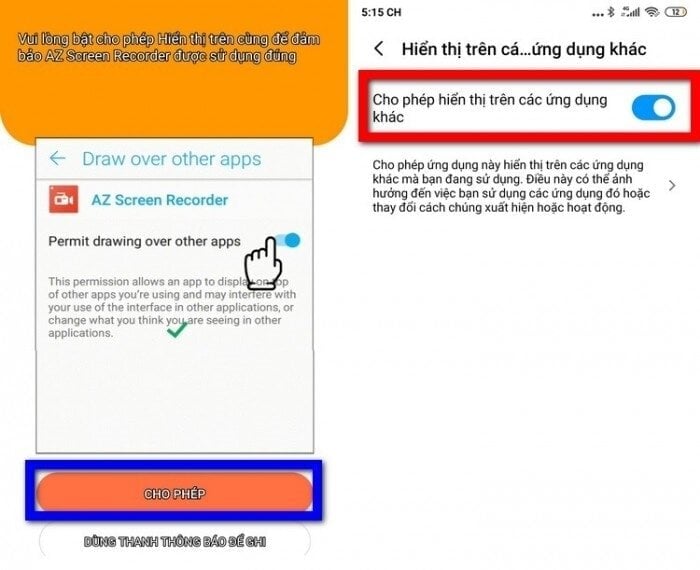
Step 2: After installing the application, open it. The screen will then display some requests such as call recording on your phone; select "Allow". Then, enable the "Allow display over other applications" option so that AZ Screen Recorder always remains on the screen.
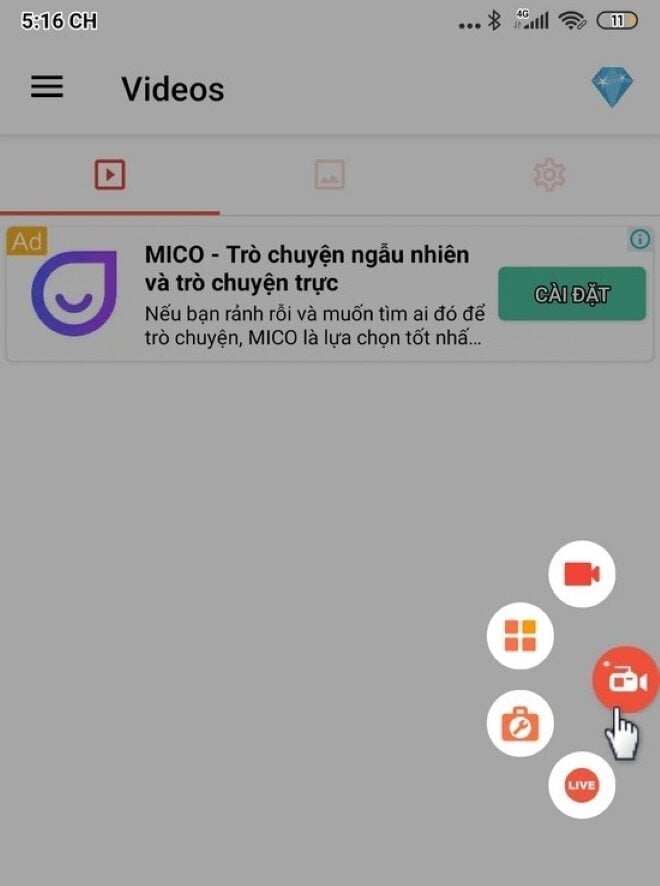
Step 3: After the setup is complete, the AZ Screen Recorder camera icon will appear on your phone screen.
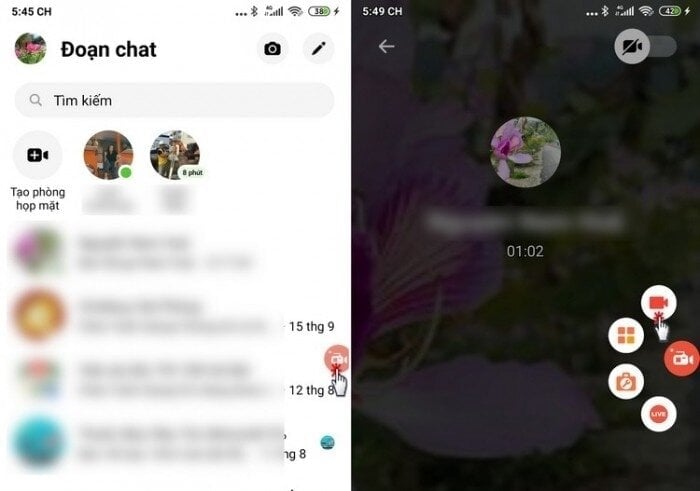
Step 4: To record the call, open the Messenger app and make the call as usual.
Once you're in a Messenger call, tap the AZ Screen Recorder camera icon on the right side, then tap the camera icon again (the app will ask for microphone access; select Allow). The screen will then count down from 3 and automatically activate the call recording feature.
Step 5: To pause the recording, tap the AZ Screen Recorder app icon and press "Pause". To resume, select "Play". If you want to stop the recording completely, select "Stop".
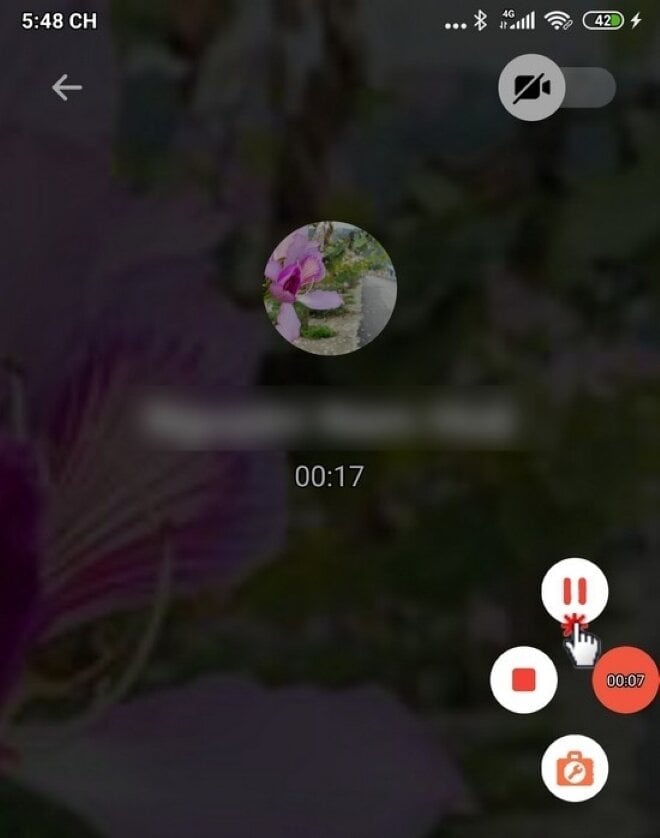
Step 6: To access the list of files you've recorded using the app, open the app and select the four-square icon. Here you'll find a list of your recorded files. You can tap on a file to review it.
This article has now guided you on how to record Messenger calls on your Android phone. Please take a look and refer to it; we wish you success.
Khanh Son (Compiled)
Source

![[Photo] Closing Ceremony of the 10th Session of the 15th National Assembly](/_next/image?url=https%3A%2F%2Fvphoto.vietnam.vn%2Fthumb%2F1200x675%2Fvietnam%2Fresource%2FIMAGE%2F2025%2F12%2F11%2F1765448959967_image-1437-jpg.webp&w=3840&q=75)


































![[OFFICIAL] MISA GROUP ANNOUNCES ITS PIONEERING BRAND POSITIONING IN BUILDING AGENTIC AI FOR BUSINESSES, HOUSEHOLDS, AND THE GOVERNMENT](https://vphoto.vietnam.vn/thumb/402x226/vietnam/resource/IMAGE/2025/12/11/1765444754256_agentic-ai_postfb-scaled.png)































Comment (0)